Here is the page providing Sketch for Mac v2026.1 vector graphics design software Chinese activation version download | LoveMAC has been tested and is available. If you encounter issues with the download link or the inability to install after downloading, please leave a message to contact us.
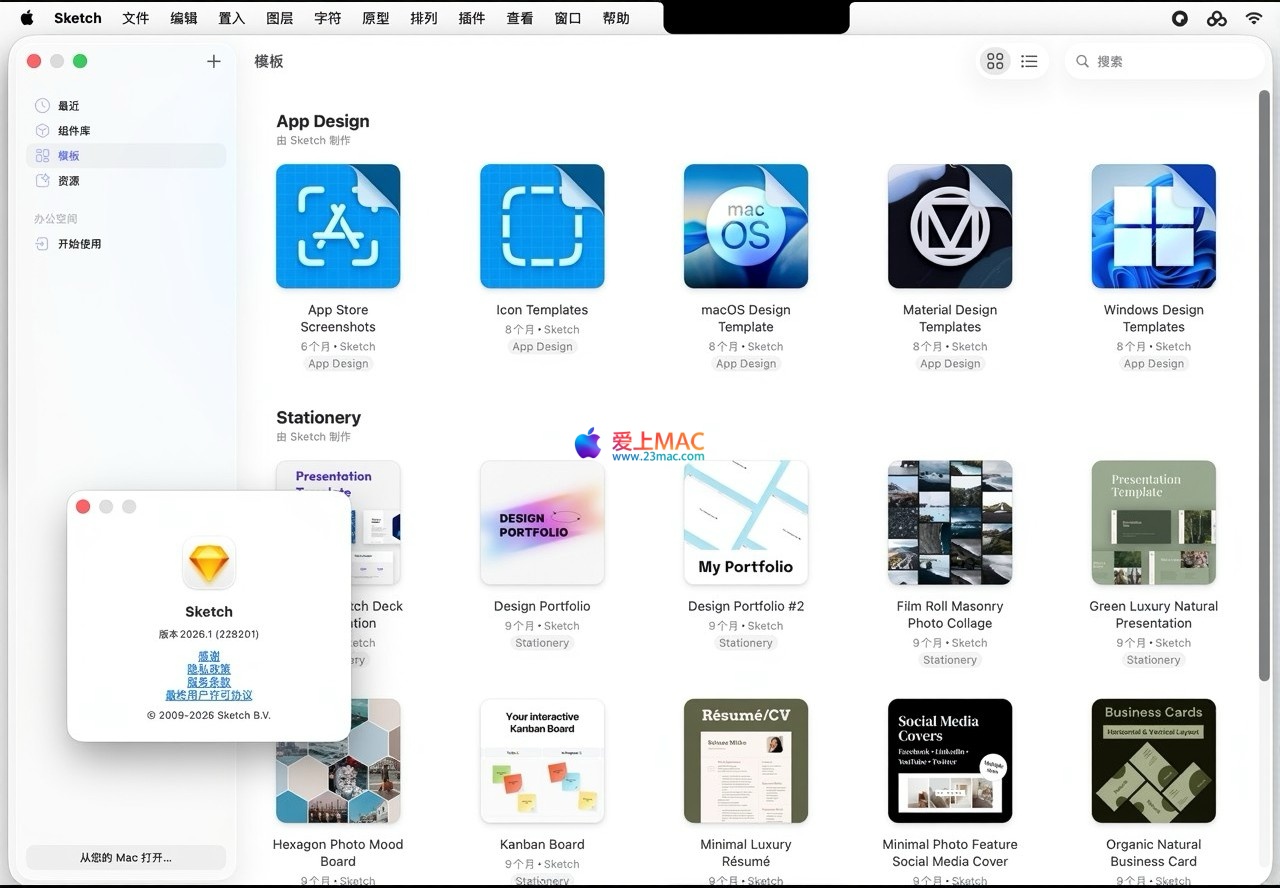
Sketch is a native vector graphics design software optimized for macOS. As a core tool for UI/UX designers, product designers, and icon designers, it specializes in digital product interface design, icon creation, prototype interaction, and design system construction. With its lightweight, high-efficiency, and high-precision features, Sketch has become one of the leading tools in the mobile, web, and desktop digital product design industry.
One. Native Depth Adaptation and Performance Advantages for macOS
Sketch is fully developed based on the native architecture of macOS, deeply integrating the Apple software and hardware ecosystem to provide seamless native experience.
- Chip Optimization: Perfectly compatible with Apple Silicon and Intel chips, optimized for performance on Apple chips, ensuring quick startup and smooth operation even on low-end Mac devices.
- Deep System Integration: Native support for dark mode, system shortcuts, native font rendering, and P3 wide color gamut, and perfect adaptation to iCloud cloud storage, enabling automatic synchronization and version backup of design files across multiple devices.
- Simplified Native Interface: Following macOS design guidelines, using a simple and intuitive UI layout, eliminating redundant panels, making core tools easily accessible, significantly reducing the learning curve.
- Offline and Cloud Collaboration: Supports complete offline local editing, and seamlessly switches to cloud collaboration mode to meet both personal creation and team collaboration needs.
Two. Professional Vector Editing and Pixel-Level Precision Control
Sketch centers around vector editing, providing powerful graphic creation and precise control capabilities.
- No-Damage Vector Graphics: Supports infinite zooming without losing quality, with a rich set of vector shape presets, allowing quick creation and adjustment of basic graphics.
- Advanced Path Editing: Offers professional Bezier curve and pen tools, supporting precise editing of anchor points and smooth processing of paths, meeting the needs of detailed icon and illustration creation.
- No-Damaging Boolean Operations: Supports union, subtraction, intersection, and difference operations, allowing parameters of the operated graphics to be adjusted at any time, enhancing the efficiency of complex graphic creation.
- Pixel-Level Alignment: Provides a complete pixel alignment feature and pixel preview mode, ensuring that exported graphics have no gaps or misalignment, meeting the “Pixel Perfect” requirement for UI design.
- Flexible Canvas Management: Supports infinite extension of the canvas and multi-board support, facilitating the management of design content of different sizes and pages within the same document.
Three. Responsive Layouts and Smart Layer Management
Sketch comes with powerful layout tools and a layer management system, aiding in the efficient completion of multi-device adaptation design.
- Stack Smart Layering: Creates adaptive containers, with spacing and alignment of elements automatically adjusted based on content, significantly reducing manual layout work.
- Auto-Pin for Fixed Layers: Locks the position and size rules of layers, allowing them to automatically adapt to changes in the drawing board size, simplifying interface design across multiple screen sizes.
- Custom Grid Systems: Customizes the number of columns, margins, and spacing for each drawing board, flexibly adapting to design specifications across different platforms.
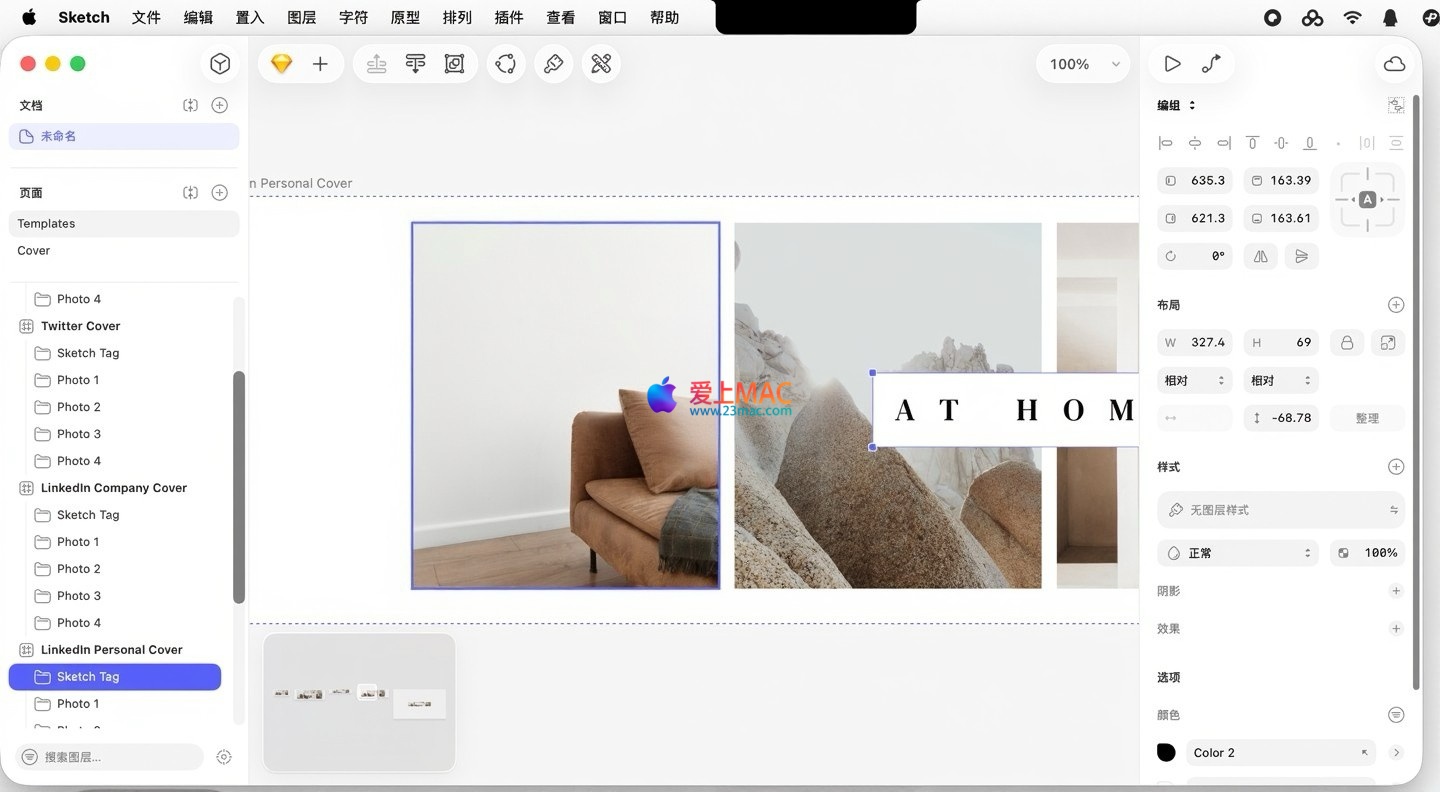
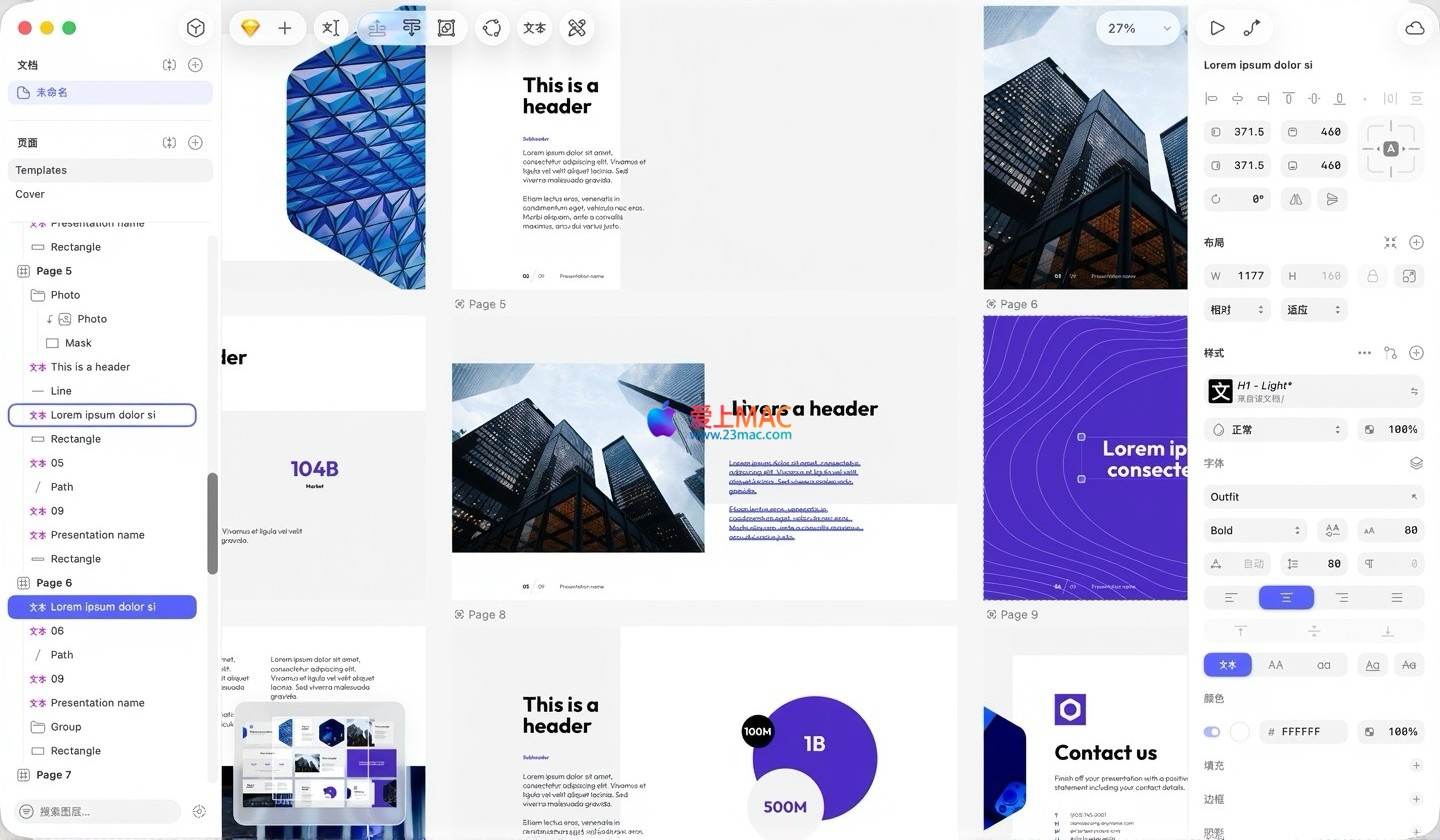
- Efficient Layer Management: Supports layer grouping, nesting, locking, marking, and batch operations, allowing quick management of complex design files through the layer list.
Four. Componentized Design and Design System Construction
Sketch provides mature componentization and style systems, making it an ideal tool for enterprise-level design system construction.
- Symbols for Componentized Design: Converts any element into reusable components, allowing modifications to the main component to update all instances globally, ensuring design consistency.
- Responsive Symbols: Combines intelligent layout, enabling components to automatically adjust their size based on content, adapting to different usage scenarios.
- Global Style Management: Unified management of color variables, layer styles, and text styles, allowing modifications to presets to update globally, reinforcing brand guidelines.
- Shared Libraries: Bundles components and styles into shared libraries, enabling team-wide synchronization and updates, achieving unified management and iteration of the design system.
Five. Professional Text Layout and Font Support
Sketch provides comprehensive text processing capabilities, meeting the needs of interface design for detailed layout.
- OpenType and Variable Fonts: Supports adjustable parameters such as font weight and width, unlocking advanced features like ligatures and alternate characters.
- Multi-Language and Advanced Typography: Native support for RTL (right-to-left) language layout, allowing multiple styles within the same text segment.
- Text Style Presets: Presets for titles and body text styles, allowing global reuse, ensuring consistent text styles across the interface.
- Font Embedding: Allows embedding fonts into documents, avoiding issues with missing fonts during team collaboration or file sharing.
Six. Efficient Prototype and Interaction Design
Sketch comes with lightweight prototype tools, seamlessly connecting static design to interactive prototypes.
- Interactive Jumping and Triggers: Quickly creates board-to-board jumps, supports various trigger methods such as clicks and hover, and customizes hotspots.
- Smart Animation Transitions: Customizes animation easing curves and duration, achieving smooth page switching effects.
- Overlay Layers and Scroll Areas: Simulates popup, drawer, and other overlay layer effects, and creates horizontal, vertical, or multi-directional scroll areas.
- Convenient Sharing and Preview: Shares prototypes via links, allowing direct preview and testing in browsers and iOS/iPadOS devices, facilitating review and user testing.
Seven. Comprehensive Design Delivery and Export
Sketch provides robust export functions and developer tools, bridging the design and development delivery chain.
- Multiple Format Batch Export: Supports setting export rules for layers, slices, or boards, customizing scaling, formats, and naming, adapting to iOS, Android, and web platform cutout specifications.
- Automatic File Organization: Generates directory structures based on slashes in layer names, automatically categorizing and organizing cutouts during batch exports.
Rich export formats:Supports PNG, JPEG, WebP, PDF, SVG and more, with customizable quality and transparency parameters.
Developer delivery tools:Team members can view design files in the browser, automatically obtain size, spacing, color, and font annotations, and copy CSS and Swift code with a single click, then download the cutout.
Eight, Team Collaboration and Cloud File Management
Complete cloud collaboration features, supporting the full lifecycle collaboration and management of design projects.
- Real-time collaborative editing:Multiple members can edit the same document simultaneously, with content synchronized in real-time, avoiding save conflicts.
- Workspace workspaces:Manage files by project or client, and finely control team members’ viewing, editing, and management permissions.
- Version history and rollback:Automatically save each document update, allowing rollback or recovery of historical versions to avoid loss from accidental operations.
- Online review and feedback:Share design drafts or prototypes via links, supporting online annotation and comments for efficient design reviews and communication.
Nine, Rich Plugin Ecosystem and Extensibility
Owns one of the most active design software plugin ecosystems globally, which can be extended with plugins to enhance software functionality.
- Comprehensive plugin coverage:Plugins cover automated tasks, layout optimization, design validation, motion effect creation, data filling, and integration with third-party services, significantly improving design efficiency.
- Integration with mainstream tools:Can integrate seamlessly with tools such as Jira, Trello, Slack, Figma, and After Effects, bridging the entire product design process.
- Open developer API:Supports custom plugin development, meeting the personalized workflow customization needs of enterprises and teams.
Ten, Core Performance and User Experience
Sketch excels in performance and usability.
- Lightweight and fast:The software is compact in size, starting quickly, and operates smoothly even with large files, with no noticeable delays.
- Stable and low power consumption:Memory usage optimization is excellent, ensuring stability when running multiple files, and preventing freezing or crashes.
- Intuitive and easy to learn:The operation logic is simple, allowing beginners to quickly get started, while also providing deep editing features for experienced designers.
- Efficiency tools:Built-in command bar and small map quick tools support keyboard quick calls, enhancing efficiency when operating large files.
Eleven, Detailed Installation Tutorial: Three Steps to Install Sketch 2026.1
Installing Sketch is actually simple, but many beginners may stumble in the details. Below, I’ve organized a tested and effective installation process, which I recommend following in order.
Step One: Download and Unzip
From this page, obtain the download link for Sketch 2026.1. After downloading, double-click the .dmg file to mount it. If the system prompts “Cannot verify developer,” go to “System Preferences > Security & Privacy > General,” and click “Open Anywhere” to proceed.
Step Two: Install the Main Program
Drag the Sketch icon to the right-hand “Applications” folder. Wait for the progress bar to complete, which usually takes about a dozen seconds. Note: Do not run the program directly from the .dmg file, as it may not activate.
Step Three: Activate and First Launch
Open Sketch in the “Applications” folder. If a prompt for activation appears, use the activation code or patch tool that came with the package. If you encounter a “Damaged” message, execute the command sudo spctl --master-disable in the terminal to disable Gatekeeper, then restart Sketch.
Twelve, Sketch for Mac Common Shortcut Table
Mastering shortcuts can significantly enhance design efficiency. Below is a table of frequently used shortcuts, which I recommend printing and placing near your work station.
| Operation Category |
Shortcut |
Function Description |
| File Operations |
Cmd + S |
Save the current document |
| Layer Operations |
Cmd + D |
Copy the selected layer or group |
| Editing Operations |
Cmd + Z |
Undo the previous operation |
| View Operations |
Cmd + 0 |
Zoom to canvas size |
| Tool Switching |
V |
Quickly switch to the Move tool |
| Alignment Tools |
Cmd + Shift + H |
Horizontally center distribute |
Thirteen, Frequently Asked Questions (FAQ)
Based on user feedback, five common issues have been compiled, hoping to help you solve your confusion quickly.
Q1: When installing, it prompts “Unable to open”. How do I fix this?
A: This is due to macOS’s security mechanism intercepting. Please open “System Preferences > Security & Privacy > General”, and click the “Open Anywhere” button. If the button is not available, try using the command sudo spctl --master-disable to disable Gatekeeper.
Q2: Where do I enter the activation code?
A: When starting Sketch for the first time, an activation window will automatically pop up. If it doesn’t pop up, you can input the activation code by clicking “Sketch > License” in the menu bar. Note that the activation code is case-sensitive, so it’s recommended to copy and paste directly.
Q3: Does Sketch 2026.1 support Apple Silicon?
A: It fully supports it. This version has been deeply optimized for M1, M2, and M3 chip series, improving runtime efficiency by about 30% compared to the Intel version. You can see the “Apple” identifier in the system information.
Q4: How do I recover deleted layers?
A: Immediately use Cmd + Z to undo the deletion. If the document has been saved and closed, you can recover by clicking “File > Restore to > Browse All Versions” from the Time Machine backup.
Q5: How do I resolve plugins that don’t show up after installation?
A: First, check if the plugin is compatible with Sketch 2026.1. Then, open “Sketch > Preferences > Plugins” and ensure the plugin is checked. If it still doesn’t show up, restart Sketch or reinstall the plugin.
Fourteen, Tips and Practical Cases
Just looking at the feature list isn’t enough. Below, I share a few practical tips that I’ve summarized, helping you truly use Sketch.
Tips One: Utilize Symbols to Build a Reusable UI Component Library
In actual project work, it’s recommended to create buttons, input fields, navigation bars, and other frequently used elements as Symbols. When modifying the main component, all instances will automatically update. For example, when adjusting the button’s corner radius, you only need to change one place, and the changes will be synchronized across the entire page, significantly reducing repetitive labor.
Tips Two: Use Smart Layout for Responsive Design
When designing backend management systems, you often encounter issues with adapting to different screen sizes. By using Stack and Auto-Pin features, you can quickly achieve adaptive layouts. For instance, setting the side menu items as Stack allows the spacing to automatically adjust when adding more menu items, without needing manual layout adjustments.
Tips Three: Efficient Method for Batch Exporting Cutout Images
When delivering to developers, you often need to export different scale cutout images. By adding a slash symbol in the layer name, such as “icon/24×24”, Sketch will automatically generate the file structure. Combining preset export rules, you can complete the @2x, @3x, and other multi-format outputs with a single click.
Practical Case: Designing a Login Page from Scratch for an App
Assuming we need to design a login page for a social app. First, create a 375×812 canvas and use the Rectangle tool to draw the background. Then, use the Text tool to add the logo and title. Next, create the input field component and set it as a Symbol. Finally, use Smart Animate to add a click feedback animation to the login button. The entire process takes no more than 30 minutes, thanks to Sketch’s componentization capabilities.
Core Updates in Version 2026.1
One, Core New Features
- Selection Colors (Selection Colors)
- When selecting multiple layers with different colors, the Inspector now has a dedicated panel to adjust all layers using that color.
- The hover color can highlight the corresponding layer on the canvas; supports sorting by usage frequency or color value.
- When merging layers with different transparency, the original transparency of the layers is retained, allowing for relative adjustments.
- Independent Borders and Advanced Border Control
- Supports setting border width for each side of rectangles and graphics.
- Introduces a centered option for dashed borders, optimizing corner alignment.
- Advanced border settings (end points, connections, dashed) are fully supported for text layers.
- Square Corner Control and Capsule Shape Support
- Introduces precise control over corner smoothness, optimizing the smoothness of hyper-elliptical and capsule shapes.
- Introduces the “Max” corner option, ensuring the corner effect remains at its maximum, perfect for pill-shaped buttons.
- Supports setting corners for shapes resulting from Boolean operations.
- New Ruler Tool
- Supports directly selecting and applying color variables, displaying the variable name when hovered over.
- Supports picking colors from solid colors, gradients, text, and hue.
- The magnifying glass interface is more compact, supports zooming, and remembers user preferences.
Two, Key Experience Improvements (Selected)
- Paths and Shapes: Optimized the handling logic for corner processing to avoid rendering anomalies.
- Workspaces and Documents: Optimized the hover prompt for the side panel, dynamic updates for the collaboration button status, and clearer management of trial periods.
- Layer Management: Automatically increments layer names when copying, and the rename panel supports reverse order.
- Canvas and Editing: Automatically selects text when double-clicking, improved the scissors tool’s tolerance, and the ruler tool supports dragging for continuous color picking.
- Inspector Comprehensive Upgrade: Optimized the categorization of the font panel, right-clicking on color attributes allows copying code, and unified the panel interaction logic.
Three, Problem Fixes
This version has fixed 143 issues, with core fixes covering:
- Canvas and Tools: Fixed issues with the zoom tool, shortcut keys, and color picking anomalies.
Checkers and color panel: Fixed issues with abnormal control states, incorrect numerical displays, and incorrect gradient rendering, among others.
Symbols and components: Fixed issues with missing covered symbols, abnormal nested symbol replacements, and excessive memory usage, among others.
Prototypes, text, import/export: Fixed issues with abnormal interactions, incorrect text styles, and ineffective export parameters, among others.
General stability: Fixed issues with system adaptability, abnormal windows, and application crashes, among others.





Ratings & reviews
4.7
(Maximum 5 ratings, total 34 user reviews)
Let’s rate it.