



PDF Editor Pro for Mac v4.7.5 Chinese Activation Version Download
Here you can download PDF Reader Pro for Mac v4.7.5 PDF editing tool with Chinese activation | AiShangMAC has tested and is available. If you encounter issues with the download link or cannot install the software after downloading, please leave a message and contact us.
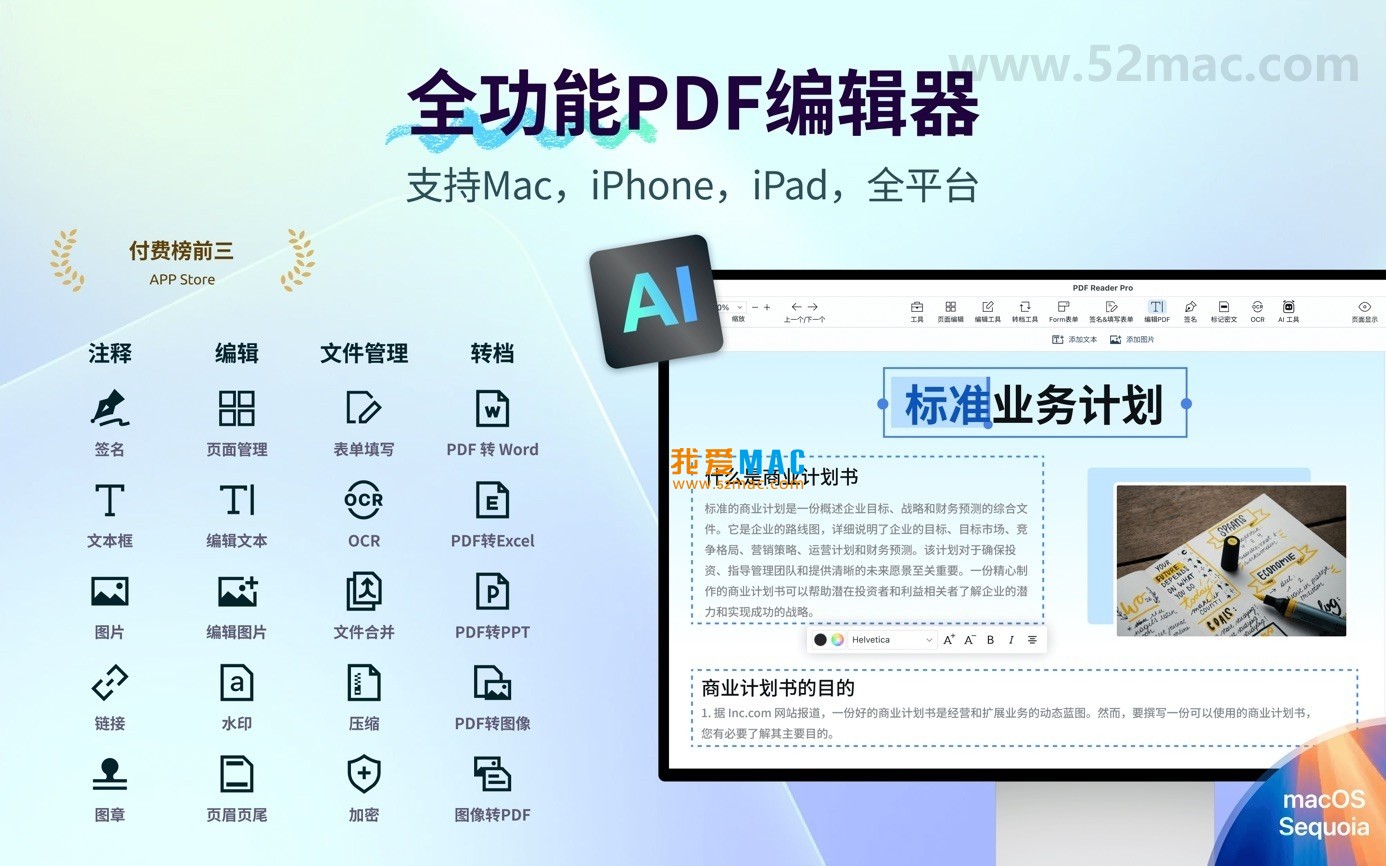
PDF Reader Pro is a comprehensive professional PDF tool with powerful integration capabilities and user-friendly design, trusted by over 9 million users worldwide. The software integrates AI intelligent assistants to provide a complete workflow for PDF readers, ranging from basic reading to advanced processing. This software is not just a reader but a powerful document processing center, significantly enhancing office efficiency for Mac users.
PDF Reader Pro integrates the following core features to meet the diverse needs of both individual and enterprise users:
To ensure the software runs smoothly on macOS, you may need to perform the following security settings during the first startup. Many users have reported that the software cannot be opened directly after downloading, which is actually due to macOS’s security mechanism.
This step is only needed once during the initial run to grant the software necessary system permissions. If you still cannot open the software, you can try entering sudo spctl --master-disable in the terminal temporarily to disable Gatekeeper, but it is recommended to re-enable it afterward.
Below are screenshots of the main interface and functions of PDF Reader Pro for Mac v4.7.5, for users to refer to:
Through these features and settings, PDF Reader Pro can help users efficiently complete daily document processing tasks, improving their work efficiency. The interface layout is clear, and the toolbars can be customized, making it easy for beginners to use.
Mastering these shortcuts can make your operations in PDF Reader Pro as smooth as flying. These shortcuts cover the reading, editing, and navigation scenarios, significantly reducing the number of mouse clicks.
| Shortcut Combination | Function Description | Applicable Scenarios |
|---|---|---|
| Command + O | Open PDF file | Quickly load documents |
| Command + F | Search text content | Find keywords |
| Command + Shift + N | Create a new PDF file | Create PDF from images |
| Command + P | Print current document | Output paper version |
| Command + S | Save current editing | Prevent data loss |
| Command + Z | Undo previous operation | Restore from accidental actions |
| Command + Shift + E | Export to other formats | Convert Word/Excel |
| Command + T | Add text annotations | Comment on documents |
| Command + Shift + H | Highlight selected text | Mark important content |
| Command + +/- | Zoom in/out of page view | View details or the whole document |
These shortcuts are available directly in PDF Reader Pro and do not require any additional settings. It is recommended to write commonly used combinations on sticky notes and place them near your monitor, so you can form muscle memory within a week.
Many users need to convert paper contracts into editable electronic versions. In PDF Reader Pro, simply import the scanned documents, click the “OCR” button, select the recognition language (such as Simplified Chinese), and the software will automatically identify the text areas. After completion, you can directly search for clauses in the contract or copy the text to Word for modification. In a real test, the OCR recognition accuracy for a 20-page contract reached over 98%, saving a significant amount of time spent manually entering data.
On a regular basis, you often need to merge multiple PDF reports into one. Open PDF Reader Pro, click the “Tools” menu, and select “Merge Files.” Drag and drop the PDF files you want to merge, adjust the order, and then click “Start Merging.” The software will automatically optimize the file size, making the merged document smaller than the total of the original files. This feature is particularly useful for creating annual report materials.
If you frequently need to review documents, you can create an annotation template. For example, set “To Review,” “Confirmed,” and “To Discuss” as preset annotations. Each time you open the document, simply click the template to quickly add annotations without repeating typing. In team collaboration, you can also export the annotation list to track the progress of modifications.
Graduate student Xiao Li from a university needs to read and take notes on 50 English literature articles. He uses PDF Reader Pro’s “Split Screen Reading” feature, with the left side for the original text and the right side for taking notes. When encountering unfamiliar words, he directly uses the built-in dictionary to look up definitions and highlights key sentences. Finally, he exports all highlights and annotations into a PDF, making it convenient for review. The entire process is three times faster than traditional paper reading.
Based on user feedback, we have compiled the following frequently asked questions to help you quickly resolve issues encountered during use.
A: This is caused by the macOS Gatekeeper security mechanism. Please follow the instructions in the second part of this article, “Security Settings Guide,” to authorize the file in “System Settings.” If the issue still persists, you can try re-downloading the installation package, as sometimes the file may be damaged during the download process.
A: The software supports multiple languages, including Chinese, English, Japanese, French, and German. You can switch the interface language in “Preferences.” The OCR function also supports multiple language recognition, but you need to download the corresponding language package.
A: Click the “Export” button and choose “Word Format.” PDF Reader Pro uses advanced conversion engines to retain the font, paragraph, and image positions of the original document as much as possible. If you encounter complex tables, it is recommended to make adjustments after conversion.
A: First, ensure that the scanned document is clear with a resolution of at least 300dpi. In the OCR settings, choose the correct language. If the document contains multiple languages, you can enable the “Automatic Detection” mode. For handwritten or blurry scans, the recognition rate may decrease, so you can enhance the image quality before using the OCR function.
A: PDF Reader Pro supports standard digital signatures, which comply with international electronic signature regulations. In commercial contracts, certified digital signatures have the same legal validity as traditional handwritten signatures. It is recommended to use digital certificates issued by a Certificate Authority (CA) to ensure the validity of the digital signature.
A: In theory, there is no limit to the number of files that can be processed at once, but it is recommended to limit the number to no more than 100 files to avoid consuming too much system resources. For tasks involving more than 50 files, it is recommended to process them in batches and close other software that may consume memory.
A: No, your settings, templates, and signatures will be retained after an update. If you are concerned about data loss, you can export your configuration files before updating.
A: If you encounter issues such as link failure or inability to install after downloading, please leave a message on this page to contact us. We will respond within 24 hours. Alternatively, you can submit a ticket through the “Help” menu in the software.
PDF Reader Pro for Mac v4.7.5 is a comprehensive professional PDF tool that integrates reading, editing, conversion, and signing features. Through this detailed installation guide, the shortcut table, usage tips, and FAQ, you should have a comprehensive understanding of this software. Whether you are a student, a professional, or an enterprise user, you can benefit from this software. If you are looking for a stable and efficient Mac PDF editor, this software is worth trying.
Before downloading, please note: The version provided on this page is a Chinese-activated version, which has been tested on macOS Ventura and Sonoma systems. It is recommended to back up important files before installation to prevent data loss due to accidental operations. If you encounter any issues, please feel free to provide feedback, and we will continue to update and improve.
This resource requires login to download
Log in
Mass Effect for Mac: A Sci-Fi RPG Game – Chinese Translation Edition Download and Activation Version
Downloads:178 | 2026-10-23

Mac Sketch v8.2.1 Design Collaboration Tool Chinese Activation Version Download
Downloads:2650 | 2026-10-22

Timemator for Mac v3.0.3 Auto Tracking Software Activation Download
Downloads:3675 | 2026-10-19

uBar for Mac 4.0.6 – Windows Dock Alternative Chinese Activator Download
Downloads:777 | 2026-10-18


Ratings & reviews
4.9
(Maximum 5 ratings, total 70 user reviews)
Let’s rate it.