



Professional Font Editor: FontLab 8 for Mac v8.4.0 Activation Download
本页面提供 FontLab 8 for Mac v8.4.0 专业的字体编辑器 激活版下载 | 爱上MAC,已测试可用,如遇到链接失效或下载后无法安装等情况,请留言联系我们。
版本概览: FontLab 一直是专业字体设计师的首选工具,用于创建曲线平滑、结构一致、间距舒适的字体,并能输出技术可靠的各类字体格式。FontLab 8.4 版本相较于 8.0 版实现了超过 500 项改进,相较于 FontLab 7 有 900 项改进,相较于 FontLab VI 更是有多达 1,400 项改进。
在 FontLab 8.4 中,内置的 OpenType、Variable 和 Web 字体导出配置文件,其“导出 OpenType 功能”部分的“自动功能”设置默认为“仅当不存在功能时添加”。
这意味着:如果您的字体未在“功能”面板中手动定义任何 OpenType 功能,但其字形具有语义化名称(如 a.alt 或 fi),当您将字体导出为 OpenType 格式时,FontLab 将自动构建并包含相应的功能代码,极大提升了工作流程效率。
编辑、间距与测试
原型制作与字形组装
引用、重用与协调
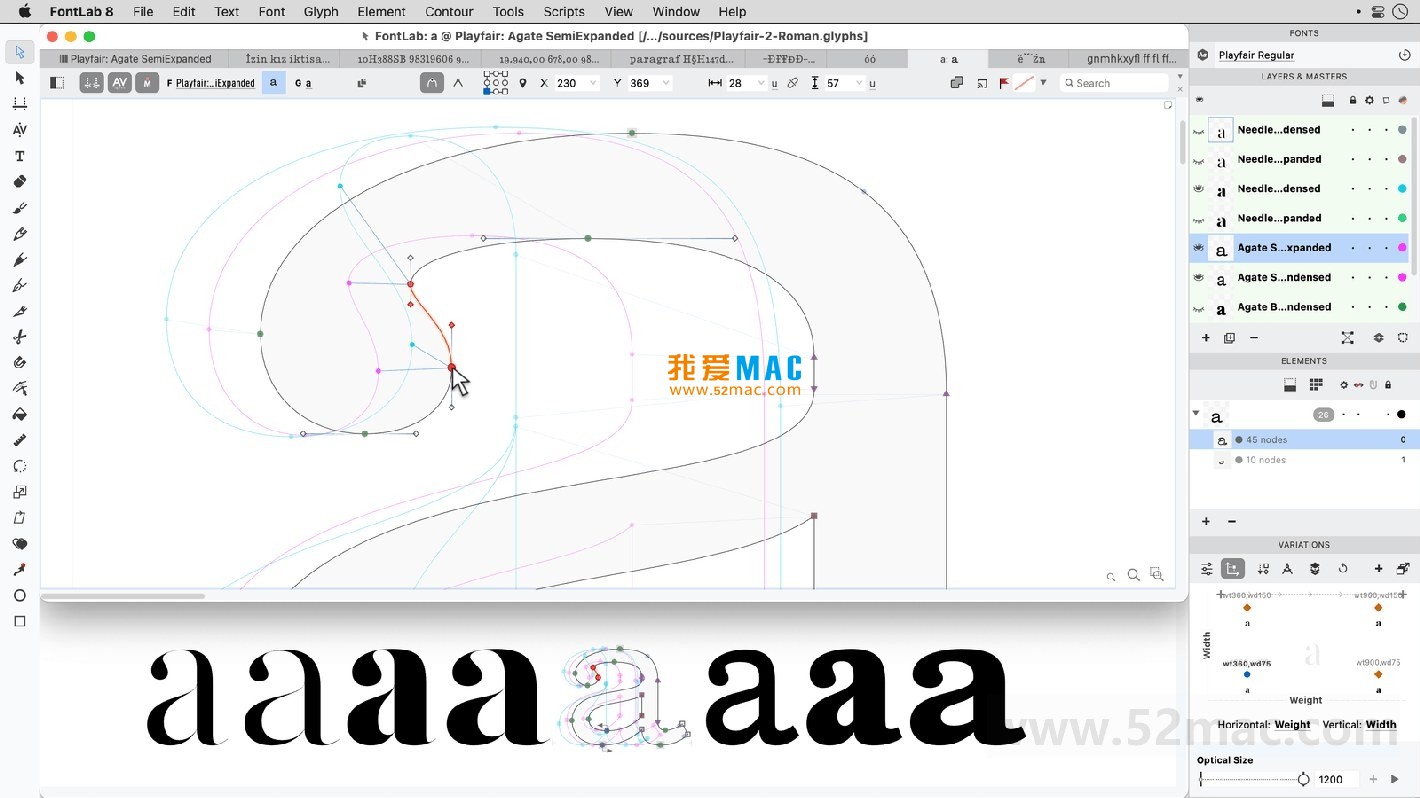
以下为 FontLab 8 软件操作界面示例:
图1:FontLab 8 主编辑界面与字形设计窗口
图2:字体信息、度量与间距调整面板
图3:OpenType 功能编辑与代码面板
Figure 4: Variable Font Design Axis Settings and Preview
Before installing FontLab 8, ensure your Mac meets the minimum system requirements: macOS 11.0 (Big Sur) or later, at least 8GB of RAM, and 2GB of available disk space. The following steps are based on version v8.4.0.
Download the FontLab 8 installation package from a reliable source (such as this page). After the download is complete, double-click the .dmg file to mount it. You will see an installer icon and a folder titled “Activation Instructions.”
Drag the FontLab 8 icon to the “Applications” folder. This action will copy the program files to the system directory. Wait for the progress bar to complete, which typically takes 1-3 minutes.
Open the “Applications” folder and double-click the FontLab 8 icon. The system may prompt you with a “From Unknown Developer” message. Go to “System Preferences” > “Security & Privacy” > “General,” and click “Open Anywhere.”
Upon first launch, you will be prompted to activate the software. Open the “Activation Instructions” folder in the downloaded package and follow the instructions to input the activation code or use an activation patch. It is recommended to disconnect from the internet during the activation process to avoid online verification.
After activation, restart the software. You can adjust the interface language, keyboard shortcuts, and font cache path in “FontLab 8” > “Preferences.” It is recommended to check the “Automatically Backup” option to prevent accidental crashes and loss of work.
This issue is usually caused by macOS’s Gatekeeper security mechanism. Open the Terminal and enter the command: sudo spctl --master-disable. Then, try opening the software again. Afterward, it is recommended to restore the security settings: sudo spctl --master-enable.
Check if there are any extra spaces in the copied code. It is recommended to manually input the activation code. If the problem persists, confirm that your version number matches the activation code. Activation codes for v8.4.0 cannot be used with the v7 series.
FontLab 8 has certain requirements for the GPU. Check if your Mac meets the minimum configuration requirements. Try disabling “Real-Time Anti-Aliasing Preview” in the “Preferences” and set the “Undo Steps” to 50 steps or less.
Check the “Font Format” option in the export settings. Ensure that the correct OpenType or TrueType subformat is selected. Also, confirm that the character encoding mapping is complete, especially for special characters.
If the interface is messy, click the top menu “Windows” > “Workspace” > “Reset to Default Layout.” This operation will restore all panels to their initial positions without affecting your font project files.
FontLab 8 itself does not rely on the system input method to edit font names. However, if you need to input Chinese comments in the “Font Name” field, ensure that the macOS input method is switched to Chinese mode, and the font project supports Unicode encoding.
Before updating, it is recommended to manually back up the configuration files. The path is: ~/Library/Preferences/com.fontlab.FontLab8.plist. If the settings are lost after an update, you can copy the backup file back to the original path to overwrite it.
Select multiple fonts and adjust the values in the “Metrics” panel. Then, click “Apply to All Selected Fonts.” This feature has been significantly optimized in v8.4.0 and supports real-time preview.
Mastering the shortcuts in FontLab 8 can significantly improve design efficiency. The following table summarizes the most commonly used operation combinations. It is recommended to print or save it as a reference.
| Operation Category | Shortcut | Function Description |
|---|---|---|
| File Operations | Cmd + N |
Create a new font project |
| File Operations | Cmd + S |
Save the current project |
| Editing Tools | Cmd + Z |
Undo the previous operation |
| Editing Tools | Cmd + Shift + Z |
Redo the operation |
| View Control | Cmd + +/- |
Zoom the view |
| View Control | Space + Drag |
Pan the canvas |
| Selection Operations | Cmd + A |
Select all nodes |
| Selection Operations | Shift + Click a node |
Add or remove selection of nodes |
| Node Editing | Cmd + B |
Convert node type (corner/curve) |
| Node Editing | Delete |
Delete the selected node |
| Metrics Adjustment | Cmd + K |
Open the kerning adjustment panel |
| Metrics Adjustment | Option + Left/Right Arrow Keys |
Fine-tune the kerning |
| Export | Cmd + E |
Open the export panel |
| Help | Cmd + ? |
Open the quick search help |
Suggestions are to place common hotkeys near your monitor and practice them diligently in the initial stages. It takes about a week to form muscle memory.
The “Skin” filter in FontLab 8.4 is a powerful tool for creating multi-weight fonts. For instance, if you designed a thin “A”, you want to quickly generate a bold version. In the “Skin” panel, add a new layer, adjust the stroke thickness parameters of the contour, and the system will automatically calculate and generate smooth bold contours. This method is about 10 times faster than manual node adjustments.
Suppose you want to design a font that includes ligature functions for “fi” and “fl”. First, create independent glyphs for “f” and “i” in the character window. Then, create a new “fi” glyph by merging the contour of “f” with the position of “i”, adjusting the spacing to make them visually integrated. Finally, add the code in the “Function” panel: sub f i by fi;. When exporting, FontLab will automatically compile this rule.
When designing CJK fonts, the issue of character spacing is a challenge. Using the “Metrics” panel in FontLab 8, you can quickly set the left and right margins for all Chinese characters. Select all Chinese character glyphs and uniformly set the left margin to 50 units and the right margin to 50 units. Then, use the “Auto Kerning” tool to micro-adjust the spacing of individual characters based on their shape, ensuring a uniform visual appearance.
FontLab 8.4 has very comprehensive support for variable fonts. In the “Font Information” panel, define the design axis (such as the weight axis wght and width axis wdth). Create the master glyph for each extreme design (such as the thinnest and thickest). Use the “Interpolation” tool to generate intermediate states. When exporting, choose the “Variable OpenType” format to generate a .woff2 file containing infinite weight variations, which can be directly used in the CSS font-variation-settings property.
When importing glyphs from other software, the names might be messy. Use the “Glyphs” menu’s “Batch Rename” feature to rename based on Unicode encoding, existing name patterns, or custom rules. For example, replace all names starting with “glyph” with “uni” followed by the hexadecimal encoding, making it easier to write OpenType features in the future.
FontLab 8 for Mac v8.4.0 is undoubtedly a powerful tool for professional font designers. From its powerful vector editing tools to its intelligent OpenType feature export, and its deep support for variable fonts, it covers every aspect of the design process from creativity to implementation. Through the installation guide, FAQ answers, and real-world cases in this article, you should have a comprehensive understanding of the software. Whether you are designing English fonts or Chinese fonts, FontLab 8 can significantly improve your efficiency and the quality of your work.
If you encounter any issues during the download or use of the software, please leave a message below. We are dedicated to providing you with the most reliable Mac software resources and technical support.

RAR Extractor Max for Mac v13.6 Chinese Activation Download
Downloads:2 | 2026-10-27

Movavi Screen Recorder for Mac v22.1.0 Chinese Activation Download
Downloads:2106 | 2026-10-24

Affinity Photo 2 for Mac v2.1.0 Chinese Activation Version Download
Downloads:603 | 2026-10-21

Glyphs for Mac v3.5 Chinese Activation Edition Download
Downloads:552 | 2026-10-20


Ratings & reviews
4.8
(Maximum 5 ratings, total 92 user reviews)
Let’s rate it.