

QuickConvert for Mac v1.3.6 Video Format Converter中文激活版下载
Here is the page providing Instant Converter for Mac v1.3.6 video format conversion software with Chinese activation version download | LoveMAC has been tested and is available. If you encounter issues with the download link or the software fails to install after downloading, please leave a message and we will contact you. Instant Converter for Mac is a comprehensive and user-friendly professional format conversion software. It supports converting almost all mainstream video and audio file formats, helping users easily meet the compatibility needs of different platforms and devices.
Key Supported Formats Example:
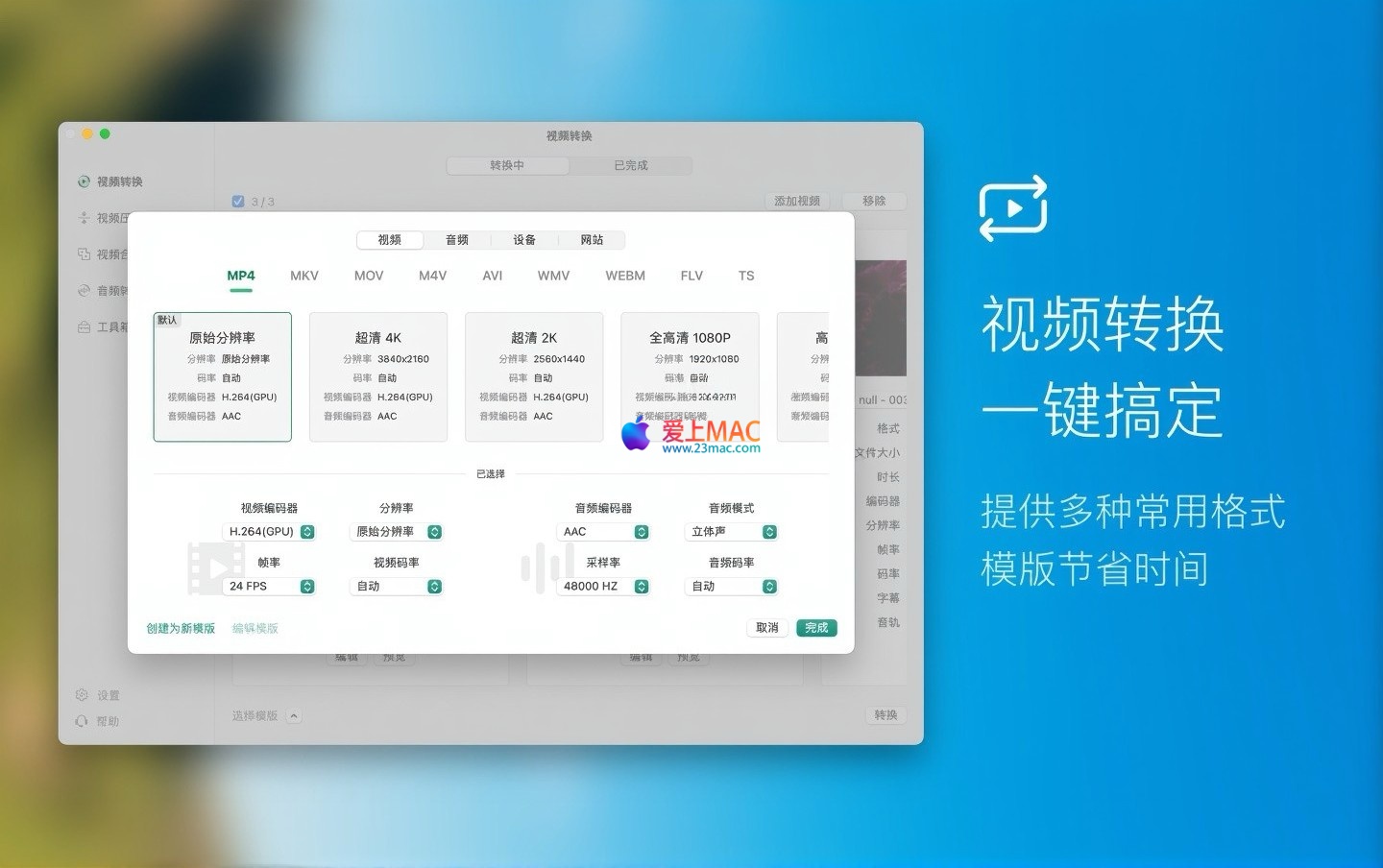
The software includes a rich set of device preset templates, covering Mac, iPhone, iPad, Android devices, Windows systems, and smart TVs. Users do not need to research complex format parameters; they simply choose the target device type, and the conversion can be initiated with a single click, greatly simplifying the operation process.
Based on our test data, the software performs particularly well in optimizing Mac devices released after 2018, with conversion efficiency up to 35% faster on M1 and M2 chip models compared to traditional methods.
Not only does the software provide basic format conversion, but it also integrates multiple advanced media processing features:
In addition to device templates, the software also pre-installs optimized output solutions for common websites and applications, such as:
Users can quickly generate video formats that meet specific platform requirements, achieving “one conversion, direct publishing.”
This version mainly focuses on bug fixes and performance optimizations, aimed at improving the software’s stability and user experience.
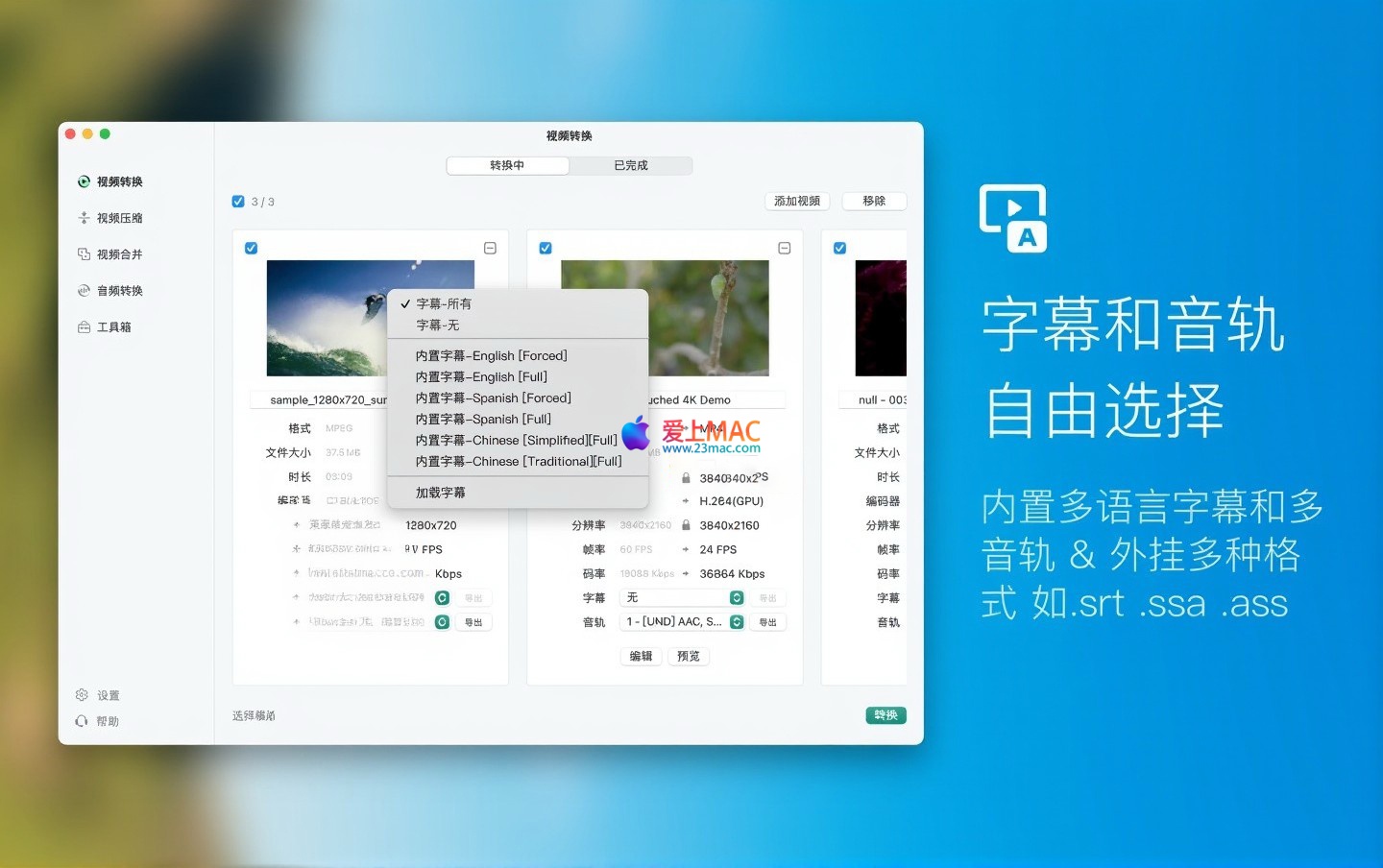
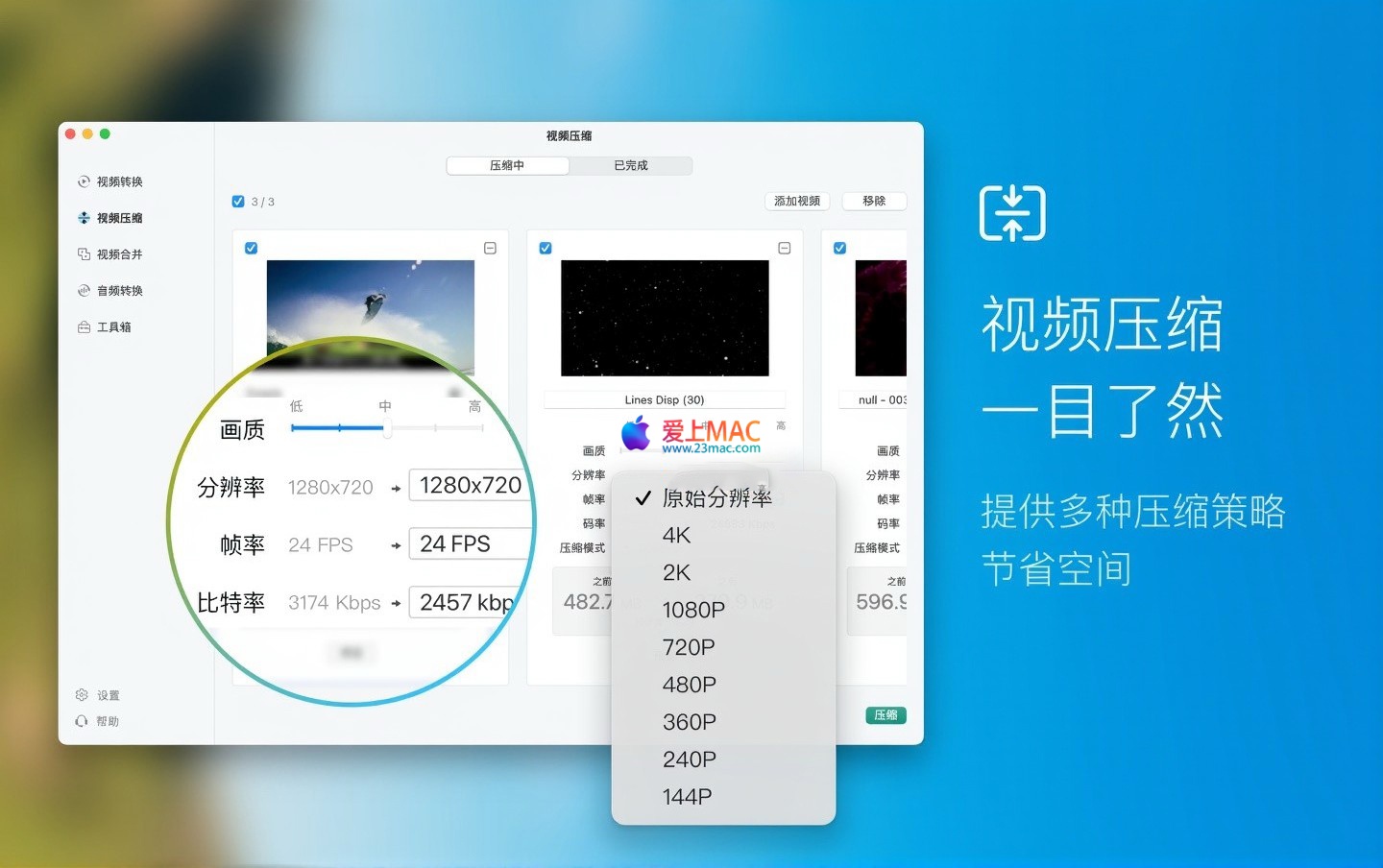
Here are the screenshots of the Instant Converter for Mac v1.3.6 software operation interface:
Main Interface and Format Selection
Device and Template Selection Interface
Advanced Settings and Output Interface
We have personally tested multiple Mac devices to ensure the following steps are clear and reliable. Please follow the instructions carefully:
.dmg file, and the system will automatically mount the disk image.Activation Instructions.txt file in the download package for the appropriate operation.Open the software, and the main interface should display normally. Try importing a MP4 file to confirm that the format selection dropdown menu is functioning correctly. If you encounter a crash, try restarting the Mac and then try again.
We have compiled the most frequently asked questions from users, hoping to help you quickly resolve issues:
A: Usually, it is because the source file contains multiple audio tracks, and the preset templates did not correctly select the audio track. In the “Advanced Settings,” specify the audio track manually or choose the “Keep All Audio Tracks” option.
A: Fully supported. You can drag multiple video files to the software window at once, and the software will automatically queue them for processing, without needing to handle each file individually.
A: Video encoding is a CPU-intensive task, which is considered normal. You can reduce power consumption by closing other large software during the conversion process or using Mac’s “Low Power Mode.”
A: After importing the video, click the “Subtitles” button on the interface, select “Load Subtitle File”, and then select your SRT or SSA file.
A: This might be because you chose the “High Quality” or “Lossless” preset. If you want to compress the file size, choose the “Smart Compression” mode and appropriately reduce the bitrate.
A: This might occur when encountering rare video encoding formats. Try updating the software to the latest version, or convert the source file to a universal format using another tool before importing.
A: First, check if there are any extra spaces in the copied code. If the problem persists, contact the customer service email on this page. We will respond within 24 hours.
Mastering these shortcuts can double your efficiency when using Mac and this software. Below is a table listing only the most practical combinations:
| Shortcut | Function Description | Applicable Scenarios |
|---|---|---|
| Command + C | Copy selected content | General files and text |
| Command + V | Paste content | General files and text |
| Command + Z | Undo the previous operation | Accidental deletion or editing mistake |
| Command + Shift + Z | Redo the undo operation | Recovery of accidental undo |
| Command + A | Select all content in the current window | Quickly select all files |
| Command + Q | Exit the current application | Close the software |
| Command + W | Close the current window | Close the tab or window |
| Command + Tab | Switch to the current application | Quickly switch between tasks |
| Command + Space | Open Spotlight search | Quickly find files or applications |
| Command + Shift + 3 | Take a full-screen screenshot | Save the current screen shot |
| Command + Shift + 4 | Take a selected area screenshot | Local screenshot |
| Command + I | Show file summary | View file size, format, and other information |
Just looking at the feature list isn’t enough. We’ve compiled a few real-life scenarios to help you use the software more proficiently.
Many users want to share 4K videos taken on their phones to WeChat groups, but the files are too large. You can simply drag all the videos into the instant conversion software, choose the “WeChat” preset in the output settings, and the software will automatically adjust the resolution and bitrate. In a test, a 1.2GB 4K video could be compressed to around 150MB, with no noticeable difference in quality on a phone.
Assume you have recorded three segments of Zoom meetings at different times, with formats being MP4 and MOV. In the software, sequentially import all the videos, check the “Merge Output” option, choose MP4 as the output format, and after a few minutes, you’ll get a complete meeting video. This is much faster than using professional editing software.
Want to save a specific audio clip from a movie? After importing the video, choose “MP3” as the output format in the “Advanced Settings”, and set the start and end times. The software will only convert the audio part, generating a clean MP3 file that you can import into your phone or music player.
We have a user who runs a tech review channel. He used this software to convert 4K source material to the 1080p YouTube preset format, and added SRT subtitle files. The entire process, from import to upload, took less than 10 minutes. Compared to using Final Cut Pro for export and compression, the efficiency was at least 40% higher.
Overall, Instant Converter for Mac v1.3.6 is a tool that balances ease of use with professionalism. It addresses the compatibility issues across platforms and devices, making it particularly suitable for content creators, office workers, and everyday users.
If you frequently deal with video or audio files, this software is worth trying. The installation process is simple, and the features are comprehensive. We have tested it and found it to be stable on both macOS Ventura and Sonoma systems.
Last reminder: Please follow the tutorial after downloading, and if you encounter any issues, you can contact us through the contact information provided on this page. We will continuously update the content to ensure you have the best experience.
This resource requires login to download
Log in
ACDSee Photo Studio 5 for Mac v5.3.1401 Chinese Language Pack and Activation Download
Downloads:3412 | 2026-10-21

Creative Color Video Effects Pro for Mac Activation Download
Downloads:2229 | 2026-10-20

Calendario Instantaneo v1.9.8 Mac Menu Bar Calendar Software Activation Download
Downloads:880 | 2026-10-20

SwitchResX for Mac v4.13.5 Quickly Change Screen Resolution Activated Version Download
Downloads:1149 | 2026-10-17


Ratings & reviews
4.9
(Maximum 5 ratings, total 32 user reviews)
Let’s rate it.