
Source of this article: Love Mac | Software download address: 37048
Many users often encounter the prompt “xxx.app is damaged and can’t be opened. You should move it to the Trash” or “The xxx.app can’t be opened because it is from an unidentified developer” when installing Mac software, as shown in the image below:

Is it really damaged? Do you really need to move it to the Trash? When you encounter this situation, it can usually be easily solved by enabling Anywhere, let’s take a look together.
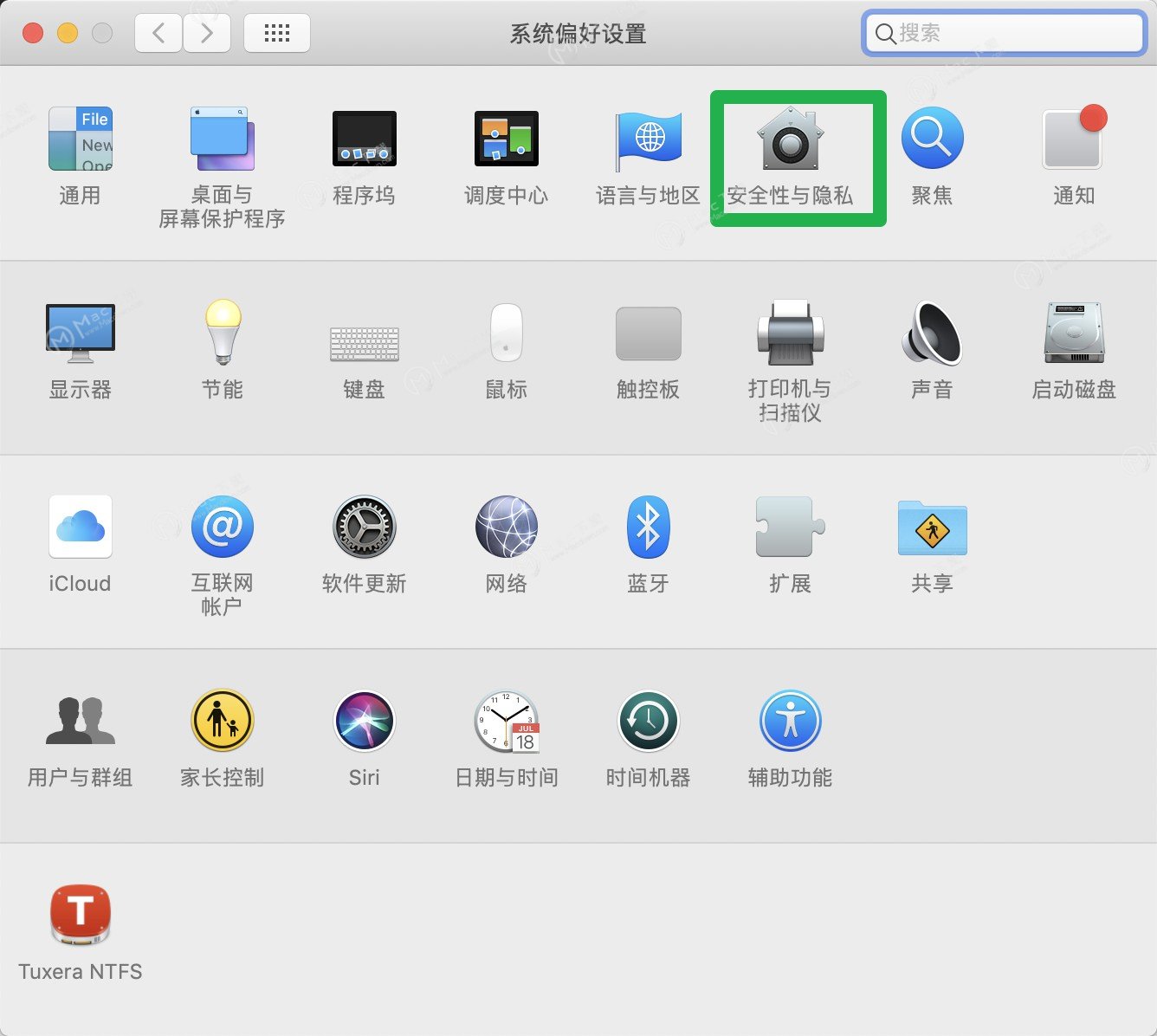
1. Open System Preferences, go to Security & Privacy, as shown below:
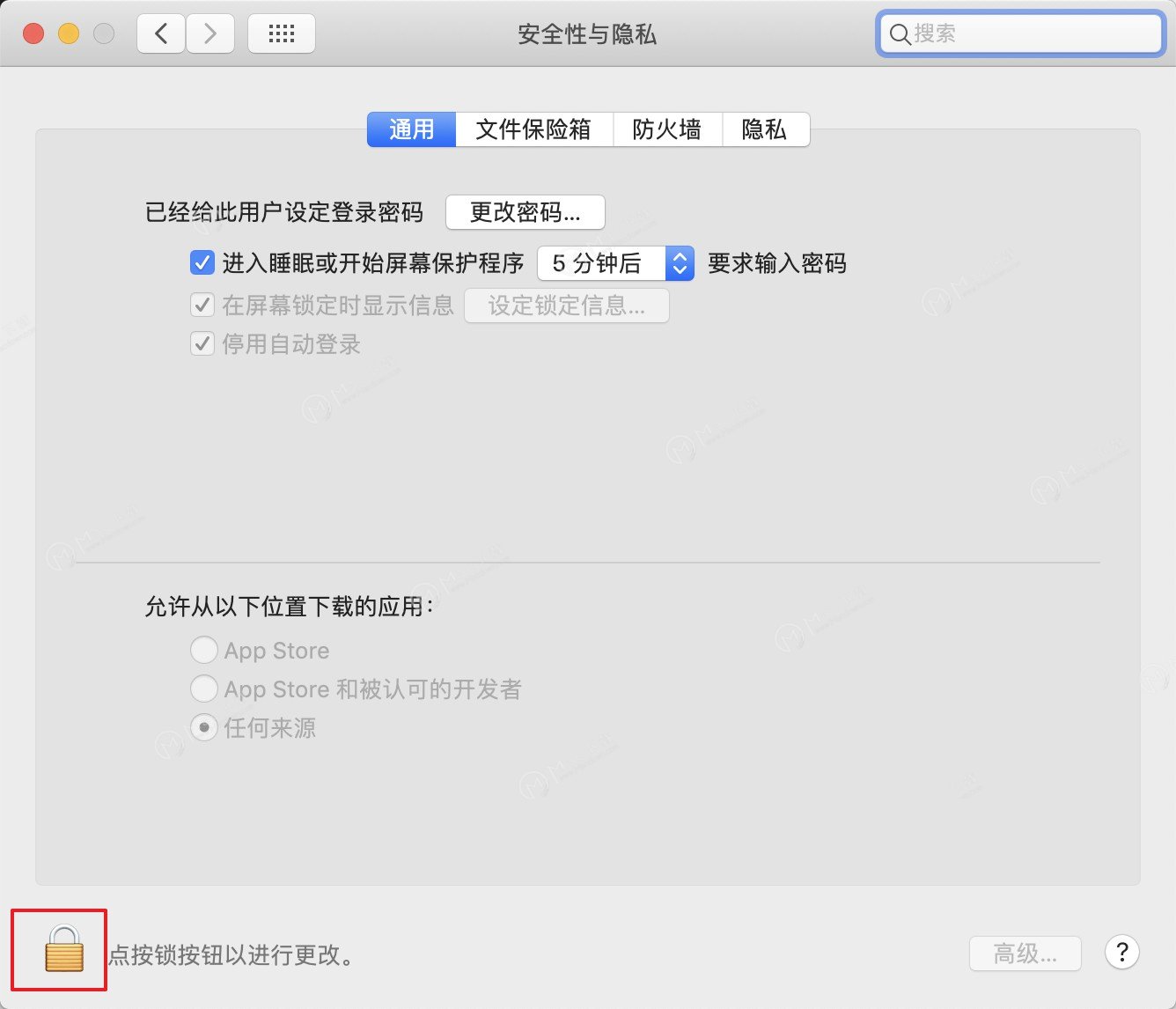
2. Click the lock icon in the lower left corner to unlock and change permissions
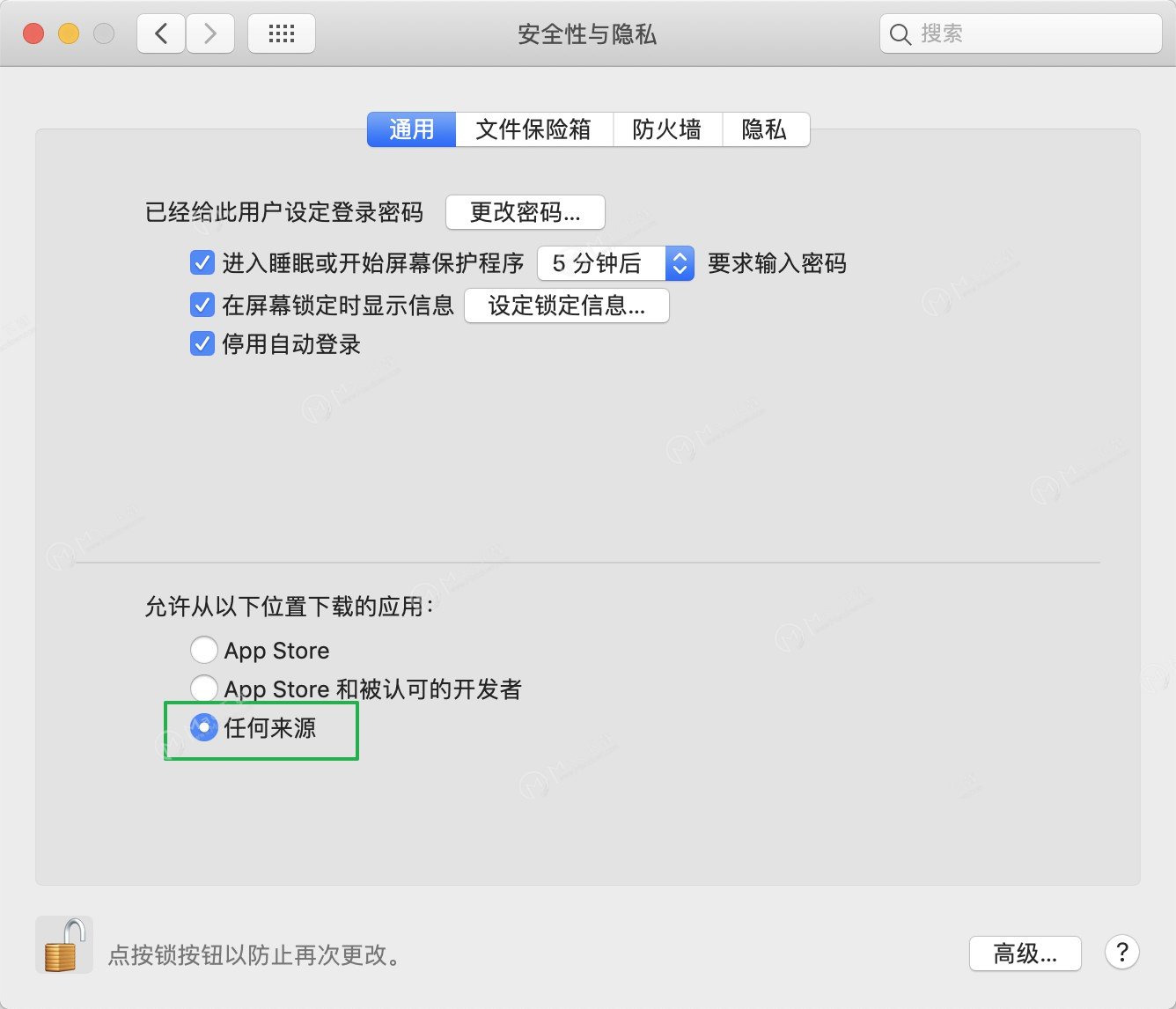
3. Change “Allow apps downloaded from” to “Anywhere”, then open the app again
Some friends may say, when I open it directly, there is no “Anywhere” option. Let me explain how to enable Anywhere on Mac when there is no Anywhere option.
If there is no “Anywhere” option, follow these steps:
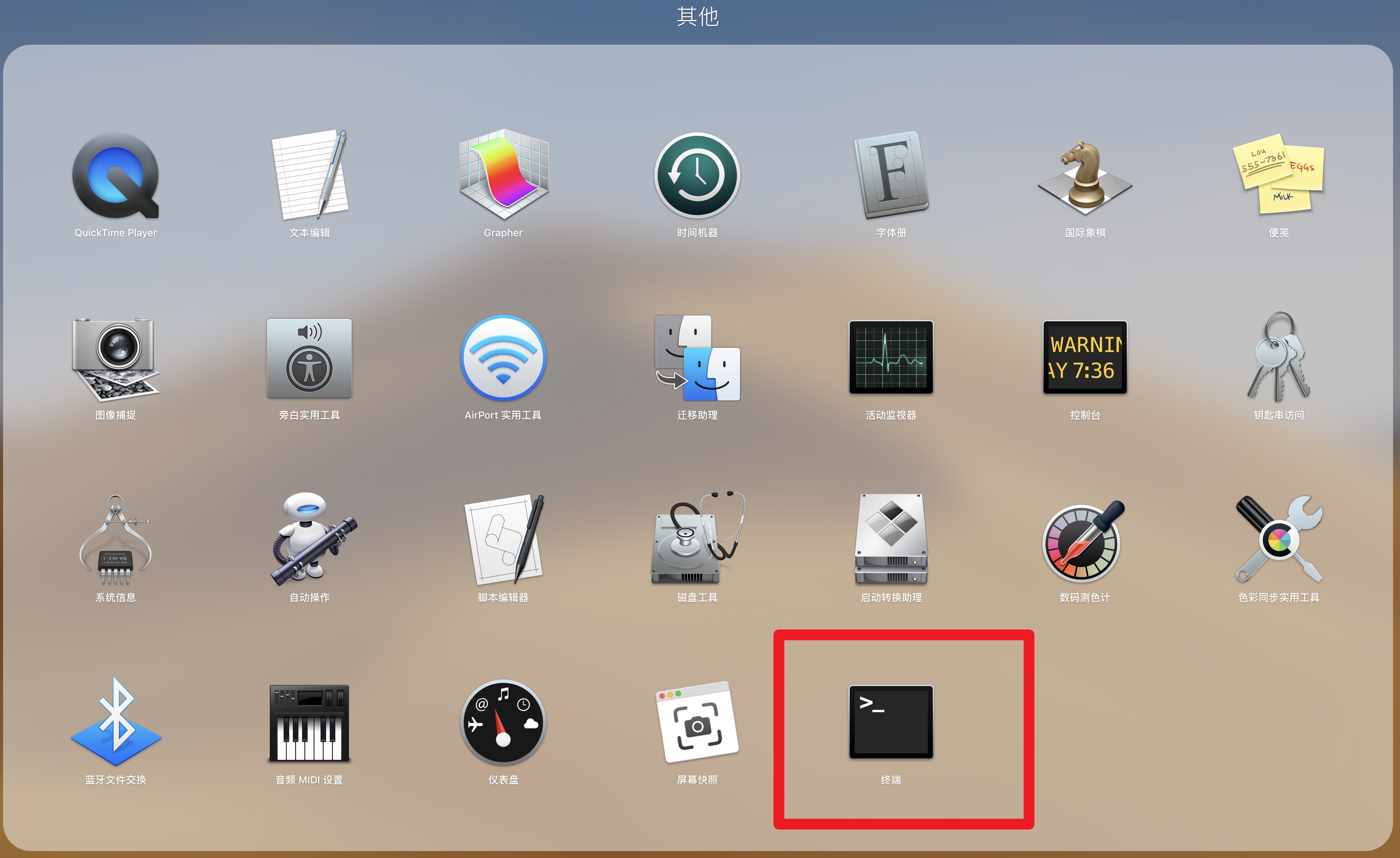
1. Open Terminal (Terminal.app)
2. For macOS 10.12 – 10.15.7, enter the following command
sudo spctl –master-disable Press Enter
For macOS 11 and later, enter the following command
sudo spctl –global-disable
Press Enter
3. Enter your account password and press Enter to confirm execution (the password will not be displayed when entering, just enter it correctly and confirm)
How to open Terminal?
1. System Preferences — Other, open Terminal
Note: When copying and pasting sudo spctl –master-disable, be careful not to include extra spaces. The password will not be displayed when you type it, don’t think it wasn’t entered; as long as you enter it correctly and press Enter, it’s fine. After entering, go to “Privacy & Security” and check that Anywhere is already selected and enabled. At this point, you don’t need to unlock, select, or perform other operations.
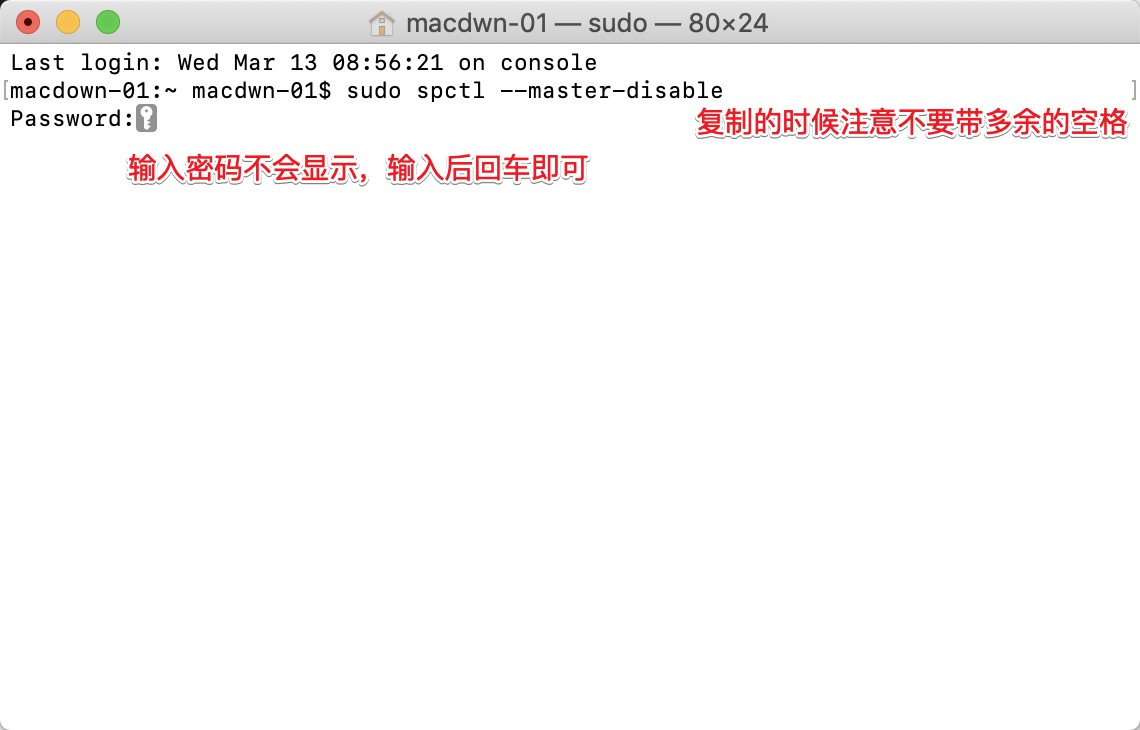
If Anywhere is already enabled but it still won’t open (encountered on macOS Catalina 10.15 and above), follow these steps:
Bypass notarization:
Copy the command [sudo xattr -r -d com.apple.quarantine ] — don’t lose the space after it, drag the damaged file after the command, press Enter, enter your computer password and press Enter
After entering the above repair command, if the software still shows as damaged when opened, proceed with the following steps:
Repair signature:
Copy the command [sudo codesign –sign – –force –deep ] — don’t lose the space after it, drag the damaged file after the command, press Enter, enter your computer password and press Enter

Right-click to open the software again, and this problem should be solved.
There is another situation, such as when installing an application, “XXX.app cannot be opened because it is from an unidentified developer” appears, and it prompts where and when your software downloaded the disk image. As shown in the figure:
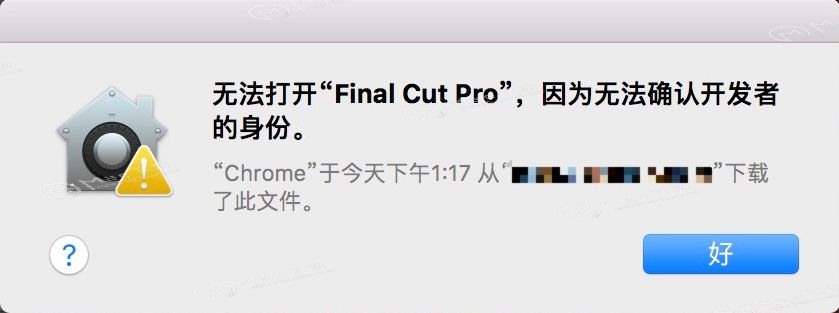
If you encounter this situation, the method is as follows:
1. After putting the software into “Applications”, click the software, right-click – Open, as shown in the figure:
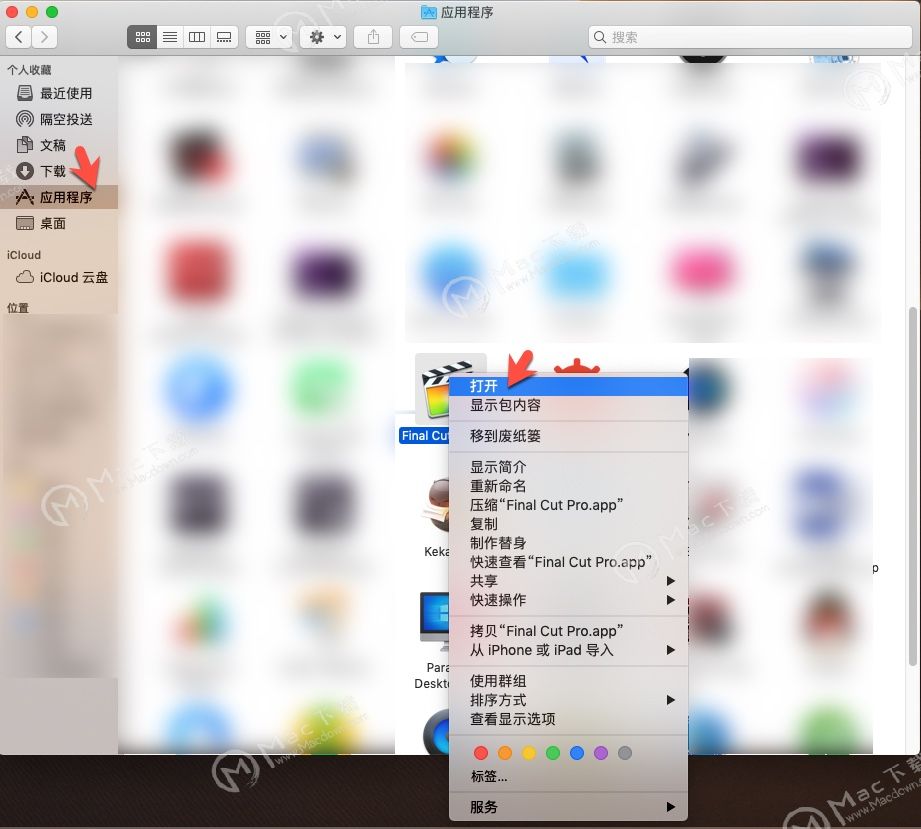
Open the Applications folder, find Final Cut Pro, then hold down the control key, click Final Cut Pro, and then in the pop-up menu, click Open. (In plain terms, right-click fcpx and open it.)
Next, a dialog box appears with an “Open” button. Click the “Open” button, as shown by the arrow in the figure below, and witness the miracle!
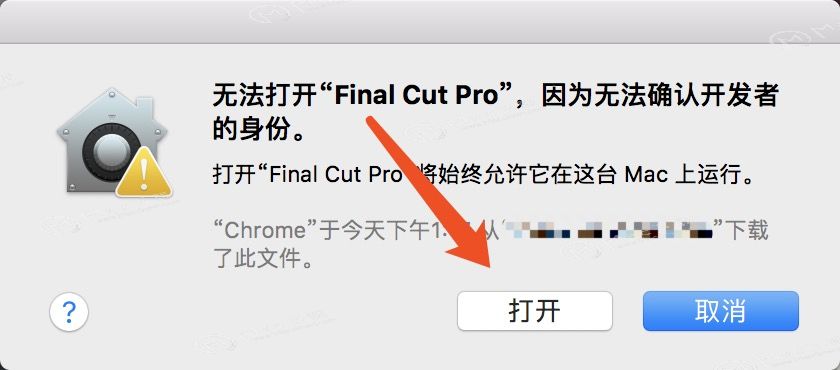
This easily solves the problem that after installing fcpx, the software still cannot be opened even when any source is allowed. In addition, I believe you will also know how to draw inferences from one instance like the editor, this method is also applicable to most other Mac software in most cases. When you encounter a situation where it cannot be opened, do not give up, try this method.
MacOS Sequoia 15 allows the latest solution for installing apps from any source
Steps
Open System Settings -> Privacy & Security (leave it in the background, do not close it);
Open Terminal, enter sudo spctl –global-disable, press Enter, enter the password, press Enter; (it prompts needs to be confirmed in System Settings, which is very important but normal people cannot understand it, so ignore it)
Return to System Settings, but there is no change at all. (Here comes the key part);
Switch away from Privacy & Security, for example switch to the Lock Screen;
Then switch back to Privacy & Security, scroll to the very bottom and click Allow applications from the following sources;
At this time, the Anywhere option appears
Select it, and enter the password again.
Done
sudo spctl –master-disable should also work
Alright, the above are the solutions for Mac applications that cannot be opened or files that are damaged. If you still have any questions, you can contact our customer service to answer them for you. Thank you!


