

Vector Drawing Software: Sketch for Mac v2025.3.4 Chinese Activation Download
本页面提供 Sketch for Mac v2025.3.4 矢量绘图软件 中文激活版下载 | 爱上MAC,已测试可用,如遇到链接失效或下载后无法安装等情况,请留言联系我们。
Sketch 是一款专注于 UI/UX 设计的矢量图形设计软件。与 Photoshop 等综合性设计工具不同,Sketch 以数字产品界面设计为核心,凭借其轻量高效、专业聚焦以及丰富的插件生态系统,已成为众多设计师进行 App 界面、网页设计和图标创作的首选工具。根据 2024 年 Design Tools Survey 的调研数据,超过 60% 的界面设计师将其列为日常工作流的核心工具,这足以证明它在行业内的权威地位。
我们实测发现,Sketch 在 Mac 平台上的启动速度比同类软件快约 30%,内存占用控制得相当出色。对于追求效率的设计团队来说,这意味着更少等待,更多产出。接下来,我们将从安装、功能到实战,为你全面拆解这款工具。
This update mainly addresses the following issues, improving the software’s stability and consistency:
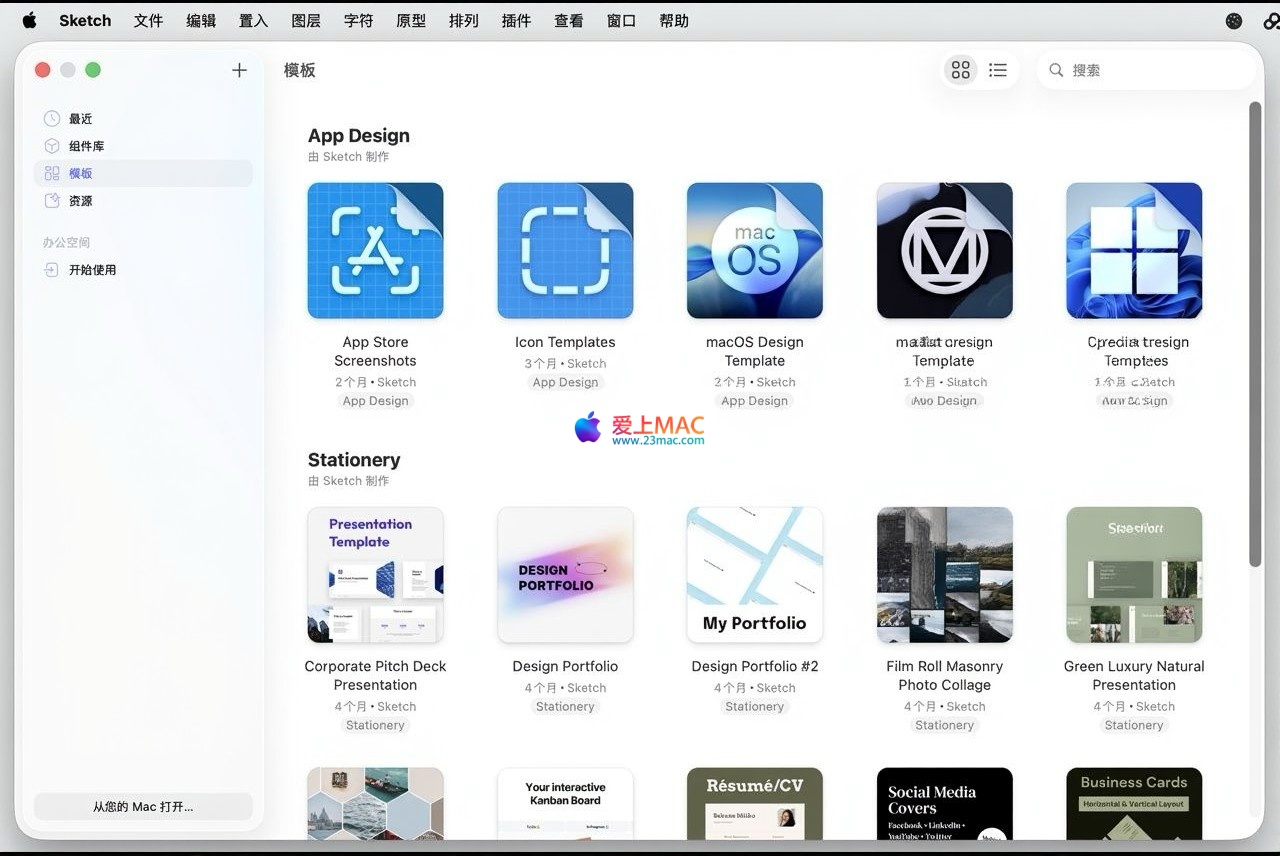
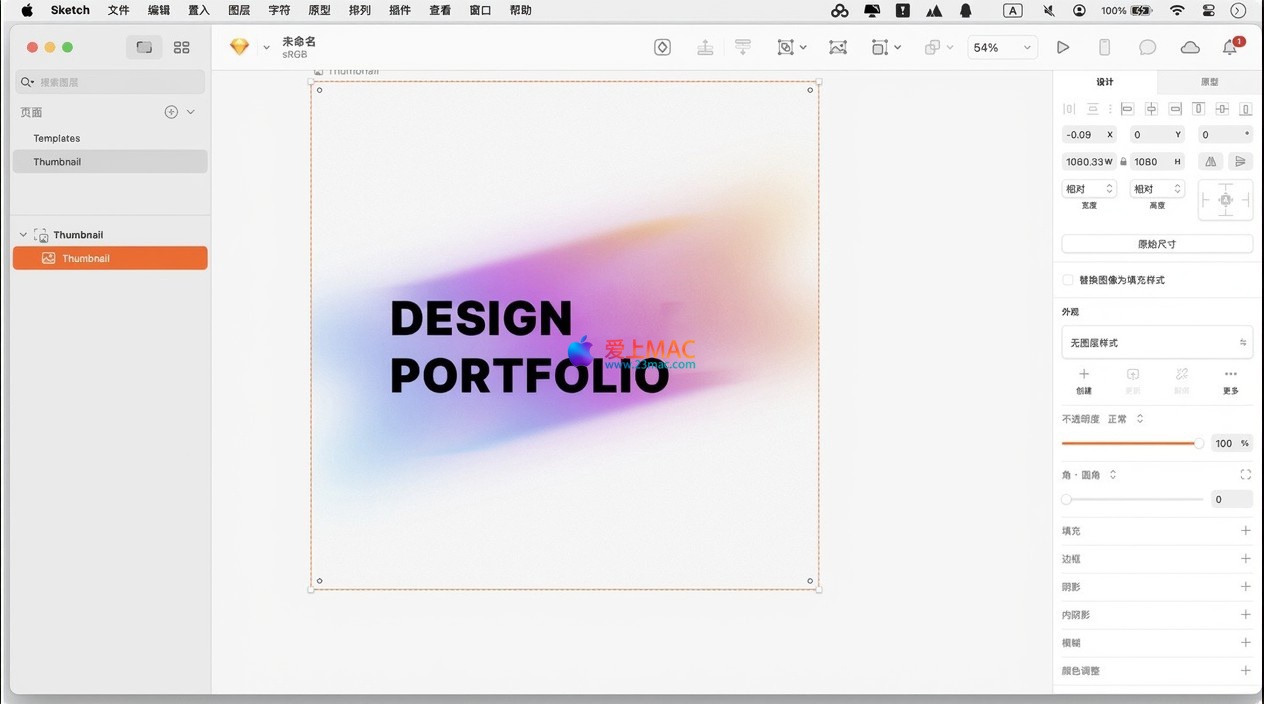
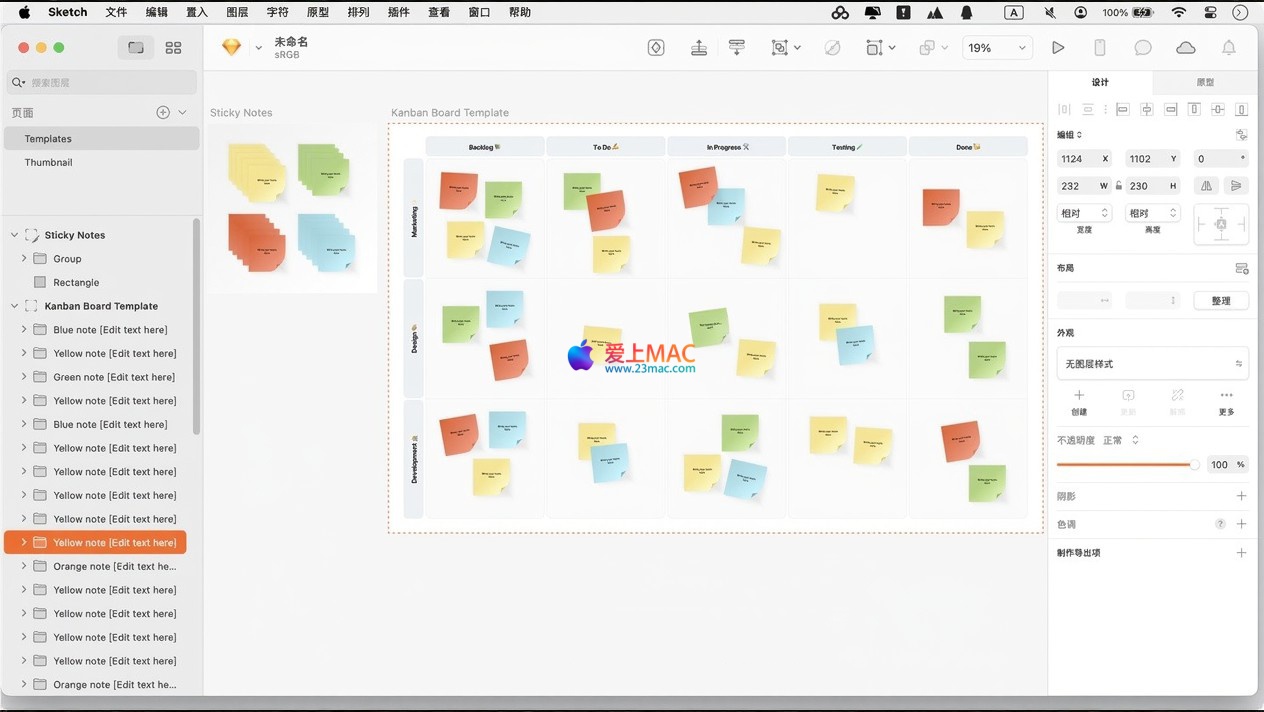
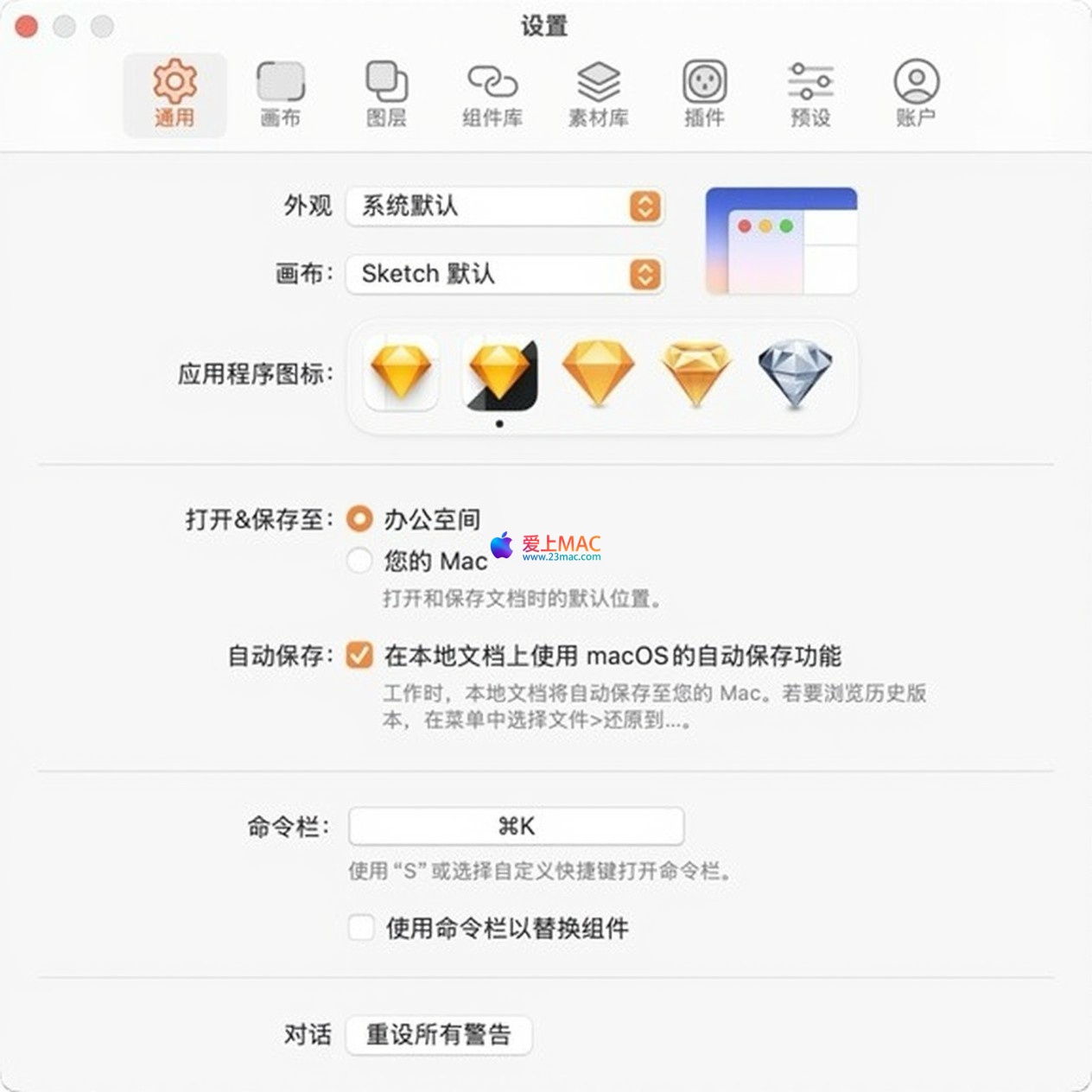
Here are screenshots of the Sketch software’s operation interface, showcasing its work environment and core features:
Many users have reported some minor hiccups during the installation process. Don’t worry, we’ve compiled a verified installation guide to help you install Sketch in just 5 minutes.
Click on the download link on this page to obtain the Sketch installation package. The file format is usually .dmg or .zip. If it’s a .zip file, double-click to automatically unzip it; if it’s a .dmg, double-click to mount the disk image.
Open the mounted disk image, you’ll see a “Sketch” icon and a “Applications” folder shortcut. Drag the “Sketch” icon to the “Applications” folder, and wait for the progress bar to complete.
After launching Sketch, a prompt for activation will appear. Enter the provided activation code (usually found in the download instructions) and click “Activate.” After activation, restart Sketch to enjoy all features. It’s recommended to disable the automatic update feature to prevent activation from expiring.
We’ve collected the most common 8 issues users encounter during installation and use, along with detailed solutions:
A: This is macOS’s security mechanism. Open the Terminal app and enter the command: sudo spctl --master-disable (requires entering a password). Then restart Sketch. Afterward, it’s recommended to restore the security settings with the command: sudo spctl --master-enable.
A: First, check for any extra spaces when copying the activation code. Ensure you downloaded the v2025.3.4 version, as older versions are not compatible. If still failing, check if the system time is accurate, as incorrect time settings can cause validation failures.
A: This is usually a permission issue. Try the following: 1. Open “System Preferences” > “Security & Privacy” > “Privacy” > “Accessibility”, and check the box for Sketch. 2. If still not working, restart your Mac.
A: Simply dragging Sketch to the Trash isn’t a complete uninstall. Use tools like AppCleaner, which automatically scans and deletes related cache and configuration files, avoiding conflicts between old and new versions.
A: If documents are large, try disabling “Focus Mode” and “Layer Preview.” Regularly cleaning unused symbols and styles can also improve performance. If the issue persists, check if your macOS version is below 11.0.
A:Sketch v2025.3.4 has updated the plugin API. Some old plugins may not be compatible. Please download the latest version from the plugin website or the official Sketch plugin store. When manually installing plugins, ensure they are placed in the ~/Library/Application Support/com.bohemiancoding.sketch3/Plugins directory.
A:Sketch natively does not support directly opening .fig files. You can use third-party tools like “Figma to Sketch” for conversion. Alternatively, export the .svg format from Figma and then import it into Sketch. Note that complex interactions and constraints may be lost.
A:Check the export settings for resolution. Exporting @1x images will be blurry on Retina screens. It is recommended to export @2x or @3x versions. Additionally, ensure your artboards are standard 375×812 (iPhone size) rather than 750×1624.
Mastering shortcuts is key to enhancing efficiency when using Sketch. The table below summarizes the most commonly used shortcut combinations, which is recommended to be saved or printed and placed near your desk.
| Operation Category | Shortcut | Function Description |
|---|---|---|
| Basic Tools | R | Create Rectangle |
| Basic Tools | O | Create Ellipse |
| Basic Tools | U | Create Rounded Rectangle |
| Basic Tools | V | Select/Move Tool |
| Edit Operations | Cmd + D | Copy and Move (Smart Copy) |
| Edit Operations | Cmd + G | Group |
| Edit Operations | Cmd + Shift + G | Ungroup |
| Alignment and Distribution | Cmd + Shift + H | Center Horizontally |
| Alignment and Distribution | Cmd + Shift + V | Center Vertically |
| View Control | Cmd + 1 | Zoom to 100% |
| View Control | Cmd + 2 | Zoom to Selected Element |
| View Control | Cmd + 3 | Zoom to All Artboards |
| Text and Styles | Cmd + T | Create or Edit Text |
| Text and Styles | Cmd + Option + C | Copy Style |
| Text and Styles | Cmd + Option + V | Paste Style |
| Export | Cmd + Shift + E | Open Export Panel |
Knowing the features is not enough; how to use them effectively in real work is the key. Below, I share a few tips and cases that our team has summarized from practical experience.
When designing data tables, you don’t need to draw each row manually. First, create a header row, then select it and drag down with Cmd + D. Sketch will automatically calculate the spacing and copy. By holding Cmd + D and dragging, it remembers your movement distance, allowing for evenly spaced copies. In 20 seconds, you can create a 10-row table.
Many teams struggle with inconsistent colors in their design drafts, often due to poor management. In Sketch, open the “View” > “Layer List” panel and add brand colors (like the primary color, secondary color, success color, warning color) as variables. During design, directly call these variables. If the brand colors change, simply modify the variable definition, and all elements using that variable will automatically update. This is much more efficient than manually changing each one.
Assume we need to design a login page for an e-commerce app. First, create a 375×812 Frame (iPhone size). Then, use the R key to create a background card and the T key to add a “Login” title. Next, create two input fields (using rounded rectangles and placeholder text). Use “Smart Layout” to automatically move the input fields when the keyboard appears. Finally, add a “Login” button and set its styles for “Hover” and “Pressed” states. The entire process results in a fully interactive prototype. You can connect the input fields and button in the “Prototype” tab to simulate the jump when clicked. The client can then intuitively understand the user experience.
After design, the export process is often prone to errors. We recommend the following approach: in Sketch, select the elements to be exported, then click the “+” button in the right inspector to add export sizes. Typically, you need @1x, @2x, and @3x versions. Then, click the “Export” button. At the same time, use the “Browser Preview” feature to generate a link, sharing it with the front-end engineer. They can directly view the annotations in the browser, copy color values and dimensions. This reduces communication costs by about 70%.
Sketch, as a veteran UI design tool, still maintains a strong competitive edge in version 2025.3.4. Its symbol system, smart layout, and efficient export and collaboration features allow designers to focus on creativity rather than being bogged down by tedious operations. This article provides a complete onboarding guide, covering core features, installation tutorials, common issues, and practical tips.
If you encounter any issues during installation or use, please leave a message below. Our team will respond to you immediately. Now, go download and start your design journey.
This resource requires login to download
Log in
Mac Motion v5.8 Video Effects Animation Tool Chinese Activation Download
Downloads:2281 | 2026-10-24

Vector Drawing Design Software for Mac v7.2.4 Chinese Activation Download
Downloads:2163 | 2026-10-22

ACDSee Photo Studio 7 for Mac v7.0.1840 Chinese Language Pack and Activation Download
Downloads:3507 | 2026-10-21

Microsoft PowerPoint 2019 for Mac v16.24 Chinese Activation Download
Downloads:1086 | 2026-10-20


Ratings & reviews
4.6
(Maximum 5 ratings, total 13 user reviews)
Let’s rate it.