

Image Stack for Mac v1.0.1 Download Activation Software
本页面提供 Image Stack for Mac v1.0.1 图像处理软件 激活版下载 | 爱上MAC,已测试可用,如遇到链接失效或下载后无法安装等情况,请留言联系我们。
Image Stack 是一款专业的图像批量处理软件,它通过预设功能,让格式转换、尺寸调整、文件重命名等繁琐操作变得简单高效。无论您需要处理单张图片还是数千张图片,只需轻点几下即可快速完成所有任务。
在日常设计或摄影工作中,我们常常面临大量图片需要统一格式、调整尺寸或添加水印的难题。手动一张张处理不仅耗时,还容易出错。Image Stack 的出现,正是为了解决这些痛点,让Mac用户告别重复劳动,专注于创意本身。下面,我们将从安装到实战,为您全面解析这款效率利器。
在深入使用前,我们先盘点Image Stack的核心能力,这些功能构成了其高效处理流程的基石。
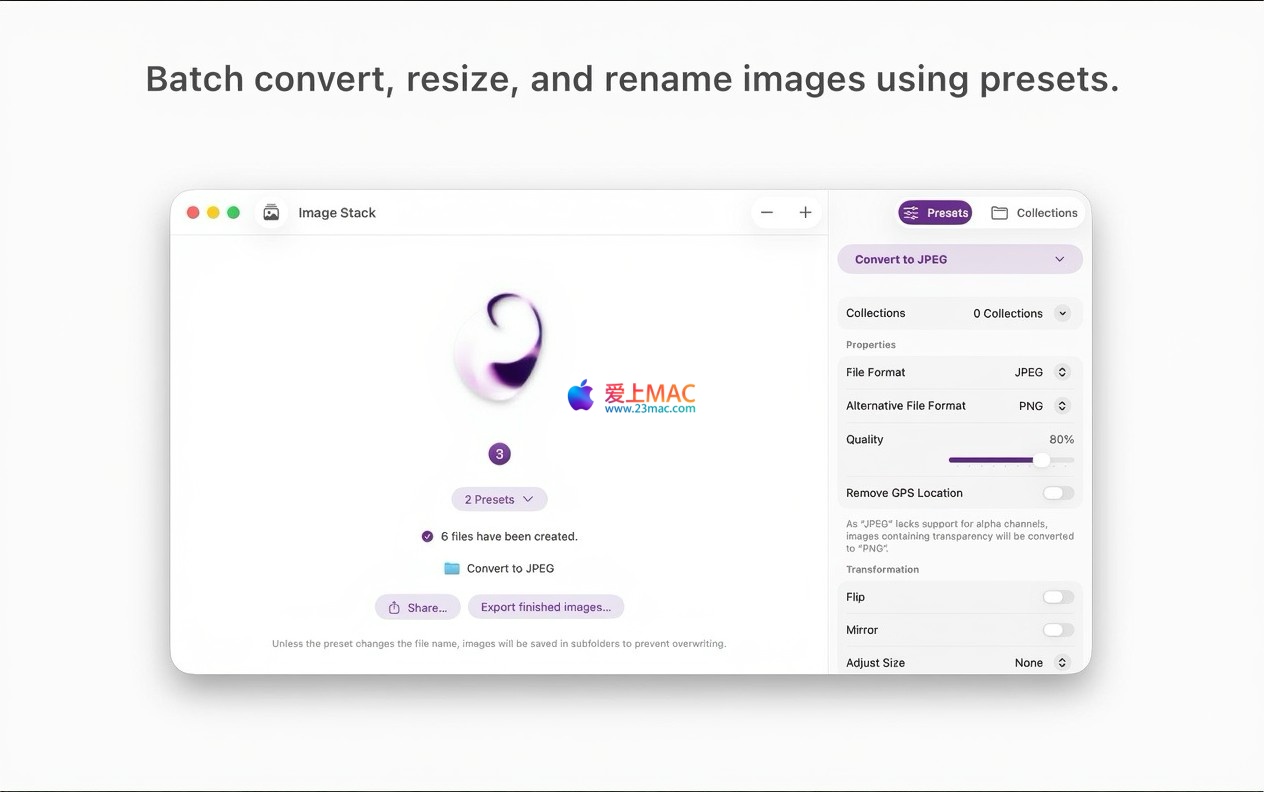
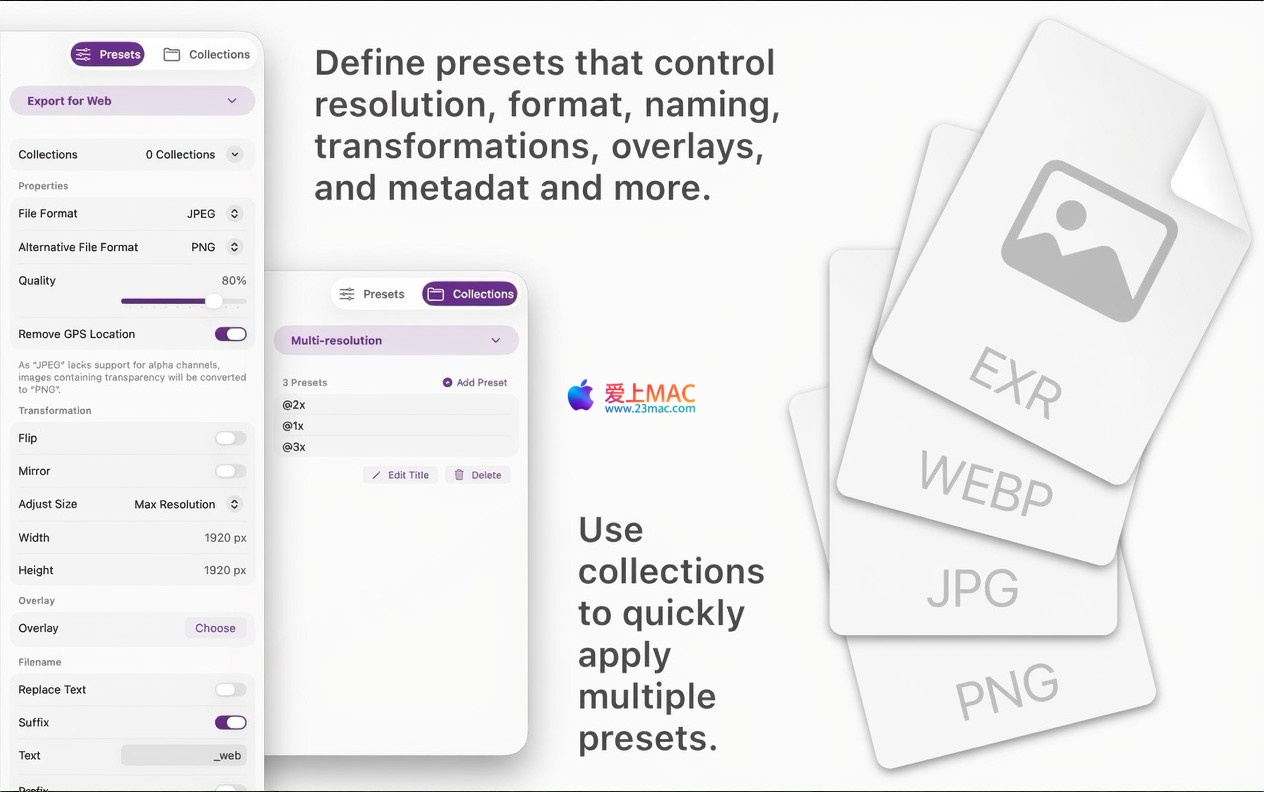
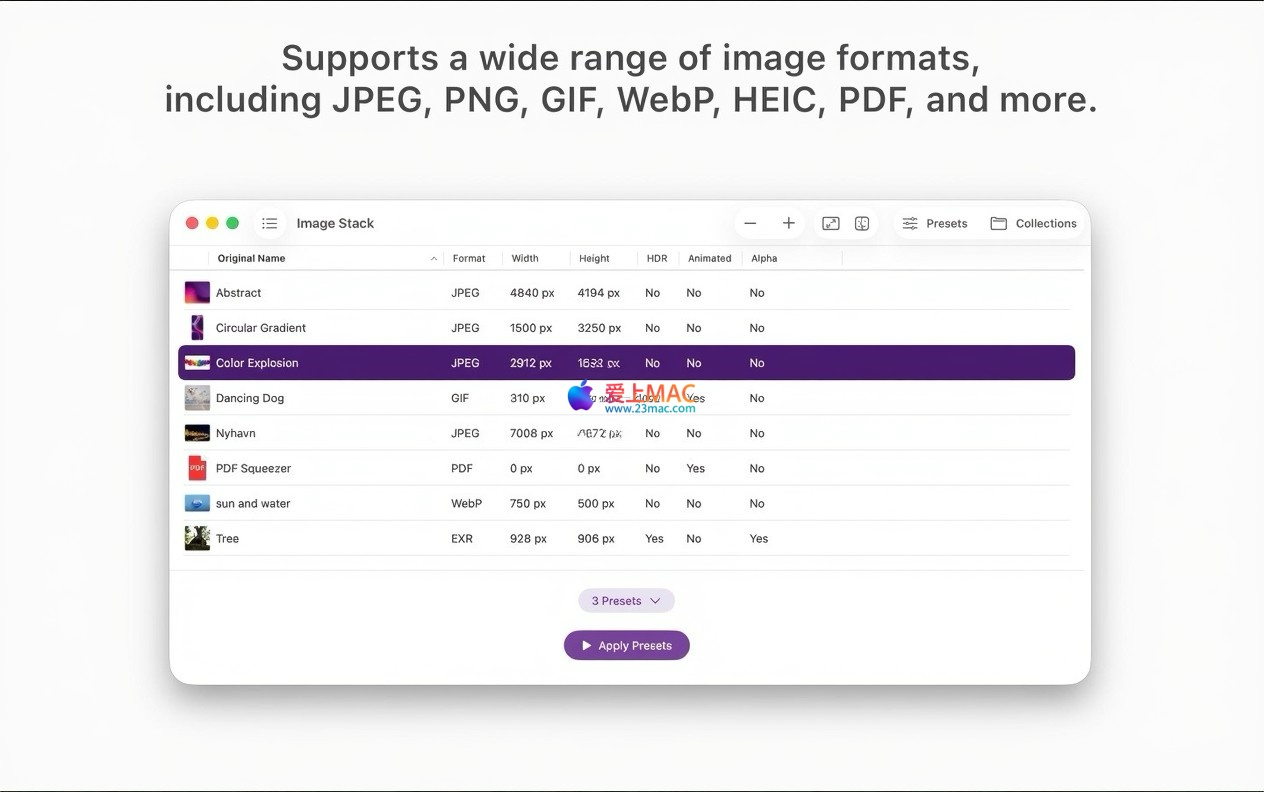
以下是 Image Stack for Mac v1.0.1 的实际操作界面,直观展示其简洁布局与强大功能。
主界面采用左侧资源库、右侧预览区的经典布局,顶部工具栏清晰罗列了格式转换、尺寸调整、重命名等核心操作入口。即使是初次使用者,也能快速上手。
批量处理设置界面允许您自由组合多个操作步骤。例如,您可以同时设定“转换为JPEG格式”、“调整为1920×1080像素”、“添加公司Logo水印”三个动作,软件会按顺序自动执行。
输出选项界面提供了精细的质量控制滑块,从0%到100%可调。同时,您可以选择是否保留原始元数据,这对于需要保护隐私或控制文件体积的场景非常有用。
为确保您能顺利使用Image Stack,我们整理了以下详细的安装步骤。请按照顺序操作,避免遗漏。
从本页提供的链接下载Image Stack v1.0.1安装包。建议使用浏览器自带下载功能,避免使用第三方下载工具造成文件损坏。下载完成后,请核对文件大小,确保完整。
双击下载的 .dmg 文件,系统会自动挂载并打开安装窗口。您会看到两个主要元素:左侧的“Image Stack”应用图标,以及右侧的“Applications”(应用程序)文件夹快捷方式。
将左侧的“Image Stack”图标,用鼠标拖拽到右侧的“Applications”文件夹上。系统会提示拷贝进度条,等待几秒钟即可完成。这是macOS标准的安装方式,无需复杂操作。
打开“应用程序”文件夹,找到Image Stack图标并双击启动。由于软件来自未经验证的开发者,macOS可能会弹出安全提示。请前往“系统设置” > “隐私与安全性”,点击“仍要打开”按钮。这是常见的Mac软件安装流程,请放心操作。
启动后,软件会提示输入激活码。请使用本页面提供的激活信息完成激活。激活成功后,建议立即创建您的第一个预设工作流,体验其核心功能。至此,安装全部完成。
针对用户在使用过程中可能遇到的问题,我们整理了以下FAQ,希望能帮您排忧解难。
A:Image Stack支持几乎所有主流图像格式,包括JPEG、PNG、GIF、BMP、TIFF、HEIC、WebP等。同时,它还支持RAW格式文件(如CR2、NEF、ARW等),满足专业摄影师的需求。
A:默认情况下,Image Stack会生成新的输出文件,不会修改原始图片。您可以在“输出”设置中指定保存位置,建议选择“新建文件夹”,避免覆盖原文件。这一设计体现了软件对数据安全的重视。
A: In the software interface, add the steps you need (such as format conversion, size adjustment, adding watermarks), then click the “Save Preset” button, input a name to save. Next time, simply choose the preset, drag the image into the software to execute the workflow in one click.
A: Currently, Image Stack focuses mainly on static image processing and does not support video files. If you need to handle video files in bulk, it is recommended to use professional video transcoding tools. However, Image Stack supports GIF animations very well, allowing you to adjust their size and frame rate.
A: Please check if there are any extra spaces or characters in your input. If you confirm that there are no extra spaces or characters, but you still cannot activate, it may be due to an expired activation code or exceeding the device limit. Please contact the contact information at the bottom of this page, and we will handle and update your activation information as soon as possible.
A: Ensure that your macOS version is 14.0 or higher. If the lag persists, you can try disabling the “Real-Time Preview” feature in the “Preferences” settings. This can significantly reduce resource usage. Additionally, when handling large numbers of images, it is recommended to batch process them, with each batch not exceeding 1000 images.
A: Ensure that all devices are logged in with the same Apple ID, and enable the “iCloud Sync” option in the software settings. After syncing, the presets you create on your Mac will automatically appear in the Image Stack application on your iOS devices, allowing for seamless workflow transfer between devices.
A: Yes, you can. Image Stack supports PNG and PSD images with transparent channels as watermarks. You can adjust their position, size, and transparency in the watermark settings, even setting the rotation angle to create unique copyright identifiers.
A: Yes, you can. In the renaming rules, you can choose to sort by “Creation Date” or “Modification Date”. Then, you can combine the “Date + Sequence Number” naming rule to make the file management clearer. For example, the output format could be “2024_01_01_001.jpg”, making the file management more organized.
A: The official provides a 14-day full-function trial period. During the trial period, all functions are available for free, with no restrictions. After the trial period ends, you need to activate to continue using the software. The activated version unlocks all functions, so you can download it with peace of mind.
Mastering shortcuts is key to improving Mac usage efficiency. Below is a table of commonly used shortcuts in the Image Stack software and macOS system, for your reference.
| Function Category | Shortcut | Operation Explanation |
|---|---|---|
| File Operations | Cmd + O |
Open an image or folder |
| File Operations | Cmd + S |
Save the current preset workflow |
| Edit Operations | Cmd + Z |
Undo the previous operation |
| Edit Operations | Cmd + Shift + Z |
Redo the operation that was undone |
| Processing Operations | Cmd + R |
Start batch processing |
| Processing Operations | Cmd + . (Period) |
Stop the current processing task |
| View Operations | Cmd + 1/2/3 |
Switch between List/Icon/Thumbnail view |
| View Operations | Cmd + + (Plus) |
Zoom in on the preview image |
| View Operations | Cmd + - (Minus) |
Zoom out of the preview image |
| System General | Cmd + Q |
Exit the Image Stack software |
| System General | Cmd + H |
Hide the Image Stack window |
| System General | Cmd + Tab |
Switch between open applications |
It is recommended that you screenshot and save or print this table, and place it next to your monitor. Once you master these shortcuts, your image processing speed will be at least 30% faster.
More theory is better than practical application. Below, I share three typical usage scenarios to give you a clear understanding of the power of Image Stack.
Imagine you have an e-commerce website that needs to compress 1000 product images into WebP format, with the longest side limited to 800 pixels. First, create a new preset: add “format conversion” to WebP, then add “size adjustment” to the longest side of 800 pixels. In the “output” settings, adjust the quality slider to 80%, so that you can significantly reduce file size while maintaining image quality. Finally, drag the image folder into the software, click to run, and in a few minutes, you will get the compressed images ready for upload.
Photography enthusiasts bring back 500 photos from a trip and want to add date and location watermarks to each photo. Using Image Stack’s “overlay processing” feature, you can add two text watermark layers: one displaying the date (read from EXIF information) and another displaying the location (either manually input or extracted from GPS information). After adjusting the font, color, and position, save the preset as “Travel Watermark.” In the future, whenever you return from a trip, you can run this preset to quickly complete the batch watermarking work.
Design teams often face the problem of disorganized asset naming. Using Image Stack’s “flexible renaming” feature, you can quickly standardize all files. For example, rename all assets to “project name_date_number” format. The specific operation: in the renaming rules, choose “add prefix” as “ProjectX_,” then choose “add date” as “YYYYMMDD,” and finally choose “add number” with a starting value of 001. After execution, all files will be organized neatly, greatly improving team collaboration efficiency.
Image Stack allows combining multiple operations in a single preset, but a more advanced use is to create multiple presets and chain them together. For example, first run the “format conversion + size adjustment” preset to unify the images into JPEG format and standard dimensions; then run the “add watermark + rename” preset to complete copyright protection and file naming. This step-by-step processing method makes it more flexible when handling different needs for images.
In summary, Image Stack for Mac v1.0.1 is a truly efficient image batch processing tool designed for Mac users. It solves the core pain points in image management through its simple interface, powerful preset system, and ultra-fast processing engine. Whether you are a graphic designer, photographer, e-commerce operator, or a general office worker, Image Stack can become your reliable assistant when you need to batch process images.
From installation and activation to practical application, we have already provided you with a complete operation path. We recommend that you download and experience it immediately, starting from creating your first preset. Gradually explore its full potential. If you have any questions during use, feel free to contact us through the contact information on this page. May you enjoy your use and increase your efficiency!
This resource requires login to download
Log in
Text Scanner for Mac v1.3.6 Chinese Activation Version Download
Downloads:727 | 2026-10-27

Artlantis 2020 for Mac v9.0.2.21201 Chinese Activation Download
Downloads:2854 | 2026-10-23

Romance of the Three Kingdoms Classic for Mac v1.7.1 – Classic Turn-Based Ruler Strategy Game
Downloads:1390 | 2026-10-20

Certificate Templates for Mac v2.0.1 – Pages Template Pack Activation Download
Downloads:872 | 2026-10-20


Ratings & reviews
4.5
(Maximum 5 ratings, total 62 user reviews)
Let’s rate it.