This page provides Airmail 3 for Mac v3.6.73 Email Client Chinese Activated Version Download | Love Mac, tested and working. If you encounter invalid links or installation issues after download, please leave a comment to contact us.
Airmail 3 for Mac is a completely redesigned professional email client, known for its outstanding performance, intuitive interaction, and modern interface. It is dedicated to creating a smooth, efficient, and distraction-free email environment, meeting all your expectations for an ideal email client.
1. Core Features Overview
Airmail 3 is a fully featured email client designed to help users easily manage and organize various email accounts and messages. It supports unified multi-account management and integrates powerful email processing tools, making daily email operations simple and quick.
2. Main Features and Advantages
1. Unified Multi-Account Management
Supports integration of multiple mainstream email service providers for one-stop management, including but not limited to:
- Gmail, Yahoo! Mail, AOL
- Outlook, iCloud, MS Exchange, Live.com
Its main window design allows you to quickly preview new emails and seamlessly switch between different accounts, ensuring timely and continuous communication. According to Macworld’s review, this multi-account integration capability is leading among email clients.
2. Efficient Email Management Tools
Through a powerful context menu and top toolbar, you can quickly perform the following core operations:
- Mark email status: such as unread, important, archived, etc.
- Move emails: move emails to specific folders or trash.
- Apply tags: use tags for refined categorization.
- Create tasks: quickly create reminders, calendar events, or to-dos based on email content.
The built-in smart search function supports quick finding of contacts and related emails. Meanwhile, it fully utilizes Mac trackpad multi-touch gestures for convenient swipe operations and supports transferring emails across accounts.
3. Highly Customizable Interface and Integration
Airmail 3 offers flexible personalization options:
- Custom shortcuts: assign keyboard shortcuts to frequently used functions to improve efficiency.
- Cloud storage integration: seamlessly connect to Google Drive, Dropbox, Droplr, CloudApp, and other cloud services for easy attachment management.
- Format compatibility: supports displaying winmail.dat files and inline image attachments.
- Interface themes: switch interface themes, view modes (compact/expanded), and adjust font size.
In addition, it seamlessly integrates with various mainstream productivity apps, such as:
- macOS native Calendar and Reminders
- Evernote, OmniFocus, 2Do, Things, and other task management tools
- Spam Sieve and other third-party spam filtering tools
3. Version Update Log (v3.6.71)
- Performance improvements: optimized overall operating efficiency and response speed for smoother operation.
- Template fixes: fixed several issues related to email templates.
- Stability enhancements: made multiple minor fixes to improve software stability and user experience.
4. Software Interface Screenshots
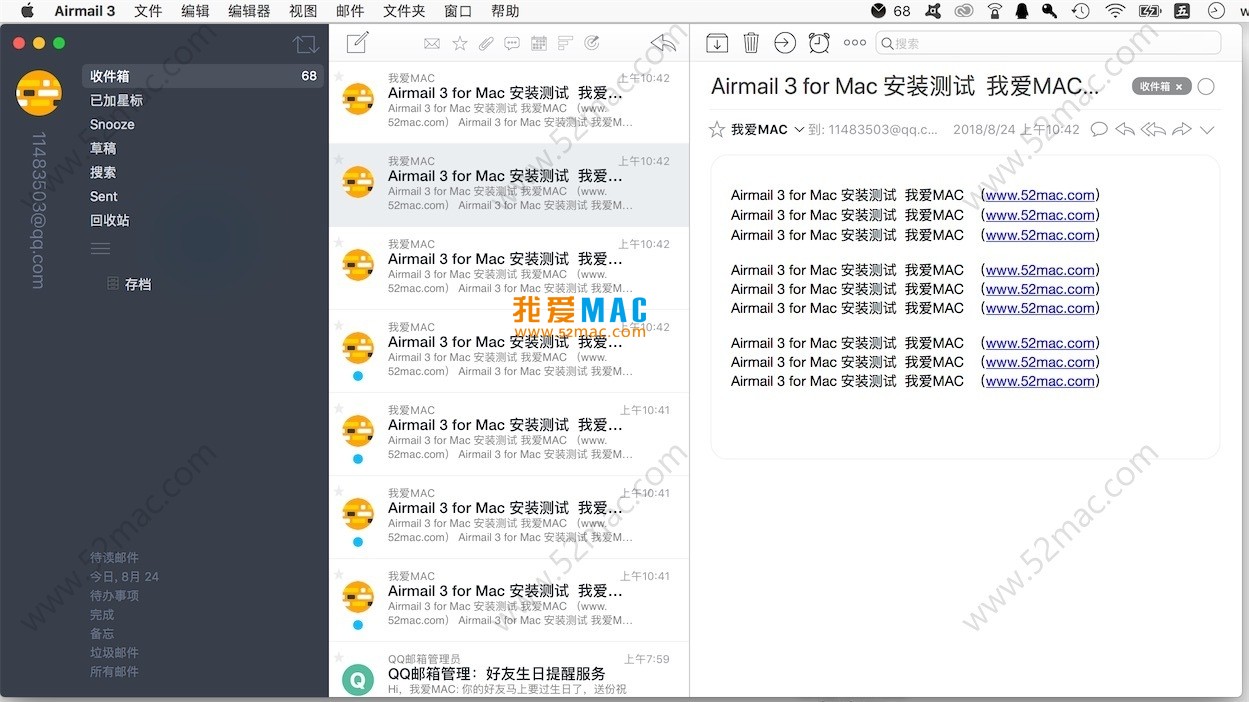
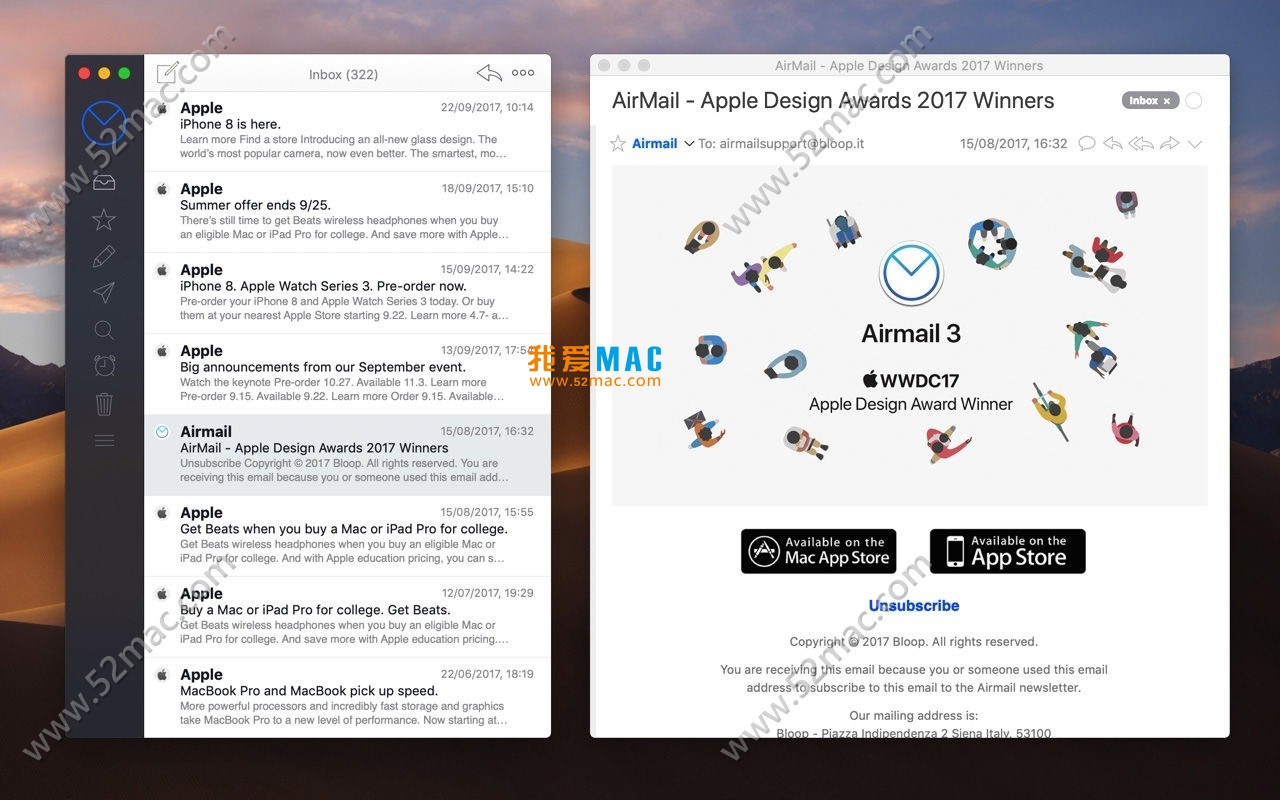
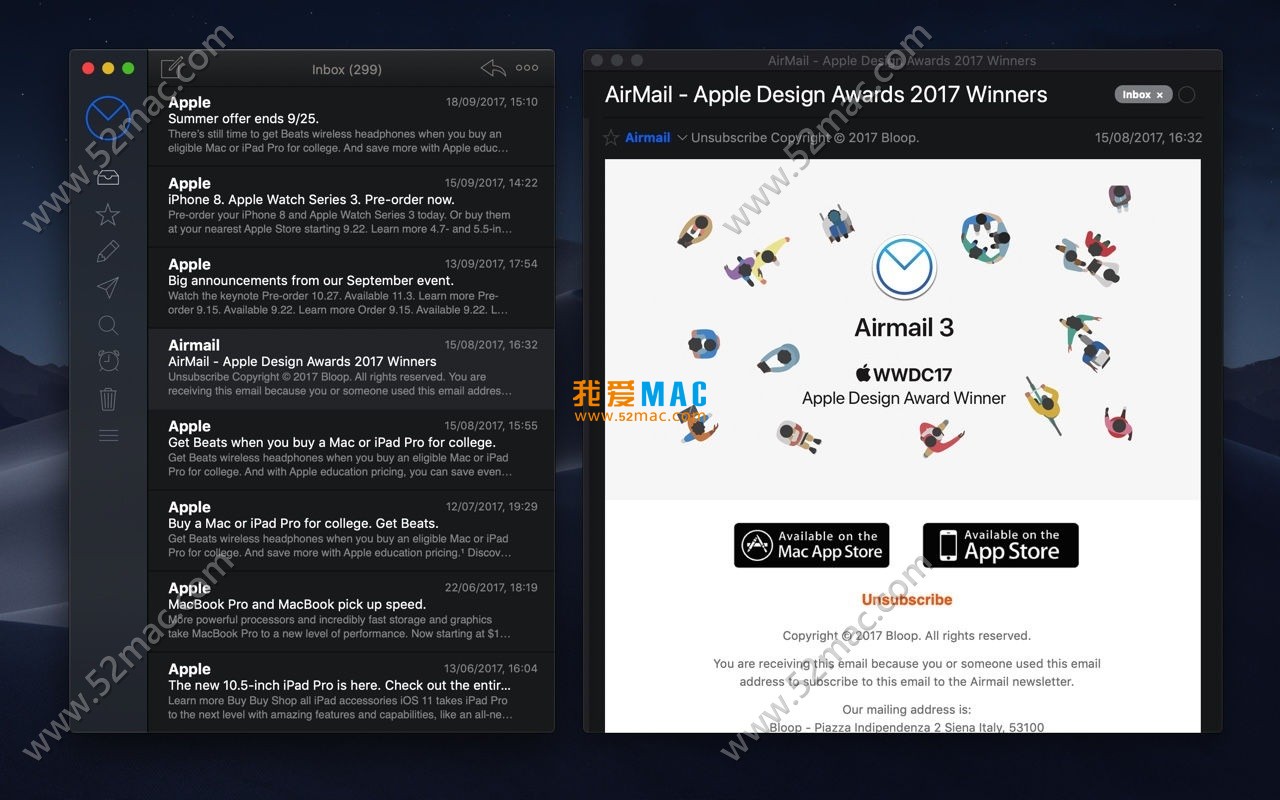
The following are the main interface displays of Airmail 3 for Mac:
5. Detailed Installation Tutorial
Before installing Airmail 3, please ensure your Mac is running macOS 10.12 or later. Here are the specific steps:
- Download the installer: Click the download link provided on this page to get the Airmail 3 .dmg file. It is recommended to use Safari or Chrome browser to download to avoid file corruption.
- Open the installer: Double-click the downloaded .dmg file, and the system will automatically mount and pop up the installation window.
- Drag to install: Drag the Airmail 3 icon on the left to the Applications folder on the right. When prompted for an administrator password, follow the instructions.
- First launch: Go to the Applications folder and double-click the Airmail 3 icon to launch. If the system prompts “Cannot verify developer”, go to “System Preferences” > “Security & Privacy” > “General” and click “Open Anyway”.
- Activate the software: After launching, an activation window will pop up. Enter your purchased activation code and click the “Activate” button. If the activation code is valid, you will see a “Activation Successful” message.
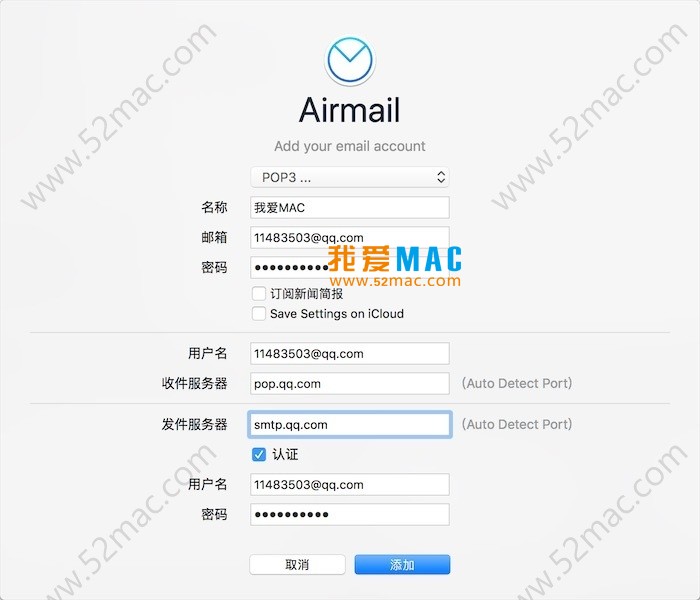
- Add account: After activation, Airmail will automatically guide you to add an email account. Select your email service provider (e.g., Gmail, Outlook), enter your email address and password, and authorize access. For Exchange accounts, enter the server address.
- Complete setup: After account verification, you can choose the email folders to sync (e.g., Inbox, Sent, Drafts) according to your preferences. Click “Done” to enter the main interface.
If you encounter any problems during installation, please refer to the FAQ below or contact us via the contact information at the bottom of the page.
6. Frequently Asked Questions (FAQ)
Here are 5 common questions and answers users often encounter when using Airmail 3:
- Q: Does Airmail 3 support a Chinese interface?
A: Yes, Airmail 3 fully supports a Chinese interface. You can switch the language to Simplified Chinese in “Preferences” > “General”. All menus and prompts will automatically adjust.
- Q: How to solve the issue of Gmail account not syncing?
A: Please ensure that IMAP access is enabled for your Gmail account (Settings > Forwarding and POP/IMAP > Enable IMAP). Then delete the account in Airmail and re-add it. If it still fails, check if two-step verification is enabled and generate an app-specific password.
- Q: What to do if Airmail 3 email notifications no longer pop up?
A: First, check the macOS “Notification Center” settings to ensure that notification permissions for Airmail are enabled. Second, in Airmail’s “Preferences” > “Notifications”, confirm that the “Show notifications” option is checked. If “Do Not Disturb” is on, turn it off.
- Q: Can I export Airmail 3 emails to other formats?
A: Yes. Select one or more emails in the email list, right-click and select “Export”. You can choose to export as .eml format (compatible with most email clients) or as PDF format. For batch export, it is recommended to use the “Export as PDF” function.
- Q: Why can’t Airmail 3’s search function find emails?
A: Airmail’s search relies on local indexing. If the search returns no results, try the following: In “Preferences” > “Accounts”, select the corresponding account and click “Rebuild Index”. This process may take a few minutes; after completion, search again.
7. Common Mac Shortcuts Table
Mastering the following shortcuts can significantly improve your efficiency in Airmail 3. The table below lists the most commonly used key combinations:
| Function |
Shortcut |
Use Case |
| New Email |
Command + N |
Quickly compose a new email |
| Reply to Current Email |
Command + R |
Reply directly to the sender |
| Reply All |
Command + Shift + R |
Reply to all recipients |
| Forward Email |
Command + F |
Forward the email to others |
| Delete Email |
Delete or Command + Backspace |
Quickly remove unwanted emails |
| Mark as Read/Unread |
Command + U |
Toggle email read status |
| Archive Email |
Command + Shift + A |
Move email to archive folder |
| Switch Account |
Command + Shift + [ or ] |
Switch between multiple email accounts |
| Search Email |
Command + Option + F |
Open search box to find emails |
| Send Email |
Command + Enter |
Quickly send after composing |
It is recommended to take a screenshot of this table and save it




Ratings & reviews
No rating
Let’s rate it.