



PDF Editor Pro for Mac v5.2.1 Chinese Activation Version Download
Here is the page providing PDF Reader Pro for Mac v5.2.1 PDF editing tool Chinese activation version download | LoveMAC has been tested and is available. If you encounter issues with the download link or the inability to install the software after downloading, please leave a message and contact us.
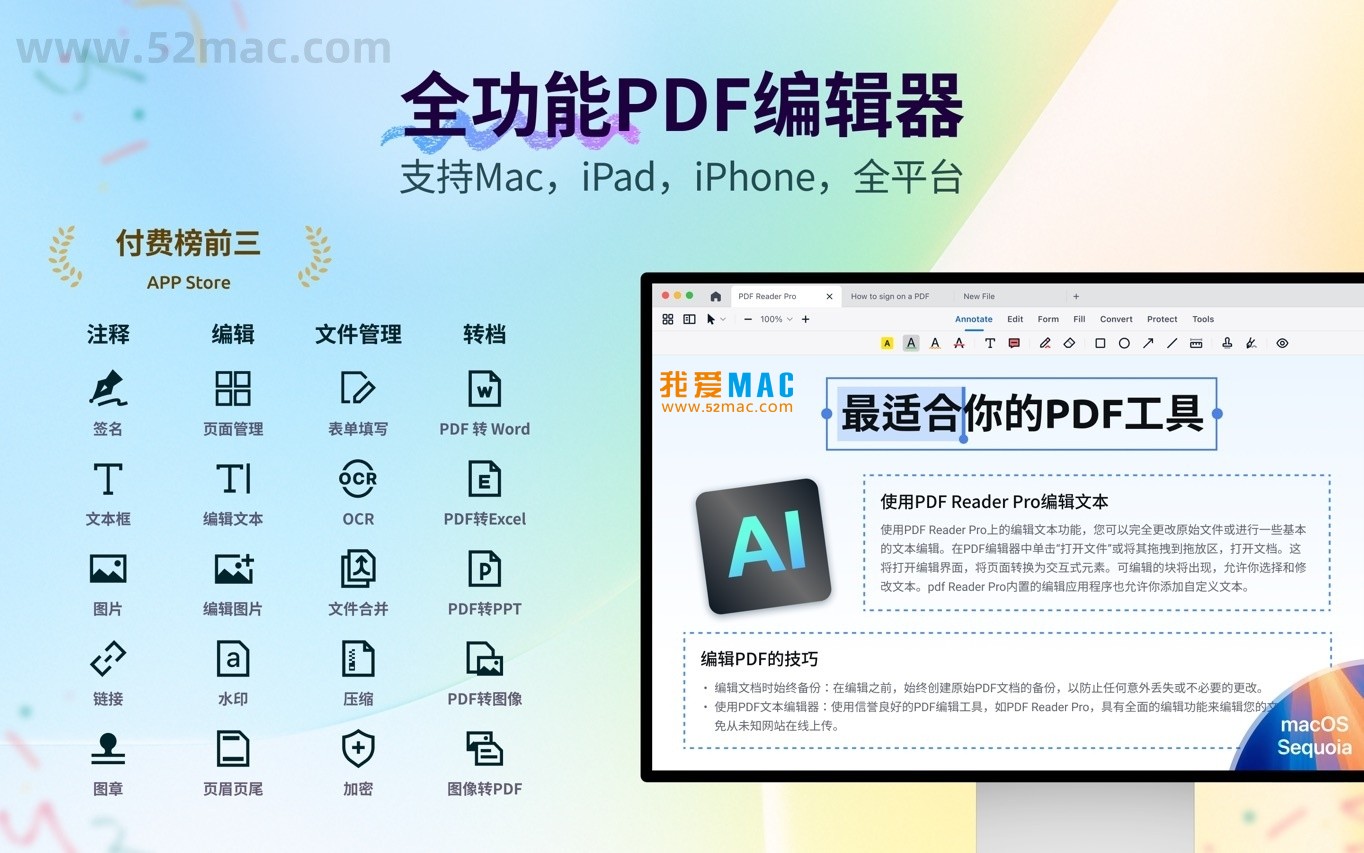
PDF Reader Pro is a powerful cross-platform PDF editing and management software, featuring a comprehensive set of tools and a smooth user experience, which has gained the trust of over 90 million users worldwide. The software integrates advanced AI intelligent assistants, enabling users to easily complete various professional operations such as document reading, editing, annotations, form handling, format conversion, OCR recognition, watermarks, encryption, and electronic signatures.
As a professional full-function PDF editor, PDF Reader Pro provides outstanding PDF processing capabilities on the macOS platform, helping users efficiently complete various PDF-related tasks. Whether it is modifying text, images, links, or adjusting watermarks and backgrounds, all can be achieved with ease. Additionally, the software supports document compression and merging, meeting diverse file management needs.
Through adding digital signatures to ensure the authenticity and integrity of the document, and quickly verifying the identity of the signer.
The latest version has fixed known issues and improved performance, enhancing the stability and efficiency of the software.
Many users are new to Mac software and may not be familiar with the installation process. Below, I’ll break down the installation process of PDF Reader Pro step by step, ensuring you can use the tool smoothly.
Click on the download link on the top of the page to get the dmg installation package. The file size is approximately 150MB, and the download speed depends on your network environment. It is recommended to use Chrome or Safari browsers to avoid download interruptions.
After the download is complete, double-click the dmg file. The system will prompt you with the “PDF Reader Pro” installation window, which usually contains two icons: one is the application itself, and the other is a shortcut to the “Applications” folder.
Drag the “PDF Reader Pro” icon from the left to the “Applications” folder icon on the right. This operation will copy the software to your Mac’s application directory.
After opening the “Launchpad” or “Applications” folder, find PDF Reader Pro and click on it. When the software starts for the first time, macOS may prompt you with “Unable to verify developer.” Don’t worry, go to “System Preferences” -> “Security & Privacy” -> “General” and click “Open Anywhere” to allow the software to run.
After the software starts, you will enter the activation interface. Enter the provided activation code and click the “Activate” button. Successfully activated, you will unlock all the advanced features, including AI assistants and OCR recognition.
Open any PDF file and try editing text or adding annotations. If all functions work properly, the installation is complete.
Based on user feedback, I’ve compiled 10 frequently asked questions to help you quickly resolve your usage issues.
This is usually due to strict system security policies. Ensure that Gatekeeper is disabled, or allow the software to run in “Security & Privacy” under “General” settings. If the issue persists, try re-downloading the installation package.
The activation code may have a usage limit. Check if you have exceeded the activation limit. Consider disconnecting from the network and activating again, or contact us for a new activation code.
The OCR recognition accuracy depends on the quality of the original image. Use scanned images with a resolution of 300 DPI or higher, and ensure the text is clear. The software supports 90+ languages, so make sure to select the correct language options in settings.
On the main interface of the software, choose “Tools” -> “Batch Conversion”. You can drag multiple PDF files into the interface, select the output format (such as Word or Excel), and then click “Start” to begin the conversion process.
Check if your Mac has enough RAM. Close other large applications or restart the computer. In the “Preferences” of PDF Reader Pro, disable “Auto Save” and “Live Preview” to significantly improve smoothness.
Open the document, then go to “Edit” -> “Watermark” -> “Add Watermark”. Choose between text or image watermarks, adjust transparency, position, and rotation angle. After setting, click “Apply” to set it.
In the “View” menu, select “Split View”. Drag the first document to the left and the second document to the right. Both documents can scroll independently, making it convenient to compare content differences.
Yes, it fully supports. PDF Reader Pro v5.2.1 has been optimized for M1, M2, and M3 chips. On Macs with Apple Silicon, the running efficiency and battery life have noticeably improved.
Don’t panic, just press the shortcut Command + Z to undo the last operation. The software supports multiple-level undo, allowing you to restore to any previous state by pressing the shortcut multiple times.
The free version has limited features, such as the AI assistant, OCR recognition, and advanced editing functions, which are locked. The activated version unlocks all features, allowing unlimited use. The version we provide is already activated, saving you the trouble of finding a crack.
Mastering keyboard shortcuts in PDF Reader Pro can greatly enhance your efficiency. Below is a table of the most commonly used operations, which you should save.
| Operation Category | Shortcut | Function Description |
|---|---|---|
| File Operations | Command + N | Create a new PDF document |
| Command + O | Open an existing PDF file | |
| Command + S | Save the current document | |
| Command + P | Print the document | |
| Edit Operations | Command + Z | Undo the last operation |
| Command + Shift + Z | Redo the last undo operation | |
| Command + C | Copy the selected content | |
| Command + V | Paste the content | |
| View Operations | Command + 0 | Fit page size |
| Command + 1 | Actual size display | |
| Command + + | Zoom in | |
| Command + – | Zoom out | |
| Navigation Operations | Page Up | Previous page |
| Page Down | Next page | |
| Home | Jump to the beginning of the document | |
| End | Jump to the end of the document | |
| Annotation Operations | Command + Shift + H | Add highlight annotation |
| Command + Shift + N | Add note annotation | |
| Command + Shift + U | Add underline annotation |
Knowing the features isn’t enough; mastering their use in real-world scenarios is crucial. Below, I share a few verified tips and cases.
Academic researchers often need to read numerous PDF papers. After opening a 20-page document, click the AI Assistant icon in the upper right corner, then choose “Smart Summarize”. In a few seconds, the software generates a 300-word summary, helping you quickly grasp the main points. This feature leverages a deep thinking analysis model, significantly outperforming manual reading.
If you have 50 contracts needing watermarks and headers added, don’t open them one by one. In the “Tools” menu, select “Batch Process”. Add all files first, then set the watermark content and header format uniformly. Click “Apply”, and the software will automatically process and save them to the designated folder. The entire process takes less than 5 minutes.
Company-issued scanned contracts are often not editable. In PDF Reader Pro, click “OCR” -> “Recognize Text”. The software automatically analyzes the text in the images, generating a searchable and editable PDF layer. Subsequently, you can edit text and copy content as if working with a regular document. The recognition accuracy is above 95%, requiring minimal secondary review.
Xiao Zhang, a graduate student at a university, faced piles of references and his professor’s feedback during graduation season. He first used the software’s split-screen comparison feature to display his initial draft and feedback side-by-side, cross-referencing each point. Next, he used the annotation tool to add sticky notes in the required modification areas and highlight important points. Finally, he used the AI Assistant’s “Rewrite” feature to refine a few sentences that were unclear. The entire process was seamless, and he successfully passed the defense.
PDF Reader Pro for Mac v5.2.1 is a reliable professional tool. It covers almost all PDF usage scenarios from basic reading and annotations to advanced AI assistance, OCR recognition, and batch processing. With over 90 million users worldwide, its stability and practicality are well-established. If you’re looking for a tool to enhance your productivity, PDF Reader Pro is definitely worth trying. The installation process is simple, and the features are rich. It’s easy to get started. I hope this guide helps you better utilize it.
This resource requires login to download
Log in
Ultimate Live Performance Gear with MainStage 3 for Mac v3.6 Chinese Activation Download
Downloads:897 | 2026-10-24

TMNT: Splintered Fate for Mac v1.5.0 Download and Activation Edition
Downloads:3188 | 2026-10-23

Artstudio Pro for Mac v5.1.16 Drawing and Photo Editing Software Activation Download
Downloads:1881 | 2026-10-21

WidsMob Viewer for Mac 2.5 Crack Version Download
Downloads:617 | 2026-10-21


Ratings & reviews
4.5
(Maximum 5 ratings, total 83 user reviews)
Let’s rate it.