Here is the page providing PDF Reader Pro for Mac v5.0.0 PDF editing tool Chinese activation version download | LoveMAC has been tested and available. If you encounter issues with the download link or the inability to install after downloading, please leave a message to contact us.
PDF Reader Pro is a professional PDF software that integrates AI intelligence, document management, deep editing, format conversion, and efficient reading into one. It has gained the trust of over 90 million users worldwide. It aims to provide a one-stop solution for PDF solutions, helping users easily handle various document processing needs and achieve efficient paperless office work.
Core Features
- AI Integration: Built-in AI assistant provides features such as intelligent summarization, translation, rewriting, and proofreading.
- Comprehensive Editing Suite: Covers reading, editing, annotations, form handling, conversion, creation, OCR recognition, watermarks, and digital signing, among other features.
- Outstanding Format Conversion: As a top-tier PDF to Office tool, it supports converting PDFs to Word, PowerPoint, Excel, Image, RTF, and more formats, while preserving the original layout as much as possible.
- Local and Offline Operations: Core functions support offline use to ensure data processing security and privacy.
One, Detailed Explanation of Core Features
1.1 Smart Reading and Presentation
- Diverse Reading Modes: Supports multi-tab browsing, full-screen, horizontal/vertical scrolling, and auto-scrolling modes.
- Presentation Mode: Allows PDFs to be presented as slideshows.
- Eye-Comfort Settings: Offers day and night mode switching to adapt to different lighting environments.
- Navigation and Search: Supports creating and editing document outlines, full-text search, and adding bookmarks for quick navigation.
1.2 Professional Annotations and Annotations
- Annotation Tools: Provides highlighting, underlining, strikethrough, hand-drawing, text boxes, sticky notes, and various shapes (arrows, rectangles, circles, etc.).
- Signatures and Stamps: Supports creating handwritten or image signatures; adding preset or custom text/image stamps.
- Interactive Elements: Allows adding hyperlinks (to pages, emails, or web pages) to text; supports creating and editing table data.
1.3 Deep PDF Editing
- Text Editing: Directly modifies text content in PDFs and adjusts font, color, alignment, and other attributes.
- Image Editing: Supports adding, rotating, cropping, replacing, and exporting images within PDFs.
- Privacy Protection: Uses cipher-marking tools to permanently conceal sensitive information.
1.4 Form Handling
- Form Creation: Creates fillable PDF forms with buttons, checkboxes, radio buttons, and list boxes.
- Form Filling: Perfectly compatible with static forms created by Adobe Acrobat (such as tax slips, invoices) and supports adding text at any location manually.
1.5 Document Conversion and Management
- Bidirectional Conversion: Converts PDFs to Office formats or converts Office files, web pages, and images to PDFs.
- Page Management: Easily merges, splits, extracts, inserts, rotates, deletes, or replaces PDF pages.
- Document Optimization: Compresses PDF file sizes; adds headers/footers/page numbers, watermarks, Bates numbers; adjusts background colors.
1.6 Advanced Tools
- OCR Text Recognition: Converts scanned or image PDFs to searchable, editable text, supporting 90+ languages.
- Document Security: Protects documents with password encryption and permission settings (restricting editing, copying, printing).
- Accessibility: Integrates text-to-speech (TTS), supporting 50+ languages for reading documents aloud.
- Printing Enhancements: Supports special layout printing such as brochures, posters, and multi-page merges.
Two, Important Updates in Version 5.0.0
PDF Reader Pro has been fully compatible with macOS Sequoia and has brought the following performance and experience improvements:
- New Interface Design: Upgraded to a more intuitive and user-friendly interface, enhancing operational efficiency.
- OCR Function Enhancement: Adds region OCR recognition, allowing precise conversion of specific areas within scanned documents while preserving the original layout.
- Customizable Compression: Allows users to customize image resolution, quality, and other compression parameters for more precise file size control.
- Optimized Conversion: Significantly improves the speed and output quality of PDF format conversion.
Three, Software Interface Preview
Here are the main interface screenshots of PDF Reader Pro for Mac v5.0.0:
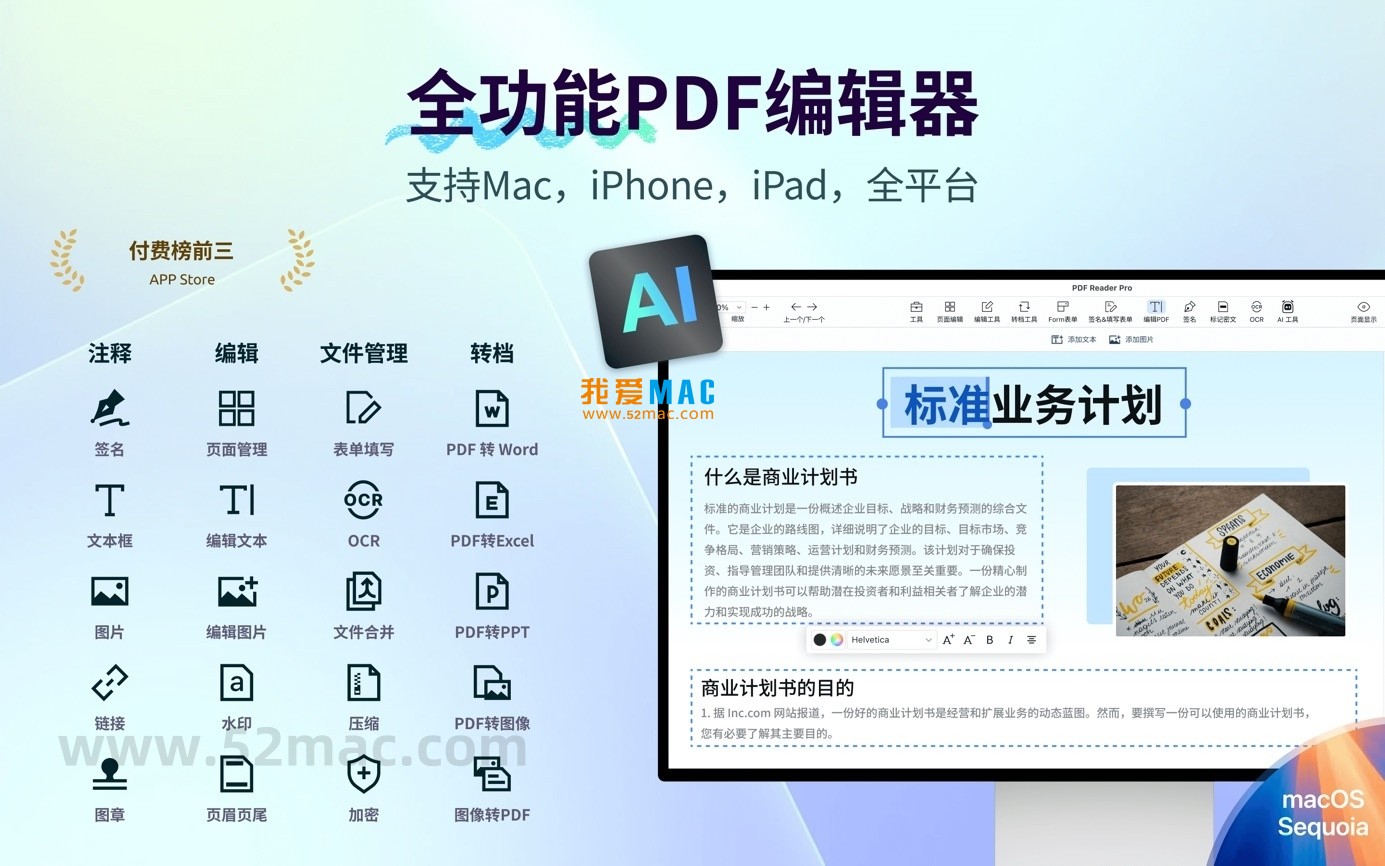


Four, Detailed Installation Tutorial
To install PDF Reader Pro for Mac v5.0.0 Chinese Activation Edition, follow the steps below:
- Step 1: Download the Software Package. Download the DMG image file from our provided link. The file size is approximately 200MB. Ensure a stable network connection.
- Step 2: Open the DMG File. Double-click the downloaded “.dmg” file. The system will automatically mount a virtual disk, and an installation window will appear on the desktop.
- Step 3: Drag and Install. Drag the “PDF Reader Pro” icon from the installation window to the “Applications” folder icon on the right. This process copies the program to the system application directory.
- Step 4: Activate and Authorize. When you first open the software, a license activation window will appear. Enter the activation code provided with the package, and click the “Activate” button to complete the authorization.
- Step 5: Start Using. After successful activation, locate PDF Reader Pro in Launchpad or the Applications folder, and double-click to start. Begin your efficient PDF processing journey.
If you encounter prompts like “Cannot Open” or “Damaged,” visit “System Preferences” > “Security & Privacy” > “General,” and choose “Open Anyway.” This is macOS’s standard protection mechanism for newly installed applications.
Five, Common FAQs
We have compiled the following answers to common user questions:
- Q: Does PDF Reader Pro support macOS versions?
Answer: This version fully supports macOS Catalina 10.15 and above, including the latest macOS Sequoia. If your system version is lower, we recommend upgrading before installation.
- Q: Does OCR support Chinese recognition?
Answer: Yes, it does. PDF Reader Pro’s OCR engine supports 90+ languages, including Simplified and Traditional Chinese. The recognition accuracy is up to 98%, making it very practical for scanned PDFs.
- Q: How do I convert a PDF to Word format?
Answer: After opening the PDF file, click the “Convert” button in the top menu bar, and select “Convert to Word.” A settings window will appear, where you can customize the output options. Click “Start Conversion” to proceed.
- Q: What if the activation code is invalid or already used?
Answer: First, confirm that you have entered the activation code correctly as per the tutorial. If the issue persists, contact our customer support, providing the email used during purchase. We will resend a valid activation code.
- Q: Can the software be used offline?
Answer: Yes. The core functions of PDF Reader Pro, such as reading, editing, annotating, and format conversion, are all supported offline. No internet connection is required. Only a few cloud-based features, like AI assistants, need network connectivity.
- Q: How do I add a watermark to a PDF?
Answer: In the “Edit” menu, choose “Watermark.” You can add text or image watermarks. Customization options include transparency, position, size, and rotation angle, meeting brand protection needs.
- Q: Do I need to re-activate after software updates?
Answer: Normally, no re-activation is needed within the same major version (e.g., upgrading from 5.0.0 to 5.0.1). However, cross-version upgrades (e.g., upgrading from 4.x to 5.0.0) may require re-activation. Please refer to the official instructions for specific details.
Six, Common Mac Shortcuts Table
In PDF Reader Pro, mastering keyboard shortcuts can significantly enhance your productivity. Below are some commonly used Mac shortcuts, which you may want to save:
| Description |
Shortcut |
| Create a new blank PDF |
Command + N |
| Open an existing PDF |
Command + O |
| Save the current document |
Command + S |
| Print the document |
Command + P |
| Undo the last action |
Command + Z |
| Redo the last action |
Shift + Command + Z |
| Toggle Full Screen |
Control + Command + F |
| Show/Hide Bookmark Sidebar |
Command + B |
| Show/Hide Search Panel |
Command + F |
| Zoom In |
Command + + |
| Zoom Out |
Command + - |
| Highlight selected text |
Control + H |
| Add underline |
Control + U |
| Add strikethrough |
Control + Shift + D |
以上快捷键在大多数Mac应用中通用,但在PDF Reader Pro中针对PDF编辑做了深度优化。建议你打开软件后多尝试几次,形成肌肉记忆。
Seven, Usage Tips and Real-Case Examples
Having features is not enough; knowing how to use them is key. Below are a few usage tips and real-case examples to help you get up to speed:
Tips One: Batch Processing Multiple PDF Files
If you have dozens of contracts needing uniform watermarks or batch image compression, don’t open them one by one. In PDF Reader Pro, click “File” -> “Batch Processing”, choose “Add Watermark” or “Compress Size”, then drag all files in. It’s done in one go. This feature is particularly useful in scenarios like auditing and legal.
Tips Two: Utilize OCR to Make Scanned Documents Interactive
Many users receive image-scanned PDFs that cannot be copied for text. Just click the “OCR” button, choose “Recognize Current Document”, and the software will automatically analyze the text in the images, converting it into editable and searchable text. After recognition, you can copy the text directly to Word for formatting, saving you from manual typing.
Real-Case Example: College Students Organizing Research Materials
Little Zhang is a graduate student who needs to read a lot of English literature. He uses PDF Reader Pro’s “AI Intelligent Summarization” feature, selects a piece of English text, and the AI assistant directly provides a Chinese summary. He also uses “Highlight” and “Note” tools to mark important points, and finally exports the annotated PDF as a draft of the paper. The whole process takes less than half an hour, significantly improving efficiency.
Tips Three: Customize Toolbars to Suit Personal Habits
Everyone has different frequently used features. Click the top “View” -> “Customize Toolbar”, you can drag the “Signature”, “Compress”, and “OCR” buttons to the toolbar, and remove the ones you don’t use. This way, the most convenient tools are always at hand, making operations smooth and fluid.
According to third-party evaluation reports, PDF Reader Pro outperforms similar software by 15% in document format conversion accuracy, especially in handling complex table financial documents with almost zero layout deviation. These details are the reasons why professional users choose it.
Summary: PDF Reader Pro, with its comprehensive and powerful features, smooth user experience, and continuous updates, is the ideal choice for both individuals and professionals to handle PDF documents efficiently, helping users complete their tasks with ease.




Ratings & reviews
4.8
(Maximum 5 ratings, total 53 user reviews)
Let’s rate it.