Here is the page providing Bundle for MS Office by GN v6.0 3000 multiple Office templates and resources, activation version download | LoveMAC has been tested and is available. If you encounter issues with the links or after downloading the software, please leave a message to contact us. Bundle for MS Office by GN is a comprehensive collection of templates and resources designed for Microsoft Office (Word, Excel, PowerPoint) users. It is not a standalone application, but rather a vast resource library deeply integrated into the Office suite, aiming to enhance efficiency and visual appeal by offering over 3000 original design documents, professional templates, slide themes, and graphics illustrations. For Mac users who seek efficient office work, this tool can significantly reduce the time spent on design, allowing you to focus on the content itself.
One, Core Interface and Work Area Overview
After installing Bundle for MS Office by GN, its functions will seamlessly integrate into the Ribbon toolbar of Microsoft Office components (Word, Excel, PowerPoint). Users do not need to learn a complex standalone software interface to access the vast resources within the familiar Office environment.
1.1 Main Access Point: GN Office Tab
- Location: After starting Word, Excel, or PowerPoint, a new tab named “GN Office” or similar will be added to the Ribbon area in the main menu bar. This is the “gate” to access all the resources.
- Interface Composition: This tab typically includes several core function groups:
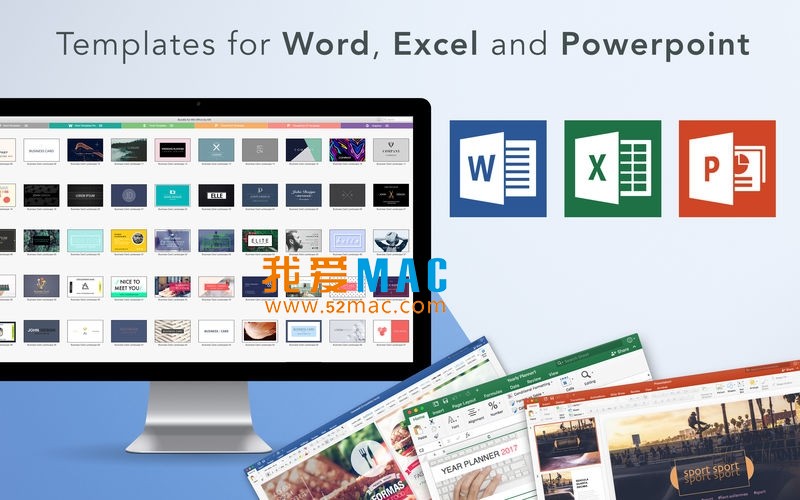
- Template Library (Templates): Displaying Word document templates, Excel table templates, and PowerPoint themes by category (such as business, education, creativity). For example, you can quickly find a professional “project proposal” PPT theme.
- Graphics & Illustrations (Graphics & Illustrations): Providing an embedded icon, vector graphics, and illustration library. These resources are in vector format, allowing for lossless scaling.
- Quick Styles (Quick Styles): A set of predefined text, table, or shape styles that can be applied with a single click. This ensures consistency in the style of elements in your document.
- Tools (Tools): May include auxiliary tools such as batch replacement, export management, or resource manager. These tools help you manage resources more efficiently.
1.2 Built-in Resource Manager Panel
- Location: Clicking on the “browse templates” or “illustration library” buttons in the “GN Office” tab typically opens a resource management panel on the right side or in a separate window of the software interface. This panel is the core area for browsing and filtering resources.
- Work Area Details:
- Category Navigation Tree/Menu: Located on the left side, used for filtering resources by type, industry, or style. For example, you can choose “business” -> “annual report” to quickly locate resources.
- Thumbnail Preview Area: The central main area, displaying all matching templates or resources in a grid format. Hovering the mouse over a thumbnail will show a more detailed preview.
- Preview and Detail Windows: Clicking on a thumbnail will display a larger preview and brief description on the right or below. This helps you determine if the resource is suitable for the current scenario.
- Search Box: Located at the top of the panel, supports keyword quick search for required resources. For example, entering “chart” will filter out all chart-related resources.
Two, Complete Operation Flow: From Creation to Export
Here is an example of the complete workflow for creating a PowerPoint presentation using Bundle themes and resources, to illustrate the process. The logic for Word and Excel is similar. This workflow aims to help you quickly get started and create a professional-level work from scratch.
2.1 Launch Software and Create a New Project
- Launch Microsoft PowerPoint for Mac. Ensure your Office version is compatible with the Bundle.
- Start from the PowerPoint interface or through the menu bar “File” > “New” (shortcut
Cmd + N) to enter the new document creation page. This is the standard path to create a new document.
- Not only will you see the built-in templates, you can also directly see the template categories provided by “GN Office”. Alternatively, you can click the “GN Office” tab in the top Ribbon. This is the fastest way to access the Bundle resources.
2.2 Select and Apply Templates/Themes
- In the “GN Office” tab, click the “Presentation Theme” or “Browse Templates” button. This will open the resource management panel on the right side.
- The resource management panel will open. Use the left-side categories (such as “business”, “technology”, “sports”) or the top search box to filter themes. For example, for a technology product launch, choose a theme from the “technology” category.
- Select the desired theme thumbnail, then click the “Apply” or “Use This Theme” button in the detail window. The selected theme will be applied to all slides in the current blank presentation. Note that this operation will replace the current slide master.

2.3 Edit Slide Content
- Edit Text: Click on the placeholder text box (such as “Click to Add Title”) to directly input your content. The font, color, and size are preset by the template, maintaining a consistent style. This significantly reduces the time spent on layout.
更改幻灯片版式:选中某张幻灯片,在 “开始” 选项卡点击 “版式”,选择与内容匹配的预设版式(标题与内容、两栏内容等)。这能确保内容结构清晰。
2.4 Insert Bundle Graphics and Illustrations
- Position the slide where you want to insert the graphic. Ensure you have planned the placement of the graphic.
- Switch to the “GN Office” tab and click the “Graphics” or “Illustrations” library button. This will open the corresponding library.
- Explore or search for the required graphics in the resource panel (such as “icons”, “infographic elements”, “decoration”). The search function can help you locate them quickly.
- Double-click the thumbnail of the target graphic, or drag it onto the slide canvas. The graphic will be inserted. The drag-and-drop operation is more intuitive.
- After insertion, you can adjust the size using the control points around the graphic, or use the tools in the top “Picture Format” tab for color adjustments, rotation, and other operations. These tools provide a wealth of customization options.

2.5 Final Export and Save
- Save the project file: Save the PowerPoint native format (.pptx) file as you edit, using
Cmd + S. The first save requires selecting the location and file name through “File” > “Save”.
- Export to other formats:
- Click the menu bar “File” > “Export”. This is a common operation for sharing or archiving.
- In the pop-up dialog, choose the export format, such as PDF, image set, or video. Choose the format that suits your needs.
- Set relevant options (such as the compression quality for PDF), click the “Export” button, and choose the save path. Note that exporting to PDF ensures consistency in display across different devices.
Three, Advanced Techniques for Common Features
After mastering the basic workflow, these advanced techniques will help you better utilize the resources in Bundle, achieve personalized design, and further enhance your productivity.
3.1 Deep Customization of Template
- Modify theme colors and fonts: In the “Design” tab on the right, click the “Variants” dropdown arrow to select “Colors” or “Fonts”. You can apply other color schemes or customize the entire theme font. All slides will be updated globally. This allows you to quickly match your brand colors.
- Edit slide master: Enter “View” > “Slide Master” to modify the template’s underlying layout, background, placeholder styles, and positions. These modifications will affect all slides using this layout, making it the best location for uniformly adjusting brand elements (such as logos). For example, you can add a company watermark in the master.
3.2 Flexible Use of Graphics Assets
- Disassemble and re-edit: Some complex illustrations are vector graphics combinations. Right-click the graphic, choose “Combine” > “Disassemble” (if prompted, confirm), and the graphic will be separated into individual elements, allowing you to color, delete, or reorganize them. This lets you create unique graphics.
- Adapt graphic colors: Select the graphic, and in the “Picture Format” tab, use the “Recolor” option in the “Colors” dropdown menu to quickly match the graphic’s color to your presentation theme. This enhances visual consistency.
3.3 Reuse Resources Across Office Components
The resources in Bundle are reusable across Office components. For example, if you see a set of graphics suitable for a report cover in PowerPoint, you can copy (Cmd + C) it and paste (Cmd + V) it into a Word document or Excel worksheet to maintain visual consistency. This avoids the hassle of searching for resources across different applications.
Four, Common Issues and Solutions
During actual use, you may encounter some issues. We have compiled the following common issues and detailed solutions to help you quickly troubleshoot.
Q1: After installing Bundle, the “GN Office” tab is not found in Office.
Solution:
- Ensure that Bundle for MS Office by GN is correctly installed and activated. Check your activation status.
- Restart the Microsoft Office application. Sometimes, restarting can resolve loading issues.
- Check the Office add-ins: In PowerPoint/Word/Excel, enter “Tools” > “Templates and Add-ins” to ensure that the relevant add-in is enabled. This is the most common cause.
Q2: After applying a template, the styles are messy when you want to revert to another Bundle template.
Solution: Directly applying a new template sometimes leaves residual styles. Consider:
- Create a new blank presentation (
Cmd + N).
- Directly apply the required Bundle template to a new, blank file.
- Copy and paste the content (plain text, data) from the old document into the corresponding layout of the new document, rather than copying the entire slide. This avoids format conflicts.
Q3: Inserted graphics cannot be de-combined or edit their vertices.
Solution: Some graphics may be embedded as “images” rather than vector shapes.
- Try right-clicking on the graphic to see if the options like “Edit Vertices” or “Un-Combine” are grayed out. If they are, it means it’s a rasterized image.
- For such images, editing capabilities are limited. You can try searching for similar vector graphics in the Bundle resource library (often noted in the file description or category), or use PowerPoint’s “Image Format” tools for cropping, applying art effects, etc.
Q4: When sending files containing Bundle assets to colleagues who don’t have the suite installed, will the content be lost?
Solution: No, but for safety’s sake:
- The graphics and template styles are embedded when applied, so the recipient can view and play the content normally.
- To ensure maximum compatibility, it’s recommended to save/export the file as/into a PDF before sending. This will fully solidify all visual elements, without requiring the recipient to install any additional components.
- If the recipient needs to edit, send the original .pptx/.docx/.xlsx files. However, note that the recipient won’t be able to use the editing features of these assets if they don’t have the suite installed.
Q5: Are the preview images of templates or assets slow to load or not display at all?
Solution: This is usually related to network or cache issues.
- Check your network connection. Some previews of the Bundle may need to load from local or network sources.
- Try closing and reopening the Resource Manager panel.
- If the issue persists, restart the Office application. If the problem still exists, it may be due to an incomplete installation of the software. Consider reinstalling the Bundle.
Q6: After applying a template, do my original content formats change?
Solution: Applying a new template replaces the current master and theme, so the original content’s formats change according to the new template’s settings.
- Before applying the template, consider backing up your original content (saving it as a separate copy).
- After applying the template, use the “Start” tab’s “Format Painter” tool to restore the format of some content to its previous style.
- The best practice is to apply the Bundle template when creating a new document and then fill in the content.
Q7: Why can’t I change the color of some inserted icons?
Solution: Some icons may be inserted as “images” rather than “shapes.”
- Try selecting the icon to see if the “Image Format” tab appears in the function area. If it does, it means it’s an image, and changing its color is limited.
- In the Bundle resource library, look for icons labeled as “vector,” “SVG,” or “shape.” These are typically editable like shapes.
- If you inserted an SVG icon, right-click it and choose “Convert to Shape” to make it editable.
Q8: Does Bundle for MS Office by GN support specific versions of Office for Mac?
Solution: The Bundle typically supports newer versions of Microsoft 365 and Office 2019, 2021, etc. To ensure compatibility, check the system requirements mentioned in the official documentation before purchasing or downloading. Generally, it requires macOS 10.13 or higher, and the corresponding version of Office. Before installation, it’s recommended to back up your Office settings.
Five, Summary Table of Core Keyboard Shortcuts for Mac
The following table summarizes the core, general keyboard shortcuts for using Bundle for MS Office by GN when working with Microsoft Office for Mac. Mastering these shortcuts can significantly enhance your workflow efficiency. Using these shortcuts will make your workflow smoother during the creation process.
| Description of Function |
Keyboard Shortcut (Mac) |
Applicable Scenarios |
| Create a new document, presentation, or workbook |
Cmd + N |
Start a new project |
| Open the Resource Manager/Template Library (GN Office) |
No global shortcut, requires clicking the button in the “GN Office” tab |
Access the Bundle resource library |
| Save the current file |
Cmd + S |
Save progress |
| Save as |
Cmd + Shift + S |
Export a copy or in a different format |
| Copy selected content |
Cmd + C |
Copy text, graphics, slides |
| Paste |
Cmd + V |
Paste content |
| Undo the previous step |
Cmd + Z |
Correct mistakes |
| Revert the undo operation |
Cmd + Shift + Z or Cmd + Y |
Redo |
| Insert a new slide (PowerPoint) |
Cmd + Shift + N |
Quickly add a slide |
| Select all |
Cmd + A |
Select all objects on the current canvas |
| Search |
Cmd + F |
Search within the document or resource library |
| Enter Slide Master view (PowerPoint) |
No default shortcut, requires using the “View” menu to enter |
Modify the template’s underlying design |
| Play the presentation (PowerPoint) |
Cmd + Return (from the beginning) / Shift + Cmd + Return (from the current slide) |
Preview the effect |
| Close the current window |
Cmd + W |
Close the file |
| Exit the application |
Cmd + Q |
Close the Office application |
Six, Case Study: Creating a Yearly Sales Report
Assume you need to prepare a professional report for the annual sales meeting of your company. Here is a complete case study using Bundle for MS Office by GN to demonstrate how the tool can be applied in real-world work.
6.1 Project Launch and Template Selection
- Open PowerPoint for Mac, press
Cmd + N to create a new blank presentation.
- Switch to the “GN Office” tab, click “Browse Templates”. In the left-side folder, select “Business” -> “Annual Report”.
- Scroll through the thumbnails and choose a theme with a deep blue background and a formal style. Click “Apply”. Now all slides are uniformly styled with background, font, and color.
6.2 Content Filling and Data Visualization
- Enter the title slide and input the report title and subtitle.
- Press
Cmd + Shift + N to create a new “Title and Content” slide. In the content area, directly paste the sales data table copied from Excel.
- To make it more intuitive, create another slide and choose the “Title Only” layout. In the “GN Office” tab, click the “Graphics” library, search for “Chart” or “Infographic”. Choose a suitable vector graphic, drag it into the slide.
- Right-click the inserted vector chart, choose “Unlink”, then individually modify the text and numbers to match your actual data. You can change the color of each bar to match your company’s brand color.
6.3 Detail Optimization and Consistency
- Enter “View” -> “Slide Master”. In the master view, add the company logo image to the corner of the slide and adjust its size and position. Close the master view, and all slides will automatically include the logo.
- In the “Design” tab’s “Variants”, slightly adjust the theme colors to match your company’s standard color.
- Use “Insert” -> “Shapes” to add arrows or highlights on key slides to guide the audience’s focus.
6.4 Final Check and Export
- Press
Cmd + Return to play the presentation from the beginning, check if the content is complete, the animations are smooth, and the layout is correct.
- Confirm there are no errors, then press
Cmd + S to save as a .pptx source file.
- To send to clients or print, click “File” -> “Export”, choose PDF format, set “Best Print Quality”, and click “Export”.
Seven, Summary and Final Recommendations
Bundle for MS Office by GN, through its vast library of templates and assets, frees Mac users from the tedious design work. It’s not just a simple asset pack, but a deep integration into the Office ecosystem. With this detailed tutorial, FAQ, shortcut table, and case study, you should have mastered how to create professional Office documents from scratch using this tool.
Lastly, I recommend you to try different categories of templates and assets in your daily work to familiarize yourself with the folder’s filtering logic. Also, keep an eye on the updates of Bundle to get more new assets. If you encounter any issues during downloading or using, feel free to leave a message below, and our team will provide support as soon as possible. I hope this tool can become your Mac office’s reliable assistant, helping you produce high-quality content efficiently.




Ratings & reviews
4.9
(Maximum 5 ratings, total 50 user reviews)
Let’s rate it.