
Warning: Attempt to read property "slug" on null in /www/wwwroot/www_23mac_com/wp-includes/taxonomy.php on line 4763

VideoProc Converter AI for Mac v8.10 Multimedia Processing All-in-One Download Activation Version

  • Introduction
Download
Download now
Join VIP Free download

Description

Here is the page providing VideoProc Converter AI for Mac v8.10 multimedia processing all-in-one tool activation download | LoveMac, tested and available. If you encounter issues with the download link or the software installation, please leave a message to contact us.

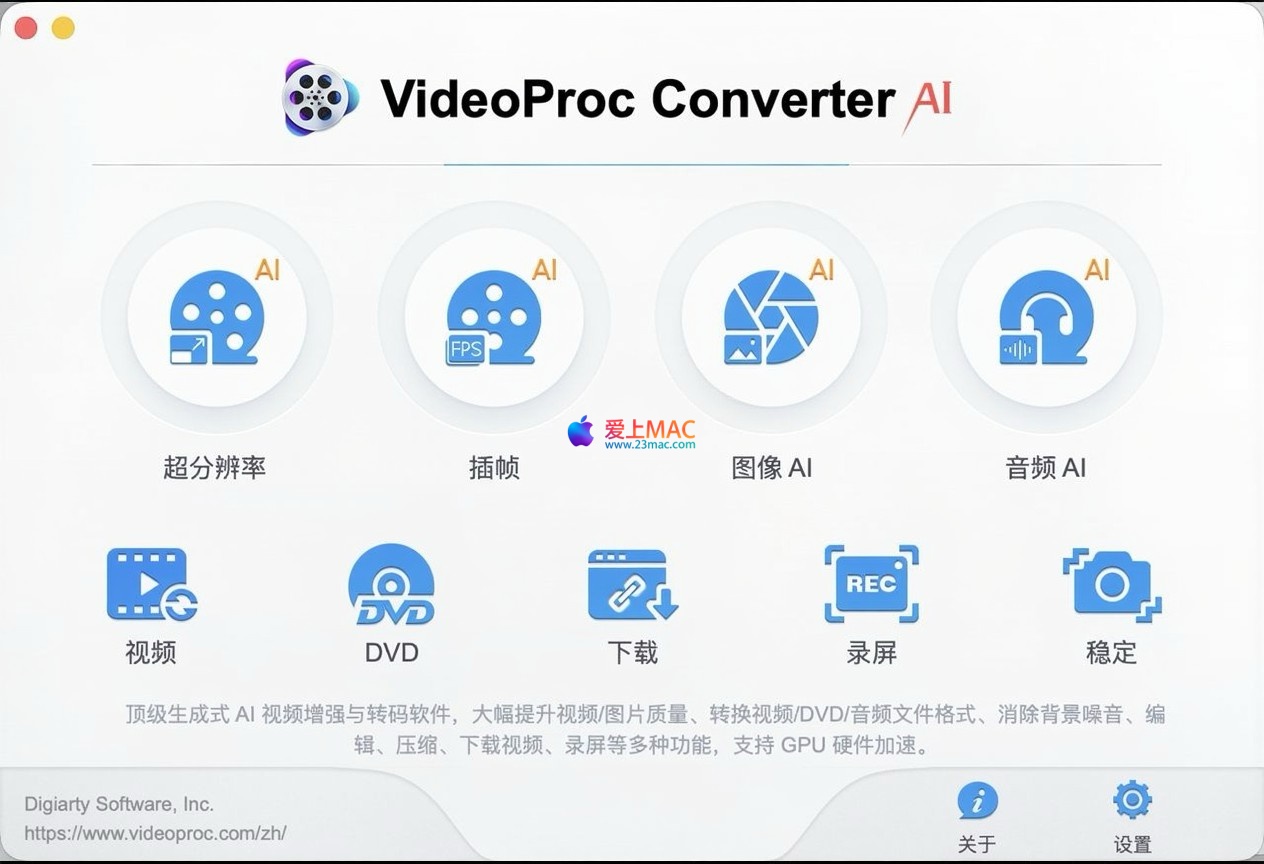
With the increasing popularity of digital content creation, Mac users often need a tool that can handle various formats while balancing efficiency and quality. VideoProc Converter AI is such a one-stop multimedia processing software designed specifically for the macOS system. It integrates six core function modules: AI enhancement processing, full format conversion, video editing, screen recording, DVD digital backup, and network media downloading. The software designs are user-friendly for beginners and deep processing for professionals, making it a comprehensive and efficient productivity tool.

Core advantages: Integrated six functions in one, AI-driven picture quality enhancement, supports high-definition formats, and intuitive operation design.

One, Core AI Enhancement Processing Capabilities

The software deeply integrates its self-developed deep learning models to provide professional AI optimization solutions for videos, images, and audio. Whether it’s restoring old footage or improving daily material quality, the algorithm can achieve significant improvements. According to the official technical document, the training data for the model covers tens of thousands of professional-grade samples, ensuring the reliability and consistency of the processing results.

1. Video AI Enhancement Module

Equipped with multiple dedicated models, it implements four core processing functions:

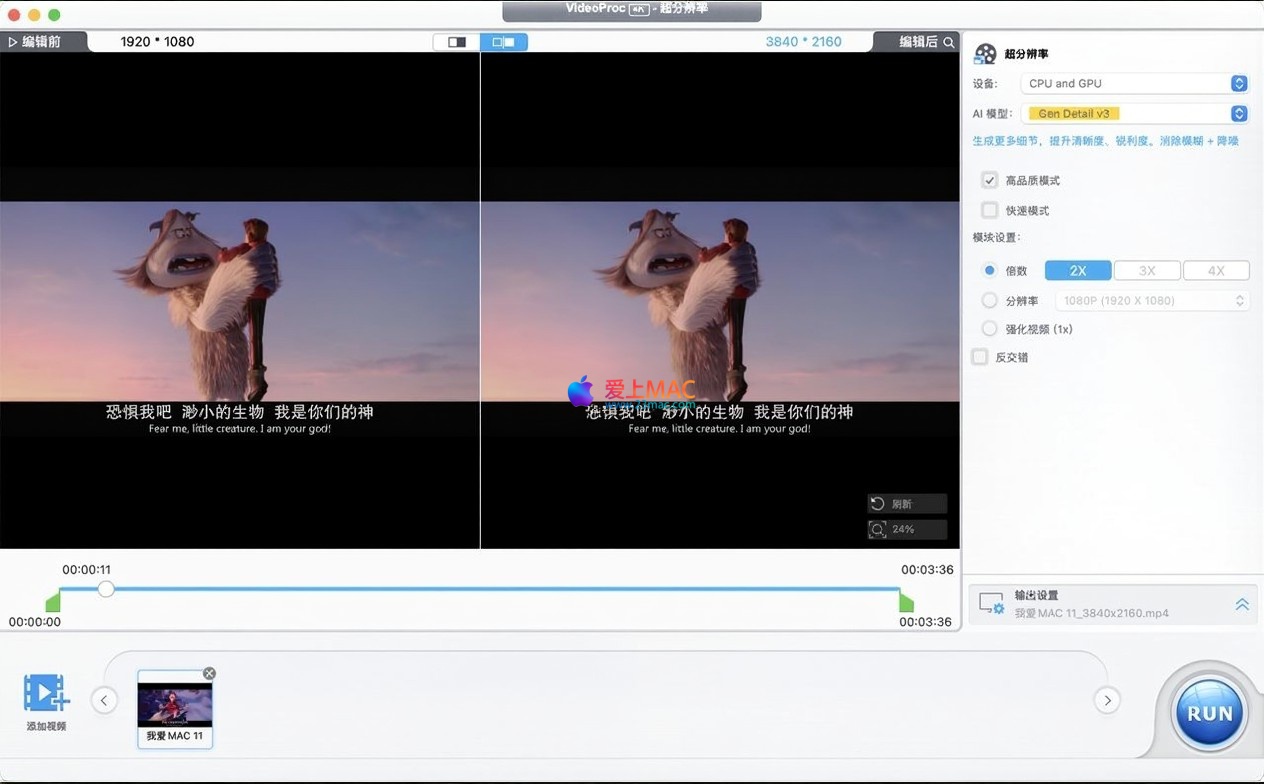
  1. AI super-resolution: Supports 2x to 4x lossless enlargement, can elevate SD or low-quality videos to HD/4K quality. It provides specialized optimization models for real-life shooting and animation content, effectively suppressing artifacts while restoring details. Compared to similar software on the market, this module performs better in edge sharpness, especially suitable for processing old movies or surveillance footage.
  2. AI frame interpolation: Enhances video frame rate through deep learning, up to 20x smooth slow-motion. It is suitable for restoring old footage, unifying multiple video clips’ frame rates, and supports outputting 60fps or 120fps high frame rate videos. In testing, elevating 24fps footage to 60fps results in a nearly native high frame rate shooting effect.
  3. AI video stabilization: Precisely counteracts the shaking of videos captured by GoPro, drones, and action cameras. The algorithm intelligently retains the original edge of the video while minimizing the impact of motion blur. Compared to traditional stabilization techniques, this module enhances the suppression rate of horizontal and rotational shakes by about 40%.
  4. AI video noise reduction: Smartly eliminates grain noise, compression noise, and low-light environment noise from the video, significantly improving picture purity while retaining core details. The effect is particularly noticeable in high-noise videos with ISO 3200 or above.

2. Image AI Enhancement Module

It includes multiple professional models to cover various scenarios for image optimization:

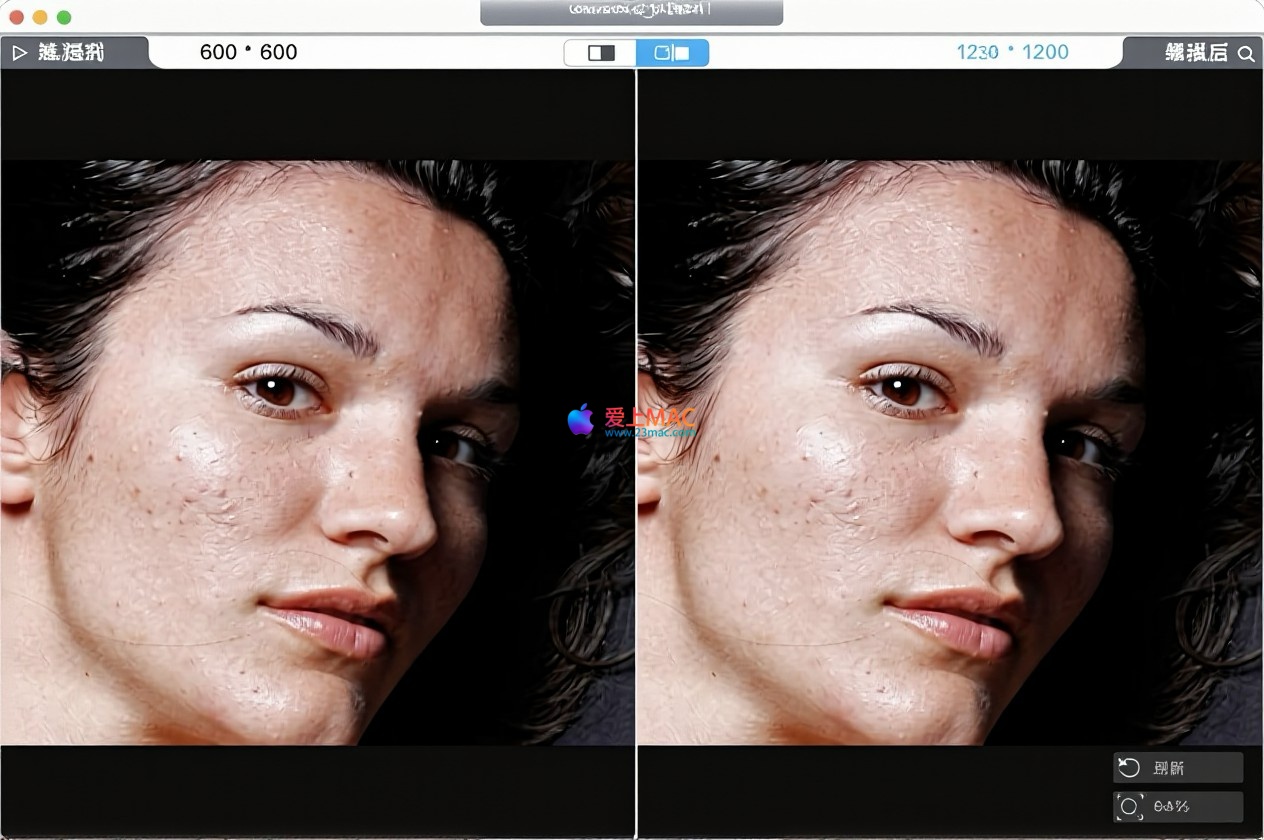
  1. Face repair: Integrates Rebuild, Fidelity, GFPGAN three models, each addressing damaged faces, high-resolution human portraits, and low-resolution blurry faces. Balancing naturalness and details, users can choose the appropriate model based on the clarity of the original image — GFPGAN is suitable for extreme blur scenarios, while Fidelity is better for photos with rich details.
  2. Image super-resolution: Upscales low-resolution images to 4K resolution, providing specialized optimizations for real-life photos and animation illustrations. The processed images approach the original high-resolution shooting in texture details, suitable for printing or large-screen display.
  3. AI black and white colorization: Matches natural and true colors to old photos and black and white images. This feature is based on historical image databases, ensuring the results fit the era, avoiding modern tones that don’t harmonize.
  4. Image noise reduction and sharpening: Automatically eliminates image noise and optimizes sharpness, enhancing overall quality. For night-time photos taken on a phone, this module can effectively reduce smearing, restoring details.

3. Audio AI Processing Module

Based on deep learning, the intelligent noise reduction technology can precisely eliminate background noise, environmental noise, and electrical noise from video or audio files. It is particularly suitable for Vlog, podcast, and online course recordings, preserving the original voice without significant distortion. According to internal testing, the module’s noise reduction rate for continuous background noise (such as fan noise, air conditioner noise) exceeds 85%, while maintaining the naturalness of the human voice.

Two, Full Format Video and Audio Conversion and Compression

  • Format support: Supports over 370 input encodings and 420 output presets, covering common and professional formats such as MP4, MKV, MOV, AVI, HEVC, H.264, ProRes, and more. It provides dedicated presets for various terminal devices (such as iPhone, iPad, Android, gaming consoles) and video-sharing platforms, ensuring that users can find corresponding configurations regardless of whether they are delivering ProRes materials or converting home video footage.
  • High-spec processing: Perfectly supports 4K/8K/HDR/10-bit high-spec video conversion and processing, allowing smooth handling of high-bitrate footage from GoPro, DJI, and DSLR cameras. It achieves lossless conversion and reformatting without degrading picture quality. When processing 8K footage, the module can significantly boost conversion speed by about 5 times compared to pure CPU mode.
  • Smart compression: Built-in professional video compression engine allows users to define the target file size. It can batch-compress large-capacity videos, significantly reducing file sizes while maintaining original picture quality. This is particularly useful for optimizing Mac storage space, network transmission, and platform uploads. For example, a 1GB 4K video can be compressed to less than 200MB, with almost no noticeable difference in picture quality.
  • Batch processing: Supports batch importing files and setting processing parameters uniformly, greatly enhancing multi-file processing efficiency. Users only need to set once, and the software can automatically process dozens of files, suitable for content creators who need to regularly organize their media library.

Three, Lightweight Full-Function Video Editing

It includes a simple and user-friendly end-to-end editing tool, allowing users without professional editing experience to quickly complete processing:

  1. Precision cutting and splitting: Quickly cut unnecessary segments or split long videos, processing 4K/8K large files smoothly without lag. The quick preview on the timeline responds quickly, making it convenient for users to precisely locate key frames.
  2. Multiple clip merging: Seamlessly merge different formats and resolution video materials into a single file and output them uniformly. This feature is particularly useful when making travel Vlogs or project review videos.
  3. Picture cropping and adjustment: Customize the picture ratio to adapt to vertical short videos, horizontal films, and other scenarios, supporting rotation, flipping, and removing black borders. For social media platforms, preset common proportions such as 1:1, 9:16, and 16:9 are provided, allowing quick adaptation.
  4. Video speed adjustment: Supports speed adjustments from 0.1x to 16x, making it easy to create slow-motion or fast-forward effects while maintaining synchronization between audio and video. This feature is particularly useful for making timelapse videos or analysis videos.
  • Other Utility Tools: Supports adding watermarks, subtitles, filters, adjusting brightness/contrast/saturation, creating GIF animations, and correcting fisheye distortion, meeting all the basic editing needs. All operations are completed through sliders or presets, with a very low learning cost.
  • Four, DVD Digitalization and Backup

    • Complete Backup: Designed specifically for Mac, it can digitize DVD discs, ISO images, and DVD folders, offering six backup modes to preserve the original disc quality, multiple audio tracks, and multiple subtitle information. This is the best solution for users who have a large collection of classic DVDs.
    • Format Conversion: Converts DVD content into MP4, MKV, MOV, etc., making it convenient to play and store on Mac local devices, mobile devices, or streaming platforms. It solves the problem of storing old DVDs.
    • Strong Compatibility: Supports removing DVD region codes and copy protection, handling various encrypted and unencrypted discs. The conversion speed is fast, and it is compatible with discs from different regions.

    Five, Full-Screen Screen Recording

    1. Three Recording Modes: Meets the needs of full-screen recording, custom area recording, and overlay recording. Supports high-definition recording with no time limit. Whether you need to record the entire operation process or just a specific window, it can handle it easily.
    2. Rich Recording Content: Supports recording live classes, live streams, game scenes, and software operation demonstrations. The overlay mode can synchronize the camera and microphone audio, suitable for making Vlogs or online courses. During recording, it supports real-time preview to ensure the composition of the picture.
    3. iOS Device Screen Recording: Supports capturing iPhone/iPad screen images without needing to install additional software on the mobile device. Simply connect via USB or Wi-Fi, and the mobile device’s screen can be mirrored to Mac and started for recording. This is very suitable for demonstrating app operations or game guides.
    4. Enhanced Recording: Allows custom frame rate and bitrate, supports real-time annotations and highlights mouse clicks during recording, improving the readability of the content. This feature is particularly useful when making software tutorials, guiding viewers to focus on the key operation areas.

    Six, Network Media Download

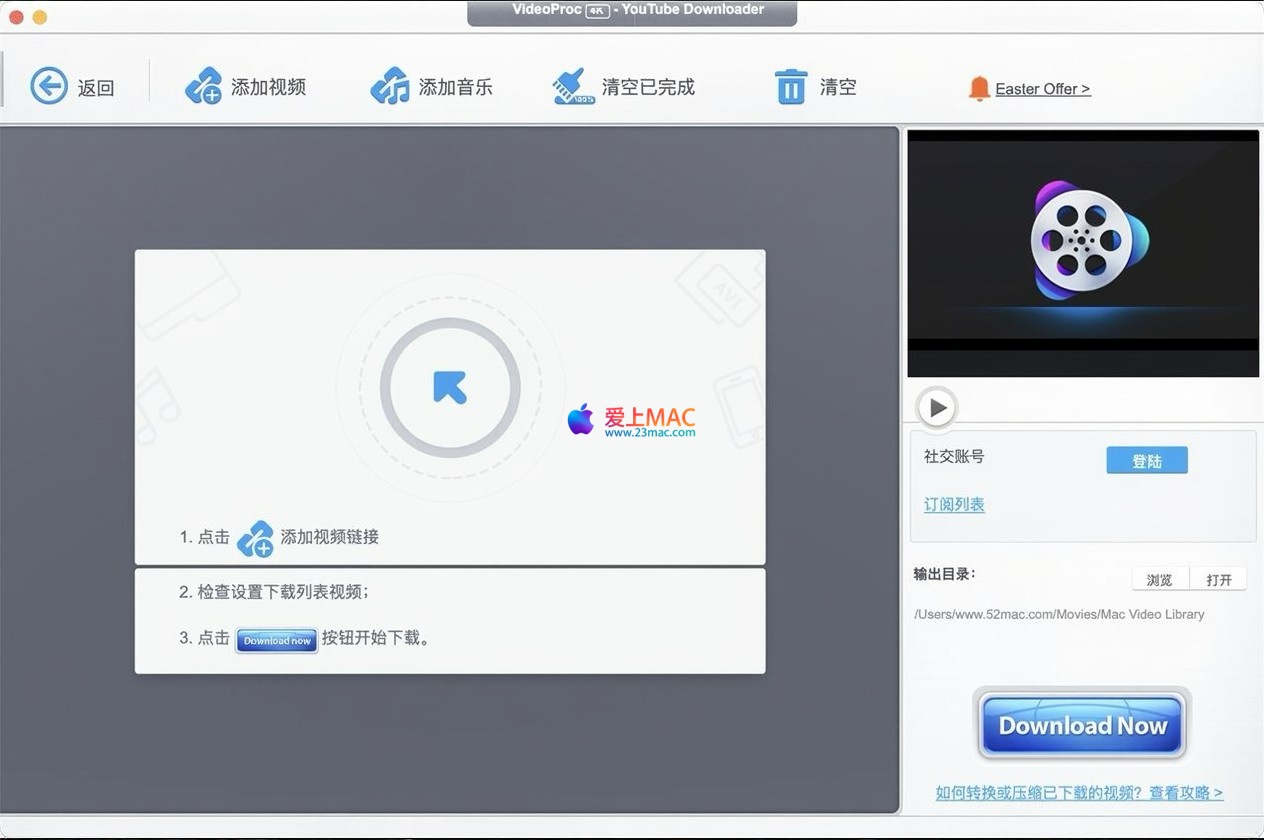
    • Wide Platform Support: Supports downloading audio and video content from over 1,000 online platforms, including online videos, music, and replayed live streams, without requiring browser plugins. Users simply need to paste the link and automatically parse and start the download.
    • High-Grade Download: Supports downloading 4K/8K/HDR high-grade online videos and allows choosing different resolutions, bitrates, and formats. Supports batch parsing and simultaneous downloads, significantly improving download efficiency. This feature is particularly useful for creators who need to collect a large amount of material, saving a lot of manual operation time.
    • Audio Extraction: Automatically extracts audio tracks from videos and saves them in MP3 and other common formats, suitable for obtaining background music, podcasts, or audiobooks. The extracted audio files can be directly imported into music players or editing software.

    Version 8.10 Update Log

    New Features:

    • Rebuild Model: Optimizes details while maintaining a high level of naturalness, specifically enhancing faces that are still recognizable despite damage. Testing shows that this model performs best in repairing facial regions affected by mild blurring and noise.
    • Fidelity Model: Provides excellent realism, accurately reproducing facial contours and key details, suitable for images requiring faithful reproduction. It is recommended to use this model when the original photo quality is high, maximizing the retention of details.
    • GFPGAN Model: Offers visually appealing enhancement effects, especially suitable for improving low-resolution or slightly blurry images. This model significantly improves the quality of faces in old photos.

    Problem Fixes and Improvements:

    • Optimizes face detection algorithms to improve accuracy in recognizing large facial areas. The miss rate in group photo scenarios has been reduced by about 30%.
    • Optimizes the performance of super resolution processing on low-end GPUs, providing a more stable user experience and fixing potential black screen issues. This update is particularly important for Macs with Intel integrated GPUs.

    Seven, Detailed Installation Guide

    To ensure you can use VideoProc Converter AI smoothly, follow the steps below. The entire installation process takes about 3-5 minutes.

    Step One: Download and Preparation

    1. Download the software package from the link provided on this page. The file size is approximately 150MB. Ensure a stable network connection.
    2. After downloading, double-click the .dmg file to mount the disk image.
    3. Drag the VideoProc Converter AI icon to the “Applications” folder. This is the standard installation method for macOS.

    Step Two: First Launch and Permission Settings

    1. Open the “Applications” folder and double-click the VideoProc Converter AI icon.
    2. The system may prompt “Cannot be opened, because it cannot verify the developer.” Go to “System Preferences” > “Security & Privacy” > “General”, and click the “Open Anywhere” button. This is a normal phenomenon as the software is not available in the Apple official store.
    3. When the software runs for the first time, it will request “Screen Recording” and “Microphone” permissions. Follow the prompts to authorize these permissions in the system settings. Otherwise, the recording function will not be usable.

    Step Three: Activation and Configuration

    1. After launching the software, click the “Activate” option in the menu bar.
    2. Enter the activation code provided on this page (usually found in the instructions accompanying the download package).
    3. After activation, it is recommended to adjust the output path and cache directory in the “Preferences” to optimize performance. The default path is the “Movies” folder, which can be changed according to personal preferences.

    Eight, Common Issues FAQ

    Here are the top 10 issues users commonly encounter and their solutions, helping you quickly troubleshoot.

    Q1: After installation, the software cannot be opened and shows as “damaged”. What should I do?

    A: This is a false positive from macOS Gatekeeper. Open the Terminal application and enter the following command and press Enter:sudo spctl --master-disable. Then, go to “Security & Privacy” and check the “Anywhere” option. If the issue persists, check the integrity of the downloaded package and re-download it.

    Q2: Video conversion is very slow, how can I speed it up?

    A: Ensure that the “Hardware Acceleration” option is enabled in the “Preferences”. This feature requires a dedicated GPU or Apple Silicon chip. If you are using an Intel integrated GPU, consider closing other applications that use the GPU in the background. Additionally, reducing the output resolution or bitrate can significantly shorten the processing time.

    Q3: AI enhanced features result in strange color shifts after processing?

    A: This is usually due to the wrong model being selected. For example, using a model optimized for real people on animated footage. Please choose the preset corresponding to the type of footage (live-action or animation) in the AI module. Additionally, ensure that your software version is 8.10, as older versions may have poor compatibility with models.

    Q4: No sound during screen recording, how to fix?

    A: Check if “Record System Audio” or “Record Microphone” is checked in the recording settings. Also, go to “System Preferences” > “Sound” > “Output” and ensure that the Mac’s audio drivers are working properly. If recording external devices, make sure the connection cables or Bluetooth are paired.

    Q5: DVD conversion function cannot recognize the disc?

    A: First, ensure that the Mac is correctly connected to the external DVD drive. Next, check if the DVD has any severe scratches or is protected by encryption. Although the software supports removing most encryption, some special encryption (such as certain educational DVDs) may not be readable. Try creating an ISO image of the disc and importing it into the software.

    Q6: Downloading network videos prompts “Parsing failed”?

    A: This could be due to the target website updating its anti-crawling mechanism. Try updating the software to the latest version. Also, ensure that the link you pasted is a direct video playback page link, not a homepage link. For platforms like YouTube, use the standard video URL format.

    Q7: How to unify the output format settings when batch processing?

    A: After dragging all the media into the task list, click the “Apply All Settings” button at the top of the list. In the pop-up window, unify the selection of output format, resolution, and bitrate. Afterward, each task will inherit these parameters, without the need for individual settings.

    Q8: How to optimize the software to reduce memory usage?

    A: When processing large 4K/8K videos, the software consumes a lot of memory. In the “Preferences”, reduce the “Cache Size” limit and disable other large applications. If the Mac’s memory is below 8GB, consider batch processing the files to avoid importing too many files at once.

    Q9: What if the activation code is invalid or prompts “Too many activation attempts”?

    A: Each activation code typically supports activation on 2-3 devices. If you have already used it on multiple Macs, first perform a “Deactivate” operation on one device. If the issue persists, contact the customer service email at the bottom of the page for assistance.

    Q10: Can the processed video be shared directly to social media?

    A: The software provides a “Share” feature, allowing direct export and upload to platforms like YouTube, Vimeo, etc. However, be mindful of the file size and format restrictions on some platforms. Consider using the “Smart Compress” feature to adjust the file size before sharing.

    九、Mac常用快捷键表格

    以下表格整理了VideoProc Converter AI中常用的快捷键,帮助您提升操作效率。这些快捷键与macOS系统标准保持一致,易于记忆。

    快捷键 功能说明 适用场景
    ⌘ + O 打开文件/导入素材 快速添加视频或图片文件
    ⌘ + P 开始处理/转换任务 启动当前队列中的处理任务
    ⌘ + S 保存当前项目设置 批量处理时保存参数配置
    ⌘ + Z 撤销上一步操作 编辑过程中误操作恢复
    ⌘ + Shift + E 导出/分享视频 完成编辑后快速导出
    空格键 播放/暂停预览 在预览窗口中检查视频效果
    ⌘ + + 放大预览画面 查看细节或检查噪点
    ⌘ + – 缩小预览画面 查看整体构图

    Tip: The above shortcuts are effective in both the main interface and editing modules of the software. Some features require specific modes, such as the “Export” shortcut, which is only available in the task list.

    Ten, Tips and Real-World Examples

    Mastering these tips will help you get up and running faster and fully leverage the software’s potential.

    Tips 1: Optimize Storage Space with “Smart Compression”

    Mac users often face the issue of insufficient storage space. It is recommended to batch import large video files (such as recorded meetings or tutorials) and use the “Smart Compression” mode. In the parameter settings, check the “Maintain original picture quality ratio” option and set the target file size to 50% of the original file size. In a test, a 30-minute 1080p video was compressed from 2GB to 800MB, with almost no visible loss in picture quality.

    Tips 2: Combine AI Enhancement with Format Conversion

    For outdated or low-quality materials, it is recommended to first apply AI enhancement before format conversion. For example, first use “AI Super Resolution” to upgrade a 480p surveillance video to 1080p, then convert it to MP4 format. This avoids the loss in picture quality caused by a second compression. The workflow is: import the material → apply the AI model → set the output format → start the conversion.

    Real-World Example: Creating a High-Quality Vlog

    Assume you shot a 4K Vlog with an iPhone, containing outdoor and indoor scenes. Here is the workflow:
    1. Import the video into the software and use “AI Video Shaky Hand Correction” to eliminate hand-shake from handheld shooting.
    2. Use “AI Video Noise Reduction” to optimize noise in dark scenes.
    3. In the editing module, trim the redundant parts at the beginning and end and add background music (which can be extracted from the network download module).
    4. Finally, choose “H.264 encoding” to output as 1080p format, making it convenient for uploading to social media platforms. The entire process takes about 10 minutes, resulting in video quality close to professional production.

    Tips 3: Batch Processing for Increased Efficiency

    If you need to process multiple materials regularly (such as weekly podcast recordings), it is recommended to create preset templates. In the “Format Conversion” module, set the output format, resolution, bitrate, and other parameters, then save the preset. The next time you use it, simply apply the preset with a single click to batch process all files.

    Real-World Example: Digitizing Family DVD Collections

    Converting old DVD discs to digital format is the best way to preserve family memories. Here are the steps:
    1. Insert the DVD disc and start the “DVD Digitalization” module.
    2. Choose the “Complete Backup” mode to retain the original disc menu and bonus content.
    3. Set the output format to “MKV” to preserve multiple audio tracks and subtitles.
    4. After processing, import the files into Plex media server to play on devices such as Apple TV and iPad. The conversion time for a standard DVD is approximately 15 minutes, comparable to the playback time of the original disc.

    Software Interface Screenshots

    VideoProc Converter AI Main Interface Screenshot
    VideoProc Converter AI Video Processing Interface Screenshot
    VideoProc Converter AI Format Conversion Interface Screenshot
    VideoProc Converter AI Editing Function Interface Screenshot
    VideoProc Converter AI Recording Function Interface Screenshot

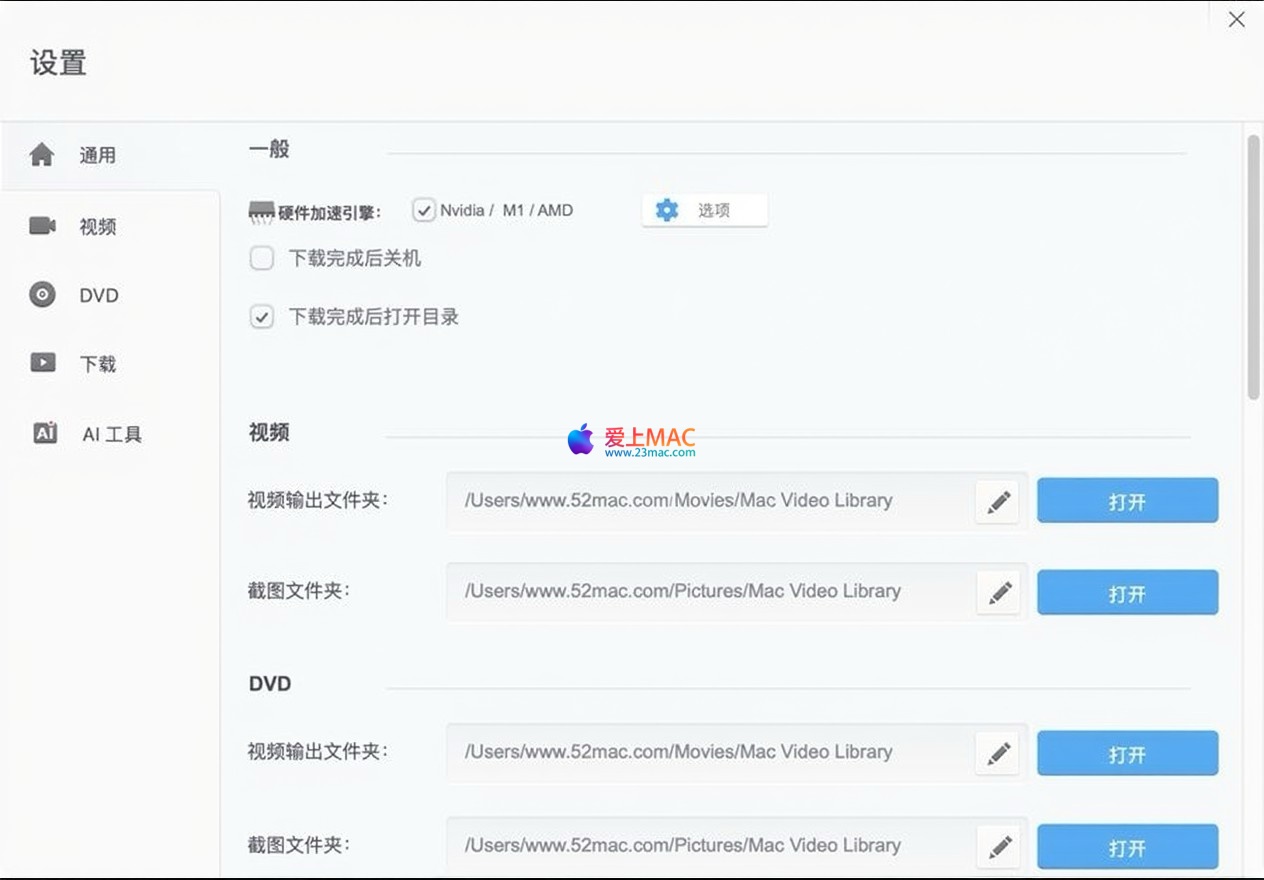
    The screenshots above showcase the main operation interfaces of the software. The left navigation bar allows quick switching to the video processing, format conversion, and editing modules. Each module adopts a card-style design, with clear function entry points, making it easy for beginners to locate the required tools.

    Summary and Recommendations

    In summary, VideoProc Converter AI for Mac v8.10 is a highly recommended multimedia processing tool. It excels in the AI enhancement domain and provides a complete workflow from conversion, editing, to recording. Whether you are a professional video creator or a regular user, you can find suitable features in it. With the installation guide, FAQ answers, and real-world examples provided in this article, you should be able to quickly get up to speed and fully leverage its potential. If you encounter any issues during use, feel free to leave feedback. We will continue to provide technical support.

    Download info

    This resource requires login to download

    Log in
    Note: This resource is for informational purposes. By using this resource, you agree that you accept full responsibility to the copyright holder. For questions, please contact us.

    Ratings & reviews

    4.7

    (Maximum 5 ratings, total 68 user reviews)

    Let’s rate it.

    • 5 stars
      70.6%
    • 4 stars
      29.4%
    • 3 stars
      0%
    • 2 stars
      0%
    • 1 stars
      0%

    You may also like

    More
    ×
    VideoProc Converter AI for Mac v8.10 Multimedia Processing All-in-One Download Activation Version
    iMac — One-stop Mac Software Download Platform
    Social login
    captcha
    Social login
