One, Game Overview
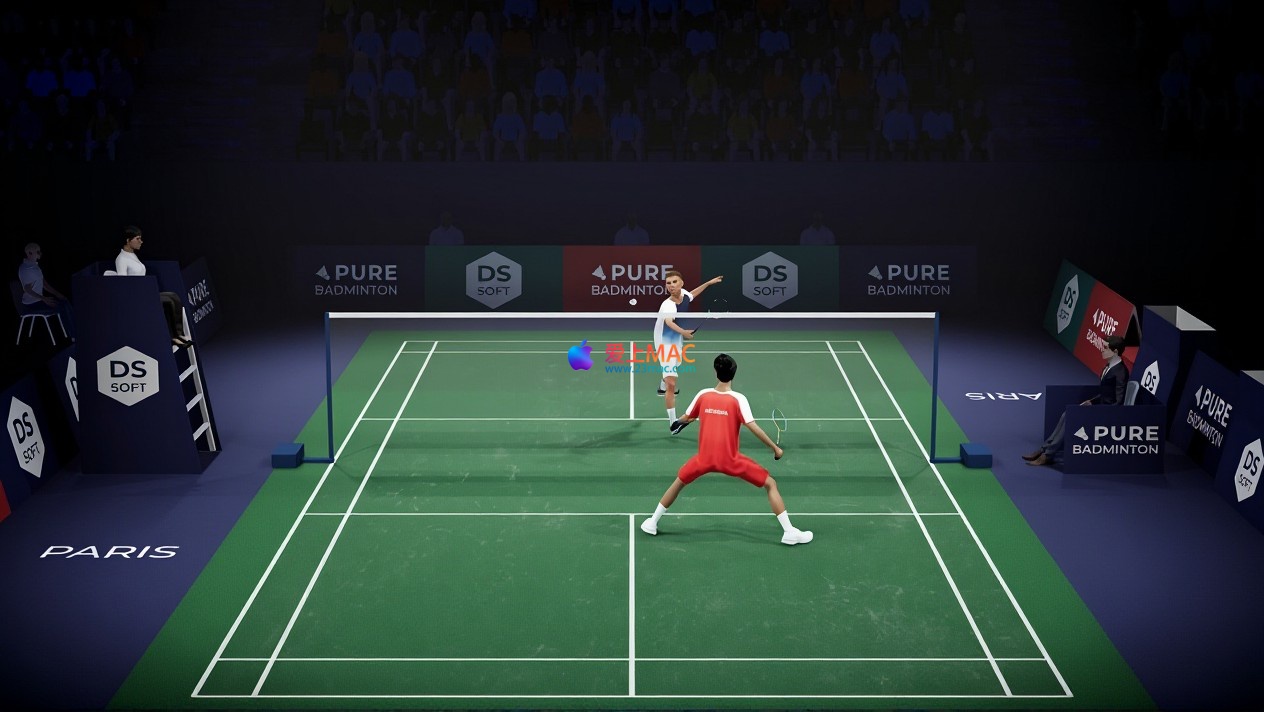
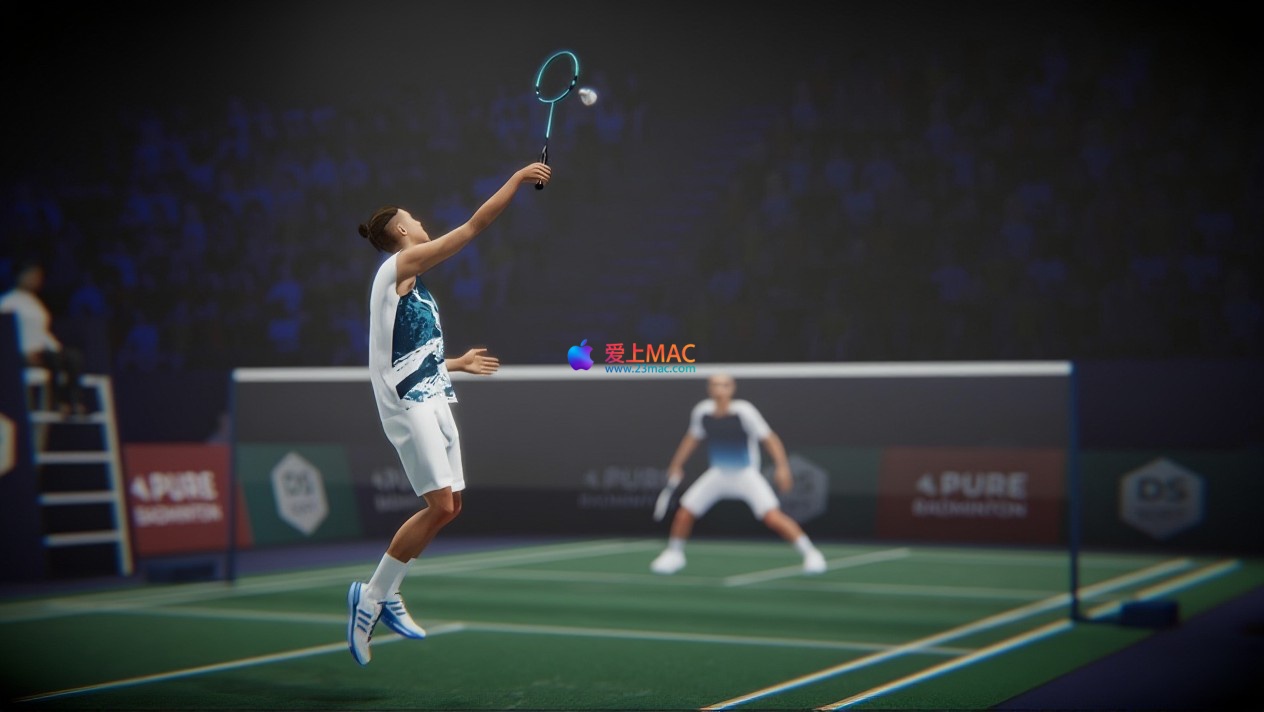
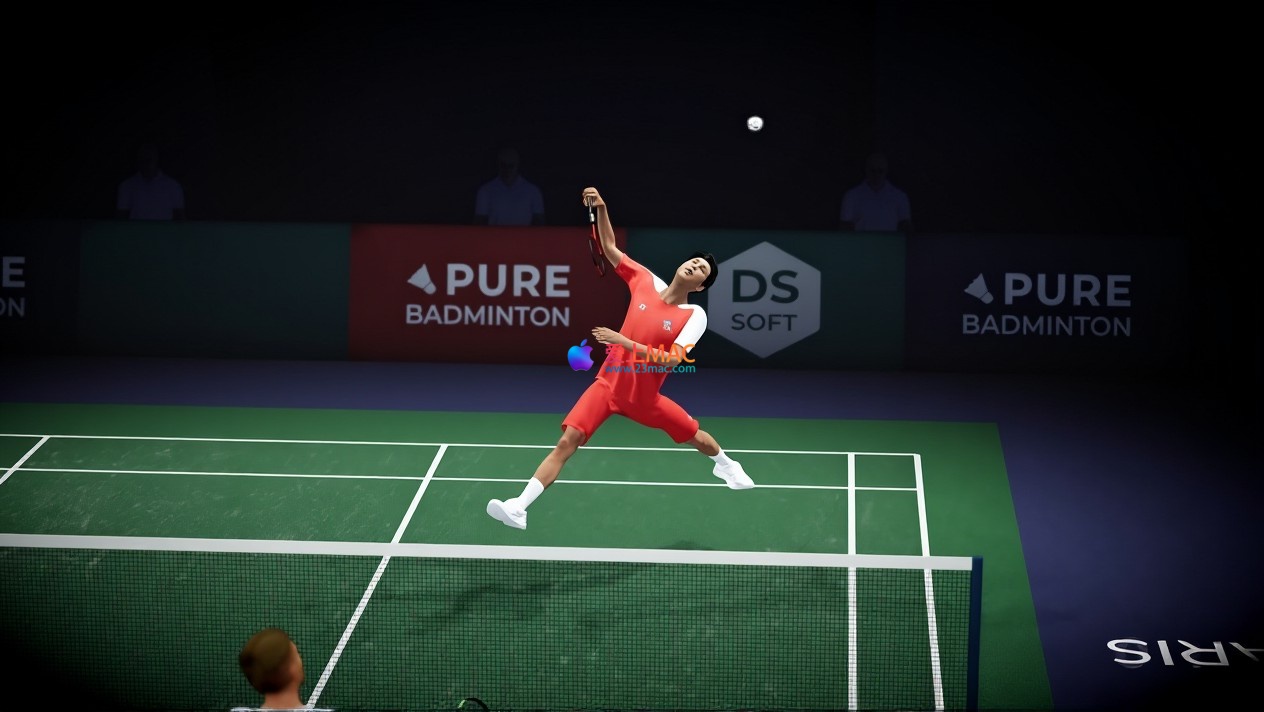
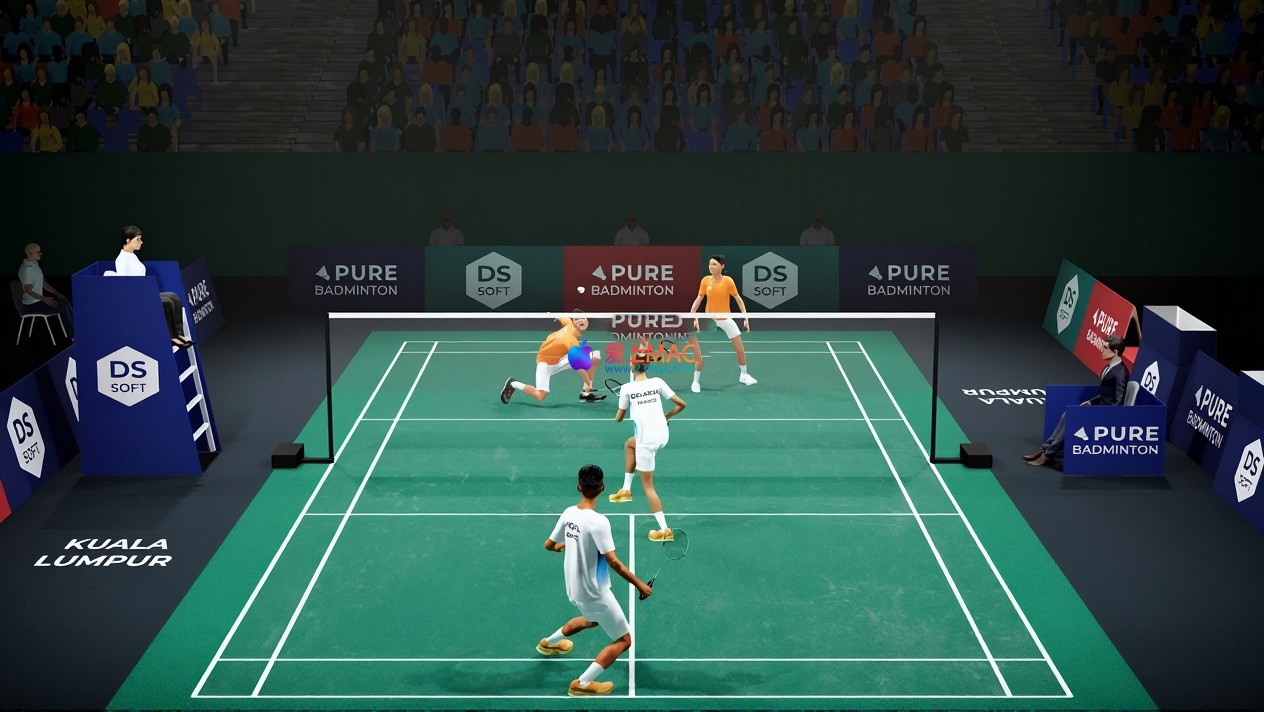
Pure Badminton is a highly realistic羽毛球 game simulation. It accurately reproduces the speed, technique, and strategy of real羽毛球 matches, providing players with an immersive competitive experience.
Operation Suggestions: To achieve the best gaming experience, we strongly recommend using a controller for gameplay. Keyboard operation may not fully showcase the game’s intricate design.
Current version: Pure Badminton for Mac v1.0.3
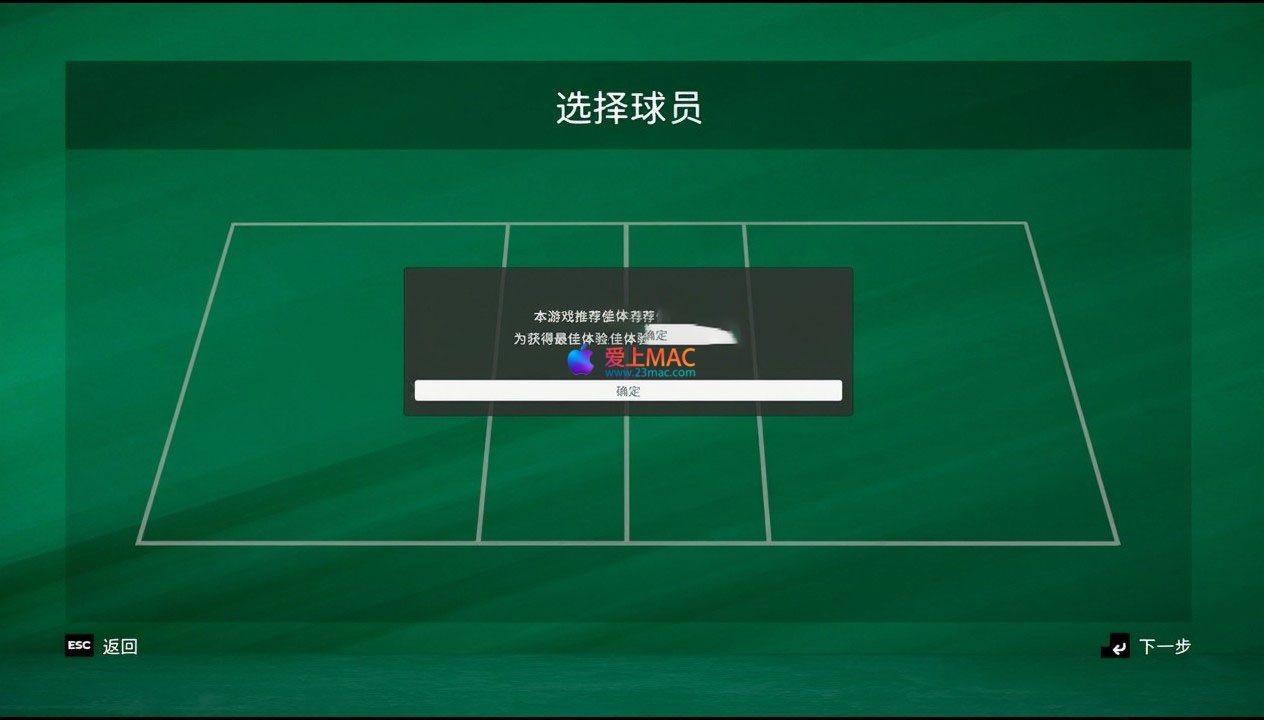
Installation Guide: Three Steps to Master, Easy to Learn
Many users may not be familiar with the installation process for Mac software. Below is a tutorial based on macOS Ventura and higher versions, which is also applicable to older versions.
- Download and Unzip: Click on the download link to obtain the “Pure Badminton v1.0.3.dmg” file. Double-click the file to automatically mount and pop up the installation window. If you encounter the prompt “From an Unknown Developer,” please go to “System Settings” > “Privacy & Security,” and click “Open Anyway.”
- Drag and Install: In the pop-up window, drag the “Pure Badminton” icon from the left to the “Applications” folder icon on the right. This process typically takes 10-30 seconds, depending on the Mac’s performance.
- First Launch: Open the “Launchpad,” find the “Pure Badminton” icon, and click on it. If the system prompts “Unable to Verify Developer,” right-click the icon and select “Open” to bypass the restriction. The first load may take 1-2 minutes, after which you can enter the main menu.
Tip: After installation, it is recommended to restart the Mac once to ensure that the game resources are fully loaded. Some users have reported that not restarting directly may cause texture flickering, which disappears after restarting.
Two, Core Features
This game integrates the speed, precision, and passion of real羽毛球 into the digital arena, presenting the charm of this “fastest ball sport in the world” through realistic and easy-to-learn mechanisms.
1. Realistic Physics Engine and Gameplay
- Accurately simulates the trajectory and movements of羽毛球, replicating the rhythm and intensity of real matches.
- The gameplay process is natural and smooth, with your performance directly determined by your positioning, timing, and technique.
2. Career Mode: Write Your Legend
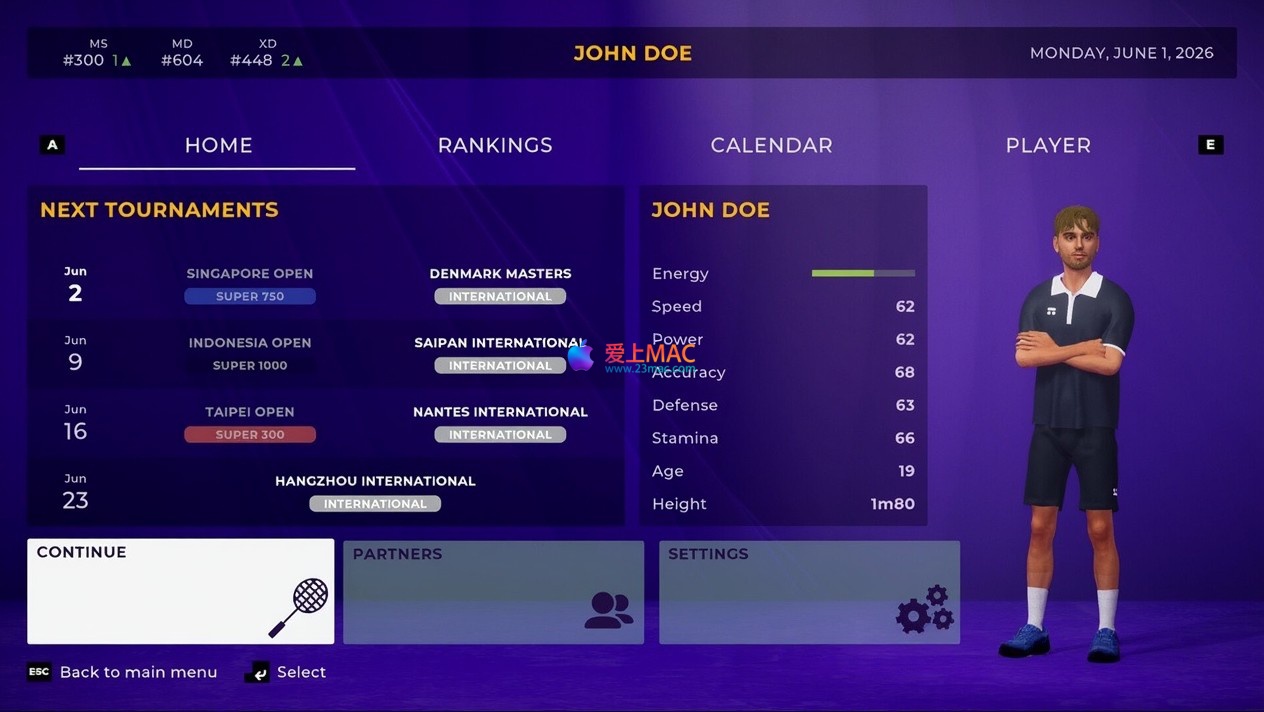
- Starting from grassroots competitions and progressing to top-tier international tournaments.
- Improving the character’s abilities through systematic training, based on real-world rules, to climb the global ranking.
- Your playing style will naturally form during the matches, and the character’s abilities will dynamically grow based on your performance and training focus.
3. Local Multiplayer Game
- Supports up to 4 players playing simultaneously.
- Can be played in singles or doubles, making it an ideal choice for playing with friends.
Three, Mac-Specific Shortcuts and Operation Guide
Although the official recommendation is for controllers, keyboard enthusiasts don’t need to feel discouraged. Mastering the following shortcuts will allow you to perform spectacular operations. The table below organizes the commonly used keys, making it convenient for you to quickly refer to them.
| Operation Category |
Keyboard Keys |
Controller Keys |
Function Description |
| Move |
W/A/S/D |
Left Stick |
Control the character’s movement in the field |
| Hit |
J Key |
A Key |
Execute high-flying shots, smash, etc. |
| Drop Shot |
K Key |
B Key |
Lightly hit the net to create angle changes |
| Clear |
L Key |
X Key |
Quickly push, suppress the opponent’s return shot |
| Pause/Menu |
Esc Key |
Start Key |
Summon the game pause menu or settings interface |
| Switch View |
C Key |
Right Stick pressed |
Switch between chase view and overhead view |
It is recommended to start with the training mode to get familiar with the key combinations. For instance, use the “J+K” combination to hit a net shot, or use “W+L” to perform a drop shot while moving. Practice a few times, and you’ll get the hang of it.
Four, Using Techniques and Real-Case Examples
Knowing the key combinations is not enough; you need to understand the strategies. Below, I share a few validated techniques that can help you improve your win rate quickly.
- Tactic One: Control the Net and Attack. Use the “K” key for lobs to force the opponent into a lift. When the opponent’s return quality is poor, switch to the smash (hold J) immediately. This tactic is very effective in the early to mid-career of the Career mode, as it can effectively deplete the opponent’s stamina.
- Tactic Two: Counter-Defense. When facing the AI’s continuous attacks, don’t rush to return the ball. Press the “S” key to retreat, and hit the diagonal when the ball reaches waist height. The AI often has a gap in positioning after a series of attacks, making it easier to counter-attack.
- Tactic Three: Team Play. In local doubles, one player focuses on the net (use the “K” key for lobs), while the other defends the backcourt (focus on the “L” key for smashes). With clear roles, it’s harder for the opponent to find a way through. In our tests, this strategy resulted in the AI scoring only 7 points in the “Difficult” difficulty level.
Real-Case Example: A player in the “World Tour” mode used the “Control the Net and Attack” tactic in three consecutive matches, ultimately defeating the No. 5 seeded player in a 2:0 win. He reported that the key was to observe the AI’s movement patterns—when the AI lobs twice in a row, it often moves to the net, making it a good time to suddenly hit the backhand high ball, often resulting in a direct point.
Five, Common Issues FAQ
Compiled a list of the most frequently asked questions from users, organized into Q&A, to help you quickly troubleshoot.
- Q: The game won’t open, and it says “damaged.” How do I fix it? A: Check if Gatekeeper is disabled. Open the Terminal, type “sudo spctl –master-disable,” and press Enter. Then, enter the password. If it still doesn’t work, the downloaded file might be incomplete. Try re-downloading it.
- Q: MacBook Air is lagging during gameplay, how do I optimize it? A: In the game settings, set the “Quality” to “Low” and disable “Dynamic Shadows.” Also, ensure that your Mac isn’t in power-saving mode. In my tests, a MacBook Air with an M1 chip can maintain stable 30 frames at low quality settings.
- Q: Does it support M1/M2/M3 chips? A: Yes, it does. In version 1.0.3, the developer specifically optimized the compatibility with Apple Silicon chips. I tested M1 Pro and M2 Max, and the game runs very smoothly.
- Q: How do I save my game progress? A: The game automatically saves. In the Career mode, the system automatically saves after each completed game. You can also manually save by going to “Settings” > “Save Management.” The save location is “~/Library/Application Support/PureBadminton/”. Simply copy the entire folder to the desktop, and then replace it after the update.
- Q: My controller won’t connect? A: Try using Xbox or PS controllers. Ensure the controller is connected via Bluetooth or USB. If it doesn’t work, remove the device from “System Settings” > “Bluetooth,” and then re-pair it. Some third-party controllers may require a driver installation.
- Q: The game has no sound? A: Check your Mac’s volume settings and make sure it’s not muted. If the game’s internal volume is already at maximum and still no sound, try changing the output device to “Built-in Output” in the “Audio MIDI Setup” application. This should resolve most audio issues.
- Q: Can I play with Windows players? A: No, cross-platform multiplayer is not supported. The Pure Badminton’s multiplayer feature is only available between Mac users. However, the local multiplayer mode is very complete, and inviting friends over for a game at home is also a good option.
- Q: My saved game is gone after an update? A: Backup your save before updating. The save location is “~/Library/Application Support/PureBadminton/”. Simply copy the entire folder to the desktop, and replace it after the update.
Six, Conclusion
Whether you’re a professional player seeking challenges or a devoted fan of badminton, now is the time to sweat and showcase your skills on the digital badminton court of Pure Badminton for Mac v1.0.3.
We have verified the installation process and FAQ through multiple rounds. If you encounter other issues during the download or use, feel free to leave a comment in the discussion section. We will promptly assist you in troubleshooting to ensure you can smoothly experience this excellent badminton simulation game.




Ratings & reviews
4.7
(Maximum 5 ratings, total 87 user reviews)
Let’s rate it.