

EdgeView 5 for Mac v5.7.3 Chinese Activation Edition Download
Here is the page providing EdgeView 5 for Mac v5.7.3 image browser Chinese activation version download | LoveMAC has tested and the download is available. If you encounter issues with the download link or the software cannot be installed after downloading, please leave a message and contact us.
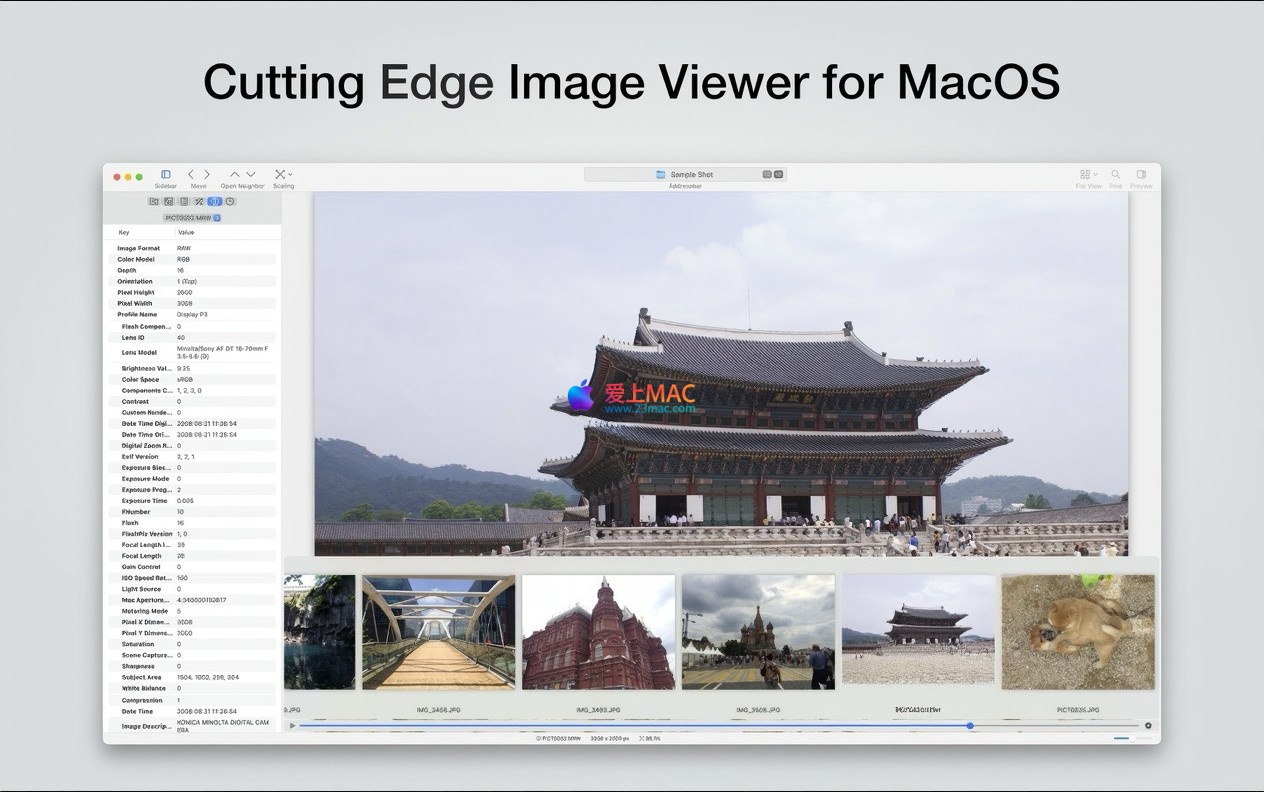
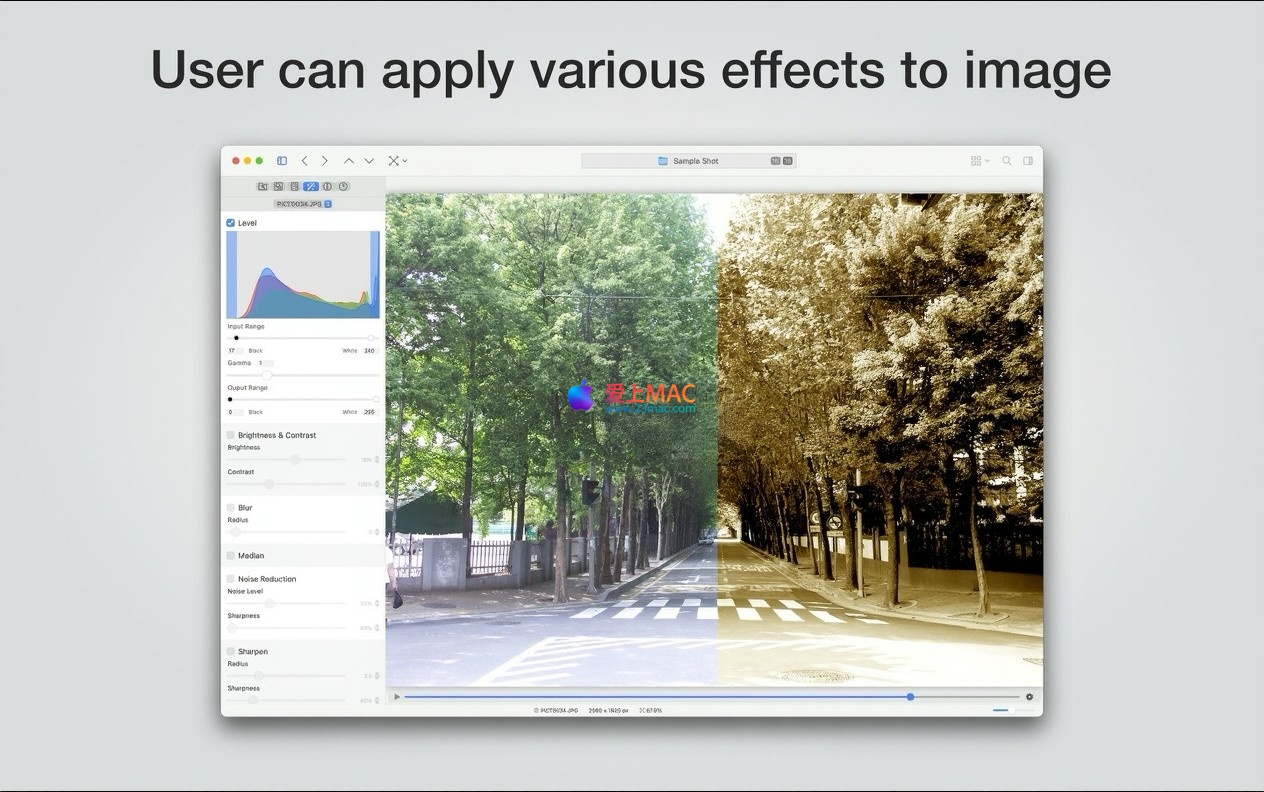
EdgeView is a high-end image viewing and management tool designed specifically for the modern macOS system. It integrates powerful browsing, editing, and file management functions, supports a wide range of image and archive formats, and provides an intuitive multilingual user interface, aiming to provide users with an efficient and smooth experience for handling visual content.
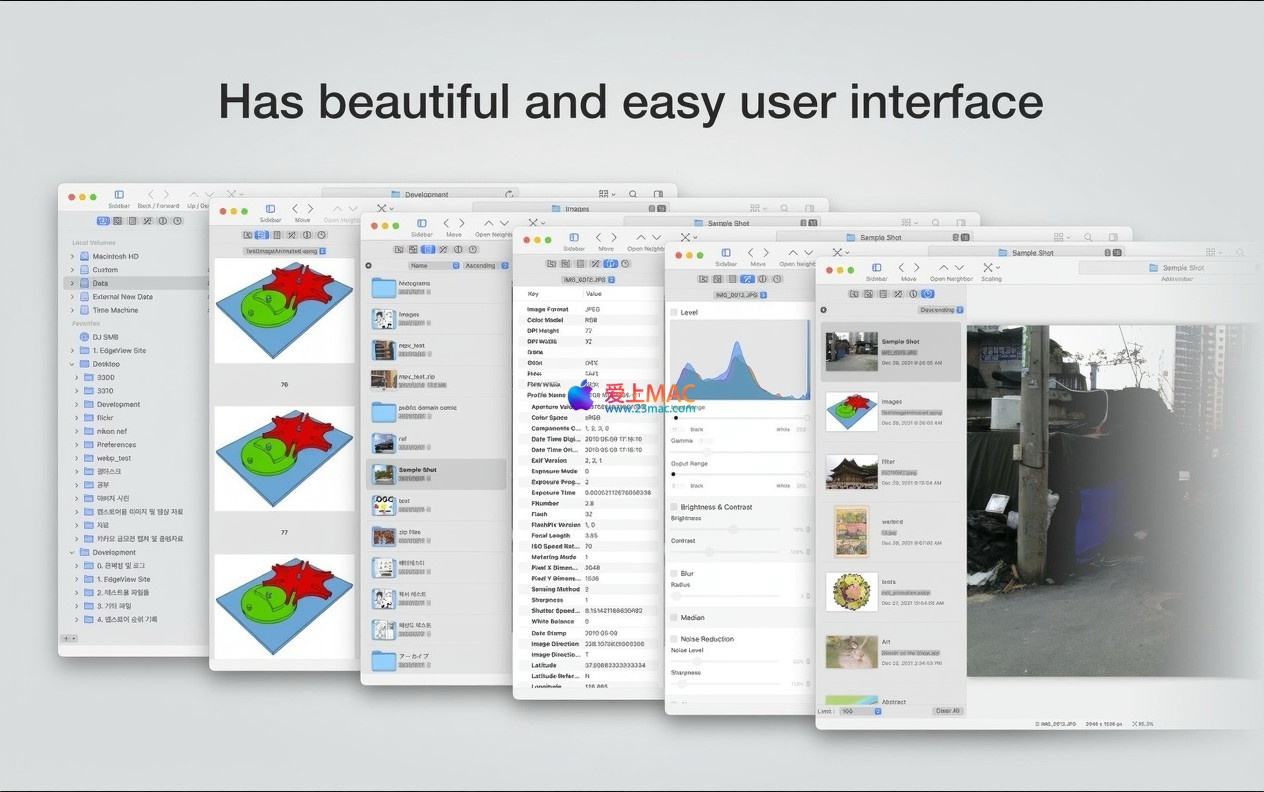
EdgeView 5 is a fully rewritten native application using Swift, optimized for performance and perfectly compatible with Apple Silicon (M series) chips. Its simple interface design consolidates core functions into a sidebar, making them easily accessible, and supports English, Korean, Japanese, and Simplified Chinese.
For Mac users who value efficiency, EdgeView 5 is not just a photo viewer. It is more like a lightweight file management center. Its responsiveness is impressive on macOS Ventura and higher versions. Whether handling RAW format photos or browsing comic files within compressed archives, it maintains stability and fluidity.
Image viewer improvements:
The installation process for EdgeView 5 is very straightforward, following the standard procedures of macOS. Let’s break it down step by step to ensure that every user can complete the process successfully.
Download the EdgeView 5 dmg file from the provided link. After downloading, double-click the dmg file. macOS will automatically mount it and pop up a window containing the application icon.
In the pop-up window, you’ll see the EdgeView 5 icon and a shortcut to the “Applications” folder. Drag the EdgeView 5 icon to the right side of the “Applications” folder directly using the mouse. A blue plus sign will appear when dragging, and you can confirm by releasing the mouse button.
Open the “Launchpad” or “Applications” folder, find EdgeView 5, and double-click to launch it. Since this is an application downloaded from a third-party website, macOS may prompt you with a “Developer Certificate Not Valid” warning. At this point, go to “System Preferences” > “Privacy & Security,” and find the “Allow Anyway” button at the bottom of the page. Click it to confirm.
After the first launch, the software may be in trial mode. Follow the activation instructions provided to enter your serial number or use the activation patch. Once activated, you can enjoy all the features.
We’ve compiled the following Q&A to help users quickly resolve typical issues encountered while using EdgeView 5.
A: It fully supports macOS Sonoma and higher versions. EdgeView 5 has been optimized for macOS 14 Sonoma and above. However, note that the EPS format viewing function has been removed due to a system-level limitation by Apple in Sonoma.
A: EdgeView 5 supports reading encrypted archives. When attempting to open an encrypted RAR or ZIP file, the software will automatically pop up a password input box. Ensure you enter the correct password. If still unable to open, check if the file is fully downloaded.
A: Right-click on any image file, select “Show Info.” In the “Open With” section, choose EdgeView 5 from the dropdown menu and click “Change All” to set it as the default viewer for all image files.
A: Check if you are in “Single Page” mode. In EdgeView 5, animation playback is enabled by default. You can find the floating control bar at the bottom of the viewer and click the play button to start playback. If still not playing, check the “Preferences” under the “Image” option.
A: In the file browser mode, you can use the search bar in the upper right corner. Enter “Rating: 5” or “rating: 5” to quickly filter out images rated 5 stars. This feature is very useful for photographers when organizing their photo collections.
A: Yes. EdgeView 5 has been optimized to handle large files, allowing it to read and browse ZIP or RAR archives larger than 4GB. This is particularly useful for viewing high-definition comic collections or large data packages.
A: EdgeView 5 includes a Quick Look plugin. If you installed the software and still don’t see thumbnails, try restarting Finder. Press the Option key, right-click on the Finder icon, and select “Relaunch.” After restarting, the thumbnail generation feature should be active.
A: EdgeView 5 has a history feature. In the sidebar, you can find the “History” panel. If you mistakenly deleted a file but still have a record in the history, click the record to restore the file’s location.
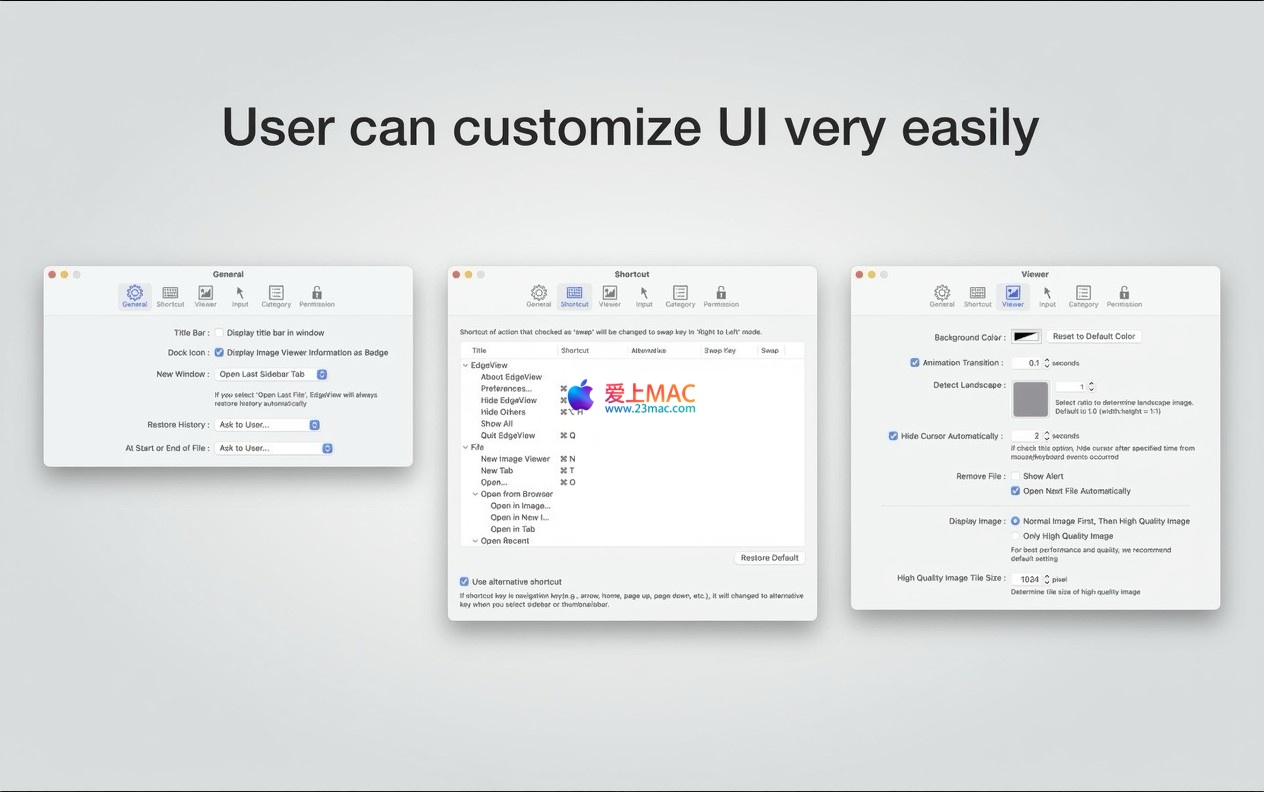
A: Launch EdgeView 5, click the menu bar icon, and select “Preferences.” In the “General” tab, find the “Language” dropdown menu and select “Simplified Chinese.” After switching, the changes will take effect after restarting the software.
Mastering keyboard shortcuts can significantly enhance efficiency when using EdgeView 5. Below is a table summarizing the most useful shortcut combinations, which we recommend you to bookmark.
| Function Category | Shortcut | Function Description |
|---|---|---|
| File Operations | Command + O |
Open file or folder |
Command + W |
Close current window | |
Command + Delete |
Move file to Trash | |
| Navigation and Browsing | Left/Right Arrow Keys |
Previous/Next image |
Spacebar |
Quick preview (Invoke Quick Look) | |
Command + F |
Search files | |
| View Scaling | Command + + |
Zoom in |
Command + - |
Zoom out | |
Command + 0 |
Original size display | |
Command + 9 |
Fit window size | |
| Edit and Management | Command + R |
Rotate image 90 degrees clockwise |
Command + L |
Flip image horizontally | |
Command + 1-5 |
Quickly rate images from 1 to 5 stars | |
Command + Z |
Undo operation |
Theory combined with practice can truly maximize the tool’s value. Below, I share a few advanced uses and real-world scenarios of EdgeView 5.
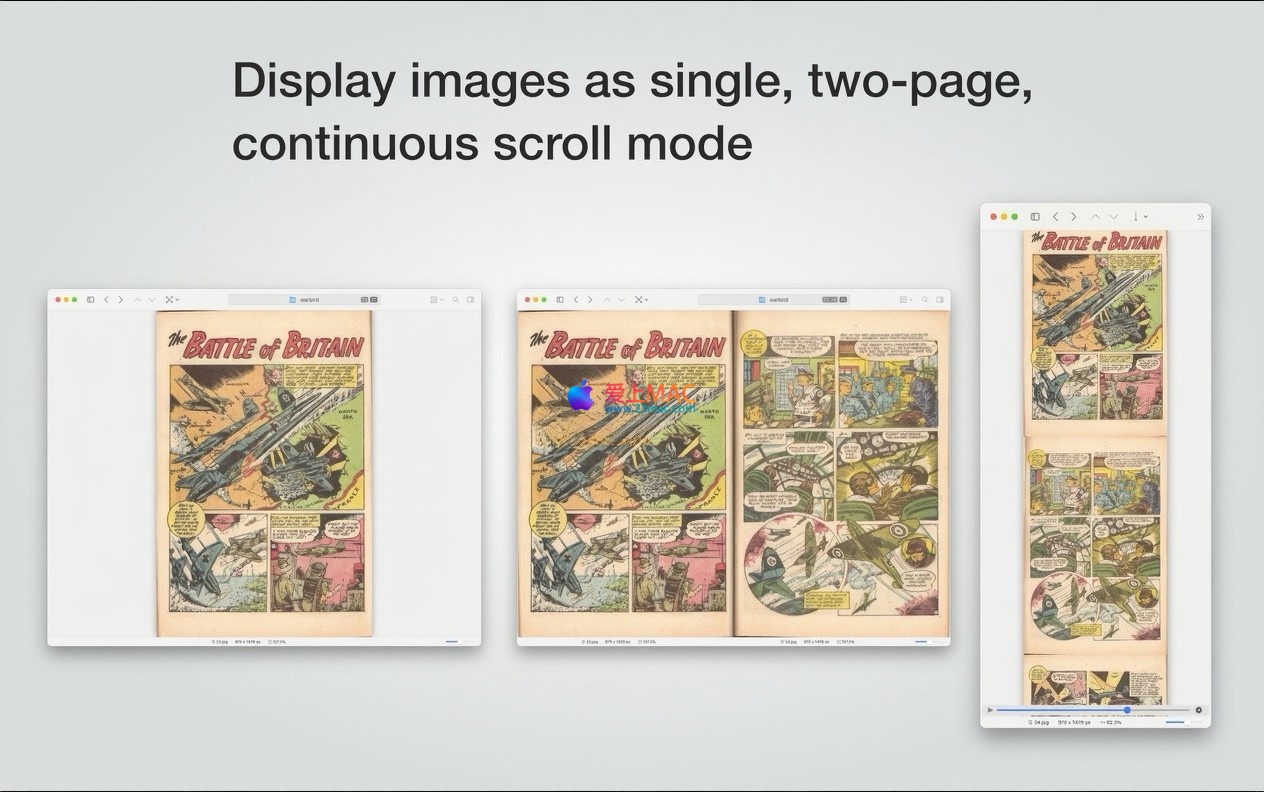
For comic enthusiasts, EdgeView 5 offers a “right-to-left” reading mode. After enabling it in the preferences, combined with “double-page per page” display, it perfectly mimics the experience of flipping through a physical comic. With the touchpad’s pinch-to-zoom, you can see every detail clearly.
Professional photographers often face the hassle of selecting from a large number of RAW files. You can insert the storage card into your Mac and use EdgeView 5 to open the folder. Use the left and right arrow keys to quickly browse through the photos, and use the numeric keys 1-5 to quickly rate the photos. Finally, use the search function to filter out high-scoring photos, significantly improving efficiency.
Designers frequently need to find images from various asset packages (such as ZIP or RAR formats) containing PSD or AI files. EdgeView 5 allows you to browse and access files within compressed packages without needing to decompress them. You can also rename files directly within the software, making it very easy to manage your asset library.
Assume you have 2000 photos from a recent trip stored on your camera. First, insert the storage card into your Mac and use EdgeView 5 to open the DCIM folder. As you browse, delete blurry or duplicate photos (using Command + Delete). Then, rate the photos you like. Finally, use the search function to filter out photos rated 4 stars or higher, and batch-drag them into a new folder. The entire process doesn’t require launching a large Photoshop or Lightroom.
EdgeView 5 stands out in the Mac image viewer software lineup thanks to its native Swift architecture, deep optimization for Apple Silicon, and comprehensive feature set. It not only addresses the basic needs of viewing images but also provides professional solutions for file management and efficiency improvements.
If you’re looking for a lightweight, fast, and feature-rich image browser, EdgeView 5 is definitely worth trying. I hope this detailed guide helps you get started quickly, making your Mac workflow smoother. If you encounter any issues during use, feel free to leave a message for discussion.
This resource requires login to download
Log in
Find Similar or Duplicate Photos on Mac v4.2.0 Activation Download
Downloads:1571 | 2026-10-27

Better Finder Rename 11 for Mac v11.48 Activation Download
Downloads:2741 | 2026-10-20

Extract Static Images from Videos on Mac v5.0.9 Activation Download
Downloads:1197 | 2026-10-20

MacClean360 for Mac v4.4 Multifunctional Cleaning Tool Activated Version Download_macOS
Downloads:3639 | 2026-10-17


Ratings & reviews
4.8
(Maximum 5 ratings, total 20 user reviews)
Let’s rate it.