

Photomator for Mac v3.4.13 Chinese Activation Version Download
Here is the page providing Photomator for Mac v3.4.13 photo editing tool Chinese activation version download | LoveMAC has tested and the download is available. If you encounter any issues with the download link or the software cannot be installed after downloading, please leave a message to contact us.
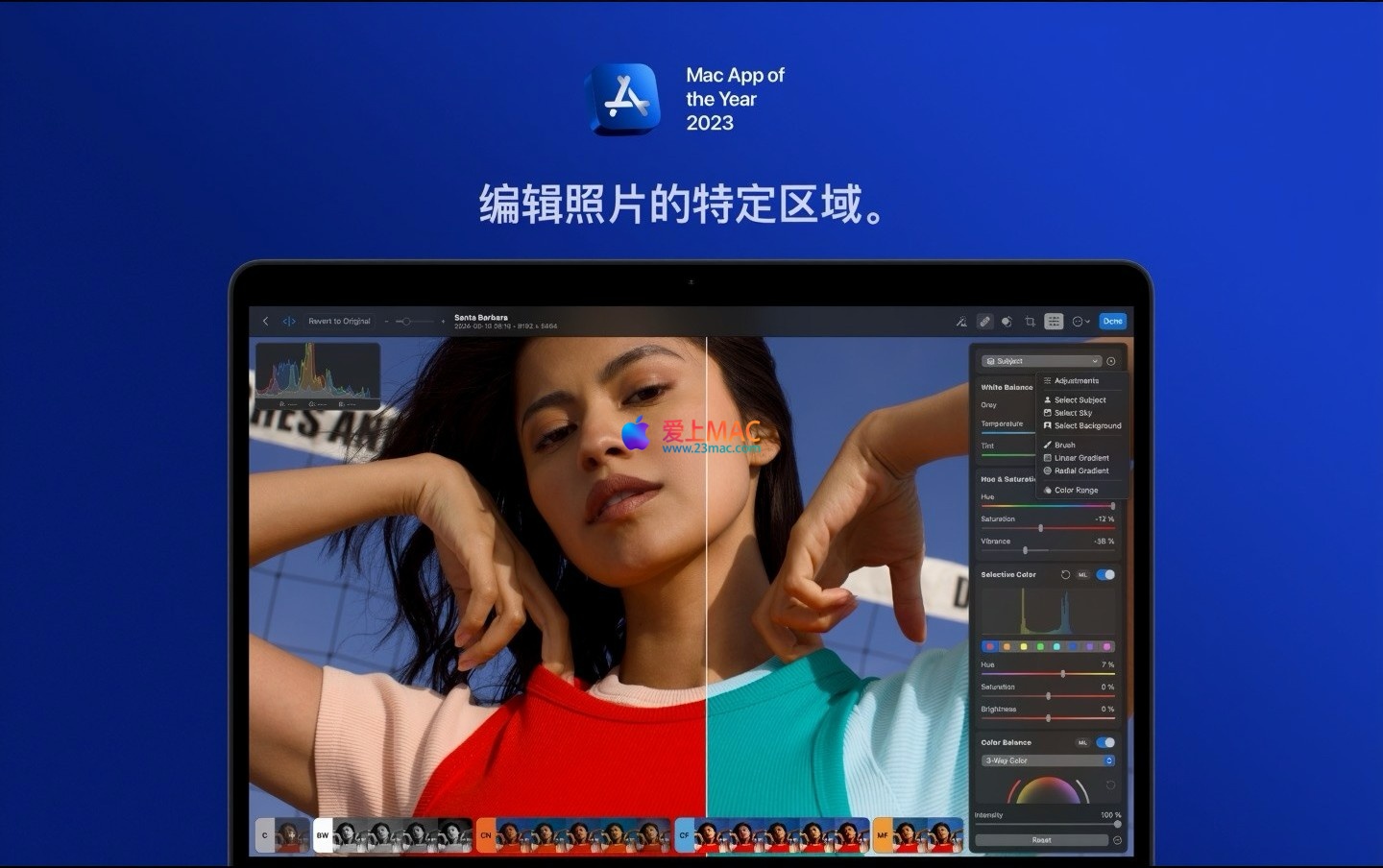
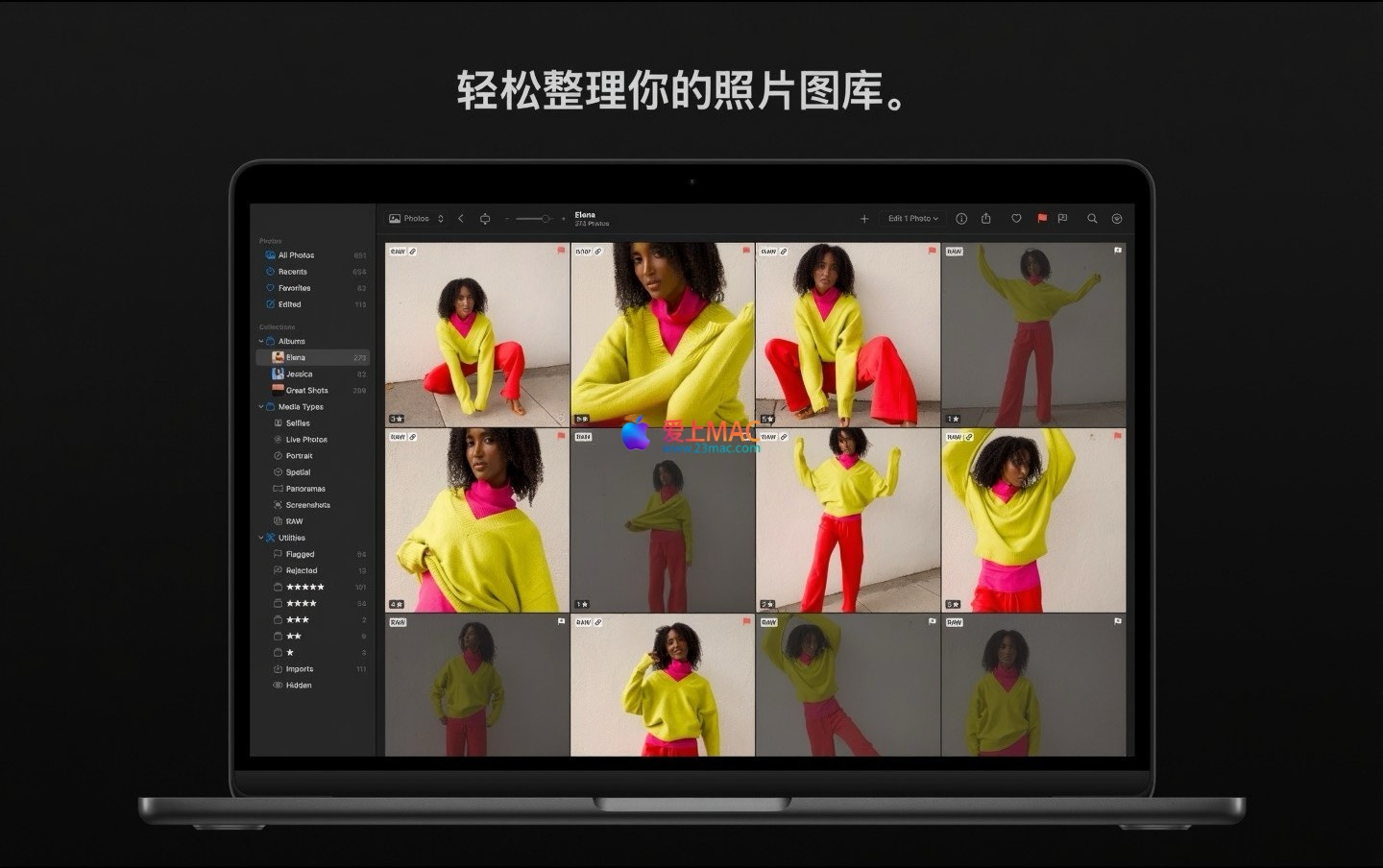
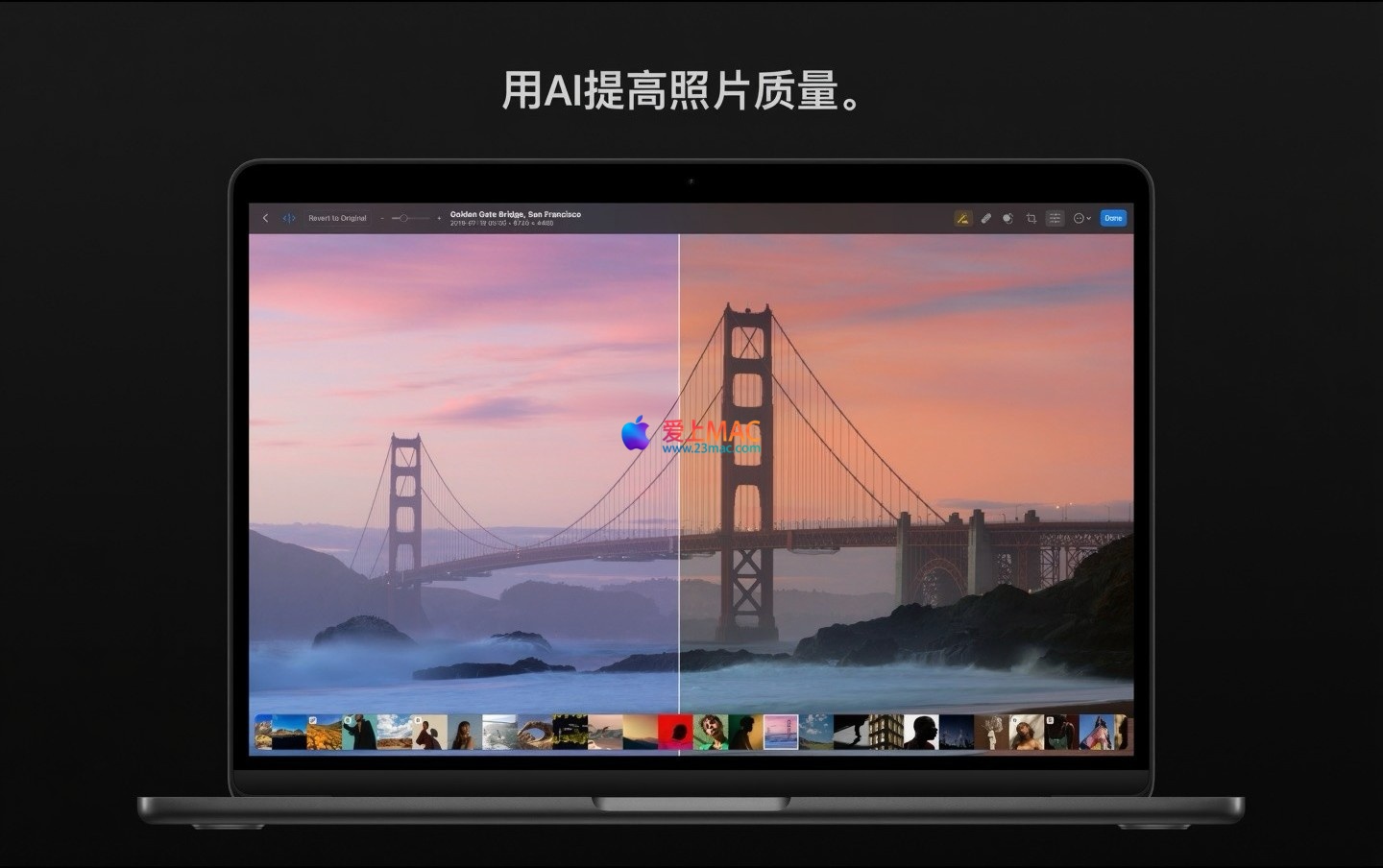
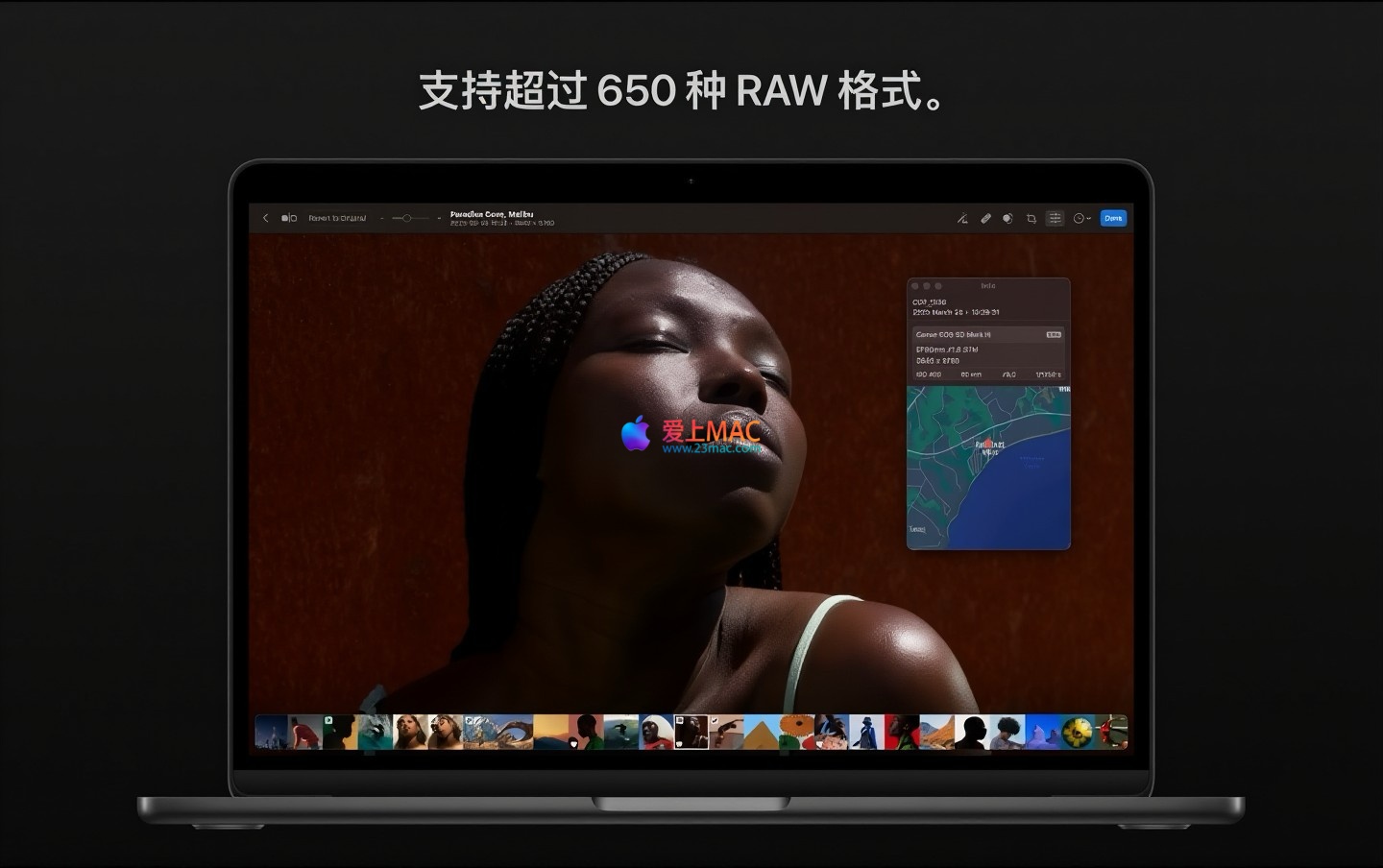
Photomator for Mac is a powerful professional image processing software that integrates advanced editing, repair, and management tools to help users efficiently enhance, repair, and manage their image resources. It offers a comprehensive range of cutting-edge features, including a rich set of lossless color adjustment tools, intelligent selection and repair functions driven by artificial intelligence, support for over 650 RAW formats, and a variety of powerful tools to enhance image quality, making it a one-stop solution for creating beautiful photos.
Photomator provides the full set of tools needed to make outstanding photos:
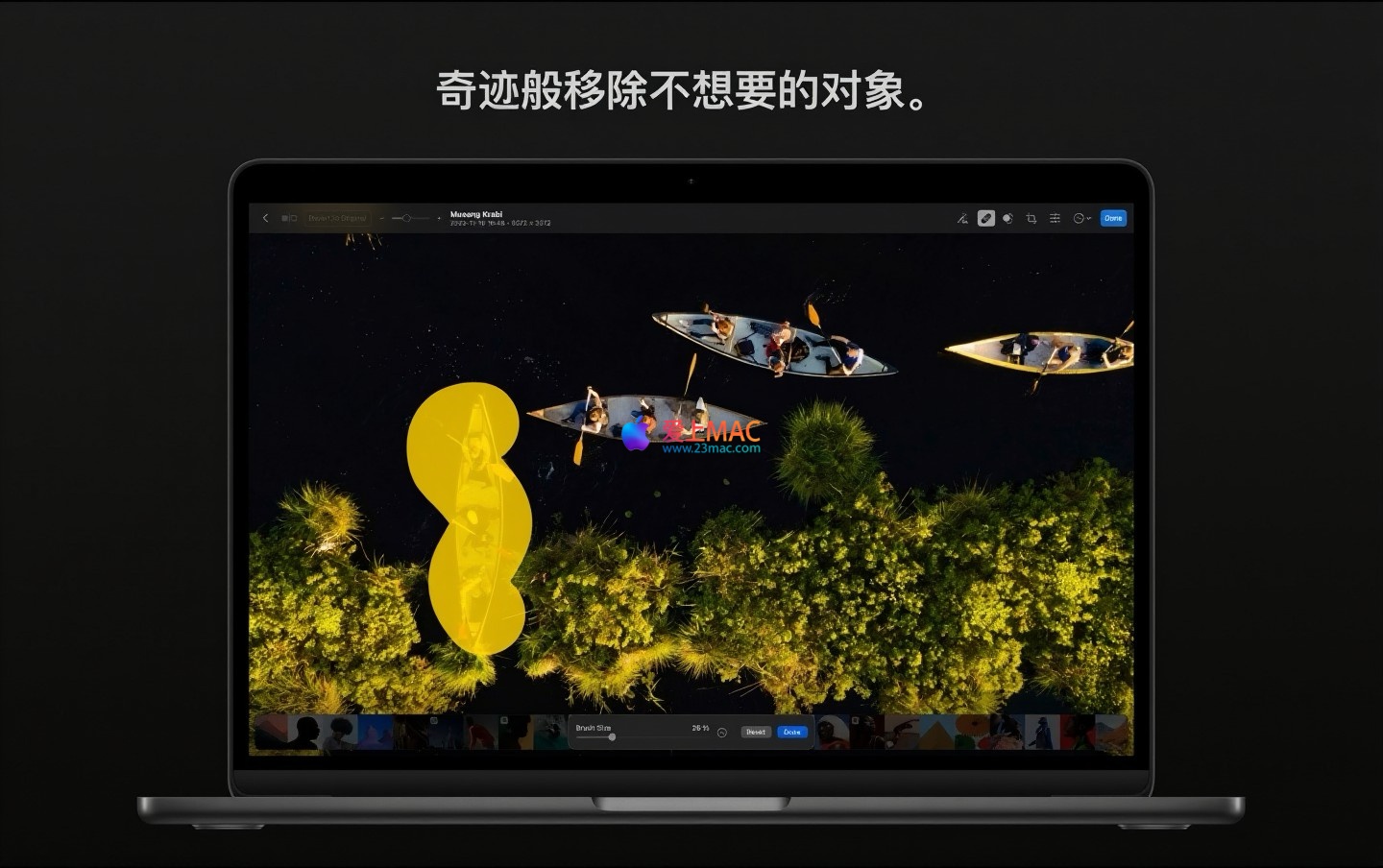
The software integrates AI technology deeply, providing the following intelligent functions:
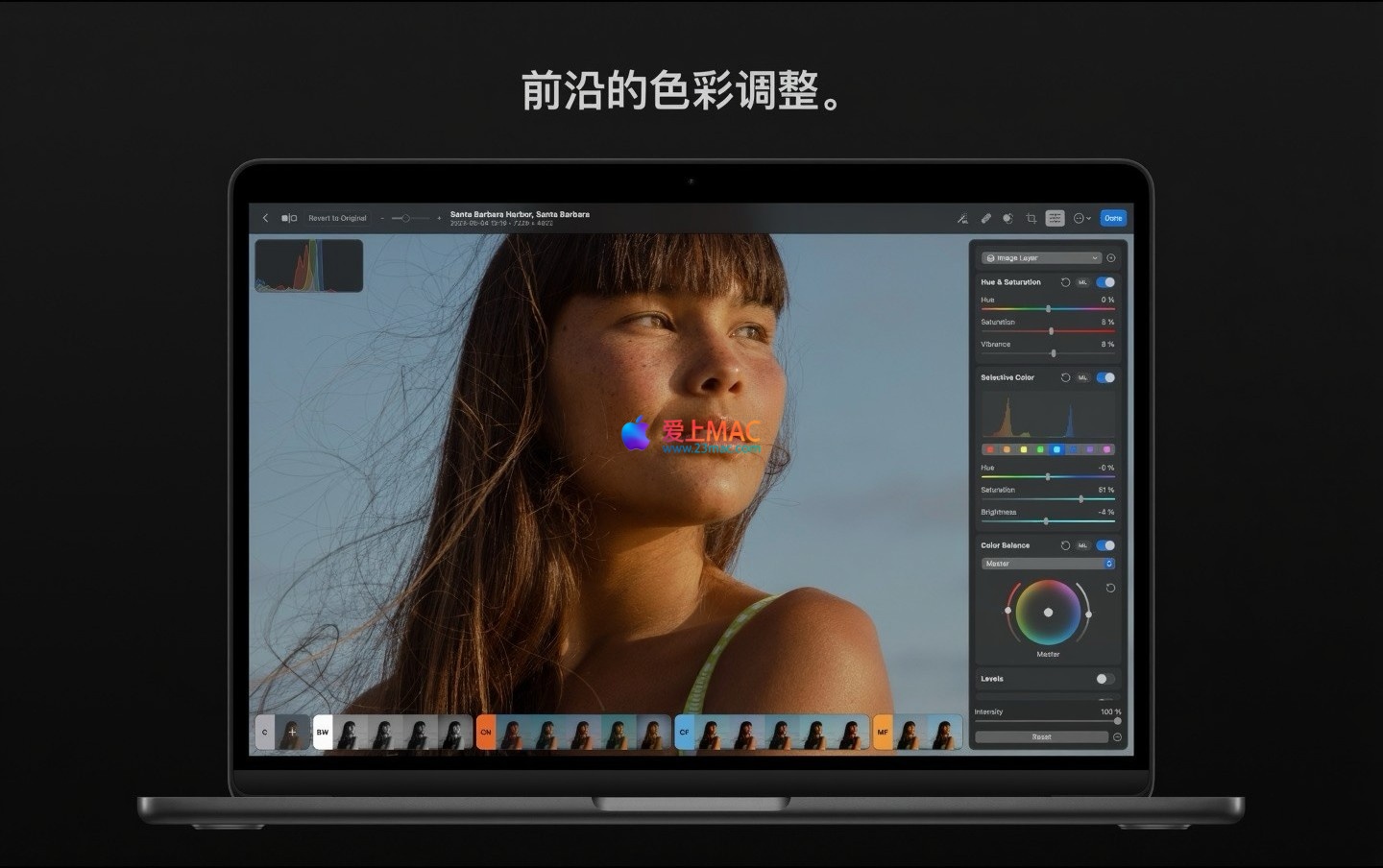
Offers professional-level color and detail control tools:
Version 3.4.13 Update Content:
This version mainly includes error fixes and stability improvements, enhancing the overall smoothness and reliability of the application.
Here are some screenshots of the operation interface of Photomator for Mac v3.4.13:
To ensure you can smoothly use it, we have prepared a detailed installation guide. Please follow the steps below:
Download the Photomator v3.4.13 installation package from the link provided on this page. After the download is complete, double-click the .dmg file to mount the image.
Locate the mounted disk image in Finder, usually named “Photomator_v3.4.13”.
It is recommended to copy the installation package to the “Applications” folder before proceeding with the next steps.
Drag the Photomator icon directly to the right-hand “Applications” folder shortcut.
System may prompt you to enter the administrator password to complete the installation. Enter the password and click “OK” to proceed.
Wait for the copy progress bar to complete, which usually takes just a few seconds.
Go to the “Launchpad” or “Applications” folder, and double-click the Photomator icon.
If the system prompts “Open from Unknown Developer,” go to “System Preferences” > “Security & Privacy” > “General,” and click “Open Anywhere.”
After the software launches, it may request access to your photo library or microphone, depending on the prompt, grant the requested permissions.
This version is a Chinese-activated version, so you can use all features directly after opening. No additional serial number is required.
You can adjust settings such as language and keyboard shortcuts in the “Preferences.”
It is recommended to import a few sample photos to familiarize yourself with the interface layout upon first use.
Open the software, and click the “About Photomator” menu at the top to confirm the version number is 3.4.13.
Try importing a RAW format photo to check if the editing functions respond correctly.
If everything goes well, congratulations! You have successfully installed Photomator.
We have compiled the most frequently asked questions from user feedback to help you resolve your issues quickly:
Please check if there is an option “Open Anyway” in “System Preferences” > “Security & Privacy” > “General.” If it is not displayed, you can try holding the Control key and clicking the application icon to select “Open” from the right-click menu.
Try restarting your Mac and ensure that macOS version is at least 10.15. If the issue persists, you can try downloading and reinstalling the installation package.
Photomator supports over 650 RAW formats, but if your camera model is newer, you may need to wait for the next version update. Check if there is a new version available.
Yes, if you have iCloud Photos Library enabled in System Preferences, all edits will automatically sync to your iPhone and iPad devices.
Yes, in the batch processing window, you can choose to output as JPEG, TIFF, PNG, etc., and customize the compression quality and resolution.
No, the AI super-resolution function uses deep learning algorithms to intelligently supplement details, enhancing resolution while preserving the original sharpness and texture, suitable for printing large-sized photos.
This version comes with a Chinese language pack, and the interface defaults to Chinese upon installation. You can switch to other languages in the “Preferences” > “Languages.”
In the editing panel, click the “Reset” button in the bottom right corner to undo all adjustments and restore the original image state.
Yes, Photomator supports multi-window or split-screen display, allowing you to compare the effects of editing before and after.
This version is a fully activated version with no trial period, and all features are available for permanent use.
Mastering the following shortcuts can significantly improve your editing efficiency. We have compiled a table of the most commonly used shortcuts:
| Operation Category | Shortcut | Function Description |
|---|---|---|
| File Operations | ⌘ + O | Open a file or image |
| ⌘ + S | Save the current edit | |
| ⌘ + Shift + S | Save the current edit as a new file | |
| Edit Tools | ⌘ + Z | Undo the previous operation |
| ⌘ + Shift + Z | Redo the previously undone operation | |
| ⌘ + C | Copy the selected content | |
| ⌘ + V | Paste the copied content | |
| View and Navigation | ⌘ + + | Zoom in on the image view |
| ⌘ + - | Zoom out of the image view | |
| ⌘ + 0 | Fit window size to display | |
| Edit Panel | ⌘ + A | Select the entire current image |
| ⌘ + D | Clear the selection | |
| Other Common | ⌘ + P | Print the current image |
| ⌘ + Q | Exit Photomator |
Knowing the features isn’t enough; combining them with practical applications can maximize the software’s value. Below are a few validated tips and cases:
If you need to separate a person from a complex background, start by using the “AI Intelligent Selection” tool to click on the subject. The system will automatically generate a selection, after which you can fine-tune the edges with a brush. The entire process takes less than 30 seconds, significantly improving efficiency over manual selection.
In a practical scenario, we used this feature to process a portrait photo taken outdoors. The background was dense foliage, and the AI accurately identified the person’s outline, even capturing details of the hair. After adjustment, the subject was seamlessly moved to a new background.
When you have hundreds of activity photos needing a unified style, batch processing is a must-have skill. Start by editing a sample image, adjusting color temperature, contrast, and sharpness. Then, copy the adjustment parameters and apply them to the entire folder.
For instance, in a wedding photography post-processing session, we used batch processing to unify the color of 300 RAW format photos and output them as JPEGs. The entire process took less than 10 minutes, while manual processing would have taken at least 2 hours.
Night photography often comes with a lot of noise. When using the “Advanced Noise Reduction Tool,” it’s recommended to enable the “Core ML Noise Reduction” option. This feature leverages machine learning models to intelligently distinguish noise from details, preserving building textures while eliminating graininess.
We tested this feature on a photo taken in low light with an iPhone 14 Pro. After enabling Core ML noise reduction, the noise in the dark areas almost disappeared, while the high-light text remained clear.
If you like the color tone of a particular photo, you can use the “Color Matching” feature. Choose a reference image, and the software will automatically analyze its color distribution and apply it to the current image.
In a travel photography session, we took multiple photos at different times of day. By using the color matching feature, we quickly replicated the warm tones of sunset to other photos, creating a unified atmosphere for the entire set.
When you need to print low-resolution photos as large posters, AI super resolution is a lifesaver. We once enlarged a 1200×800 pixel old photo to four times its original size, resulting in rich details that fully met the A3 printing requirements.
To use AI super resolution, simply click the “AI Super Resolution” button, choose the target magnification, and the software will automatically supplement missing pixel information, avoiding the fuzzy issues that come with traditional enlargement.
Photomator for Mac v3.4.13 boasts its powerful AI features, rich color adjustment tools, and seamless cross-device synchronization experience, truly deserving to be a one-stop photo editing solution. Whether you’re a professional photographer or a photography enthusiast, you can find suitable workflows in it.
We recommend beginners start with basic adjustments and gradually explore AI intelligent tools. For experienced users, consider exploring batch processing and color matching features, which can save you a lot of time.
If you encounter any issues during use, feel free to leave feedback. We will continue to monitor version updates and provide you with the latest, most stable download resources.
This resource requires login to download
Log in
AiArt Image Enhancer for Mac v3.14 Activation Download
Downloads:0 | 2026-10-27

Alcove for Mac v1.6.10 Activation Download – Aisle Spirit Mini Tool Download
Downloads:1925 | 2026-10-26

1Blocker for Mac v1.4.8 Ad Blocker Activation Download
Downloads:2834 | 2026-10-20

MP3 Gain for Mac v5.2.0: Chinese Activation Version Download
Downloads:1817 | 2026-10-19


Ratings & reviews
4.9
(Maximum 5 ratings, total 23 user reviews)
Let’s rate it.