



Warning: Attempt to read property "slug" on null in /www/wwwroot/www_23mac_com/wp-includes/taxonomy.php on line 4763

Pixelmator Pro for Mac v4.0.0 Chinese Activation Edition Download

  • Introduction
Download
Download now
Join VIP Free download

Description

本页面提供 Pixelmator Pro for Mac v4.0.0 Apple图像编辑器 中文激活版下载 | 爱上MAC,已测试可用,如遇到链接失效或下载后无法安装等情况,请留言联系我们。

As a professional image processing and design tool that has been深耕Mac平台多年的Pixelmator Pro, it is now a core application integrated into the Apple Creator Studio. This studio is a comprehensive set of professional creative applications meticulously crafted by Apple to help creators efficiently transform their creative ideas into tangible works. With a single subscription, users can access a suite of professional tools including Final Cut Pro, Logic Pro, Pixelmator Pro, Motion, Compressor, MainStage, and advanced features of Keynote, Pages, Numbers, and “No Limits Note” applications, all aimed at covering the entire spectrum of content creation and presentation needs.

Many seasoned designers have reported that Pixelmator Pro runs significantly faster on Mac compared to its counterparts, especially when handling high-resolution images, where its Metal acceleration engine brings impressive fluidity. Below, we will delve into the installation, features, techniques, and practical applications of this software.

一、核心功能概述

Pixelmator Pro is a comprehensive professional image processing and design software that provides all the tools needed for graphic design, photo editing, vector illustrations, digital painting, and creative expression.

It is not merely a replacement for Photoshop; it is a native application deeply integrated with Apple’s ecosystem. From the core architecture to the interactive design, it is tailored specifically for Mac users. Whether you are a graphic designer, photographer, or illustrator, you will find the tools you need here.


二、主要功能模块详解

1. 先进的变形工具与设计模板

  • 全新变形工具: By manipulating control points on a deformation grid, you can freely distort and bend images, shapes, text, and video layers. The core of this tool lies in its “freedom,” allowing you to stretch and mold images as if they were real fabric.
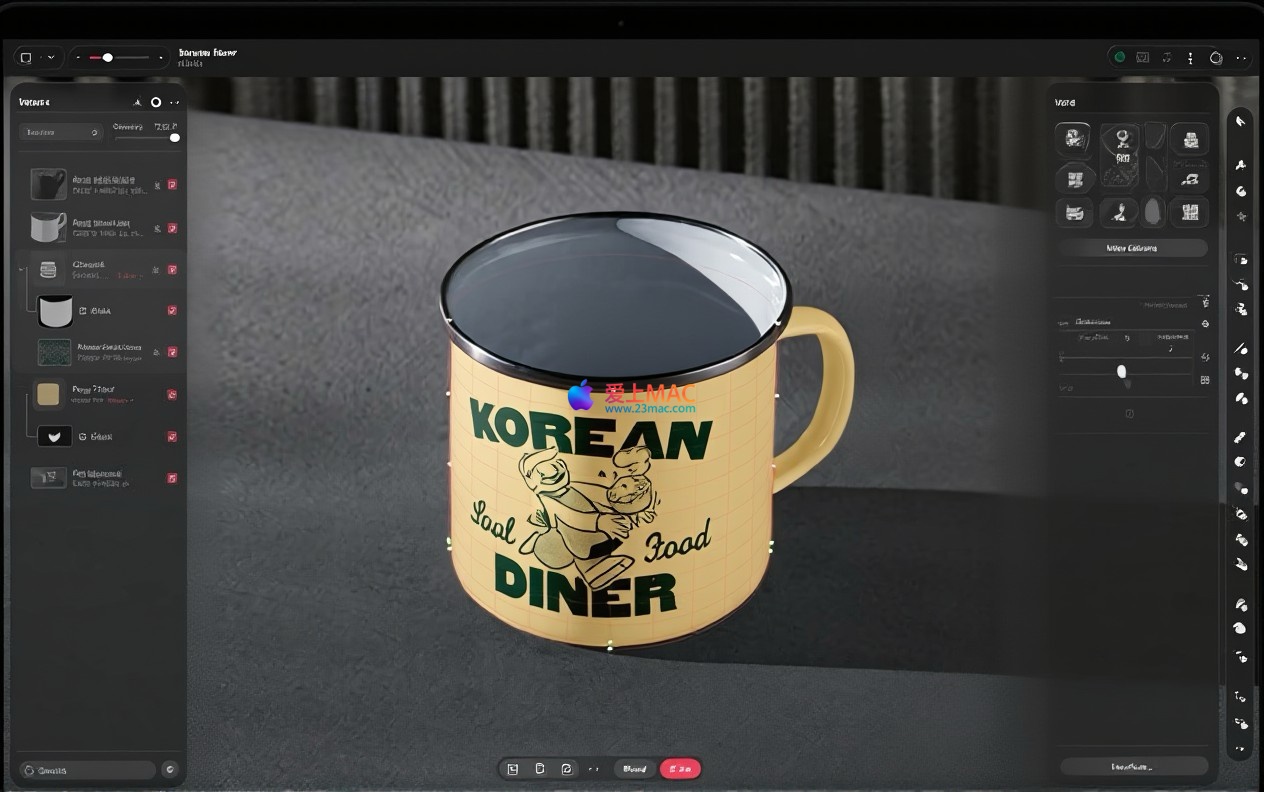
  • 智能变形预设: Offers 12 smart presets, enabling you to transform layers into cylindrical, arch-shaped, or banner-like forms, or quickly divide them into 3×3, 4×4, or 5×5 deformation grids. These presets are particularly useful for creating product presentation effects, such as applying a logo to a cylindrical cup.
  • 专业设计模型: Provides two new series of advanced product and clothing design templates, fully leveraging the deformation function to quickly display design effects on items like T-shirts and mugs. This eliminates the need to search for third-party sample materials, allowing for realistic preview within the software.

2. 专业级照片编辑与增强

  • 色彩调整工具: Equipped with a suite of powerful professional color adjustment tools, allowing precise adjustments to photos and videos. Each slider is meticulously calibrated to provide细腻且可预测的结果,配合实时预览,让你所见即所得。
  • 机器学习增强: Utilizes AI-driven tools for automatic background removal, intelligent color enhancement, and lossless image resolution improvement. For example, its “super resolution” feature can intelligently fill in image details, turning blurry old photos into clear and sharp ones.
  • 丰富效果预设: Includes 40 color adjustment presets and 70 visual effects, enabling quick realization of artistic styles or special visual appearances. These presets are not simple filters but are based on real photography and design principles, ensuring the image’s texture remains intact after adjustments.
  • RAW格式支持: Fully supports over 750 popular digital camera RAW formats. This allows photographers to directly edit original negatives within Pixelmator Pro, preserving the most rich colors and details.

3. 强大的设计与排版功能

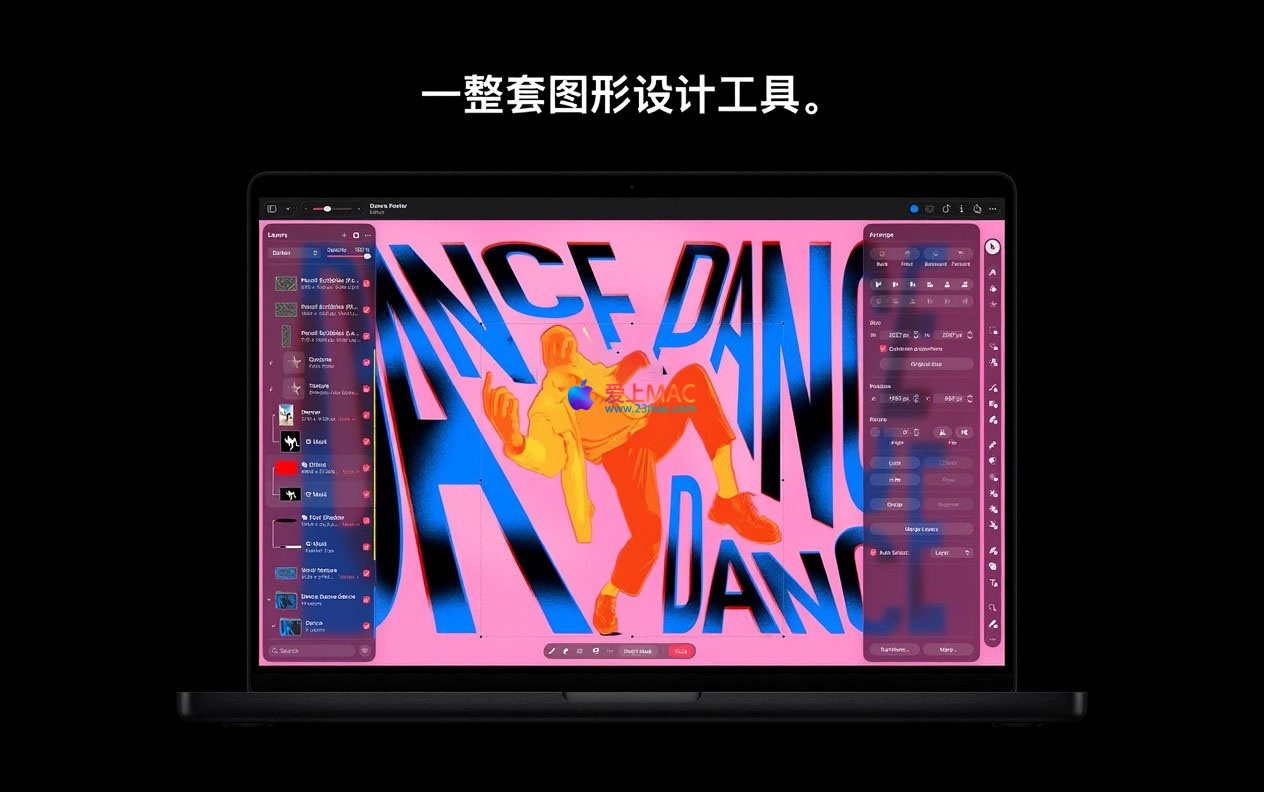
  • 基于图层的设计: Utilizes powerful layer editing features, combined with support for vector shapes, professional typography, and video layers, to design posters, web pages, or app interfaces from scratch. The layer management panel is designed to be clear and intuitive, supporting grouping, masks, and blending modes, aligning with the logic of mainstream design software.
  • 图层样式自定义: Uses fill, stroke, projection, and inner shadow layer styles to finely adjust layer appearance. You can save these styles as presets for quick reuse in subsequent projects, significantly boosting productivity.
  • 海量模板资源: Offers a wide range of beautiful preset templates and fully customizable advanced design models, allowing quick project launches and stunning design outputs. These templates cover various scenarios, from social media graphics to business presentations, making them excellent starting points for beginners.

4. 矢量绘图与插图

  • 矢量绘图工具: Provides a full suite of vector tools, including the pen tool and free pen tool, for creating and editing vector graphics. The pen tool’s path editing is smooth, and the response speed of anchor point control rods is extremely fast, giving the feeling of operating a native vector software.
  • 预置形状库: Includes a beautiful vector shape library containing categories like arches, plants, and organic forms, accelerating the creation process of illustrations. These shapes are not only aesthetically pleasing but also fully editable, allowing you to adjust their colors, sizes, and paths.
  • 智能形状: Adds customizable smart shapes, enabling quick assembly and creation of complex graphics. Smart shapes support parametric adjustments, such as modifying the radius of a rounded rectangle, simply by dragging a slider.

5. 自然的素描与绘图体验

  • 双纹理画笔: Uses a series of handmade dual-texture brushes to simulate the real feel of drawing, achieving natural drawing effects. These brushes offer rich variations in pen strokes, from the roughness of a pencil to the diffusion of watercolor, all highly realistic.
  • 专业硬件支持: Fully supports Apple Pencil on iPad and drawing tablets on Mac, enabling precise pressure and tilt sensing for drawing. For users of Wacom and other digitizing tablets, Pixelmator Pro provides comprehensive pressure protocol support.
  • 高性能绘图引擎: Driven by the Metal graphics technology, the advanced drawing engine ensures a smooth and responsive drawing process, even with large canvases and hundreds of layers. This is the core technology that ensures the smooth operation of Pixelmator Pro on Mac, without noticeable lag, even with large canvases and hundreds of layers.

三、广泛的文件兼容性

  • 支持导入的格式: Compatible with a wide range of image and video formats, including JPEG, TIFF, PNG, PSD, HEIF, SVG, AI, Illustrator EPS, PDF, GIF, BMP, TGA, WebP, JPEG-2000, AVIF, MP4, MOV, HDR images, among others. This allows seamless integration of workflows with Photoshop and Illustrator.
  • Sharing and Exporting : Works can be shared easily to the “Photos” app, “Mail”, AirDrop, and other target locations. When exporting, custom file quality, size, and color space support is available to meet the upload requirements of different platforms.
  • Software Interface Screenshots

    Below are examples of the Pixelmator Pro for Mac’s operation interface.

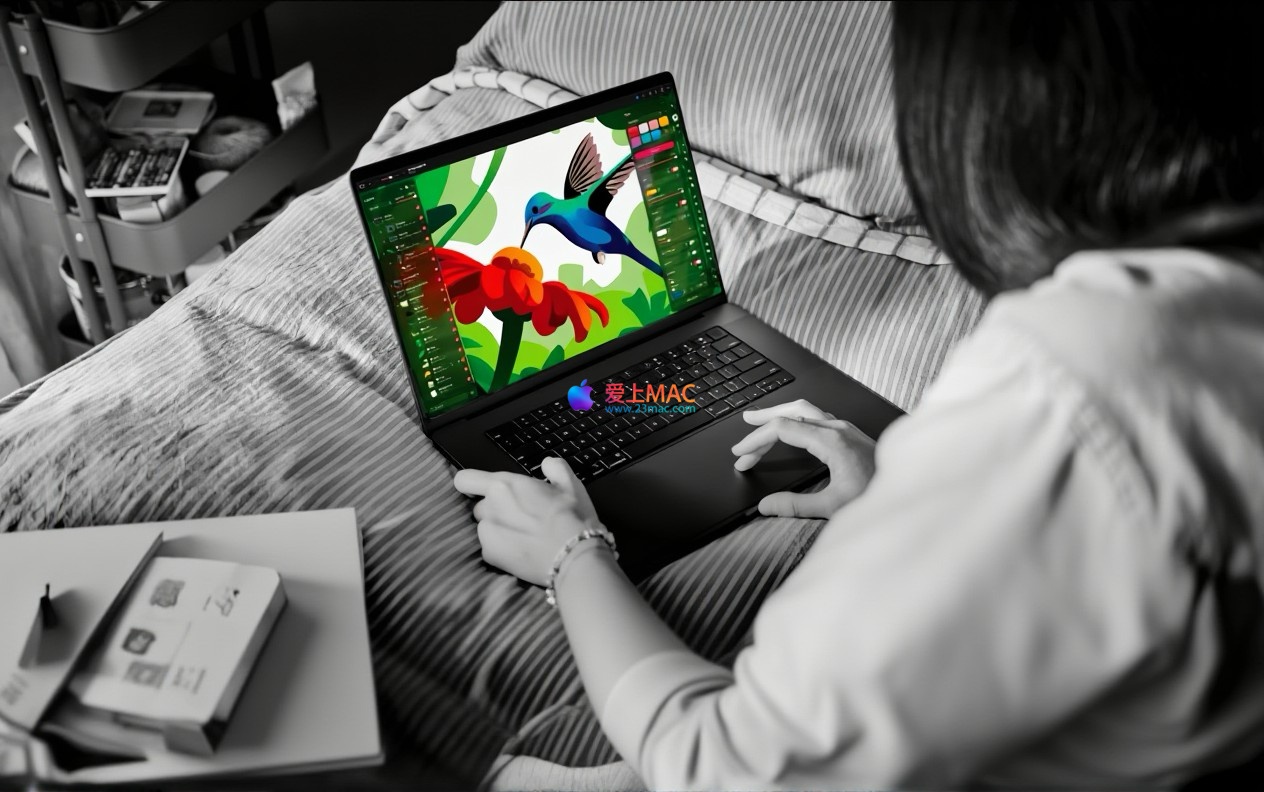
    Pixelmator Pro Main Interface and Tool Display
    Pixelmator Pro Image Editing Function Demonstration
    Pixelmator Pro Design Template Application
    Pixelmator Pro Distortion Tool Demonstration
    Pixelmator Pro Color Adjustment Panel
    Pixelmator Pro Drawing and Brush Function


    Four, Detailed Installation Guide (for Mac Users)

    Many users feel confused after downloading about how to correctly install Mac software. Below is a detailed installation guide to ensure you can use Pixelmator Pro smoothly.

    Step One: Check System Requirements

    First, ensure your Mac runs macOS Monterey (12.0) or a higher version. You can check your system version by clicking the “About This Mac” option in the top left corner of the screen. Pixelmator Pro is optimized for Apple Silicon (M1, M2, M3 series chips) and Intel chips.

    Step Two: Download and Unzip

    Click the download link on this page to get the Pixelmator Pro installation package. Typically, you will download a compressed file (dmg format). Double-click the file to automatically mount a virtual disk. In the opened window, you will see a “Pixelmator Pro” application icon and a shortcut to the “Applications” folder.

    Step Three: Drag and Install

    This is the classic way to install Mac software. Simply use the left mouse button to drag the “Pixelmator Pro” icon to the “Applications” folder icon. The system will start copying files, which usually takes just a few seconds. This is the safest and most standard installation method, and it is not recommended to run the software through other means.

    Step Four: First Launch and Activation

    After installation, you can find Pixelmator Pro in the “Launchpad” or “Applications” folder and double-click to open it. Since the software comes from a non-App Store source, the system may prompt “Developer cannot be verified” upon first launch. At this point, go to System Preferences > Security & Privacy, click the “Open Anyway” button. After the software starts, follow the prompt to input the activation code provided to complete the activation.

    Step Five: Verify Installation

    After activation, the software will automatically enter the main interface. You can check the version information by clicking “Pixelmator Pro” > “About Pixelmator Pro” in the menu bar. This confirms that you have version v4.0.0. The installation process is now complete, and you can start creating.


    Five, Commonly Asked Questions (FAQ)

    We have compiled the most frequently asked questions from users to help you quickly resolve your doubts during use.

    1. Q: Compared to Photoshop, which one is better between Pixelmator Pro and Photoshop?
      A: They have different focuses. Pixelmator Pro is lighter, starts faster, and integrates deeply with the Mac ecosystem, suitable for Mac users’ daily photo editing and design. Photoshop has a more extensive feature set and a richer plugin ecosystem. For most creative work, Pixelmator Pro is sufficient and more cost-effective.
    2. Q: Is the software in Chinese?
      A: Yes. Pixelmator Pro supports Simplified Chinese. It automatically matches your system language during installation. You can switch the language in the software’s “Preferences” settings.
    3. Q: Why do I get an error when dragging to the “Applications” folder?
      A: This is usually due to permission issues. Ensure that the user account you are logged in with has administrator permissions. If the problem persists, try restarting your Mac or copying the file to the desktop before dragging it to the “Applications” folder.
    4. Q: What should I do if the software crashes after opening?
      A: First, check if your macOS version meets the requirements. Next, try resetting the software preferences: close the software, open “Finder”, press the shortcut keys Command+Shift+G, enter “~/Library/Preferences”, find and delete files starting with “com.pixelmator.pro”. Then restart the software.
    5. Q: Can I install Pixelmator Pro and Pixelmator Classic at the same time?
      A: Yes, you can. They are two independent software applications that can coexist on the same Mac without interfering with each other. However, Pixelmator Pro is a more modern and feature-rich version, so it is recommended to use the Pro version as your primary application.
    6. Q: How can I recover the layers I accidentally deleted?
      A: If you just deleted the layers, you can immediately use the shortcut Command+Z to undo. If you have performed other operations, check the “Layers” panel on the left to see if the layers have been hidden or merged into other groups. Pixelmator Pro does not have a separate “Recycle Bin” feature, so it is recommended to develop the habit of frequently saving history versions.
    7. Q: Does Pixelmator Pro support batch processing of images?
      A: Pixelmator Pro does not have a standalone “Batch Processing” button. However, you can achieve batch processing by creating “Actions” or using the “Shortcuts” app. For example, record an action to adjust image size and add watermarks, then apply it to the images in a folder.
    8. Q:激活码丢失了怎么办?
      A:请第一时间联系我们的客服。提供你的购买订单信息(如邮箱、订单号),我们会为你重新发送激活码。建议收到激活码后,将其保存在一个安全的位置,比如密码管理器中。
    9. Q:软件更新是免费的吗?
      A:在v4.0.0这个主版本内的所有小版本更新(如v4.0.1、v4.0.2)都是免费的。但如果未来推出v5.0大版本,可能需要付费升级。不过,我们通常会为用户提供最新的激活版本。
    10. Q:为什么我的RAW文件打不开?
      A:请检查你的相机型号是否在支持的750款相机列表中。另外,确保你的macOS系统已经更新到最新版本,因为RAW格式的解码依赖系统的图像核心框架。

    六、Mac常用快捷键表格(适用于Pixelmator Pro)

    Mastering shortcuts is key to improving your design efficiency. Below is a summary of common Pixelmator Pro shortcuts, which you are encouraged to save.

    Shortcut Function
    Command + N Create a new document
    Command + O Open a file
    Command + S Save the current document
    Command + Shift + S Save as
    Command + Z Undo the last action
    Command + Shift + Z Redo (undo the undo)
    Command + C Copy the selected layer or area
    Command + V Paste
    Command + X 剪切
    Command + A Select all
    Command + D Clear selection
    Command + T Free transform (resize, rotate)
    Command + B Bold the selected text
    Command + I Italicize the selected text
    Command + U Add a underline to the selected text
    Command + + Zoom in
    Command + – Zoom out
    Space + Drag Switch to the hand tool temporarily to pan the canvas
    [ Or ] Adjust the current brush size
    Shift + [ Or ] Adjust the hardness of the current brush

    Note: You can view and customize all shortcuts in the Pixelmator Pro menu bar under “Pixelmator Pro” > “Shortcuts” to create your own efficient workflow.


    Seven, Tips and Real-World Cases

    More theory is better put into practice. Below, I share a few practical tips and a complete real-world case to help you get up and running quickly.

    Tips One: Efficiently Remove Background Using “Machine Learning”

    This is one of the most highly praised features in Pixelmator Pro. When you need to replace the background of a product photo, simply select the layer and click the “Quick Background Removal” tool in the toolbar (or press the shortcut key W). The software will automatically identify the subject. If the edges are not perfect, you can use the “Edge Refine” brush for fine-tuning. The entire process takes less than 10 seconds, making it much faster than using the traditional pen tool for cropping.

    Tips Two: Non-Destructive Editing to Protect Original Images

    When working with photos, it’s recommended to get into the habit of using “Adjustment Layers.” For example, when you need to adjust the color, don’t directly edit the original image, but click the “Create a New Fill or Adjustment Layer” button at the bottom of the layer panel and choose “Hue/Saturation.” This way, all adjustments are independent and can be modified or deleted at any time without damaging the original pixels. This is a core workflow for professional designers.

    Tips Three: Utilize “Color Lookup” for Quick Application of Film Tone

    If you want your photo to have the质感of a film, you can try the “Color Lookup” adjustment layer. You can search online and download various .CUBE format LUT (Color Lookup Table) files, then import them into Pixelmator Pro. This allows you to apply complex color grading effects with just a single click, which is perfect for creating Instagram posts or social media images.

    Real-World Case: Creating an Instagram Poster

    Objective: Create a 1080×1920 pixel Instagram poster for a coffee shop, highlighting the new “Cold Brew” product.

    Step One: Create a New Document. Press Command+N to create a new document, set the canvas size to 1080×1920 pixels, with a resolution of 72dpi and a background color of white.

    Step Two: Process the Product Photo. Drag the photo of the cold brew coffee into the canvas. Use the “Machine Learning” tool to remove the background automatically, and place the coffee cup in the lower middle of the canvas.

    Step Three: Add Background Color. Create a new layer below the coffee cup layer and use the “Gradient Tool” to fill a radial gradient from a deep blue to a light blue, creating a cool effect.

    Step Four: Layout the Text. Use the “Text Tool” to input the main title “Summer Cold Brew” and the subtitle “Cool Summer.” Apply the “Layer Style” with a “Projection” effect to the main title for added depth. Choose a rounded, modern sans-serif font for the text.

    Step Five: Add Decorative Elements. Drag some vector graphics of lemons or ice cubes from the “Predefined Shapes Library” and place them around the coffee cup to enrich the visual hierarchy.

    Step Six: Export. Press Command+E to export as a PNG format, ensuring that the background transparent areas are filled with white. The professional-level Instagram poster is now complete. The entire process takes only about 15 minutes once you’re proficient.

    Through these steps, you should now have a comprehensive understanding of Pixelmator Pro. From installation and configuration to practical operations, this software demonstrates exceptional professionalism and ease of use. If you encounter any issues during downloading or use, feel free to leave a message. We will respond to your queries as soon as possible. Let’s embark on your creative journey!

    Download info

    This resource requires login to download

    Log in
    Note: This resource is for informational purposes. By using this resource, you agree that you accept full responsibility to the copyright holder. For questions, please contact us.

    Ratings & reviews

    4.8

    (Maximum 5 ratings, total 22 user reviews)

    Let’s rate it.

    • 5 stars
      81.8%
    • 4 stars
      18.2%
    • 3 stars
      0%
    • 2 stars
      0%
    • 1 stars
      0%

    You may also like

    More
    ×
    Pixelmator Pro for Mac v4.0.0 Chinese Activation Edition Download
    iMac — One-stop Mac Software Download Platform
    Social login
    captcha
    Social login