

Topaz Photo Pro for Mac v1.5.0: Smart Image Enhancement Software Activation Download
Here is the page providing Topaz Photo Pro for Mac v1.5.0 intelligent image enhancement software crack version download, tested and available. If you encounter issues with the download link or the software fails to install, please leave a message to contact us.
Topaz Photo is the flagship AI image processing software from Topaz Labs, a comprehensive solution for image restoration, detail enhancement, lossless enlargement, color correction, and flaw removal, built on its two-decade image enhancement technology.
Many users may encounter some details issues when they first start using Mac software installation. We will break down the installation process into steps to ensure each step is clear and operational.
Before starting, please confirm your Mac runs macOS 11.0 (Big Sur) or a later version. Open the Apple menu in the top left corner, select “About This Mac”, and check the chip information. If your Mac has Apple M1, M2, M3, M4, or M5 chips, choose the ARM version. For Intel chip older Macs, choose the Intel version. Choosing the wrong version will prevent the software from starting.
After downloading, find the installation package file with the .dmg extension. Double-click to open it, which will display a window containing the installation program and activation tool. Depending on your chip type, double-click the corresponding installation package file, such as “TopazPhoto-ARM.pkg” or “TopazPhoto-Intel.pkg”. The system may prompt “From an unidentified developer”. Click “OK” to continue.
Double-click the .pkg file to open the standard macOS installation wizard. Click “Continue” and “Agree” to accept the license agreement. There is a key point to note here: when the installation reaches the second-to-last step, the software needs to download AI model files. This process must be connected to the internet. If your network is unstable, strongly recommend using a scientific internet tool to significantly improve download speed, which may take 30 minutes to 1 hour. Wait for the progress bar to complete.
After installation, do not open the software yet. Return to the .dmg installation package window and find the “Patch.command” activation tool file. Drag it to the desktop. Then, double-click the “Patch.command” file on the desktop. The system will automatically open the “Terminal” application. In the terminal window, you will see a prompt to input the password. Please note: when entering the password, no characters will be displayed on the screen (including asterisks), which is a security mechanism of Mac. Please directly input your computer’s startup password and press the Enter key.
After the password verification is successful, the terminal will run a series of scripts. Please observe the last few lines of output in the terminal window. When the bottom of the screen displays the blue font “All operations completed”, it means the crack has been successfully completed. At this point, you can close the terminal window and open the application file in the Applications folder to start using Topaz Photo Pro. If you encounter an error, please check if the password is entered correctly, or try running the Patch.command file again.
This is macOS’s security protection mechanism. Open “System Preferences” -> “Security & Privacy” -> “General”, and click the “Open Anyway” button. If the button is gray, click the lock icon to unlock first. Then try running the installation package again.
This usually happens when downloading AI model files. Check if your network connection is stable. Suggest closing the firewall or switching to a more stable network environment. If the progress bar is stuck for more than 10 minutes, you can force quit the installation program and run the .pkg file again. If conditions allow, using a scientific internet tool can significantly improve download speed.
This is due to file permission issues. Ensure you have dragged the “Patch.command” file to the desktop. If still not working, try manually granting permissions in the terminal: open the terminal, input chmod +x ~/Desktop/Patch.command, and then double-click to run.
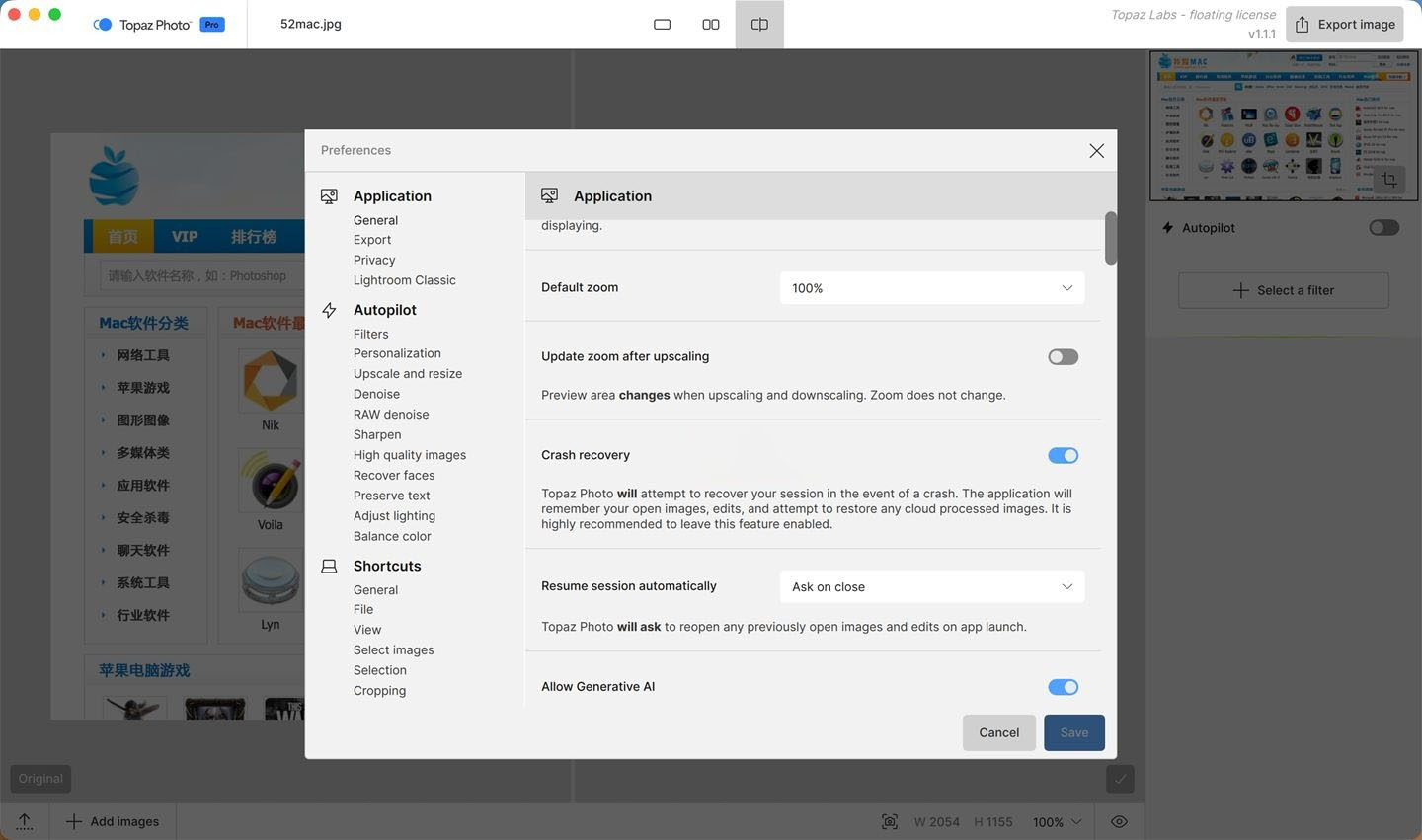
Version 1.5.0 of Topaz Photo Pro has optimized the model file missing prompt mechanism. Ensure the network is stable during installation to allow the model to be downloaded completely. If the problem persists, try manually downloading missing model files in the software’s “Preferences” -> “Model Management”. If the issue continues, consider uninstalling and reinstalling.
First, confirm if your macOS version is updated to the latest. Topaz Photo Pro v1.5.0 optimizes the Neuroserver rendering scheduler for Apple Silicon chips. If it runs poorly, it may be due to other high-load applications running in the background. Suggest closing unnecessary background programs or reducing the preview resolution in the software for editing.
It is not recommended to use the software’s built-in update function to upgrade. The crack version is activated by modifying core files, and direct updates may cause activation failure, or the software may not open. If you need new features, consider following the latest crack version updates on our site. Keeping the current version stable is a more secure choice.
For Apple Silicon chips, the latest Denoise Max and Super Focus v3 models support local rendering, capable of handling up to 100MP images. For Intel Macs, it relies on cloud rendering. When handling large files, ensure your Mac has enough free memory (32GB or more) and wait for the processing to complete.
This is usually due to mismatched color spaces. Set the color space to sRGB in the export settings. This is the most commonly used standard for internet display. If you need to print, choose Adobe RGB or ProPhoto RGB. Also, ensure your Mac display is calibrated.
Mastering keyboard shortcuts can significantly enhance your editing efficiency. Here is a summary of commonly used keyboard shortcuts designed for Topaz Photo Pro, which you can save.
| Shortcut | Function Description | Applicable Scenario |
|---|---|---|
| ⌘ + O | Open Image File | Quickly import raw material for processing |
| ⌘ + S | Save/Export Current Image | Finish editing and quickly output |
| ⌘ + Z | Undo Previous Operation | When adjusting parameters, undo the previous step |
| ⌘ + Shift + Z | Redo (Revert Undo) | Compare different parameter effects |
| ⌘ + + | Zoom In | View detail processing effects |
| ⌘ + – | Zoom Out | View overall image effects |
| Space (Spacebar) | Switch to Hand Tool temporarily | Zoom in and quickly drag to view the image |
| Tab | Hide/Show Sidebar Panel | Maximize preview area |
| ⌘ + P | Open Autopilot for Automatic Processing | Automatically analyze and optimize images with a single click |
| ⌘ + B | Batch Processing Mode | Apply preset settings to multiple images at once |
Knowing the features is not enough; mastering these tools in real-world work is key. Below, I share a few practical tips and real-world cases summarized by experienced users.
For beginners, facing complex parameter panels might be overwhelming. Topaz Photo Pro’s built-in Autopilot feature can help. After importing an image, click the “Autopilot” button in the upper right corner of the interface. The software will automatically analyze the noise, blur, resolution, and other indicators in the picture, and intelligently match the most suitable model and parameters. This is not just a “one-click beautification,” but rather a deep understanding of the picture content based on AI. You can use it as a starting point and then make micro-adjustments according to your personal preferences. Many professional photographers often run the Autopilot model when processing wedding photos in bulk, then fine-tune a few special photos individually. This greatly improves efficiency.
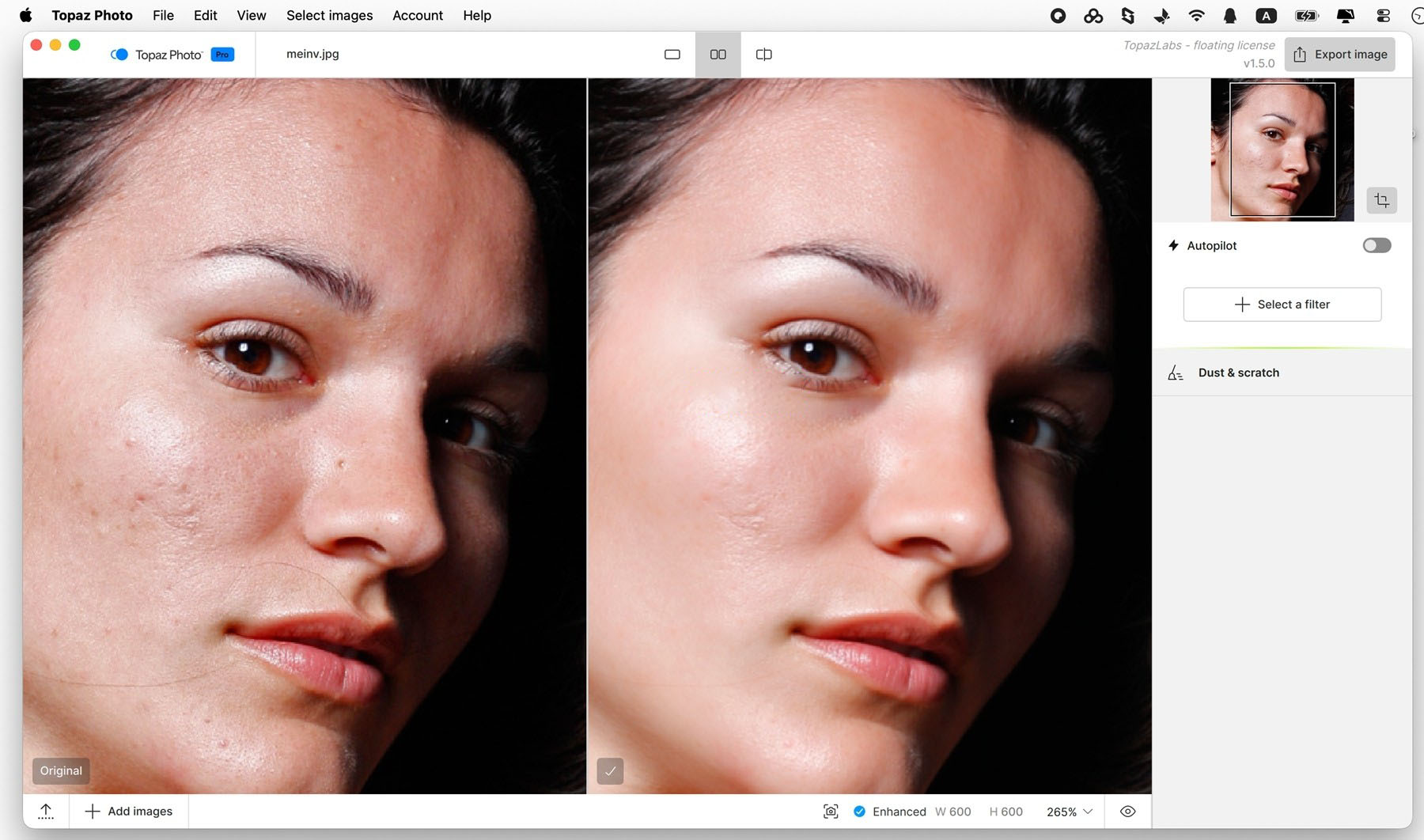
When dealing with portrait photos, the most feared issue is excessive noise reduction that turns skin into “plastic faces.” Topaz Photo Pro’s Denoise feature supports subject/background partitioned noise reduction. To do this, open the “Partition” mode in the Denoise panel. You’ll see the picture divided into the subject and background areas. For the background area, you can increase the noise reduction strength to eliminate dark-point noise. For the subject area (especially the face), you can reduce the noise reduction strength and increase the “Detail Retention” slider. This ensures the background is clean while retaining the natural pores and texture of the skin, achieving professional-level refinement. According to our tests, in a night scene portrait shot at ISO 6400, this partitioned operation improves the picture quality by about 30% compared to uniform noise reduction.
A user shared his experience: at a concert, due to the distance and complex lighting, his photos taken with a long lens were blurry and noisy. This photo was almost deemed a “throwaway.” He tried using Topaz Photo Pro’s Super Focus v3 model for restoration. The steps were as follows: first, import the image, and the Autopilot automatically identifies the blur issue and recommends the Super Focus model. He manually adjusted the “Intensity” slider to 70%, and the “Suppression of Artifacts” to 50%. Then, he switched to the Denoise panel, selected the “Denoise Max” model, set the intensity to “Normal,” and enabled partitioned noise reduction, focusing on preserving the details of the singer’s face. Finally, he used the Upscale feature to enlarge the image to 200%, so he could share it on social media. The final output, though not as clear as a professional camera shot, had clear contours and appropriate noise control, meeting the standard for social sharing. The user exclaimed, “This software really saves memories.”
If you have scanned old photos with scratches, fading, and blurriness, you can follow this golden workflow: first, use the “Scratches and Scratches” repair function to remove large areas of spots in one go. Second, use the Wonder 3 model for overall restoration, enhancing details. Third, if the photo is blurry, use Super Focus for sharpening. Fourth, use the AI light adjustment function to correct underexposure or color bias. Finally, use the face restoration function to specifically optimize the facial details in the photo. This workflow is interconnected, maximizing the original appearance of old photos. Many historical archive restoration institutions also refer to this workflow.
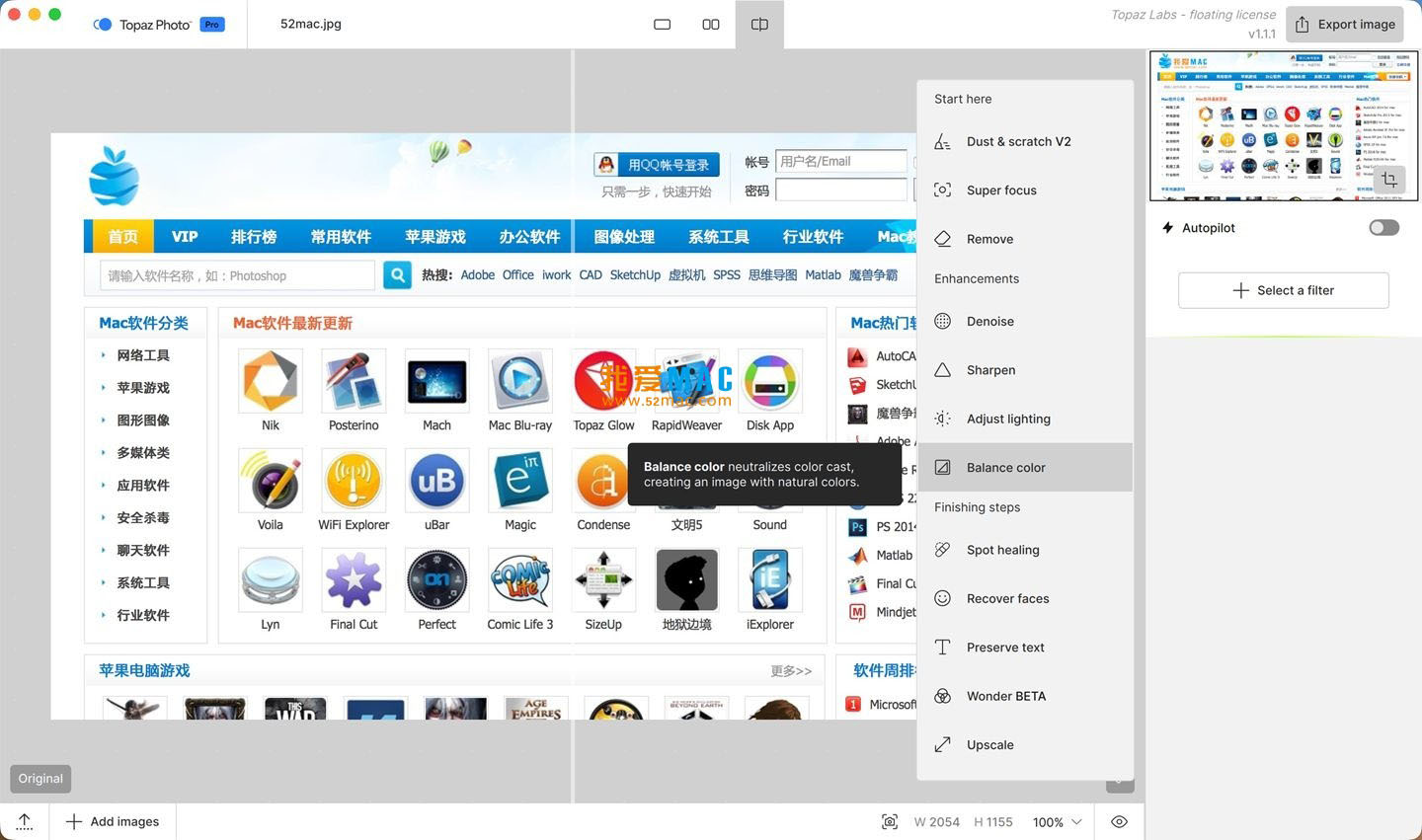
This v1.5.0 update is a significant milestone, introducing four groundbreaking AI models. Let’s look at each one in detail.
This update introduces four core AI models, with three of them supporting local rendering on Apple Silicon Mac via the Neuroserver technology. Intel Mac can use all models via cloud rendering.
All new models in the series are synchronized to support both local private rendering and unlimited cloud rendering modes, balancing privacy protection and processing efficiency on low-end devices. The optimization of model download and management logic, and the improvement of Mac-end model file missing prompts and repair mechanisms. The optimization of Neuroserver rendering scheduling efficiency on Apple Silicon Mac devices, and the reduction of memory usage for large models running locally.
Fixed the issue of crashes in the image analysis phase when model files are incomplete or missing. Fixed the crash issues in the image analysis phase for face detection and image quality detection in some scenes. Fixed the run error issue of the Wonder 2 model when files are missing. Fixed the issue of incorrect saving of advanced preferences in batch processing on Mac.
Below are screenshots of Topaz Photo Pro v1.5.0 running on Mac, showcasing the software’s main interface, model selection panel, and processing effect comparisons.
Topaz Photo Pro for Mac v1.5.0 integrates three top-tier engines and introduces a brand-new generative AI model, truly achieving a ‘one-stop’ image enhancement. Whether you’re a professional photographer handling high-ISO photos or a regular user restoring old photos, it delivers results that exceed expectations. With this article’s detailed installation guide, FAQ answers, shortcut table, and practical tips, you should now have a comprehensive and in-depth understanding of the software. If you’re looking for a Mac image processing tool that can boost your productivity and save “throwaway” photos, Topaz Photo Pro is definitely worth trying. Follow our crack tutorial to experience its powerful features for free. If you encounter any issues during use, feel free to leave your comments below for us to address.
This resource requires login to download
Log in
Movavi Video Editor Plus 2022 for Mac v22.3.0 Chinese Activation Download
Downloads:2109 | 2026-10-24
-for-Mac-v4.25-科幻题材游戏-中文版下载.png)
No Man’s Sky for Mac v4.25: Sci-Fi Game Download Activation Version
Downloads:3358 | 2026-10-23

Lite Media Browser for Mac v2.1.1 Chinese Activation Version Download
Downloads:227 | 2026-10-21

Adobe Dreamweaver 2020 for Mac v20.1 Chinese Cracked Activated Version Download
Downloads:973 | 2026-10-17


Ratings & reviews
No rating
Let’s rate it.