本页面提供 LRTimelapse Pro for Mac v7.4.0 延时摄影渲染工具 中文激活版下载 | 爱上MAC,已测试可用,如遇到链接失效或下载后无法安装等情况,请留言联系我们。
LRTimelapse 是一款专为延时摄影后期处理打造的专业级工具,被全球延时摄影师公认为行业标准。作为一款原生的 macOS 应用程序,它既可独立运行,也能与 Adobe Lightroom Classic 深度集成,完整覆盖从素材导入、参数调整、去闪优化到最终视频渲染输出的全流程工作需求。
一、 核心功能概览
LRTimelapse 提供了一套全面且强大的工具集,旨在解决延时摄影后期处理中的各种复杂挑战:
- 广泛的格式支持:兼容包括佳能 CR2/CR3、索尼 ARW、尼康 NEF、富士 RAF 在内的主流相机 RAW 格式,以及 DNG 和 JPG 格式。其通过调用 Adobe Camera Raw (ACR) 解码内核,确保对新相机型号的快速兼容与无损读取。
- 智能关键帧与平滑过渡:支持对 Lightroom 中 400 余种编辑工具进行关键帧动画设置。通过在序列中设定关键帧,软件可自动完成全序列参数的智能插值计算,实现曝光、白平衡、色调等所有调整的逐帧平滑过渡,有效杜绝画面闪烁。
- 高级去闪烁算法:搭载自研的 Multi-Pass Visual Deflicker 多通道视觉去闪烁算法,能精准修正因光线变化、光圈快门差异等导致的亮度闪烁问题,同时保留自然光影动态。
- 圣杯向导 (Holy Grail Wizard):专为日转夜、夜转日等大光比场景设计,可自动分析亮度曲线并智能匹配曝光与 ISO 过渡,一键生成平滑的昼夜转换效果。
- 专业渲染输出:支持最高 8K 及以上分辨率的视频渲染,输出格式涵盖 H.264/HEVC 等主流编码,以及 ProRes、DNxHR 等专业级编码,支持完整的 True HDR 和 Rec.2020 广色域工作流。
- 高效色彩管理与批量处理:拥有完整的色彩管理工作流,并具备强大的批量处理能力,可同时处理多组序列,支持后台队列渲染,极大提升工作效率。
二、 安装与配置指南
重要提示: 本文档提及的“破解版”仅用于技术分析与学习讨论。使用未经授权的软件存在安全与法律风险,并可能无法获得官方更新与技术支援。建议用户通过
官方网站 获取正版授权。
安装步骤
步骤一:安装主程序
下载完成后,打开 `.dmg` 镜像文件。首先运行「LRTimelapse 7.4.0 Installer」进行安装。请使用默认安装路径,避免更改安装位置。
安装过程中,系统可能会提示输入管理员密码,这是 macOS 的安全机制,请放心输入。
步骤二:应用破解补丁
主程序安装完成后,运行提供的「破解补丁」。根据补丁程序的提示完成安装,它将自动完成软件的授权激活。
部分安全软件可能会误报破解补丁,建议在安装前暂时关闭 macOS 的 Gatekeeper 功能(系统偏好设置 → 安全性与隐私 → 通用 → 允许从以下位置下载的应用程序,选择“任何来源”)。
步骤三:完成与注意事项
破解完成后,请切勿更新或升级软件,否则可能导致授权失效。
建议首次启动后,在“偏好设置”中关闭自动检查更新功能,以保持当前版本的稳定性。
基础配置
语言设置
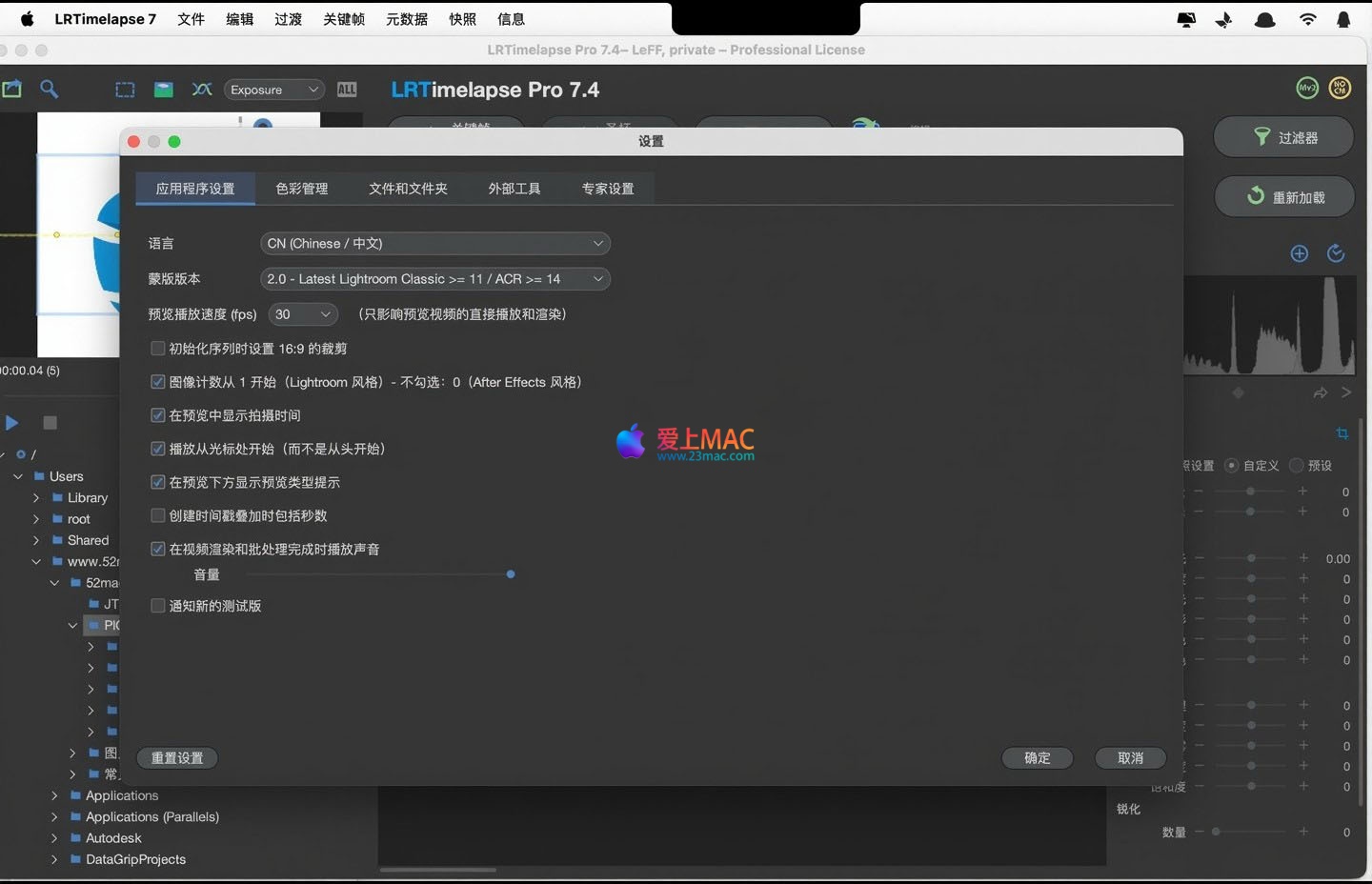
软件首次启动默认为英文界面。如需切换为中文,请点击左上角菜单栏的「LRTimelapse 7」→「Settings…」,在设置面板中选择「中文」即可。
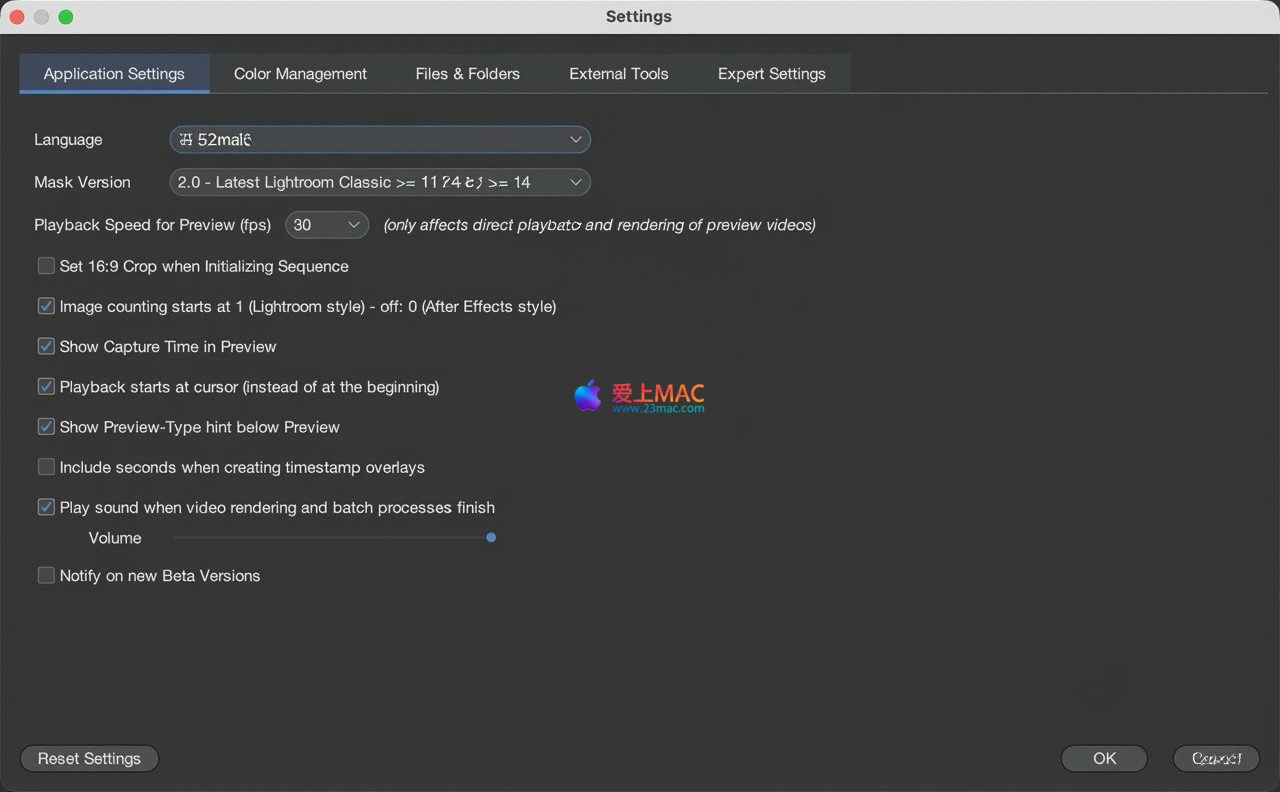
设置完成后,建议重启软件以确保所有界面元素都正确加载为中文。
依赖组件安装提示
LRTimelapse 依赖于 Adobe DNG Converter 提供的 ACR 解码内核来读取 RAW 文件。首次启动时,软件可能会提示您下载并安装 Adobe DNG Converter。请务必根据提示完成安装,以确保软件对 RAW 格式的完整支持。
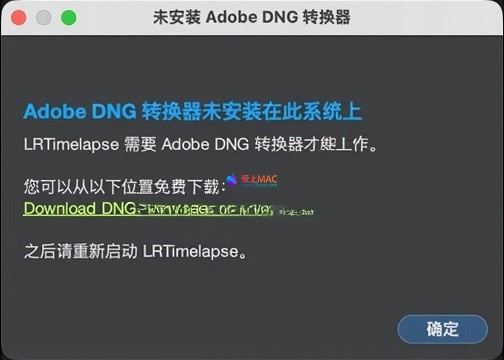
如果您的网络环境下载较慢,可以手动从 Adobe 官网下载对应版本的 DNG Converter 进行安装。
三、 版本 7.4.0 更新详解
3.1 核心功能与使用体验优化
- 关键帧处理逻辑重构:全面革新关键帧系统,更贴近专业视频剪辑软件的操作逻辑。
- 序列首尾帧不再自动设为关键帧,需手动标记。
- 支持“单关键帧工作流”,单个关键帧的参数可同步至全序列。
- 无关键帧的段落会自动与相邻关键帧进行线性平滑过渡。
- 适配新版 Lightroom Classic 的 JPG 元数据规则:新增自动识别能力,可正确读取内嵌或外部 XMP 数据,解决 JPG 序列编辑异常问题。
Added the “Preserve Static Tools’ Auto Transition” feature (shortcut Shift+Auto Transition): Allows you to retain parameters of non-supported editing tools (such as Clone Stamp) in LRTimelapse, preventing them from being overwritten.
Batch processing logic optimization: Defaults to skipping files marked as “REMOVED”, in the Recycle Bin, or in completed folders. Re-inclusion can be achieved by checking a box.
System compatibility and detail optimization: Includes improvements in error handling for restricted folder access, re-structuring of interval time calculation logic, adjustments to the interface layout, and enhancements to the license dialog box, among other improvements for user experience.
3.2 Core issues fixed
- Fixed a severe issue where camera configuration files were accidentally overwritten in certain scenarios.
- Fixed issues with the custom white balance panel and text translation compatibility.
- Fixed a null pointer exception when folders couldn’t be loaded due to system permissions.
- Fixed the batch removal feature not working after loading an empty sequence.
- Fixed multiple issues with functionality and stability, including the disabled “Import from Video” button and incorrect keyframe guide logic.
Four, Software Interface Preview
Here are screenshots of the main operation interface of LRTimelapse Pro 7.4.0:
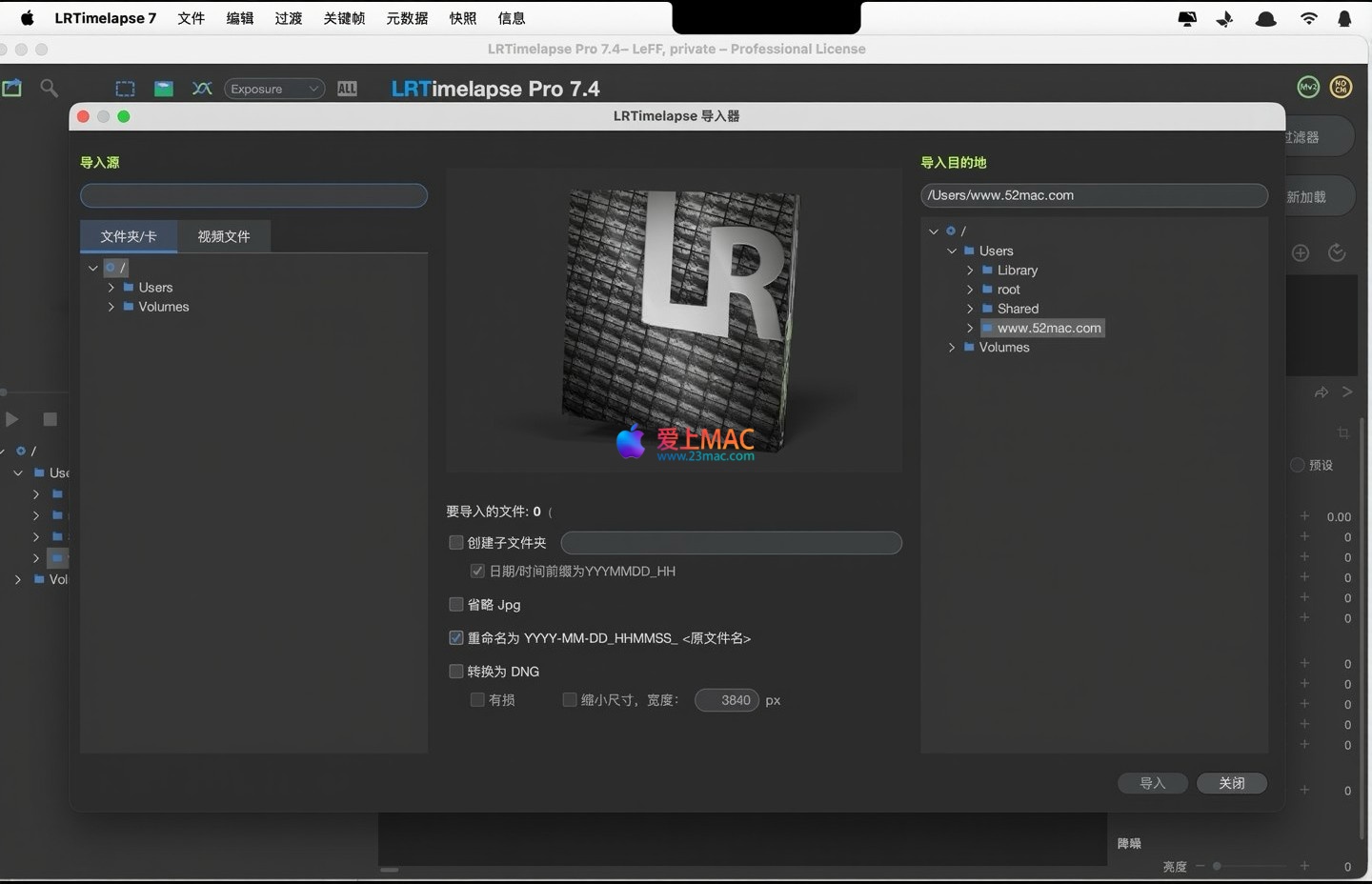
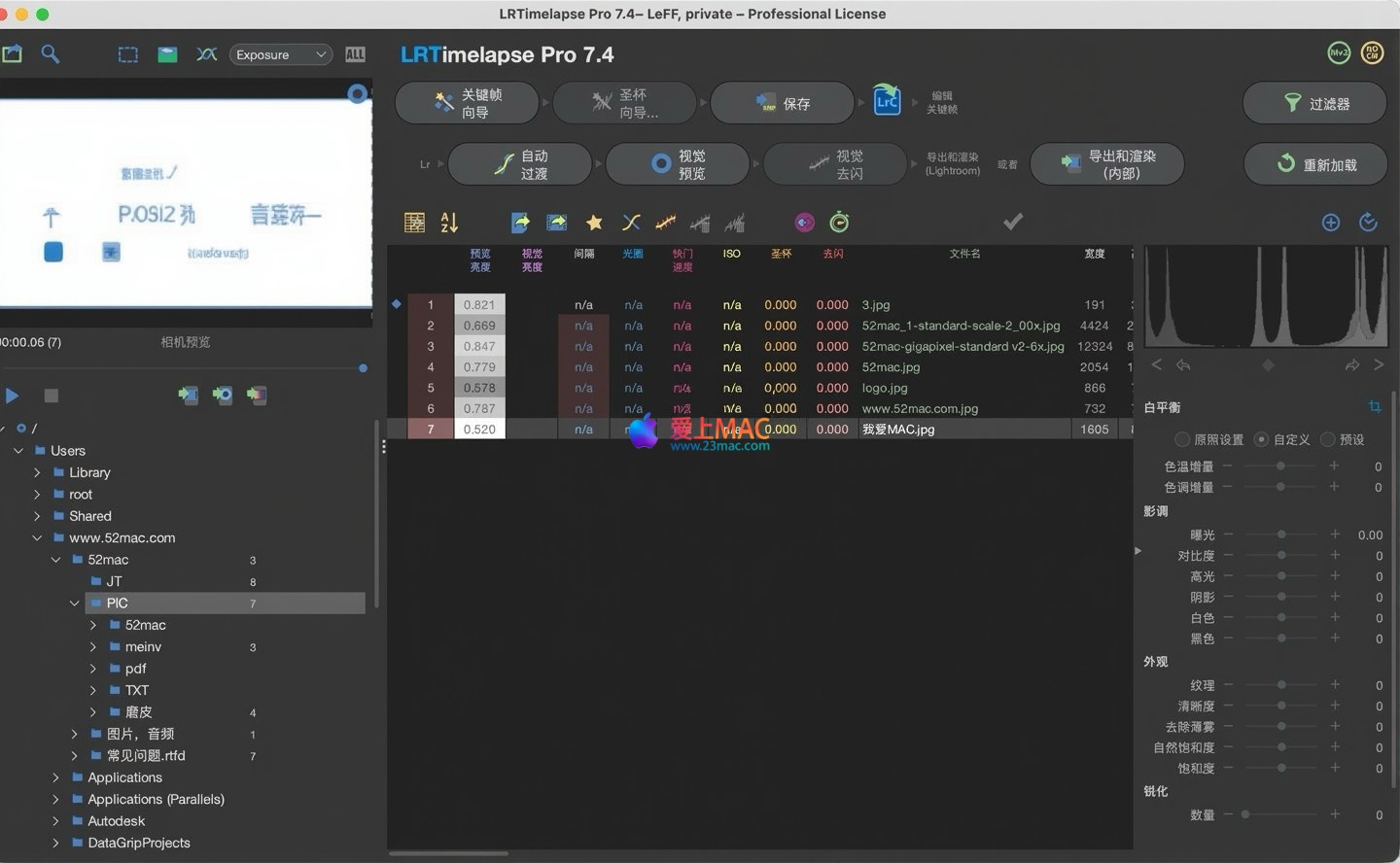
Five, Usage Tips and Practical Cases
5.1 Practical Case: Creating Day to Night Timelapse Videos
Day to Night (Day to Night) is one of the most challenging topics in timelapse photography. Here is a typical workflow:
- Prepare the footage: Use manual mode (M) on the camera, keeping the aperture constant and adjusting the shutter speed and ISO to ensure a smooth exposure transition.
- Import the sequence: Import the RAW sequence into LRTimelapse, which will automatically analyze the exposure change curve.
- Set keyframes: Set keyframes at the beginning, middle, and end of the sequence, and adjust parameters such as white balance, exposure, and tone.
- Apply Holy Grail Wizard: Use the Holy Grail Wizard to automatically match the exposure and ISO transitions, generating a smooth day to night effect with a single click.
- Apply Multi-Pass Visual Deflicker: Apply the Multi-Pass Visual Deflicker algorithm to eliminate brightness flicker caused by light changes.
- Render and output: Choose ProRes encoding for high-quality rendering, making it convenient for further color grading in Final Cut Pro or DaVinci Resolve.
5.2 Usage Tips: Five Ways to Improve Efficiency
- Master the shortcuts: Mastering the commonly used shortcuts (see below table) can significantly improve your workflow efficiency.
- Batch processing: Use the background queue rendering feature to process multiple sequences simultaneously without occupying the foreground resources.
- Save presets: Save commonly used keyframe parameters as presets for quick reuse in future projects.
- Color management: Use the built-in color management tools to ensure accurate output colors before rendering.
- Version control: Backup the original sequence before making parameter adjustments to prevent data loss due to accidental operations.
5.3 Common Mac Shortcuts Table
The following table lists the commonly used shortcuts in LRTimelapse on macOS, helping you quickly get started:
| Shortcut |
Description |
Cmd + O |
Open the sequence folder |
Cmd + S |
Save the current project |
Cmd + Z |
Undo the last operation |
Cmd + Shift + Z |
Redo the last operation |
Space |
Play/Pause preview |
K |
Add a keyframe |
Shift + K |
Delete a keyframe |
Cmd + R |
Render and output video |
Cmd + D |
Apply the deflicker algorithm |
Cmd + Shift + T |
Apply automatic transition |
Six, FAQ
Here are the 10 most common questions users encounter when using LRTimelapse, along with their answers:
- Q: Which RAW formats does LRTimelapse support?
A: It supports Canon CR2/CR3, Sony ARW, Nikon NEF, Fujifilm RAF, and DNG and JPG formats.
- Q: How do I resolve the issue of the software prompting “Cannot load RAW file” upon startup?
A: Ensure you have the latest version of Adobe DNG Converter installed. If the issue persists, try reinstalling DNG Converter or check if the file path contains Chinese characters.
- Q: Why does the rendered video have flickering?
A: It might be due to incorrect application of the flicker removal algorithm. Consider using Multi-Pass Visual Deflicker for multiple flicker removal passes and ensure your keyframe settings are reasonable.
- Q: How do I switch the software interface to Chinese?
A: Click on the menu bar’s “LRTimelapse 7” → “Settings…” in the settings panel, then select “Chinese”. Restart the software after making the change.
- Q: Does the cracked version support updates?
A: No, it does not. After updating, the license might become invalid. Disable the automatic update check function.
- Q: Does LRTimelapse support 8K video rendering?
A: Yes, LRTimelapse 7.4.0 supports up to 8K and higher resolution video rendering, with support for H.264, HEVC, and ProRes encodings.
- Q: How do I batch process multiple sets of sequences?
A: Open multiple sets of sequences simultaneously in the software and use the background queue rendering feature to process multiple projects at once, improving efficiency.
- Q: Why aren’t the adjustments in Lightroom synchronized to LRTimelapse?
A: Ensure you save the XMP file in Lightroom (Cmd+S shortcut). LRTimelapse needs to read these metadata to synchronize the adjustments.
- Q: What do I do if the software shows “Invalid license”?
A: If using a cracked version, reapply the crack patch. If using a genuine version, check if the license file is correctly placed or contact the official support.
- Q: How do I contact technical support?
A: You can contact technical support through the official website’s forum or email. For cracked versions, search for community solutions.
Seven, Summary
LRTimelapse Pro for Mac v7.4.0 is a powerful and user-friendly tool for post-processing timelapse photography. Whether you are a professional photographer or a timelapse enthusiast, it can help you efficiently complete the entire workflow from raw material import to final rendering. With the detailed installation guide, usage tips, and common issues answers provided in this article, you should be able to quickly get started and fully leverage its potential.
If you encounter any issues during installation or usage, feel free to leave a message and we will respond promptly to provide assistance.




Ratings & reviews
4.8
(Maximum 5 ratings, total 27 user reviews)
Let’s rate it.