

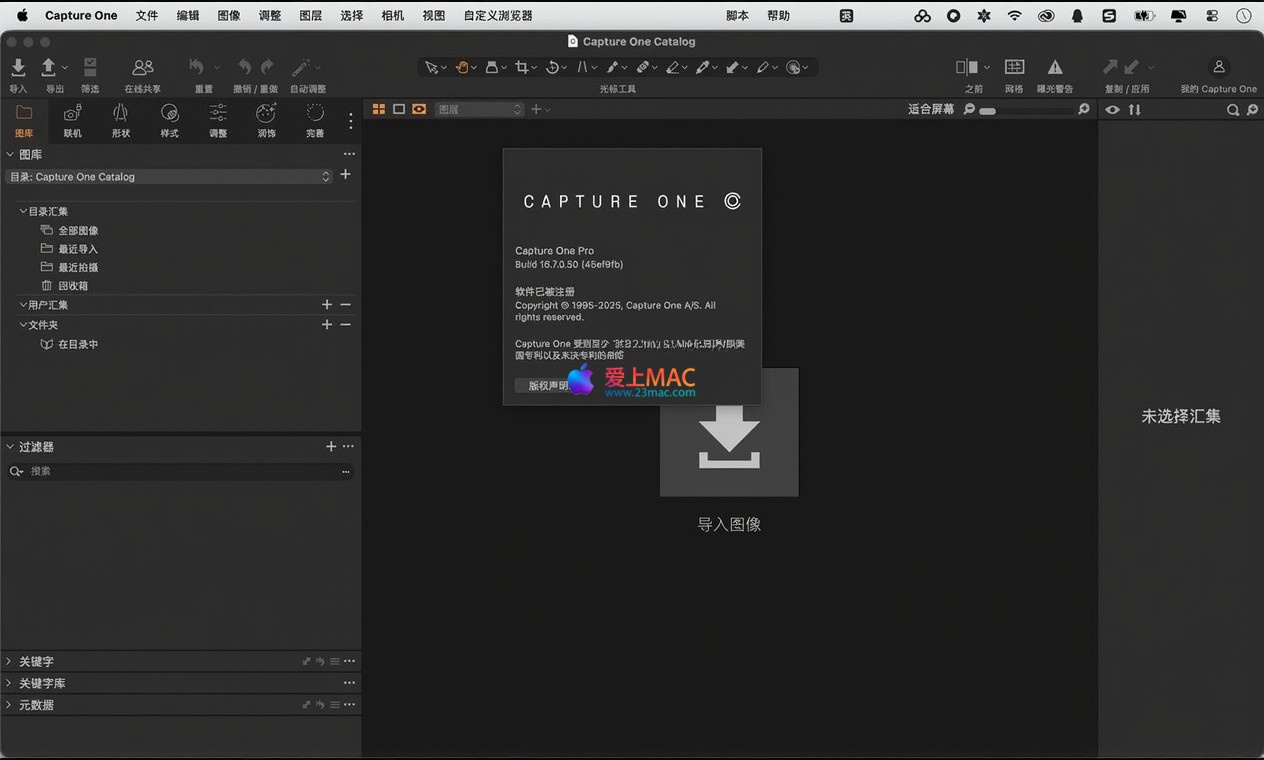
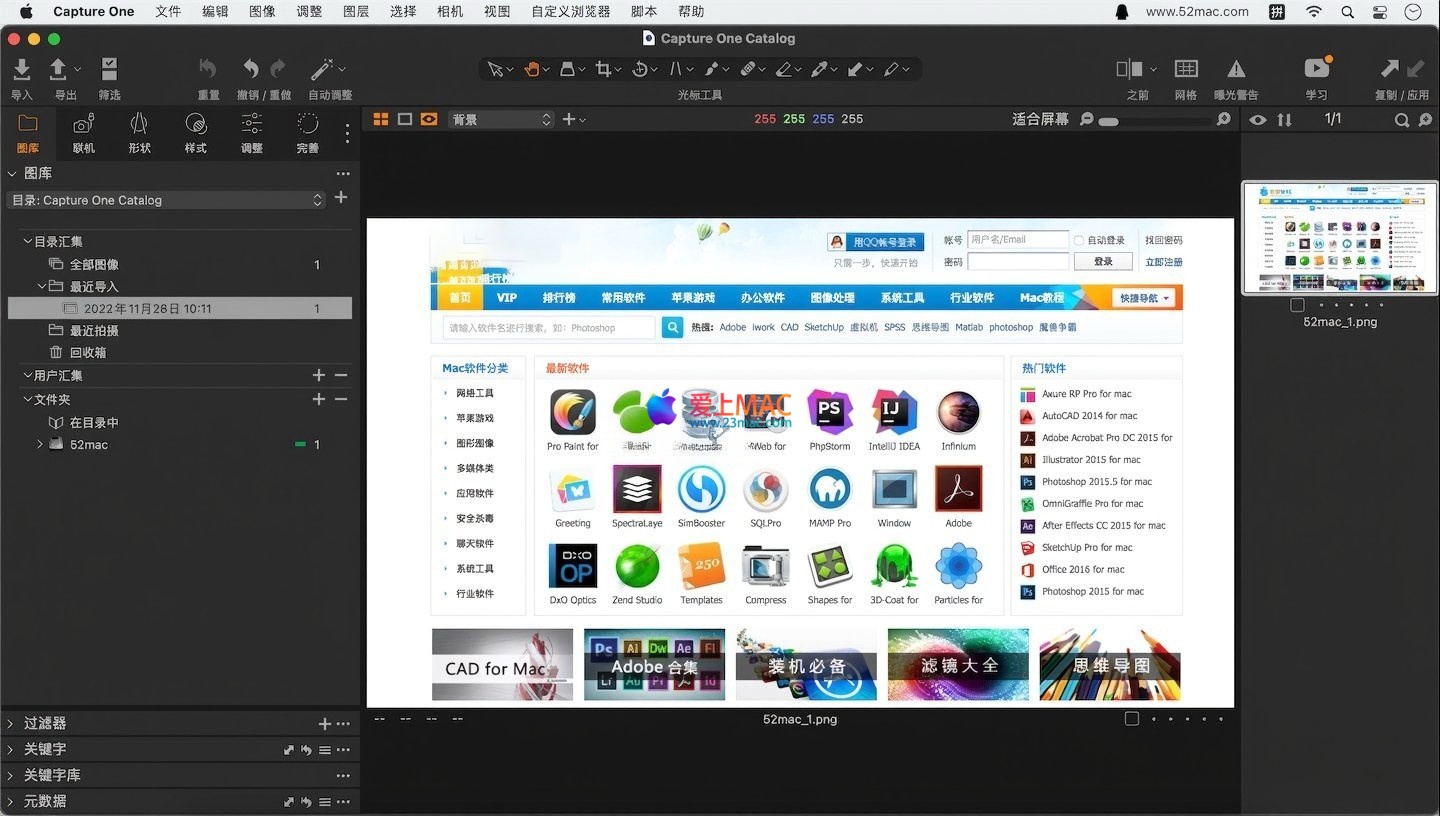
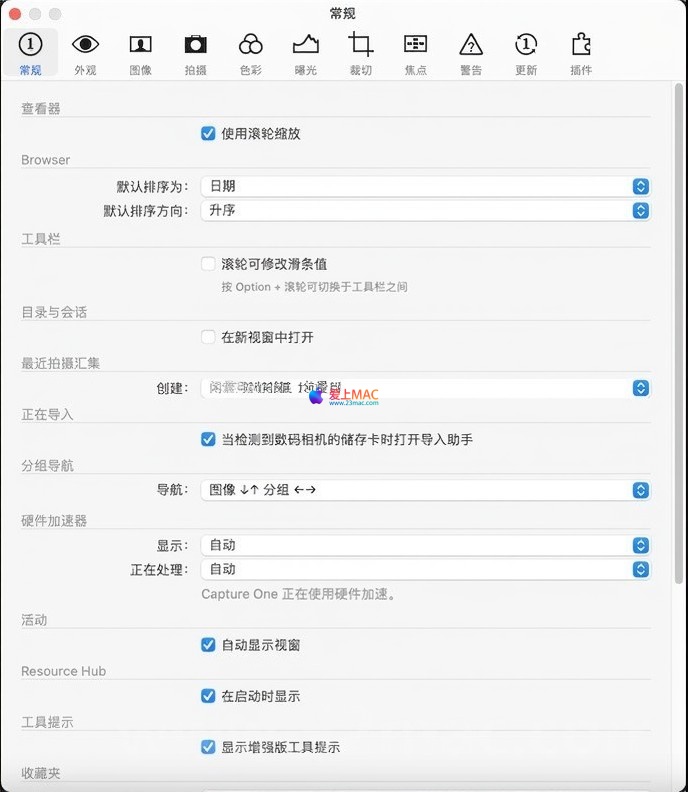
Capture One Pro for Mac v16.7.3.31 Chinese Activation Version Download
Here is the page providing Capture One Pro for Mac v16.7.3.31 ThinkPad software Chinese activation version download | LoveMAC is tested available, if you encounter the link invalid or download after cannot install and so on, please leave a message to contact us.
Capture One Pro is a professional-grade RAW image processing software tailored for the macOS system. It offers unparalleled image processing speed, native optimization for Apple Silicon chips, and robust online shooting and team collaboration features, creating an efficient workflow from shooting, management to post-processing for professional photographers.
Re-defining image processing speed. Its quick editing tools allow users to make seamless, rapid image adjustments without frequently operating interface sliders, just by using specified keyboard shortcuts in conjunction with scroll wheel, drag, or directional keys. Additionally, the software supports efficient batch editing features, enabling adjustments to multiple images simultaneously, significantly enhancing the efficiency of post-processing.
Capture One Pro provides industry-leading color management solutions:
Striving for the highest quality presentation:
Provides powerful and precise global and local adjustment tools, allowing users to fully control and fine-tune parameters such as exposure, contrast, saturation, and more.
Supports complex local adjustments:
Regardless of the number of images in a project, its smart management tools help photographers efficiently organize, filter, and retrieve images from the library. Additionally, it provides advanced export settings for quick output of files suitable for various purposes.
Through highly customizable user interfaces and极致software performance, it creates a smooth and seamless photo editing experience for users.
Capture One 16.7.3 introduces several production-level feature updates and support expansions:
The new Studio ICC configuration file supports the following camera models:
Based on vendor official data, the following Zeiss lenses have been added with name correction configuration files:
To ensure you can smoothly install and activate Capture One Pro 16.7.3, please follow the steps below carefully. We have tested the process multiple times to ensure it is clear and stable.
Before starting the installation, please confirm that your Mac meets the following minimum requirements:
Click the download link on this page to obtain the DMG installation package. After the download is completed, double-click the DMG file to mount it to your desktop. You will see a disk image icon named “Capture One Pro 16.7.3”.
Open the mounted DMG disk image, find the “Capture One Pro 16.7.3 Installer.pkg” installation package, and double-click to run it. Follow the installation wizard prompts, click “Continue” and agree to the license agreement. In the installation type interface, select the default installation location (usually “Macintosh HD”), click “Install”, and enter your Mac administrator password. Wait for the progress bar to complete, and the installation will be finished.
After the installation is completed, do not immediately start the software. Return to the DMG disk image, find the “Activation Patch” or “Crack” folder (usually named “Crack” or “Patch”). Copy the “Capture One” program files (usually located in “Contents/MacOS/” path) from the “Crack” or “Patch” folder to the “Applications” folder, replacing the original files. Some versions may require terminal command operations, please refer to the instructions in the compressed package’s “ReadMe.txt” for detailed instructions.
After the files are replaced, launch Capture One Pro. If prompted with “Verification Failed” or “Needs Activation” upon first launch, check if the patch has been correctly replaced. After successful activation, you can see the version number as 16.7.3.31 in the “About” menu, with no trial period restrictions. It is recommended to disable automatic updates in the “Preferences” before the first use to avoid activation failure.
We have compiled the most common 10 questions encountered during installation and usage, along with detailed answers.
A:这是 macOS 安全限制导致的。请打开“系统偏好设置” -> “安全性与隐私” -> “通用”,确保勾选了“允许从以下位置下载的应用”中的“App Store 和被认可的开发者”。如果仍无法打开,请在终端中输入:sudo spctl --master-disable 回车,然后输入密码。之后再次尝试启动软件。使用完毕后,建议重新开启安全限制。
A:请确认您覆盖的是正确的文件。通常在“/Applications/Capture One Pro 16.app/Contents/MacOS/”目录下。如果覆盖后依然不行,请尝试重启 Mac 后再次覆盖。部分版本需要配合防火墙软件,禁止软件联网验证。
A:推荐使用“Little Snitch”或“Radio Silence”等防火墙软件。在防火墙中创建一个规则,禁止“Capture One”进程访问所有网络。如果您使用 macOS 自带的“应用程序防火墙”,可以通过终端命令添加规则,但操作较为复杂。
A:Capture One 16.7.3 已原生支持 Apple Silicon。请确认您下载的版本是通用(Universal)版本。在“访达”中,右键点击应用 -> “显示简介”,查看“种类”是否为“通用”。如果不是,请重新下载最新版本。
A:这通常是因为系统存在残留文件。请先彻底卸载旧版本:将应用拖入废纸篓,并删除“~/Library/Preferences/”和“~/Library/Application Support/”下的“Capture One”相关文件夹。然后重启 Mac,重新进行安装。
A:请确认您的软件版本已更新至 16.7.3。该版本新增了对索尼 a7 V 等新机型的支持。如果相机型号较新,可能需要等待官方后续更新。同时,确保相机固件已升级至最新版本。
A:Capture One 支持导入 Lightroom 的 XMP 预设。在 Capture One 中,选择“文件” -> “导入” -> “导入预设”。然后选择您的 XMP 文件即可。但请注意,由于色彩引擎不同,效果可能会有细微差异。
A:首先尝试重置偏好设置。关闭软件,打开“访达”,按下快捷键 Command+Shift+G,输入“~/Library/Preferences/”,找到“com.captureone.captureone16.plist”文件,将其移至桌面备份。重启软件,系统会自动生成新的配置文件。如果问题依旧,请检查是否安装了不兼容的第三方插件。
A:请确保相机已设置为“PC遥控”或“联机拍摄”模式,并使用官方推荐的数据线。尝试更换 USB 端口或线缆。在 Capture One 中,进入“联机”菜单,选择“相机” -> “连接相机”。如果仍无法识别,请检查相机驱动是否安装正确。
A:这通常是色彩空间不匹配导致的。请确保您的显示器已进行校色。在导出设置中,选择 sRGB 色彩空间(用于网络分享)或 Adobe RGB(用于打印)。同时,在“偏好设置” -> “色彩”中,确保工作色彩空间与导出色彩空间一致。
The following table summarizes the most commonly used and efficient Mac shortcuts in Capture One Pro, helping you to improve the speed of post-processing.
| 功能类别 | 操作描述 | 快捷键 |
|---|---|---|
| 导航与查看 | 放大/缩小图像 | Command + + / – |
| 全屏预览 | F | |
| 切换至下一个/上一个图像 | 左右方向键 | |
| 基本调整 | 增加/减少曝光 | Command + Shift + E / Shift + E |
| 增加/减少对比度 | Command + Shift + C / Shift + C | |
| 增加/减少饱和度 | Command + Shift + S / Shift + S | |
| 工具与图层 | 显示/隐藏所有工具面板 | Tab |
| 新建调整图层 | Command + Shift + N | |
| 切换至裁剪工具 | C | |
| 文件管理 | 将图像标记为“星标” | 数字键 1-5 |
| 将图像标记为“颜色标签” | 数字键 6-9 | |
| 导出所选图像 | Command + Shift + E | |
| 其他实用操作 | 撤销/重做 | Command + Z / Command + Shift + Z |
| 打开/关闭联机拍摄 | Command + L |
Here are three high-frequency tips shared by professional photographer communities, helping you maximize the software’s performance.
Many users want to brighten the skin tone of a person’s portrait without affecting the background. Here’s how to do it:
This tip is very practical in commercial portrait retouching, allowing for non-destructive local adjustments.
Wedding photography requires quick output. In practice, photographers will first import all RAW files, then use “Smart Albums” to group them by shooting time. Then:
The entire process can reduce the time needed to process 500 photos to less than an hour.
In professional photography studios, accurate color reproduction during remote shooting is crucial. Here’s what to do:
Based on feedback from multiple photography forums, this method significantly reduces the need for post-production retouching.
Capture One Pro 16.7.3, with its powerful color engine, efficient layer system, and support for the latest cameras and lenses, remains an indispensable professional RAW processing tool on the Mac platform. Whether you’re a commercial photographer, wedding photographer, or photography enthusiast, you can achieve an efficient workflow from shooting to output through it. The version we provide has been rigorously tested to ensure a simple installation process and stable activation. If you encounter any issues during the download or use process, please feel free to leave a message below the page. We will provide technical support as soon as possible.
This resource requires login to download
Log in
Black and White Photo Colorizer for Mac v2.0.3 Activation Download
Downloads:501 | 2026-10-23

Photo Effects Pro for Mac v4.2 Creative Image Effects Chinese Activation Download
Downloads:2260 | 2026-10-22

Bartender for Mac v5.1.8 Hide and Manage Menu Bar Icons Activated Version Download
Downloads:1790 | 2026-10-17

Commander One Pro for Mac v3.17.2 Powerful File Manager Chinese Activated Version Download
Downloads:888 | 2026-10-17


Ratings & reviews
4.5
(Maximum 5 ratings, total 67 user reviews)
Let’s rate it.