



PDF Editor Pro for Mac v4.7.2 Chinese Activation Version Download
本页面提供 PDF Reader Pro for Mac v4.7.2 PDF编辑工具 中文激活版下载 | 爱上MAC,已测试可用,如遇到链接失效或下载后无法安装等情况,请留言联系我们。
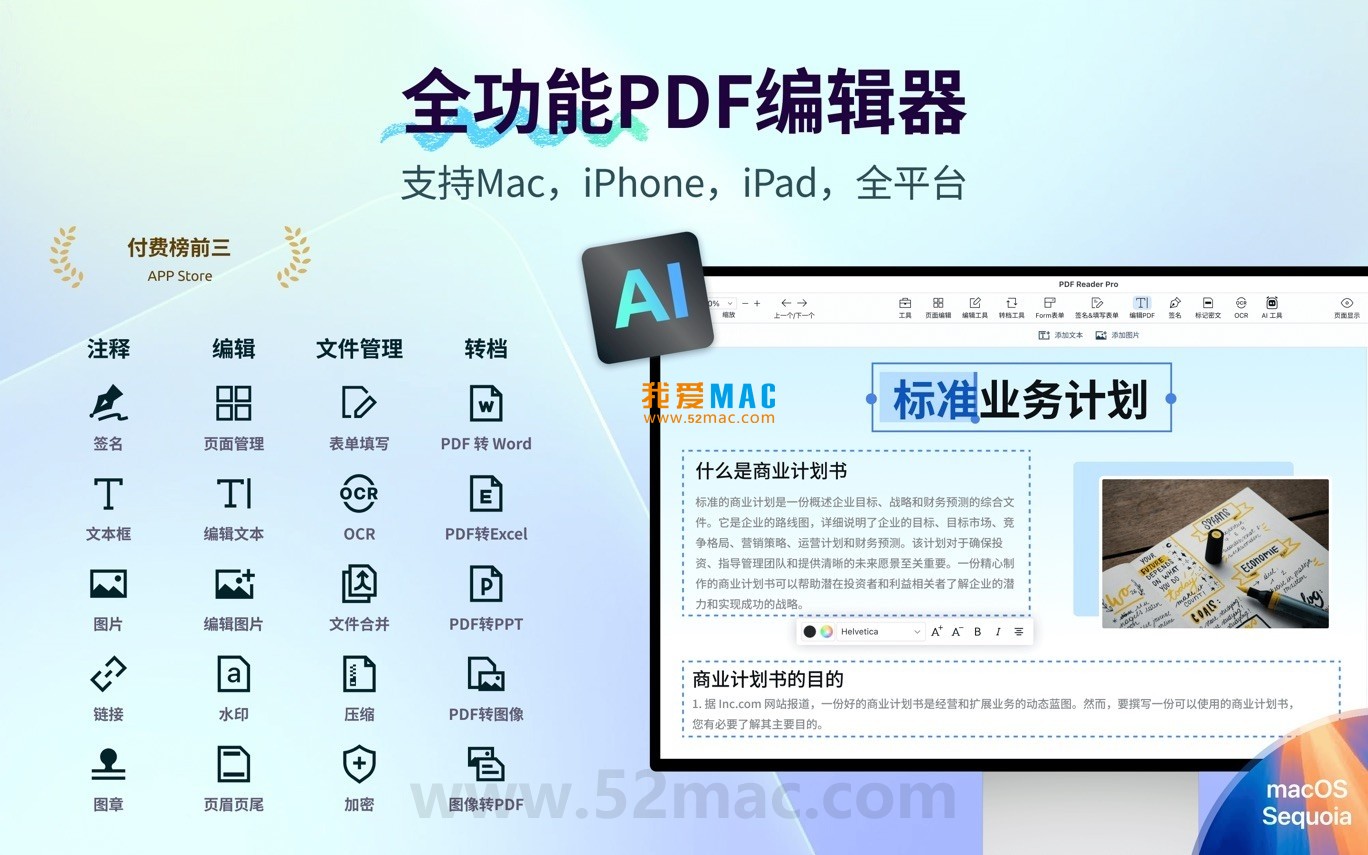
PDF Reader Pro 是一款功能全面的专业PDF工具,凭借其强大的集成能力与用户友好的设计,已获得全球超过9000万用户的信赖。软件深度融合AI智能助手,为用户提供从基础阅读到高级处理的一站式PDF工作流。
PDF Reader Pro 集成了以下主要功能模块,满足各类文档处理需求:
很多用户反馈,首次安装Mac软件时容易卡在“安全警告”这一步。下面这份指南能帮你顺利搞定。
从我们的链接下载后,你会得到一个.dmg或.zip格式的安装包。双击打开它,将PDF Reader Pro图标拖拽至“应用程序”文件夹。这一步耗时不到30秒。
如果系统提示“无法打开,因为无法验证开发者”,别慌。这其实是macOS Gatekeeper的正常保护机制。你需要手动放行。
首次打开软件时,若您已开启系统“允许任何来源”选项,但仍遇到“文件损坏”或安全警告,请按以下步骤操作:
此操作仅在首次运行时执行一次,以确保软件正常启用。
授权后,软件会自动启动。如果你下载的是已激活版本,直接进入主界面即可。如果提示输入序列号,请检查下载文件夹中的“激活说明”文档。整个过程通常不超过5分钟。
以下截图展示了PDF Reader Pro for Mac (v4.7.2) 的主要操作界面与功能模块:
通过上述功能组合,PDF Reader Pro 成为适用于办公、教育及个人管理的强大PDF工具,显著提升文档处理效率。
掌握快捷键能让你的操作效率翻倍。以下是PDF Reader Pro中最高频使用的组合键,我整理成了表格,方便你随时查阅:
| 功能类别 | 快捷键 | 操作说明 |
|---|---|---|
| 文件操作 | ⌘ + O |
快速打开PDF文件 |
| 文件操作 | ⌘ + S |
保存当前文档 |
| 文件操作 | ⌘ + P |
打印文档 |
| 编辑与注释 | ⌘ + Z |
撤销上一步操作 |
| 编辑与注释 | ⌘ + Shift + H |
高亮选中文本 |
| 编辑与注释 | ⌘ + Shift + N |
添加便签批注 |
| 页面导航 | ⌘ + F |
搜索文档内容 |
| 页面导航 | ⌘ + G |
查找下一个匹配项 |
| 视图与显示 | ⌘ + R |
旋转当前页面 |
| 视图与显示 | ⌘ + 0 |
适应窗口大小 |
| 高级功能 | ⌘ + Shift + T |
启动OCR文字识别 |
It’s recommended that you jot down these shortcuts or screenshot them for future reference. Once you get used to them, you’ll find yourself unable to live without them.
Knowing the features is not enough; how to use them is the key. Below, I share a few real-world operation tips to help you solve practical problems.
Many business professionals handle dozens of PDF contracts every month. If you manually convert each one, it’s a waste of time. My approach is: select multiple files in PDF Reader Pro, right-click, and choose “batch convert.” You can convert 10 PDFs into Word documents at once, with the software automatically preserving the layout. The entire process takes only three mouse clicks and less than two minutes.
A designer friend of mine often needs to convert paper catalogs into editable electronic versions. He used to use traditional scanners, resulting in just images that cannot be copied. Later, I recommended he use PDF Reader Pro’s OCR feature: first scan into PDF, then click “OCR recognition” in the software. The software automatically recognizes text in the images, generating searchable and copyable text layers with an accuracy rate of over 98%, even for handwritten text.
People who frequently fill out various application forms have good news. PDF Reader Pro can automatically detect form fields, and you can highlight the fields by clicking “highlight form.” After filling in the information, you can use the “sign” function to either write your signature or insert an image signature. This way, you don’t need to print, write, scan, and rearrange documents; everything is done on the computer.
If you often send proposals to clients, consider adding watermarks. In the “Advanced Tools” menu, find “watermark.” You can customize the text content, transparency, and position. For example, set it to “for preview only, please do not distribute,” and adjust the transparency to 30%. This prevents the document from being abused without affecting readability.
Based on user feedback, I’ve compiled a few of the most common issues and provided specific solutions.
This is usually not the file itself being damaged, but rather macOS’s security mechanism at work. Refer to the instructions in Part Two of this article, “Manual Authorization Process,” and click “Open Anyway” in the “Security & Privacy” settings. If that doesn’t work, try downloading the file again. Sometimes, data transmission issues can cause data to be incomplete.
The accuracy of OCR depends on the quality of the original image. Ensure that the scanning resolution is above 300 DPI, with clear and clean images without stains. If the text is slanted, you can use the “rotate page” function to straighten it. Additionally, PDF Reader Pro supports multiple language recognition. Make sure to select the correct language in the settings.
This is a common issue with PDF conversions, as PDFs are fixed-layout documents. To reduce the mess, choose the “preserve layout” mode before conversion. If the layout is still messy, you can use the “edit” function to adjust the text positions. In reality, there’s no perfect conversion, but PDF Reader Pro’s conversion results are among the best in its class.
Of course. PDF Reader Pro supports tabbed browsing, similar to a browser. You can create a new tab by pressing ⌘ + T, or drag the files to the tab bar. This makes switching between documents very convenient, without having to search for windows.
In the “Edit” menu, find the “header and footer” option. You can add page numbers, dates, or custom text here. You can set the starting page number, font size, and position. After setting, click “apply to all pages” to complete the process in one step.
PDF Reader Pro’s privacy policy clearly states that all document processing is done locally and does not upload to the cloud. Unless you use the AI assistant feature, which sends text fragments to the server for analysis. If you are sensitive to privacy, you can disable the “AI enhancement” option in the settings.
This is usually due to the software being too old. Ensure you have downloaded version v4.7.2 or a higher version, which is compatible with macOS Sonoma. If you still crash, try uninstalling and reinstalling the software, or contact our customer support for a patch.
The free version has watermark restrictions and some advanced features (such as OCR, batch conversion) are not available. The activated version unlocks all features and has no usage limits. The v4.7.2 version provided is already activated, so you can use it with confidence.
PDF Reader Pro for Mac v4.7.2 is a truly efficient PDF tool that integrates reading, editing, conversion, and signing features. It eliminates the need to switch between multiple software applications. With 90 million users’ choice, it’s a strong endorsement.
If you deal with PDFs daily, I recommend spending half an hour familiarizing yourself with the shortcuts and tips mentioned in this article. Once you get used to them, you’ll find that the previously tedious operations are actually quite simple.
Lastly, please note: if the download link is broken or you encounter any issues during installation, feel free to leave a message below. Our team will address your issues promptly. Enjoy your use of the software!
This resource requires login to download
Log in
MacX Video Converter Pro for Mac v6.5.2 Chinese Activation Download
Downloads:2858 | 2026-10-24

Artboard for Mac v2.2.4 Design Software Activation Download
Downloads:539 | 2026-10-22

Vector Sketch for Mac v96.2 Chinese Activation Download
Downloads:2983 | 2026-10-22

Duplicate File Finder Pro for Mac v7.3.2 – Duplicate File Finder Activated Version Download
Downloads:1850 | 2026-10-17


Ratings & reviews
4.9
(Maximum 5 ratings, total 12 user reviews)
Let’s rate it.