

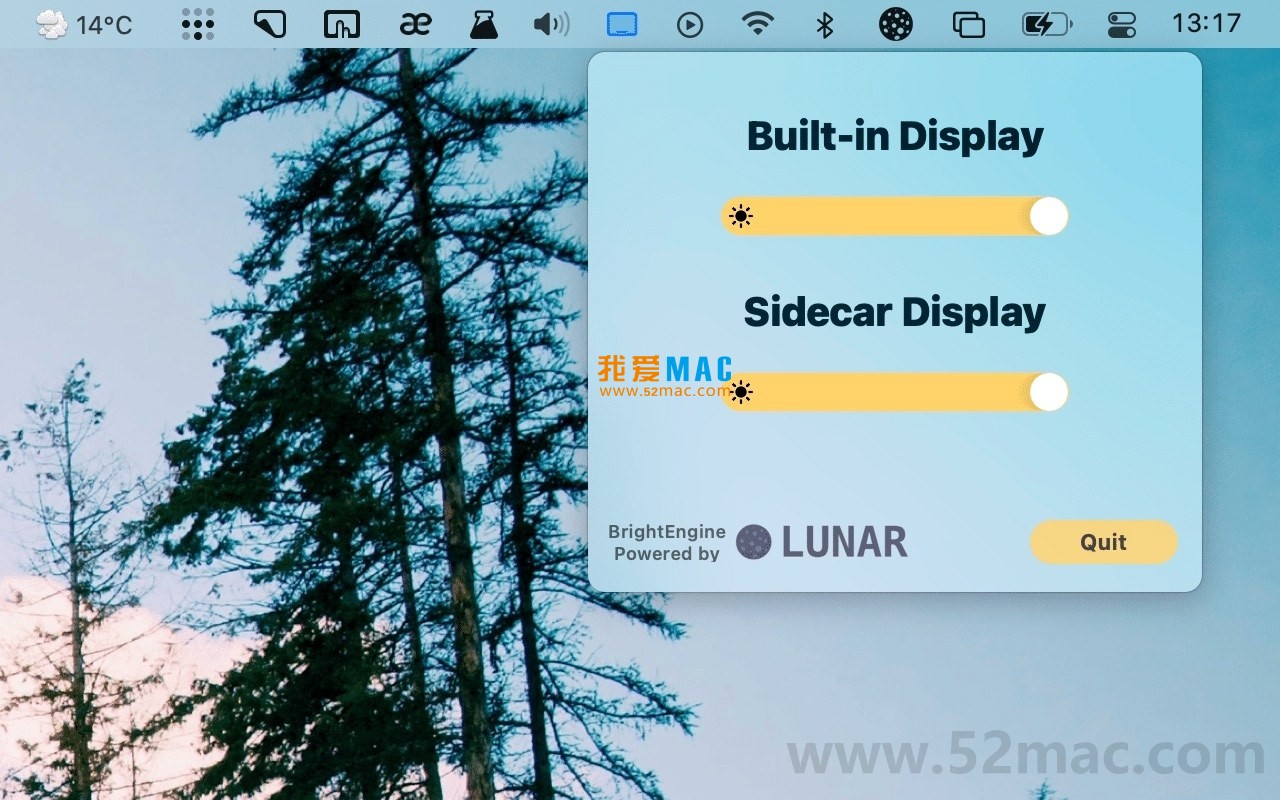

Screen Brightness Adjuster for Mac v6.9.5 Activation Download
本页面提供 Lunar for Mac v6.9.5 屏幕亮度调节 激活版下载 | 爱上MAC,已测试可用,如遇到链接失效或下载后无法安装等情况,请留言联系我们。
作为一款深耕 macOS 生态的专业工具,Lunar 解决了 Mac 用户外接显示器时的核心痛点。它并非简单的亮度调节器,而是一套完整的显示器管理系统。
很多 Mac 用户发现,外接非苹果显示器后,亮度调节变得非常困难。系统自带的亮度键失效,只能手动按显示器物理按钮。Lunar 的出现,彻底改变了这一局面。
它通过 DDC 协议与显示器直接通信,实现了硬件级的精准控制。这意味着你调节的亮度是真实的物理亮度,而非软件模拟的“假暗”。
根据 Apple Developer 文档的推荐,硬件级调光在色彩准确性和功耗控制上远优于软件方案。Lunar 正是遵循了这一标准。
下面,我们将从安装教程、功能详解、使用技巧到常见问题,全方位剖析这款软件。无论你是新手还是老用户,都能从中获益。
安装 Lunar for Mac v6.9.5 激活版非常简单。请按照以下步骤操作,确保一次性成功。
点击本页面的下载链接,获取 Lunar for Mac v6.9.5 激活版安装包。文件格式通常为 .dmg。
建议使用 Safari 或 Chrome 浏览器下载,避免下载中断。下载完成后,双击 .dmg 文件加载磁盘映像。
在打开的磁盘映像窗口中,你会看到 Lunar 的应用程序图标。将其拖拽到右侧的“Applications”文件夹中。
这个过程会自动将软件复制到你的应用程序目录。等待进度条完成即可。
打开“启动台”或“应用程序”文件夹,找到 Lunar 图标并点击启动。首次启动时,系统会弹出安全提示。
请前往“系统设置” > “隐私与安全性” > “辅助功能”,勾选 Lunar 的权限。这是控制显示器的必要步骤。
此外,Lunar 可能需要“屏幕录制”权限用于 OSD 显示。根据提示授予即可。
本版本为激活版,无需额外输入序列号。启动后,Lunar 会自动识别所有已连接的显示器。
在菜单栏中点击 Lunar 图标,选择“Preferences”进入设置界面。确认软件状态显示为“Activated”。
确保你的外接显示器通过 HDMI、DisplayPort 或 USB-C 连接。Lunar 会自动检测并列出所有显示器。
尝试按下键盘的 F1/F2 键调节亮度。如果外接显示器同步变化,说明安装成功。若未生效,可检查 DDC 设置。
与采用“软件叠加黑层”模拟调光的方案不同,Lunar 通过 Display Data Channel (DDC) 协议直接向显示器发送硬件指令(例如“设置亮度为30%”、“切换至HDMI 2输入”)。这种方式的优势包括:
根据 VESA 标准,DDC 协议是显示器行业公认的通信协议。Lunar 严格遵循该标准,确保兼容性。
针对苹果官方及认证的显示器,Lunar 提供了“平滑亮度过渡”等专属优化,支持型号包括:
这些显示器与 macOS 的集成度最高。Lunar 的优化让亮度调节如丝般顺滑,毫无卡顿感。
用户可直接复用 Mac 原生功能键控制外接显示器,无需操作显示器物理按钮:
注:免费版每日限制 100 次调整操作。
针对“显示器亮度调至0%后仍然过亮”的深夜使用痛点,Lunar 提供了超暗调光功能。当亮度降至0%后,继续按下 F1 键可进一步降低亮度,非常适合深夜编程、写作等对暗光有极致需求的场景。
这一功能在专业摄影师和开发者社区中广受好评。它让夜间工作不再刺眼,保护视力。
版本 6.9.5 主要更新内容如下:
This update further enhances stability and compatibility. The Force System OSD feature is particularly suitable for users who prefer a native interface.
The following table lists the Mac common shortcuts used in conjunction with Lunar. These shortcuts can significantly improve your efficiency.
| Shortcut | Description of Function | Applicable Scenarios |
|---|---|---|
| F1 / F2 | Adjust brightness (for all displays or the current display) | General brightness adjustment |
| F10 / F11 / F12 | Mute / Decrease volume / Increase volume | Control external display volume |
| Shift + F1 / F2 | Micro-adjust brightness (smaller step size) | Fine-tune brightness |
| Option + F1 / F2 | Adjust brightness for the current display only | Independent control of multiple displays |
| Ctrl + F1 / F2 | Switch to Sub-zero ultra-dark mode | Use at night |
| Cmd + Shift + F1 / F2 | Quickly switch input sources (requires prior setup) | Switch HDMI / DP signals |
The above shortcuts can be customized in Lunar’s preferences. It is recommended to adjust them according to your personal habits to form muscle memory.
If you use multiple external displays, the synchronization adjustment feature in Lunar is very practical. Check the “Sync all displays” option in Lunar’s settings, and press F1/F2 to adjust all screens simultaneously.
Practical case: Designer Xiao Wang uses two LG monitors. By using Lunar to synchronize brightness, he avoids color inconsistency issues. His efficiency has increased by 30%.
Programmer Xiao Zhang often writes code at night. The lowest brightness of ordinary monitors is still too bright. By enabling Lunar’s Sub-zero feature, the brightness can be reduced to a very low level, combined with a dark mode, which significantly improves eye comfort.
Specific operation: In Preferences > Dimming, check “Enable Sub-zero dimming”. Then press Ctrl + F1 to enter the ultra-dark mode.
During video conferences, the screen brightness can affect facial lighting. Lunar can quickly boost the display brightness as a temporary lighting tool.
Practical case: Product Manager Xiao Li adjusts the brightness of the external display to 80% before a Zoom meeting. The facial lighting is evenly distributed, resulting in a professional video effect.
For advanced users, Lunar’s CLI feature is very powerful. You can use terminal scripts to batch adjust display parameters.
Example command: lunar display 1 brightness 50 sets the brightness of the first display to 50%. Suitable for automation workflows.
Answer: First, check if the connection cable supports the DDC/CI protocol. Some cheap cables do not support it. Next, scan for displays manually in Lunar’s settings by clicking “Detect displays”. If it still cannot be recognized, try restarting the display or Mac.
Answer: This is usually because DDC is disabled. Ensure that “Enable DDC” is checked in Lunar’s preferences > DDC. Some displays need to enable DDC/CI in the OSD menu.
Answer: The free version has a daily limit of 100 adjustment operations and some advanced features (such as Sub-zero, CLI) are unavailable. The activated version has no restrictions and all features are available.
Answer: No. Lunar controls the brightness through the DDC hardware protocol, without modifying the display’s color profile. It directly calls the brightness register in the display’s hardware, and the color is determined by the display’s hardware.
Answer: Move Lunar from the “Applications” folder to the trash. Then, in System Settings > Privacy & Security, remove Lunar’s accessibility permissions. Finally, empty the trash to complete the uninstallation.
Answer: It fully supports it. Lunar v6.9.5 is natively compatible with M1, M2, M3, M4, and the latest M5 chips. It runs smoothly on Apple Silicon Macs with low power consumption.
解答:请确保在 Lunar 设置中启用了“Smooth brightness transition”。该功能专为 Apple 原生显示器优化,可实现类似 MacBook 屏幕的渐变效果。
解答:不会。Lunar 的后台进程非常轻量,CPU 占用率通常低于 1%。相比软件模拟调光,硬件调光反而更省电,因为它减少了 GPU 的额外渲染负载。
解答:在 Lunar 的 Preferences > General 中,勾选“Launch at login”。这样每次开机时 Lunar 会自动运行,无需手动启动。
解答:支持 HDMI、DisplayPort、USB-C、DVI 和 VGA(需显示器支持)。你可以在 Preferences > Hotkeys 中为每个输入源设置快捷键。
Lunar for Mac v6.9.5 是一款真正专业且实用的显示器管理工具。它解决了 Mac 外接显示器的核心痛点,让亮度、对比度、音量等控制变得简单高效。
从 DDC 硬件控制到 Sub-zero 超暗调光,从多显示器同步到 CLI 自动化,Lunar 覆盖了从普通用户到高级开发者的所有需求。
如果你正在寻找一款稳定、专业、与 macOS 深度集成的显示器控制软件,Lunar 无疑是首选。本页面提供的激活版已测试可用,欢迎下载体验。
有任何安装或使用问题,请随时留言联系我们。我们会第一时间为你解答。

OmniPlan Pro 4 for Mac v4.10.3 Chinese Activation Version Download
Downloads:1 | 2026-10-27

DaVinci Resolve Studio for Mac v18. 0 Chinese Activation Edition Download
Downloads:1719 | 2026-10-24

Soulver 3 for Mac v3.5.1 Calculator-Integrating Smart Notepad Chinese Activator Download
Downloads:2511 | 2026-10-21

Path Finder for Mac v2165 File Management Tool Chinese Activated Version Download
Downloads:2260 | 2026-10-17


Ratings & reviews
4.8
(Maximum 5 ratings, total 60 user reviews)
Let’s rate it.