



Folder Factory for Mac v7.10.1 Chinese Activation Version Download
Folder-Factory for Mac v7.10.1 File Folder Icon Tool Chinese Activation Version Download | LoveMAC has been tested and is available. If you encounter issues with the download link or the software cannot be installed after downloading, please leave a message and contact us.
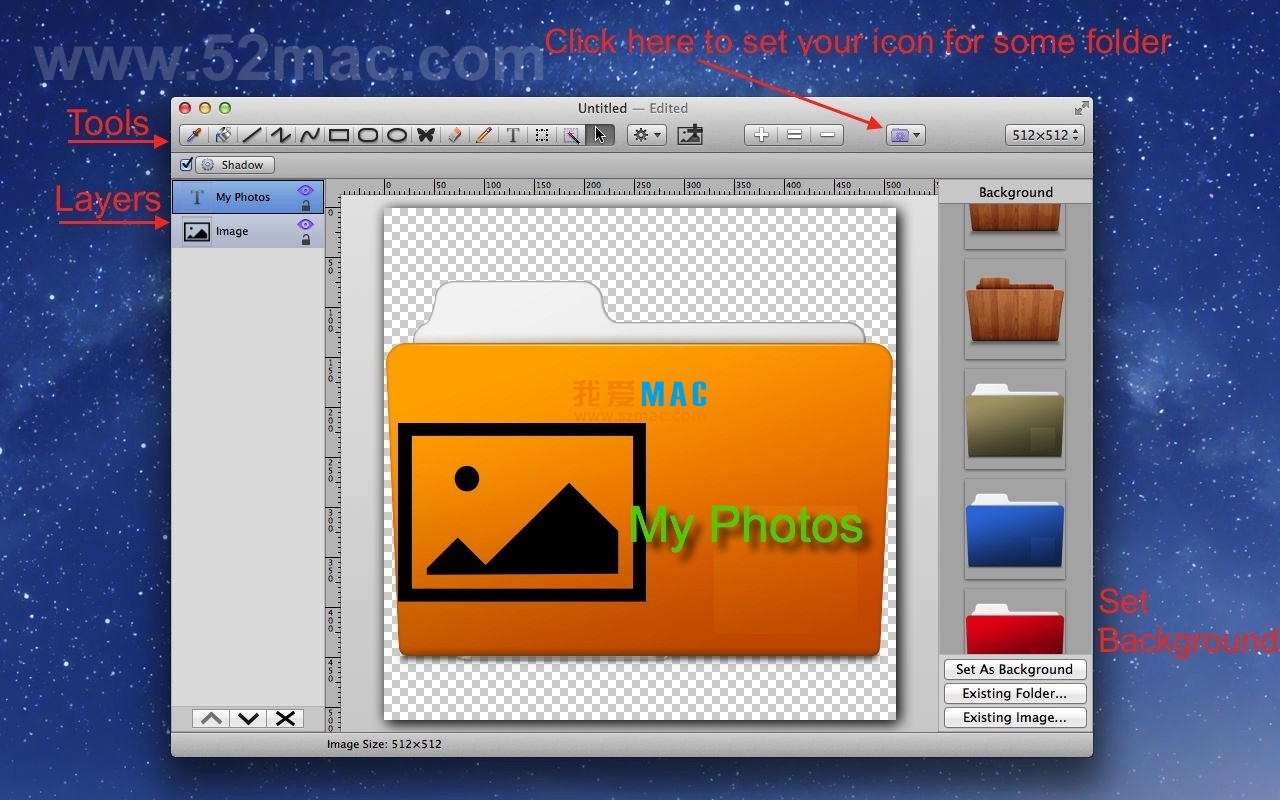
Folder-Factory is a professional icon customization tool designed specifically for macOS. It allows users to deeply customize and enhance file folder icons by integrating images, text, sketches, and shapes, thereby significantly improving the visual aesthetics and file management efficiency of the system. The tool aims to help users create an orderly working environment and quickly locate file folders through intuitive visual identifiers, reducing the reliance on text labels. Its user interface is designed to be simple and user-friendly, ensuring a smooth operation experience.
This update introduces several enhancements and bug fixes, including:
The following screenshots show the core design features and work environment of Folder-Factory:
Many users may worry about the complexity of the installation process, but it is not the case. Here we break down the installation process step by step to ensure you can use this tool smoothly.
Please confirm that your Mac system version is at least macOS 10.13. Click on the link above to download the DMG image file, then double-click to mount it to see the installation package.
Drag the Folder-Factory icon from the left to the right Applications folder. The system will automatically complete the copy, taking about a few seconds.
Open the Launchpad, find Folder-Factory and click to open it. If prompted with “Unable to verify developer identity,” go to System Settings > Privacy & Security, and click “Open Anyway.”
This version is a Chinese activation version. After installation, you can use all the features directly. After opening the software, you will see the “Activated” status indicator in the menu bar.
To achieve the best experience, it is recommended to allow Folder-Factory to access “Accessibility” in System Settings. This allows direct modification of system file folder icons.
Mastering the following shortcuts can double your efficiency when using Folder-Factory. These key combinations are highly consistent with the native macOS logic.
| Shortcut Combination | Function Description | Applicable Scenario |
|---|---|---|
| ⌘ + Z | Undo the previous operation | To quickly revert to a previous step after accidentally deleting elements or moving them to the wrong position |
| ⌘ + Shift + Z | Redo the operation that was undone | To recover steps that were mistakenly undone |
| ⌘ + C | Copy the selected object | To quickly copy an icon element or layer |
| ⌘ + V | Paste the copied object | To paste copied content to the current position |
| ⌘ + X | 剪切 the selected object | To move an element to another layer or position |
| ⌘ + A | Select all objects | To batch adjust or delete all elements |
| ⌘ + S | Save the current project | To save the project at any stage |
| ⌘ + Shift + E | Export as an image | To export designed icons as PNG format |
| ⌘ + + | Zoom in | To view details or fine-tune the position of elements in a zoomed state |
| ⌘ + – | Zoom out | To view the overall layout effect |
| Spacebar | Switch to the grab tool temporarily | To pan the canvas in a zoomed state |
| Delete | Delete the selected object | To remove unnecessary layers or elements |
Knowing the features is not enough, let’s see how to use Folder-Factory well in real work.
Suppose you have five parallel projects, each folder named “Project Materials”, and you find them hard to locate. You can design different colored icons for each project.
Steps: Open Folder-Factory, drag in the project logo image, adjust the rounded rectangle color, and add the project name text. After completion, drag and drop it onto the target folder to replace it.
Designer Xiao Li needs to unify the style of 20 customer folders. He first designs the template in Folder-Factory, containing the company logo and unified color scheme.
Then, use the software’s “Export as Icon” feature to generate 20 different-named icon files. Finally, drag and drop them individually in Finder, completing the process in less than 10 minutes.
Many users overlook gradient effects, which can make icons instantly appear three-dimensional. In the effect settings panel, choose “Gradient Fill”, and adjust the starting and ending colors.
In practice, we added a gradient from blue to purple to the “Design Materials” folder, combined with a slight shadow, making the icon look like it’s floating on the desktop.
When you want to add curved text to an icon, such as “2024 Annual Summary”, you can use the curve text function. First, draw a path, then input the text.
Adjust the text size and spacing to ensure it perfectly fits the path. This way, your folder icons will look more design-oriented and professional.
We have compiled some of the most common user questions and provided detailed answers to help you overcome any obstacles.
This is usually because the icon preview cache in Finder hasn’t been refreshed. You can try restarting Finder: hold down the Option key, right-click on the Finder icon, and choose “Relaunch”.
macOS’s security policies may block unsigned applications. Go to System Settings > Privacy & Security, and click “Open Anyway” at the bottom of the page.
Select the folder, press ⌘ + I to open the Info window, click the icon in the upper left corner, and press the Delete key to restore it to the system default icon.
By default, they are exported as PNG format, supporting transparent backgrounds. You can also choose the ICNS format in the export settings, which is the native icon format for macOS.
Folder-Factory supports JPG, PNG, TIFF, and GIF formats. It is recommended to use PNG format to ensure the transparency effect.
Check if your design size is large enough. It is recommended to use a canvas of at least 256×256 pixels when designing, to ensure clarity on Retina screens.
Currently, the software doesn’t support batch replacement. However, you can use the “Export as Icon” feature to generate icon files in batches, and then manually drag and drop them to replace.
No, Folder-Factory only modifies the icon metadata of the folder, without affecting the files or data within the folder. Please use it with confidence.
Folder-Factory 7.10.1 is one of the most intuitive icon customization tools available on macOS platforms. It not only improves your efficiency but also makes your desktop more visually appealing.
For professional users who value efficiency, we recommend spending 15 minutes familiarizing yourself with the keyboard shortcuts and template functions. This will save you a lot of time in the future. For ordinary users, start with simple color changes and gradually explore more advanced features.
If you encounter any issues during downloading or use, feel free to leave a message below. We will respond promptly to ensure you have the best usage experience.

Adobe Media Encoder 2020 for Mac v14.2 Unactivated Version Chinese Activation Version Download
Downloads:946 | 2026-10-24

LUNA: The Shadow Dust – Mac Independent Puzzle Game Activation Download
Downloads:444 | 2026-10-23

DxO ViewPoint 4 for Mac v4.7.0 Corrects Distortion Bug Chinese Activation Version Download
Downloads:3271 | 2026-10-21

4K Image Compressor for Mac v1.4 Crack Download
Downloads:2751 | 2026-10-20


Ratings & reviews
4.8
(Maximum 5 ratings, total 39 user reviews)
Let’s rate it.