

Iconize for Mac v1.8.8 Icon Generator Download
Iconize is a multi-platform icon generation tool, with its core positioning being “one-click搞定all scenario icon needs”. It focuses on quickly generating high-quality icons that comply with standards for Mac, iOS, Android applications, and websites (favicon), emphasizing “simple operations + efficient adaptation”. It is suitable for users without professional design experience.
Key Features:
Ease of Use: Drag and drop to start, zero learning cost
Minimal learning curve: No complex menus required; simply drag the original icon image (supporting all image formats recognized by Mac systems, such as PNG, JPG, SVG, etc.) onto the software interface to automatically enter the creation process, without manual imports or setting basic parameters.
No professional dependency: No need to master design tools (such as Photoshop, Figma); all core adjustments are completed through visual options, suitable for developers or ordinary users without design backgrounds.
Highly Configurable: Adaptable to multiple platform icon guidelines
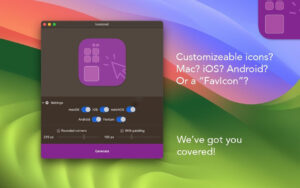
The software includes targeted adjustment features to ensure icons comply with visual guidelines of different systems, with core configurable items including:
Corner adjustment: Default supports a 205px corner (customizable), suitable for the “round icons” style on platforms like iOS and Mac;
Padding settings: Default 110px padding (customizable), to avoid edge cropping of icon content and meet spacing requirements on platforms like Android;
Color Tone (Color Tint): Supports overlaying a unified color tone to quickly match brand or application themes;
Reset feature: Click “Reset to Defaults” to revert to default settings, avoiding the need to re-adjust after accidental changes.
Fast Processing: Leveraging Mac performance for instant generation
The software makes full use of Mac hardware performance (especially M1/M2/M3/M4 chips) for the entire icon generation process, which is “instant” – from dragging the image to exporting the final product, with almost imperceptible waiting time, suitable for batch production or urgent needs scenarios.
Three-step workflow: From icon to final product
The software simplifies the complex icon adaptation process into 3 steps, fully visualized throughout the process:
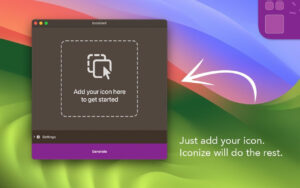
Step 1: Add the icon
Simply drag the original icon image (such as a designed main icon) directly to the “Add your icon here” area of the software, without needing to choose formats or sizes; the software automatically identifies and loads it.
Step 2: Customize adaptation
If the icon already complies with the target platform’s specifications (such as size, corner radius): Select the platforms to export directly; if adjustments are needed: Modify corner radius, padding, or add color tone through the “Settings” panel, with real-time previews of the adjustment effects.
Step 3: Export to local
Click the “Generate” button, choose the save folder, and the software automatically generates the corresponding platform’s icon file (such as Mac’s .icns, iOS’s .apng), without manual format conversion.
Version 1.8.8 Update Content:
Fixed some issues and improved stability.
Software Screenshots:
This resource requires login to download
Log in
MovieMator Video Editor Pro for Mac 2.5.1: Download and Activate Professional Version
Downloads:2005 | 2026-10-24

VideoProc for Mac 3.2 Chinese Activation Download
Downloads:3376 | 2026-10-24

GraphicConverter 11 for Mac v11.5.3 Multifunction Image Browser Activation Download
Downloads:2189 | 2026-10-21

High-Quality Email Templates Edition for Mac Download
Downloads:392 | 2026-10-20


Ratings & reviews
No rating
Let’s rate it.