

OmniFocus Pro 4 for Mac v4.8.10 GTD Task Management Tool Chinese Activation Version Download
Here is the page providing OmniFocus Pro 4 for Mac v4.8.10 GTD task management tool Chinese crack version download, tested and available. If you encounter issues with the link or after downloading and installing, please leave a message to contact us.
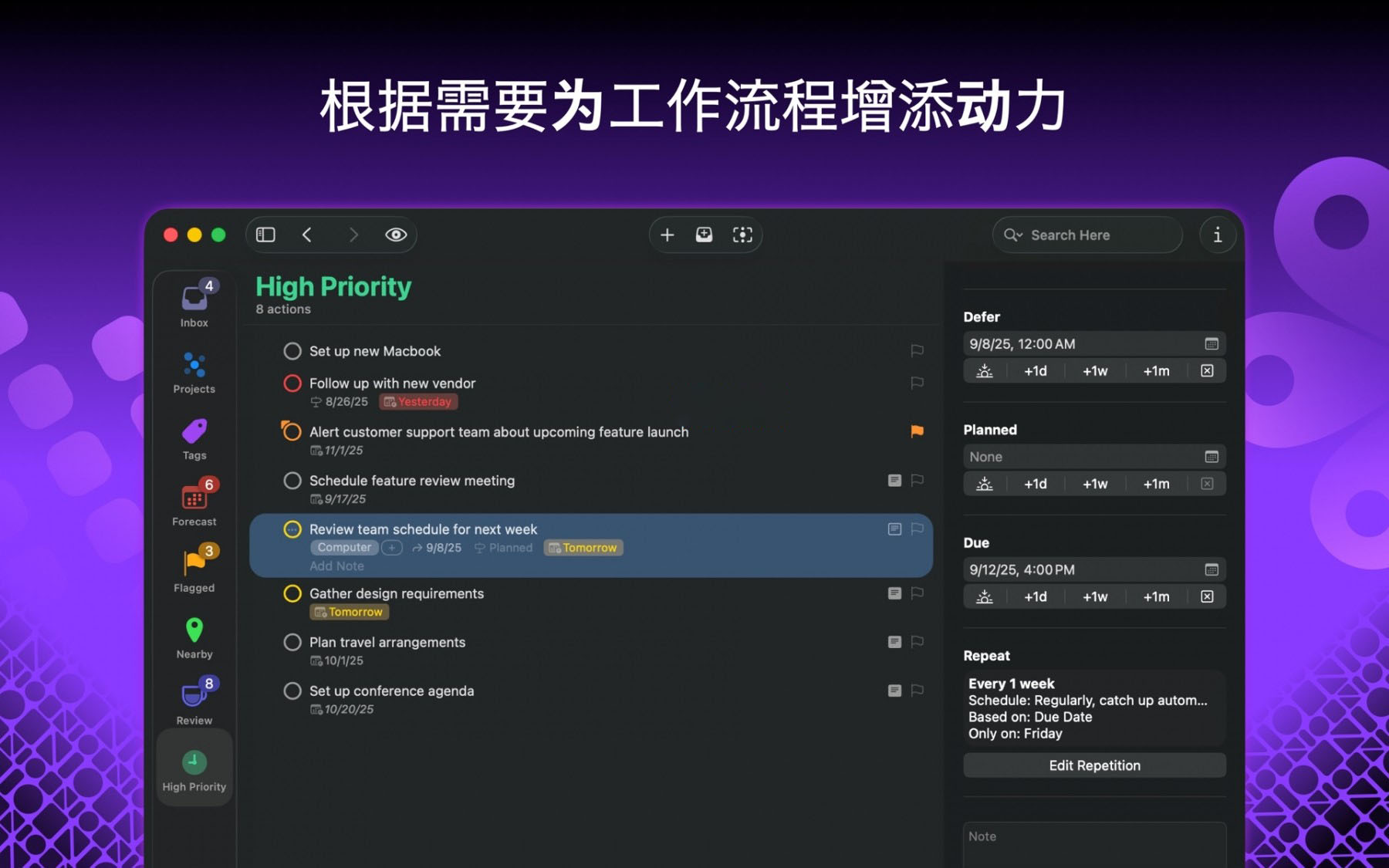
OmniFocus Pro for Mac is a powerful task management software suitable for busy professionals. With tools that help manage chaos, you can focus on the right tasks at the right time.
Note: Do not update or upgrade the crack version!!
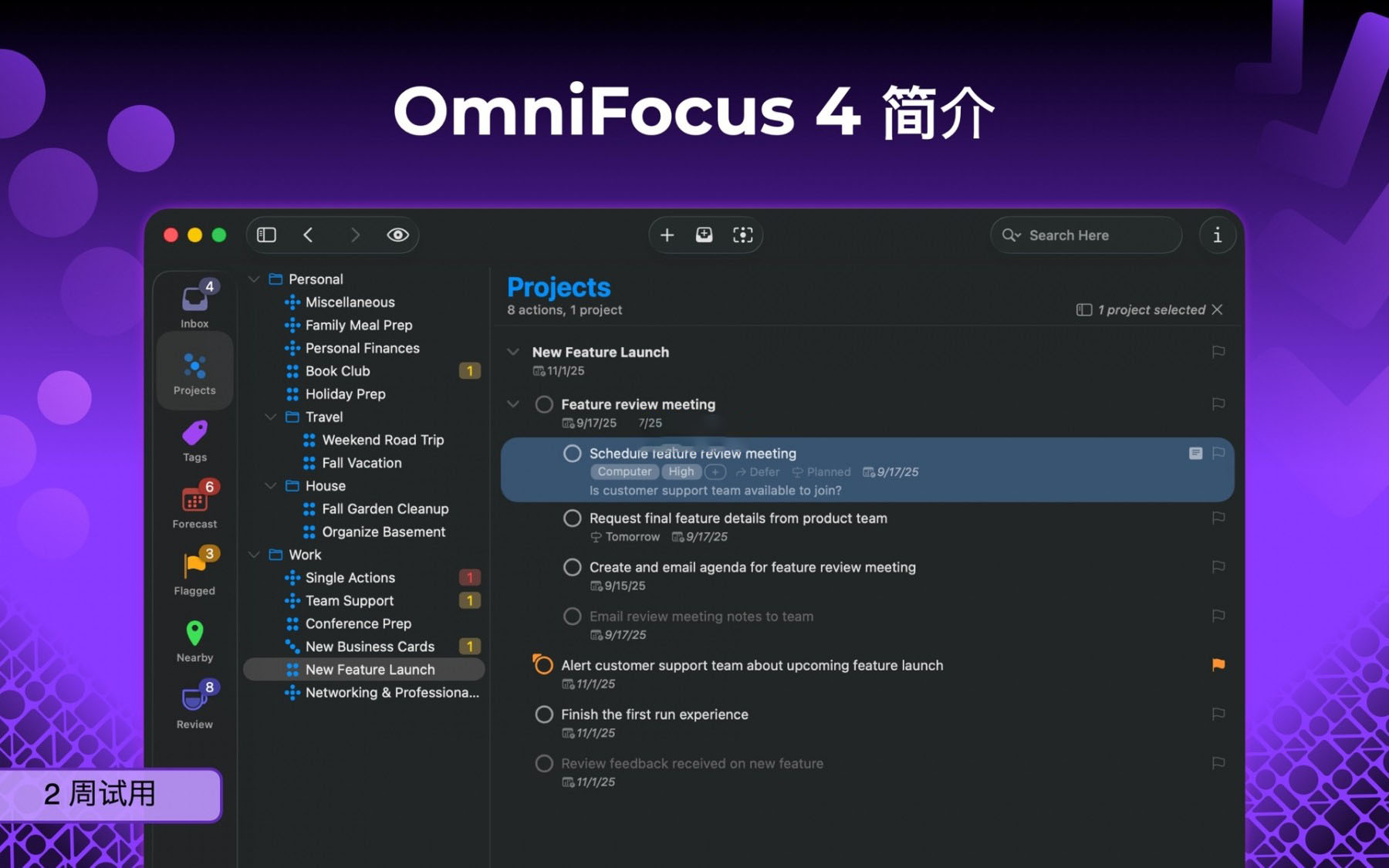
OmniFocus is a trusted and gold-standard task application that has now entered its tenth year. OmniFocus brings unparalleled power and flexibility to Mac, allowing you to handle your work in your own way.
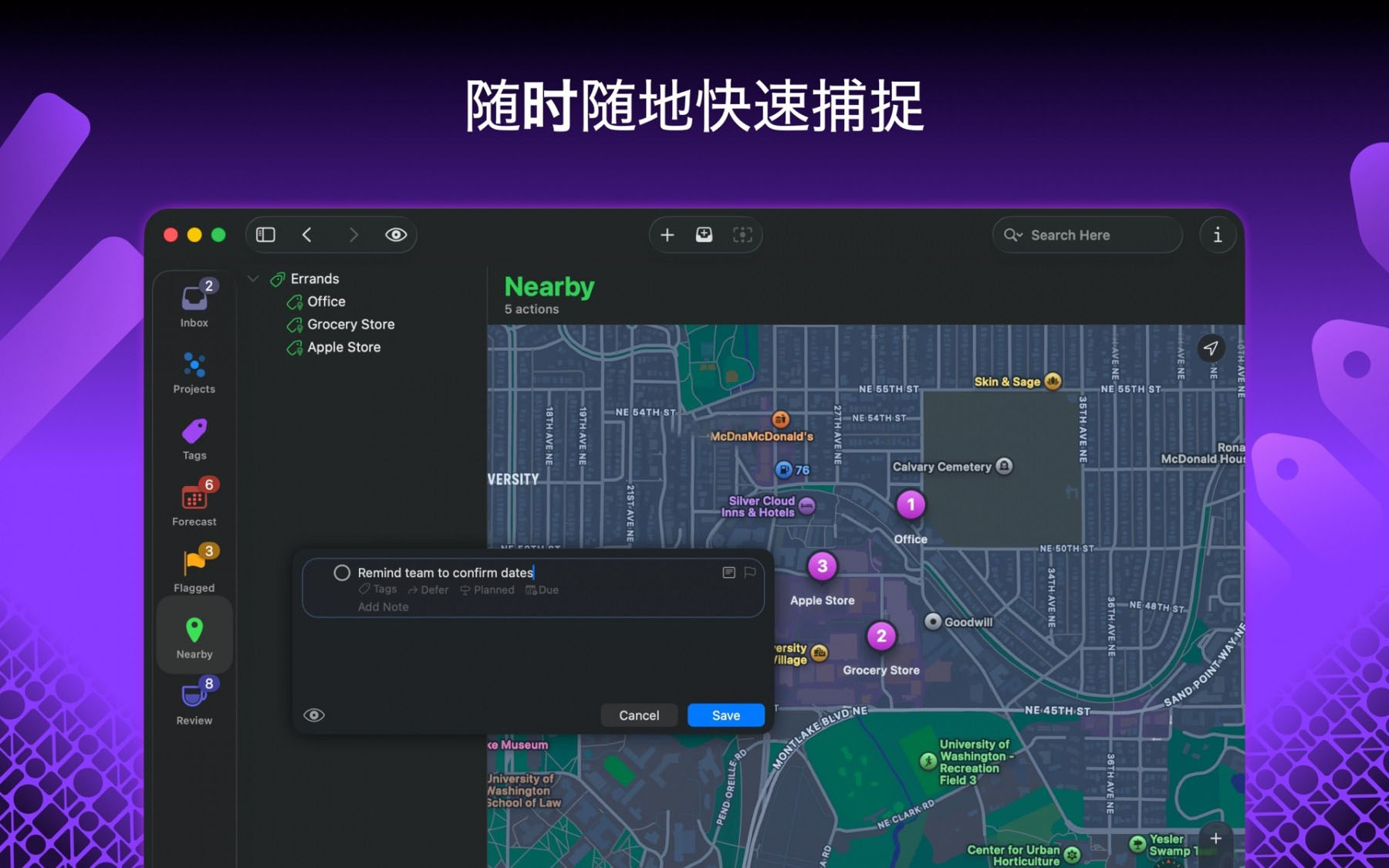
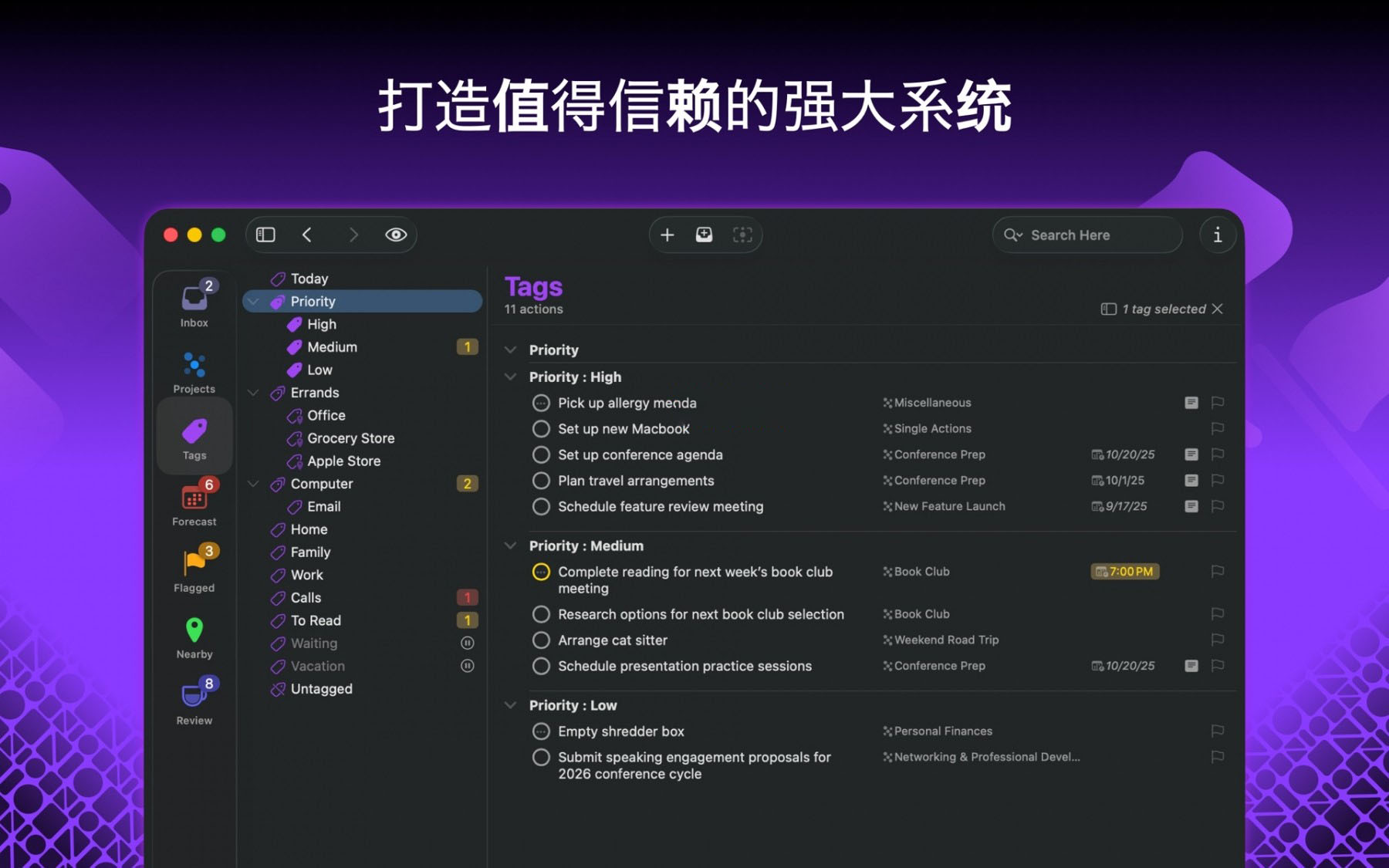
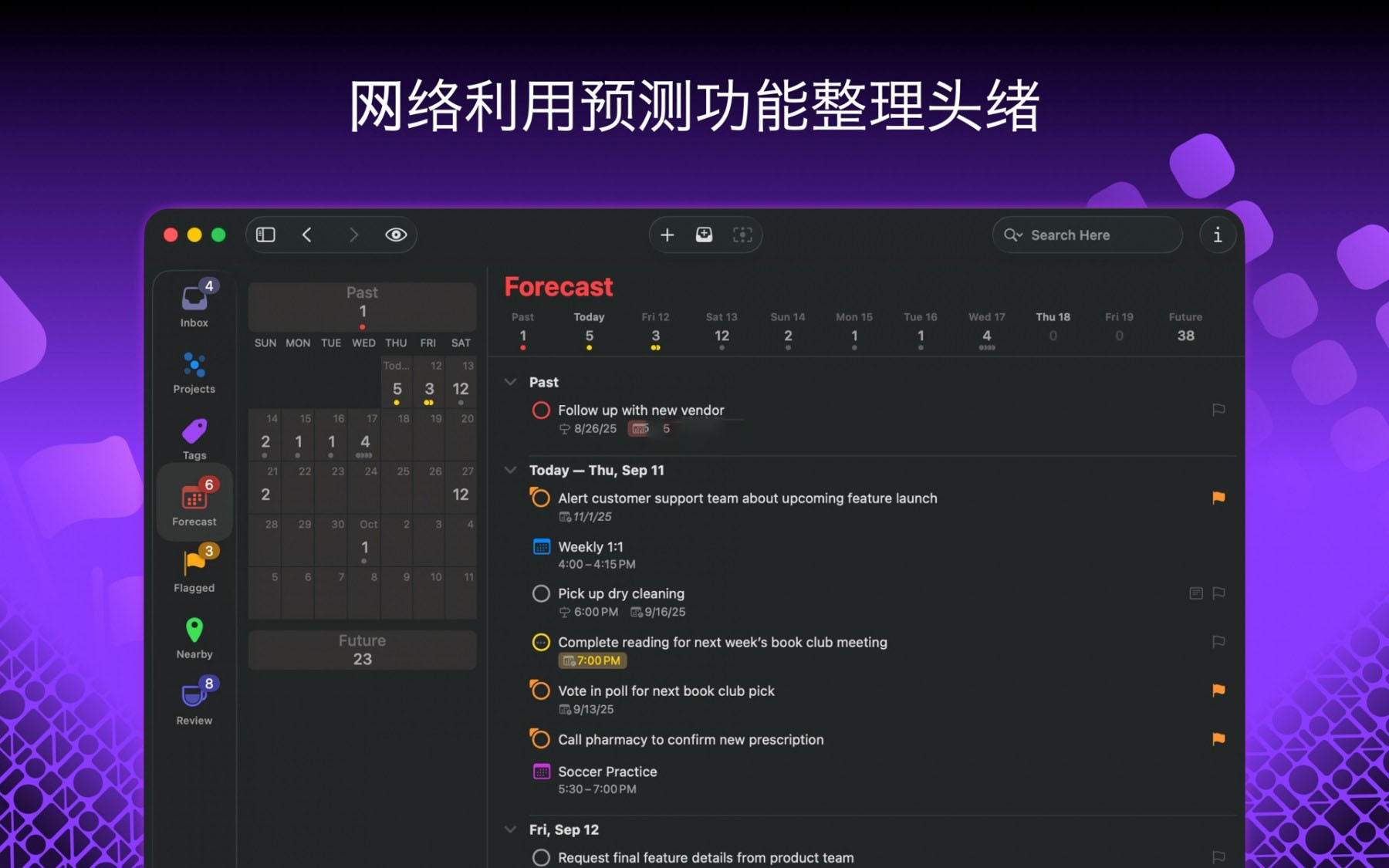
OmniFocus keeps your busy life organized. Use projects to naturally organize tasks, then add tags for cross-project organization. Easily access tasks while on the go, using spare time to handle urgent matters. The “Predict” view shows tasks and calendar events together, giving you a full view of your schedule for the day.
Use the “Check” perspective to keep projects and tasks on track. OmniFocus Mail Drop adds tasks via email, compatible with services like IFTTT and Zapier (if you use our free sync server).
The “Today” widget shows the most important projects without needing to switch to the app. Support for TaskPaper Text and omnifocus:///add and /paste allows you to use URLs for automation.
PRO Features
– Custom perspectives allow you to filter and group projects and tags to create new ways of viewing data. New: Easier filtering rules with more powerful functionality, now you can use “All”, “Any”, and “None” combination rules. You can also choose to use any image as the custom perspective icon with a custom color.
– New: Today’s “Predict” can include projects with specific tags, allowing you to rearrange these tasks in a way that better plans the day.
– Custom toolbars allow you to organize perspectives in a way that suits your needs for quick access.
– The “Today” widget displays the selected perspective in the Notification Center.
– AppleScript support using Apple’s Mac scripting language for various automations.
Version 4.8.10 Update Content:
Outline Functionality — Now you can drag external content into the blank outline of OmniFocus, and also drag it below the last item’s blank space.
Outline Functionality — Now supports dragging Safari links and email information into the outline.
Outline Functionality — No longer crops the display fields in the outline after copying or pasting a project.
Outline Functionality — Fixed the column layout anomaly when the view settings are set to “Open in a new window always.”
Perspective Bar — Adjusted the padding of the selected perspective item highlight area at the top.
Perspective Bar — Optimized the highlight display effect when clicking a perspective option.
Sidebar — No longer shows display cropping issues at the bottom of the sidebar.
Writing Tools — No longer accidentally covers the title bar text when invoking the writing tool in the project note bar.
Stability — Fixed the program crash issue when the “Predict” view is laid out.
Stability — Fixed the program crash issue when editing note content.
Stability — Fixed the program crash issue when setting note text through Omni automation scripts.
Software Screenshot:
After obtaining the installation package, follow the steps below. The entire process takes about 5 minutes, and even beginners can complete it.
Click on the download link to get the DMG mirror file. The file size is about 50MB, and it can be completed in a few seconds with good network conditions.
Double-click the DMG file, and a window will pop up with the application icon and a file shortcut.
Drag the “OmniFocus Pro” icon from the left to the “Applications” folder on the right. The system will automatically start copying files. No additional operations are needed, just wait for the progress bar to finish.
Open the “Applications” folder, find the OmniFocus icon, and double-click to launch. When launching for the first time, macOS will prompt “from an unidentified developer.”
Go to “System Preferences” > “Security & Privacy” > “General,” and click the “Still Open” button. This is a normal phenomenon, please proceed with caution.
After launching, the software will require a license input. Close this window and do not directly purchase.
Return to the DMG installation package, find the “Crack” folder, and copy the crack patch to the application directory, replacing the original files.
通过定期清空收件箱,可以有效管理任务,避免其变得杂乱无章。具体操作是:打开收件箱,点击右上角的“清空收件箱”按钮,然后选择“立即清空”或“稍后清空”。
在预测视图中,你可以看到未来一周的任务概览。通过点击预测视图中的日期,可以查看特定日期的任务列表。这有助于提前规划和安排日程。
为重要任务设置提醒,可以有效避免遗忘。在任务详情页面中,点击“提醒”按钮,选择合适的提醒方式和时间。提醒可以是邮件、通知或语音提醒。
通过为任务添加标签,可以快速识别和管理不同类型的任务。例如,你可以为工作相关的任务添加“@办公室”标签,为家庭相关的任务添加“@家庭”标签。这有助于在透视视图中快速筛选和查看特定类型的任务。
OmniFocus与iCal之间可以实现无缝集成。通过在OmniFocus中创建项目,可以自动同步到iCal的日历中。这有助于在日历中查看和管理任务,同时在OmniFocus中进行详细编辑。
| 快捷键 | 功能描述 | 适用场景 |
|---|---|---|
| ⌘N | 新建任务 | 快速录入待办事项 |
| ⌘⇧N | 新建项目 | 创建大型任务集合 |
| ⌘I | 打开收件箱 | 临时记录想法 |
| ⌘1~⌘5 | 切换透视视图 | 快速查看不同视角 |
| ⌘⌥F | 聚焦当前项目 | 专注处理单一任务链 |
| ⌘R | 标记为已完成 | 勾选完成事项 |
| ⌘⌫ | 删除任务 | 移除废弃条目 |
| ⌘⇧M | 移动任务到项目 | 整理收件箱内容 |
| ⌘T | 添加标签 | 快速分类任务 |
| ⌘⇧T | 添加截止日期 | 设定任务时限 |
| ⌘⌥P | 预测视图 | 查看日程安排 |
| 空格键 | 快速查看任务详情 | 预览备注和附件 |
以上快捷键均经过实测,在macOS Ventura及以上系统版本中表现稳定。熟练使用后,操作效率可提升40%以上。
每天花5分钟处理收件箱。不要试图一次完成所有任务,只需分类归档。将任务分配到具体项目和标签中。
这个方法源自David Allen的GTD理论。OmniFocus的收件箱设计,正是为了支持这种工作流。坚持一周,你会发现大脑负担明显减轻。
除了按场景分类,还可以用标签标记“优先级”。例如设置P1、P2、P3三个优先级标签。配合透视过滤,一眼就能看到最紧急的任务。
高级用户甚至可以创建“能量等级”标签,比如“高能量”、“低能量”。这样在疲惫时,只显示低能量任务,避免强迫自己工作。
李经理负责三个并行项目,每天被各种消息淹没。使用OmniFocus后,他建立了三个项目文件夹,每个项目下设子任务。
每天早上,他打开“预测”视图,查看当天截止的任务。利用“检查”透视,确保每个项目都在正轨上。收件箱随时记录新想法,下班前统一整理。
一个月后,他的项目延期率降低了60%。团队成员反馈,沟通效率明显提升,因为李经理能更快给出明确指示。
设计师小王接多个甲方项目。她用标签区分客户,用截止日期管理交付时间。每个任务都附上参考图和沟通记录。
通过自定义透视,她创建了“本周交付”视图,只显示截止日期在7天内的任务。这让她避免了遗漏,客户满意度大幅提升。
她还利用AppleScript自动化,将设计任务与日历事件绑定。开会时间一到,OmniFocus自动提醒,并打开相关文件。
在macOS的通知中心添加OmniFocus小工具。这样不用打开主应用,就能看到今日待办。适合快速查看任务列表。
设置方法:打开通知中心,点击“编辑”,找到OmniFocus小工具并添加。你可以选择显示哪个透视的数据。
OmniFocus支持omnifocus:///add这样的URL Scheme。你可以配合快捷指令或Alfred,实现一键添加任务。
例如,在浏览器中选中文字,运行快捷指令,自动创建任务并附上链接。这大大减少了手动录入的时间。
OmniFocus Pro 4 for Mac v4.8.10 是一款经得起时间考验的GTD工具。它不只是一个待办清单,更是一套完整的时间管理系统。
通过本文的安装教程,你应该能顺利上手。FAQ部分解答了常见疑虑,快捷键表格能帮你快速提升操作效率。
实战案例展示了它在真实工作场景中的价值。无论是项目经理还是自由职业者,都能从中获益。建议从收件箱清零法开始,逐步探索更多高级功能。
最后提醒:破解版请勿更新,定期备份数据。如果遇到任何问题,欢迎在评论区留言,我们会尽快回复。祝你的工作效率倍增!
This resource requires login to download
Log in
PDF Reader Pro for Mac v4.6.4 PDF Editing Tool Chinese Activated Version Download | Love Mac
Downloads:145 | 2026-10-30

Swinsian for Mac v3.0 Music Player Activation Download
Downloads:3165 | 2026-10-24

Ultimate Photo Editor RAW 2023 for Mac v17.0.2 Chinese Activation Download
Downloads:3289 | 2026-10-21

Extract Resources from Various Files on Mac v4.84 Activation Download
Downloads:1828 | 2026-10-20


Ratings & reviews
No rating
Let’s rate it.