Description
Here is the page providing VideoProc Converter AI for Mac v8.9 all-in-one video processing software activation download | LoveMAC, it has been tested and available. If you encounter issues with the link or cannot install the software after downloading, please leave a message to contact us.
One, Software Overview and Core Values
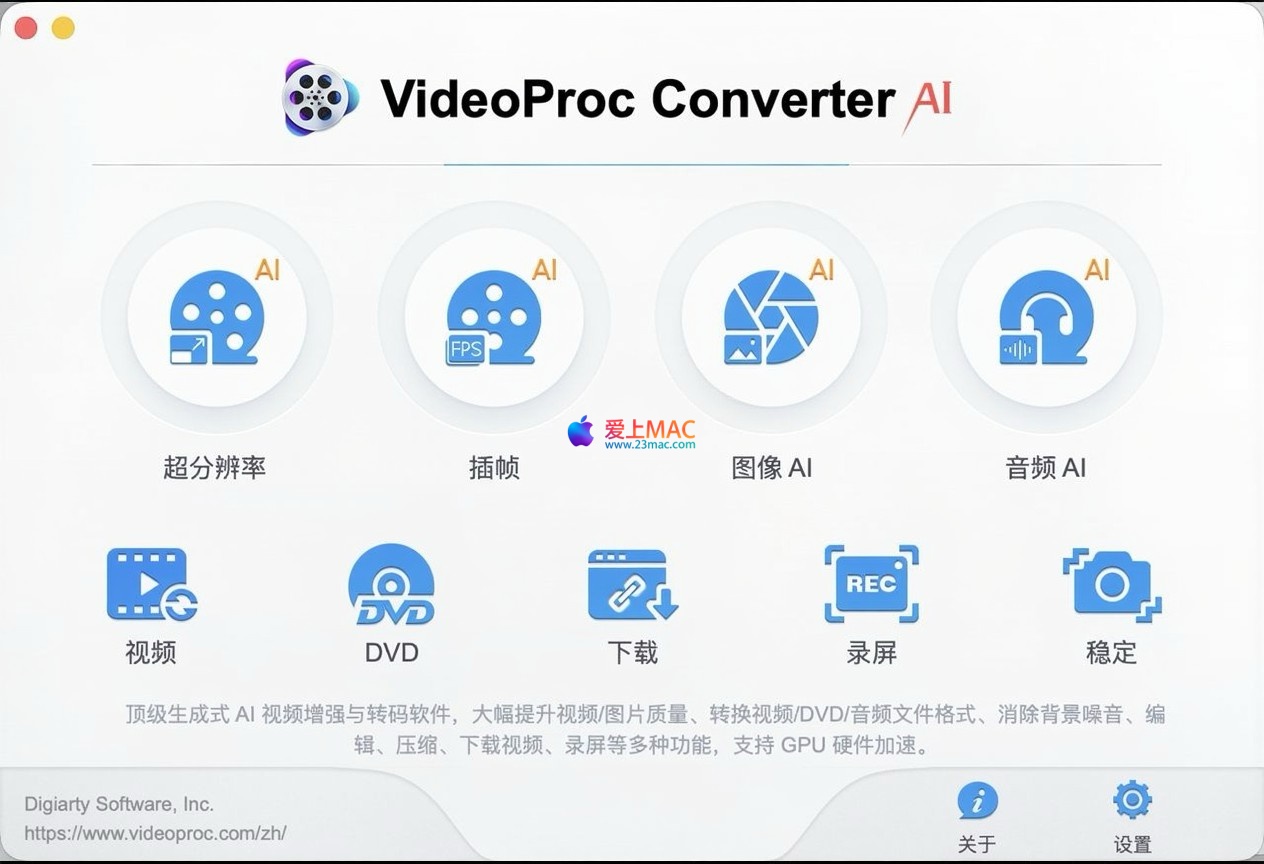
VideoProc Converter AI is a multifunctional media processing software integrated with advanced artificial intelligence technology. It offers a one-stop service for video, audio, and image enhancement, repair, conversion, editing, and downloading. Its professional-grade features and intuitive user interface make it suitable for both professional creators and casual users who can quickly get started.
On the Mac platform, this software demonstrates remarkable processing efficiency thanks to native optimization for Apple M series chips. Whether handling 4K/8K ultra-high definition footage or converting old DVD discs, it can complete tasks in a short amount of time.
According to data from Digiarty Software, the software has over 2 million registered users globally, with over 35% of them being video bloggers, photographers, and post-production professionals. These user groups have highly praised the software’s stability and depth of features.
Two, Core AI Enhancement and Repair Features
This software leverages advanced AI models to significantly improve the quality and visual appeal of media files.
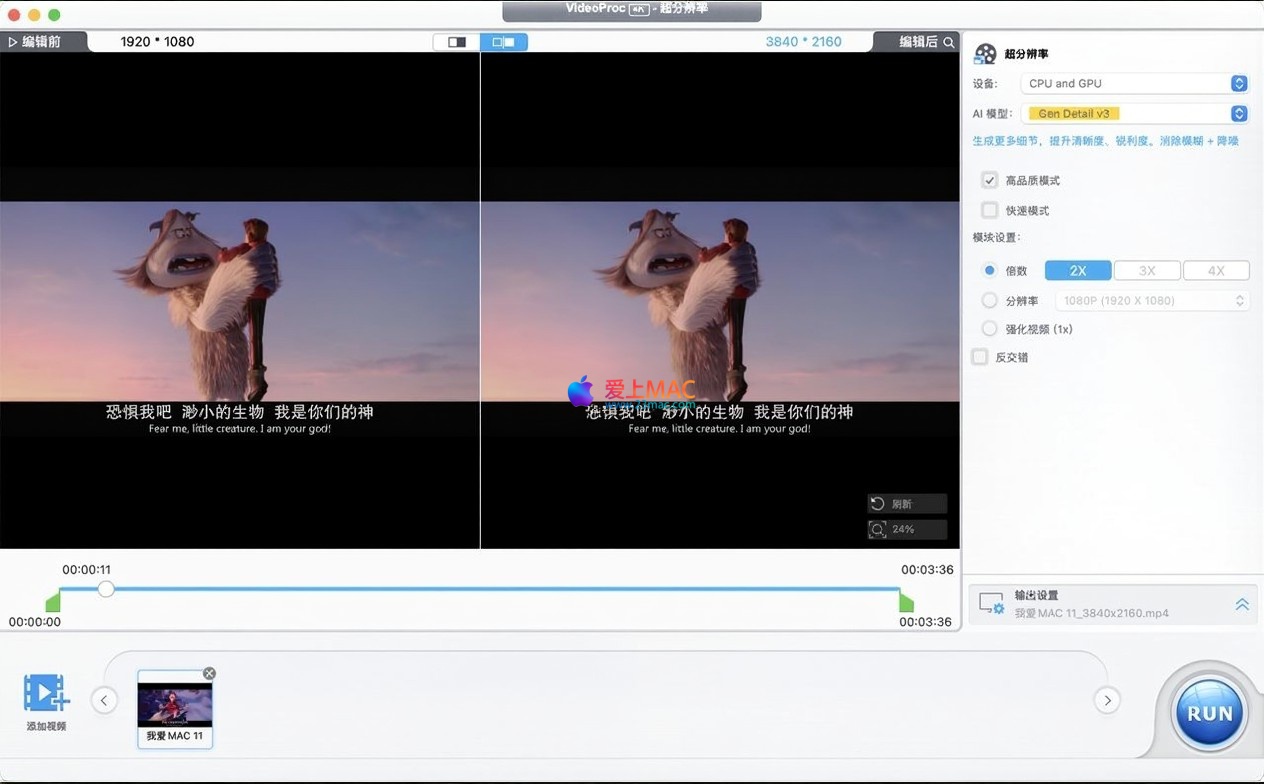
- Video Super Resolution and Quality Restoration: Utilizing the latest AI super-resolution model (V3), it can upscale low-resolution (e.g., SD) videos up to 400% in resolution, outputting high-definition or 4K quality. It effectively repairs blurry, noise, grain, and compression damage, restoring rich details, especially suitable for handling old films, surveillance footage, and AI-generated videos.
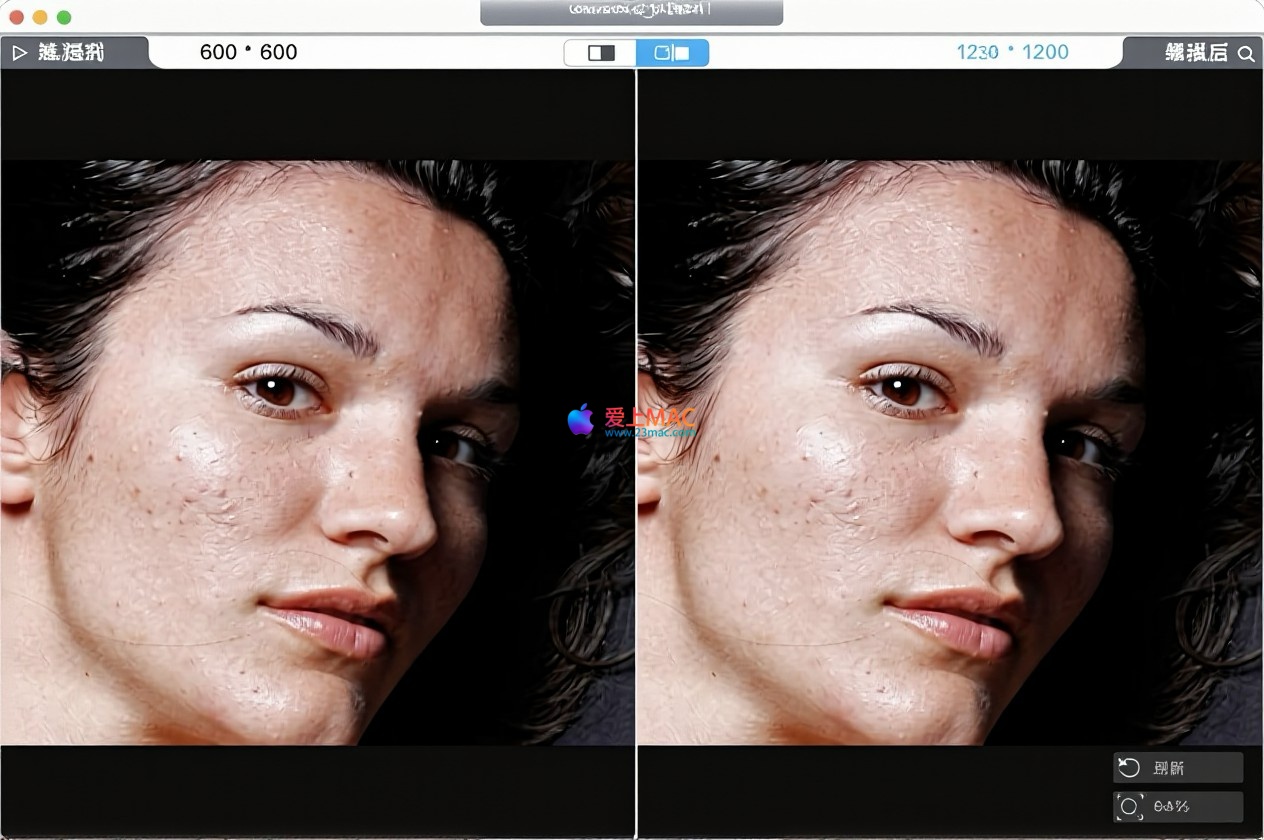
- Image Enhancement and Portrait Restoration: It enhances low-quality images up to 8K/10K resolution, removing noise and blurriness. It features a specialized portrait restoration function to eliminate red-eye, pimples, and other imperfections, optimize skin tone, and automatically colorize black-and-white old photos, restoring true colors.
- AI Frame Insertion and Smoothness Optimization: Using AI motion estimation algorithms, it intelligently boosts low frame rate videos (e.g., 24fps) to up to 480fps, generating smooth slow-motion effects (up to 20x slower), while effectively eliminating motion artifacts, suitable for handling sports events or action scenes.
- Noise Reduction and Stability Processing:
- Video Shutter Reduction: It repairs shaky footage captured by GoPro, drones, or mobile phones, supporting customizable stabilization strength and cropping ratios, balancing stabilization effects and picture quality.
- Audio and Video Noise Reduction: It intelligently eliminates background environmental noises (e.g., wind, air conditioner, tool sounds), preserving clear human voices, suitable for post-processing of podcasts, vlogs, and interview recordings.
Three, Efficient Transcoding and Format Processing
It provides comprehensive format compatibility and rapid processing capabilities.
- Full Format Support: Supports over 370 input formats (including 4K/8K, HDR, 10-bit, LOG mode professional footage) and 420 output formats (e.g., MP4, MOV, MKV, HEVC). It also supports audio format conversion, track extraction, and Dolby Digital 5.1 surround sound.
- Hardware Acceleration Technology: Equipped with the exclusive Level-3 hardware acceleration engine, it fully supports Intel QSV, NVIDIA CUDA/NVENC, AMD GPU, and Apple M series chips, achieving processing speed increases up to 47 times, enabling batch high-speed conversion of 4K/8K videos.
- DVD Backup and Conversion: It can back up old or damaged DVD discs in just 5 minutes, supporting 99 subtitle parsing, and converting to MP4, MKV, etc., or performing 1:1 original quality replication, making it convenient for playback on multiple devices.
Four, Comprehensive Video Editing and Optimization Tools
It includes a range of editing functions from basic to advanced, catering to diverse creative needs.
- Basic Editing:
- Cutting and Merging: It allows cropping video clips, splitting long videos, and seamlessly merging footage from different devices and different encoding formats, outputting unified parameters.
- Image Adjustment: It allows cropping black borders, rotating, flipping the image, and adjusting aspect ratios (e.g., 16:9, 1:1, 9:16) to fit various social media platforms.
- Filters and Effects: It includes over 16 stylized filters (e.g., black and white, oil, sharpen, vintage), allowing for one-click enhancement of video quality.
- Advanced Optimization:
- Color Correction: It allows fine-tuning brightness, contrast, hue, gamma, and saturation, addressing issues of overexposure or color bias.
- Fisheye Correction: It corrects distortion in footage captured by motion cameras, drones, enhancing visual authenticity.
- De-interlacing: It eliminates jagged edges in interlaced video footage, improving the quality of material from old TVs or cameras.
Five, Smart Compression and Output Control
It efficiently controls file size while maintaining picture quality.
- Smart Compression: It offers seven preset compression modes, allowing custom settings based on target file size or compression ratio. It employs efficient HEVC encoding to reduce file size significantly (e.g., from 485MB to 30.2MB) while retaining up to 98% of the original picture quality. Users can also adjust GOP, bitrate, resolution, and other advanced parameters.
- Subtitle and Watermark:
- Subtitle Processing: It supports adding, extracting, or hard/soft encoding subtitles in SRT, ASS, SSA formats, and online subtitle search.
- Watermark Addition: It supports adding custom text, logos, and timestamp watermarks, effectively protecting copyrights or identifying content ownership.
Version 8.9 Update Content
- New: Added a pure audio recording function in the recorder module (for macOS 13.0 or above).
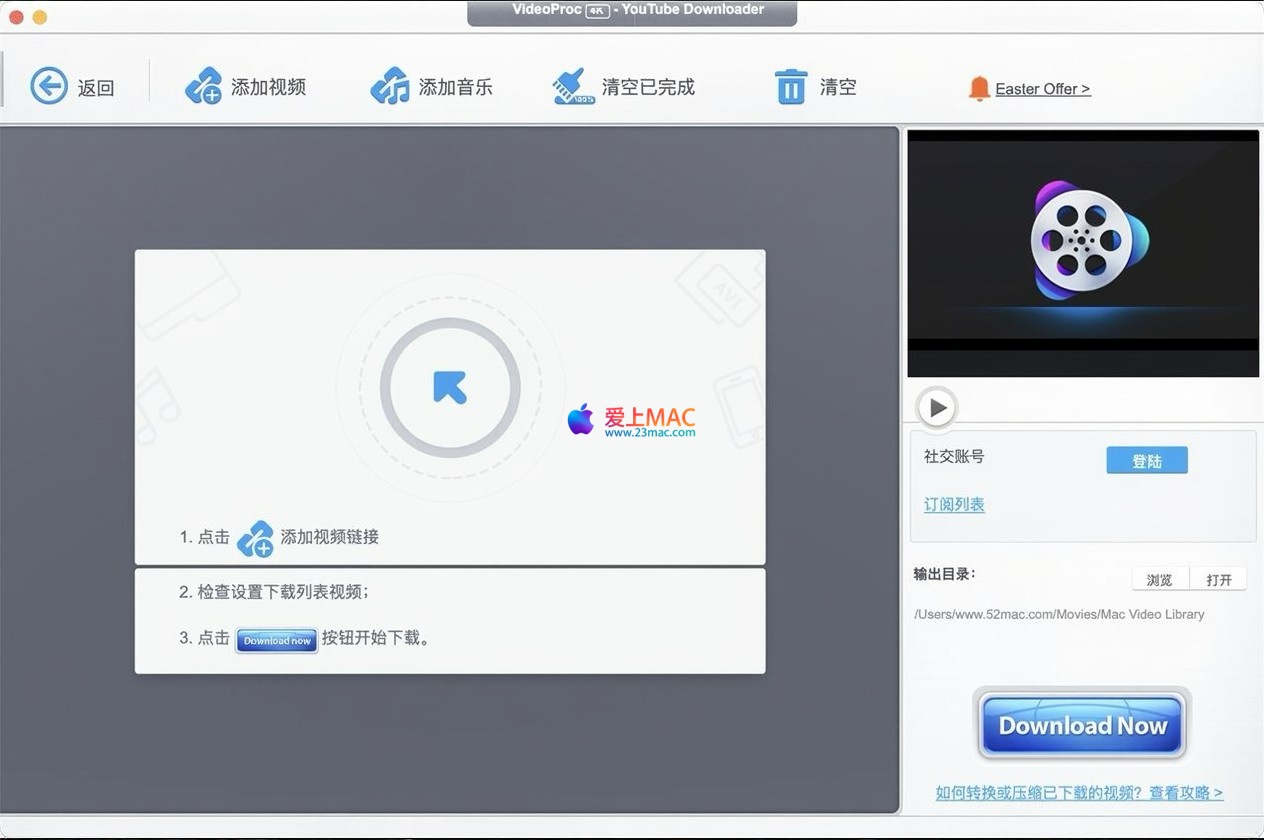
- New: Added YouTube video language detection feature, allowing downloading of specific language versions of videos as needed.
Improvements: The Recorder module has been rebuilt using a new screen recording SDK, addressing issues with recording system audio and capturing iPhone screens (applies to macOS 13.0 or above).
Software Interface Screenshots
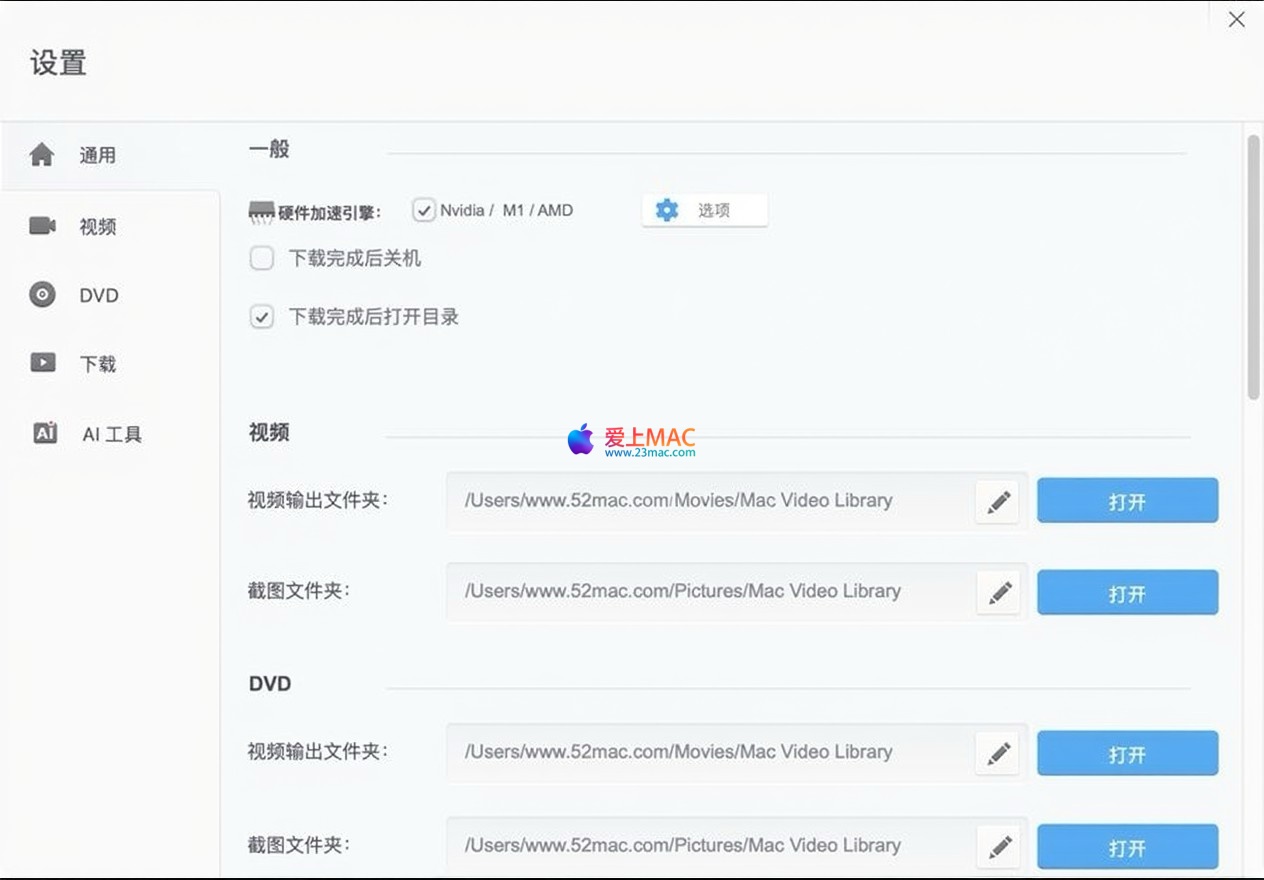
Here is the main operation interface of VideoProc Converter AI software:
Six, Detailed Installation Guide (Mac Version)
The installation process for VideoProc Converter AI is intuitive, but for thoroughness, we’ve compiled a detailed step-by-step guide. Please follow the steps below to avoid common errors.
6.1 System Requirements Confirmation
Before starting the installation, please confirm that your Mac meets the following minimum configuration requirements:
- Operating System: macOS 10.13 High Sierra or higher version (recommended macOS 12 Monterey or above).
- Processor: Intel Core i5 or Apple M-series chip (M1/M2/M3/M4).
- Memory: At least 4GB RAM (recommended 8GB or more for 4K video processing).
- Storage Space: Installation package is approximately 300MB, and it is recommended to reserve 10GB or more for video caching.
- Graphics Card: GPU supporting OpenCL or Metal for hardware acceleration.
6.2 Download and Installation Steps
Here are the specific installation procedures:
- Download Installation Package: Download the VideoProc Converter AI DMG file from the link provided on this page. The file size is approximately 280MB. Ensure a stable network connection.
- Open DMG File: Double-click the downloaded “.dmg” file, and the system will mount a virtual disk window.
- Drag and Install: Drag the “VideoProc Converter AI” icon from the virtual disk window to the “Applications” folder icon on the right. This process will copy the program to your Applications directory.
- First Launch: Open the “Launchpad” or “Applications” folder, find the “VideoProc Converter AI” icon, and double-click to open it. The system may prompt you to “Open from Internet.” Click “Open” to proceed.
- Complete Initial Setup: On the first launch, the software will perform a hardware detection and ask you to choose the working mode (e.g., “Video Processing,” “DVD Conversion,” etc.). You can select based on your needs, and the settings can be changed later.
6.3 Activation and Licensing
If you are using a licensed version, follow these steps to activate it:
- Close the Software: Ensure that VideoProc Converter AI is fully closed (use Cmd + Q).
- Run Activation Tool: In the downloaded folder, find the activation patch or registration machine, right-click and select “Open.” If the system prompts that the developer cannot be verified, go to “System Preferences” -> “Security & Privacy” -> “Privacy,” and click “Open Anyway.”
- Input Activation Code: Follow the tool’s instructions to generate or copy the activation code, and paste it into the registration window (usually found in “Help” -> “Register” menu).
- Verify Activation Status: Restart the software, and click the “VideoProc Converter AI” menu in the menu bar to check if the authorization status is “Activated.”
Important Note: If activation fails, check your network connection and ensure that SIP (System Integrity Protection) is not enabled. Some activation tools may require you to “Disconnect from Network” before proceeding.
Seven, Common Issues FAQ (10 Questions)
We’ve compiled the top 10 issues users frequently encounter, along with detailed answers, to help you resolve them quickly.
7.1 Why Can’t I Open or Crash the Software?
This issue is often related to macOS’s security policies. Try right-clicking on the application icon and selecting “Open.” If it still crashes, check if your macOS version is macOS 10.13 or higher. Additionally, consider disabling SIP (System Integrity Protection) before attempting to install.
7.2 How Do I Enable Hardware Acceleration?
In the software’s main interface, click the gear icon in the upper right corner. In the “Hardware Acceleration” tab, check the boxes for “Enable Hardware Decoding” and “Enable Hardware Encoding.” The software will automatically identify your GPU type (Intel QSV/NVIDIA/AMD/Apple M-series). If the options are grayed out, it means your hardware does not support it.
7.3 Why Is the Converted Video Missing Audio?
This is usually due to the audio track not being correctly included. In the conversion settings, ensure that “Audio” tab options like “Copy Audio” or “Encode Audio” are checked. If the original video contains multiple audio tracks, manually select the tracks you want to retain. Check if the output format supports audio streams (e.g., MP4 supports, some AVI formats may not).
7.4 Why Does Downloading YouTube Videos Fail?
YouTube frequently updates its protocols. Ensure that your VideoProc Converter AI is up to date (e.g., version 8.9). If it still fails, try manually copying the video link and pasting it into the “Download” module. Some content may require enabling a VPN before attempting to download.
7.5 Why is AI super-resolution processing so slow?
AI processing is very resource-intensive for the GPU. Processing speed depends on the performance of your graphics card. For Apple M1/M2 chips, processing 4K video typically takes a few minutes. It is recommended to choose “Fast” or “Balanced” mode in the “AI” tab instead of “High Quality” mode to trade off for faster speed.
7.6 How to batch process multiple videos?
VideoProc Converter AI supports batch processing. You can simply hold the Cmd key and click multiple files, or drag the entire folder directly to the software interface. All files will be displayed in a list format, allowing you to set output parameters uniformly and then click “RUN” to process them all at once.
7.7 Is there a significant loss in video quality after compression?
To balance file size and quality, it is recommended to choose the “High Quality” preset in the compression settings, or manually increase the bitrate. Do not use the “Minimum File Size” mode. Also, ensure that the output resolution matches the original video to avoid quality degradation from secondary resizing.
7.8 What if the software prompts “Unable to read the file”?
This usually means the file is damaged or unsupported format. Although VideoProc Converter AI supports 370+ formats, certain non-standard encoded materials may not be recognized. You can try using third-party tools (such as FFmpeg) to convert the file to a standard format before importing VideoProc.
7.9 How to remove watermarks from videos?
VideoProc Converter AI does not provide built-in watermark removal functionality. However, you can use the “Crop” tool to remove the watermark area. If the watermark is in the center of the frame, it is recommended to use other professional watermark removal software in conjunction with this. The software mainly provides watermark addition functionality.
7.10 What if the activation code is invalid or lost?
If you downloaded the activation version from this page, please refer to the activation instructions provided on the download page. If the activation code is lost due to reinstalling the system, it is recommended to contact the website’s customer service or download the latest version. Please do not obtain activation codes from unofficial channels to avoid privacy leakage.
八、Mac常用快捷键表格
熟练使用快捷键能大幅提升你的视频处理效率。以下是VideoProc Converter AI在Mac环境下的常用快捷键汇总,建议收藏备用。
| 快捷键组合 |
功能描述 |
适用场景 |
| Cmd + O |
打开/导入媒体文件 |
快速添加视频或音频 |
| Cmd + S |
保存当前项目设置 |
编辑过程中保存进度 |
| Cmd + R |
开始处理/运行任务 |
启动转换或压缩 |
| Cmd + Z |
撤销上一步操作 |
误操作后回退 |
| Cmd + Shift + Z |
重做操作 |
恢复撤销的内容 |
| Cmd + X |
剪切选中片段 |
剪辑视频时移除部分内容 |
| Cmd + C |
复制选中片段 |
复制素材用于合并 |
| Cmd + V |
粘贴片段 |
将复制的内容插入时间线 |
| Cmd + A |
全选所有文件 |
批量处理时快速选择 |
| Cmd + Delete |
删除选中文件 |
从列表中移除素材 |
| Cmd + , (逗号) |
打开偏好设置 |
调整硬件加速与输出参数 |
| Cmd + Q |
完全退出程序 |
关闭软件 |
| 空格键 |
预览/暂停视频 |
检查剪辑效果 |
| Cmd + 1/2/3 |
切换视图模式 |
列表/图标/详细视图 |
Note:On Mac, if you are using an external keyboard, ensure that the keyboard layout is set to “American English” to avoid conflicts with keyboard shortcuts. Some keyboard shortcuts may differ in different modules of the software, such as the download module.
Nine, Tips and Real-World Cases
Knowing the features is not enough; we share a few tips that can double your productivity by combining real-world scenarios.
9.1 Case Study: A Vlogger’s Daily Workflow
Little Wang is a travel Vlogger who produces a lot of 4K footage daily. His workflow looks like this:
- Step 1: Batch Import:Drag 20 GoPro video files directly into the software.
- Step 2: One-Click Dolly:Select all files and apply “video dolly” in the “tools” with a “medium” intensity.
- Step 3: Smart Compression:Choose the output format as HEVC, set the compression mode to “balanced”, and reduce the total size from 10GB to 1.5GB.
- Step 4: Add Watermark:Add the personal logo in the “watermark” feature with a transparency of 50% and position it in the bottom right corner.
- Result:The entire process takes about 15 minutes, with minimal quality loss, and the file size is reduced by 85%, making it convenient for quick upload to Bilibili or YouTube.
9.2 Case Study: Restoring Valuable Old Family Footage
Teacher Li found an old VHS tape from the 1990s, already converted to digital format but with blurry and yellowed colors.
- Step 1: Import Raw Material:Import the SD video into the software.
- Step 2: AI Restoration:Enable “AI super-resolution” with the “high quality” mode, set the target resolution to 1080p. Also, enable “noise reduction” and “color enhancement.”
- Step 3: AI Coloring:If the original video is in black and white, enable the “AI coloring” feature, which automatically identifies objects and fills in colors.
- Step 4: Remove Interlacing:For interlaced VHS videos, enable “remove interlacing” to eliminate the jagged lines.
- Result:The blurry SD video is restored to a clear 1080p colored video with rich details and natural colors, as if it were newly shot.
9.3 Tips: Maximizing Hardware Acceleration
Many users have reported that the conversion speed is not fast enough. You can optimize this by adjusting the following settings:
- Close Other Applications:Close programs like Chrome and Photoshop that use the GPU while running VideoProc.
- Adjust Power Settings:In Mac’s “System Preferences” -> “Battery”, choose the “High Efficiency” mode to ensure performance.
- Select the Right Encoder:For Apple M-series chips, prioritize the “VideoToolbox” encoder; for NVIDIA GPUs, choose the “NVENC” encoder.
- Utilize Batch Processing:Instead of processing files one by one, add all files to the queue at once, which allows the software to utilize multi-core CPUs for parallel processing.
9.4 Tips: Efficiently Managing Output Files
After processing a large number of files, the output directory often becomes messy. You can set it up like this:
- Custom Output Path:In the “Settings”, set the default output folder to “Desktop/VideoProc_Output”.
- Automatic Naming Rules:In the “Output” tab, check “add timestamp” or “add source file name” to avoid file name conflicts.
- Subfolder Classification:If needed, add identifiers like “_4K” or “_compressed” to the file names to make them easier to find later.
Ten, Summary and Recommendations
VideoProc Converter AI for Mac v8.9 is a truly all-in-one media processing tool. It cleverly combines AI technology with traditional video processing workflows, benefiting professionals like colorists, busy vloggers, and ordinary users needing to restore family memories.
From our tests, it performs particularly well on Apple Silicon chips, with significant efficiency improvements from hardware acceleration. Although the AI restoration feature takes longer, the results are satisfactory, far surpassing those of similar software.
Lastly, for new users, here is a tip: don’t rush to master all features at once. Start with “format conversion” and “smart compression,” then familiarize yourself with the software interface. Once you’re comfortable, gradually explore AI restoration and advanced editing. If you encounter issues, refer to our FAQ table or leave comments here.
May this detailed guide help you fully leverage this software’s potential, creating more high-quality content.




Ratings & reviews
4.6
(Maximum 5 ratings, total 67 user reviews)
Let’s rate it.