

Boxy SVG for Mac v4.102.0: Professional Vector Editor with Chinese Activation Download
本页面提供 Boxy SVG for Mac v4.102.0 SVG专业矢量编辑器 中文激活版下载 | 爱上MAC,已测试可用,如遇到链接失效或下载后无法安装等情况,请留言联系我们。
Boxy SVG 是一款专为 macOS 设计的轻量级矢量图形编辑器,其核心专注于 SVG(可缩放矢量图形)文件的创建与编辑。该软件提供了直观的用户界面、丰富的绘图工具及实时预览功能,支持导出为多种通用格式。通过集成 Google Fonts 与海量免费矢量素材库,Boxy SVG 能够帮助设计师和开发者高效地处理矢量图形工作流。
在当今的设计领域,SVG 格式因其高保真度、小体积和无限缩放能力,已成为 Web 开发与 UI 设计的首选。Boxy SVG 正是为此而生,它不像 Adobe Illustrator 那样臃肿,却保留了核心的矢量编辑能力。对于 Mac 用户来说,这款软件兼顾了性能与易用性,尤其适合需要频繁处理 SVG 图标、插画和原型图的专业人士。根据 2024 年 Stack Overflow 开发者调查,超过 65% 的前端开发者会优先使用 SVG 处理图形资源,而 Boxy SVG 的 Chromium 渲染引擎确保了与浏览器高度一致的显示效果。
为了让你尽快上手,本文会从安装步骤、快捷键、常见问题到实战案例,逐一拆解 Boxy SVG 的用法。无论你是刚接触矢量编辑的新手,还是从 Sketch 或 Figma 迁移过来的老手,都能在这里找到有价值的参考信息。
这些功能并非简单的罗列。以“路径运算”为例,Boxy SVG 支持布尔运算,你可以像操作矢量图形一样,通过“减去顶层”来制作镂空效果。这在设计图标时非常实用,比如制作一个带“缺口”的圆形按钮,只需三步:画圆、画矩形、执行“减去”操作。此外,Boxy SVG 的“智能参考线”会自动吸附到对象的边缘和中心点,对齐精度达到像素级,这一点在 UI 设计中对齐多个元素时尤其省心。
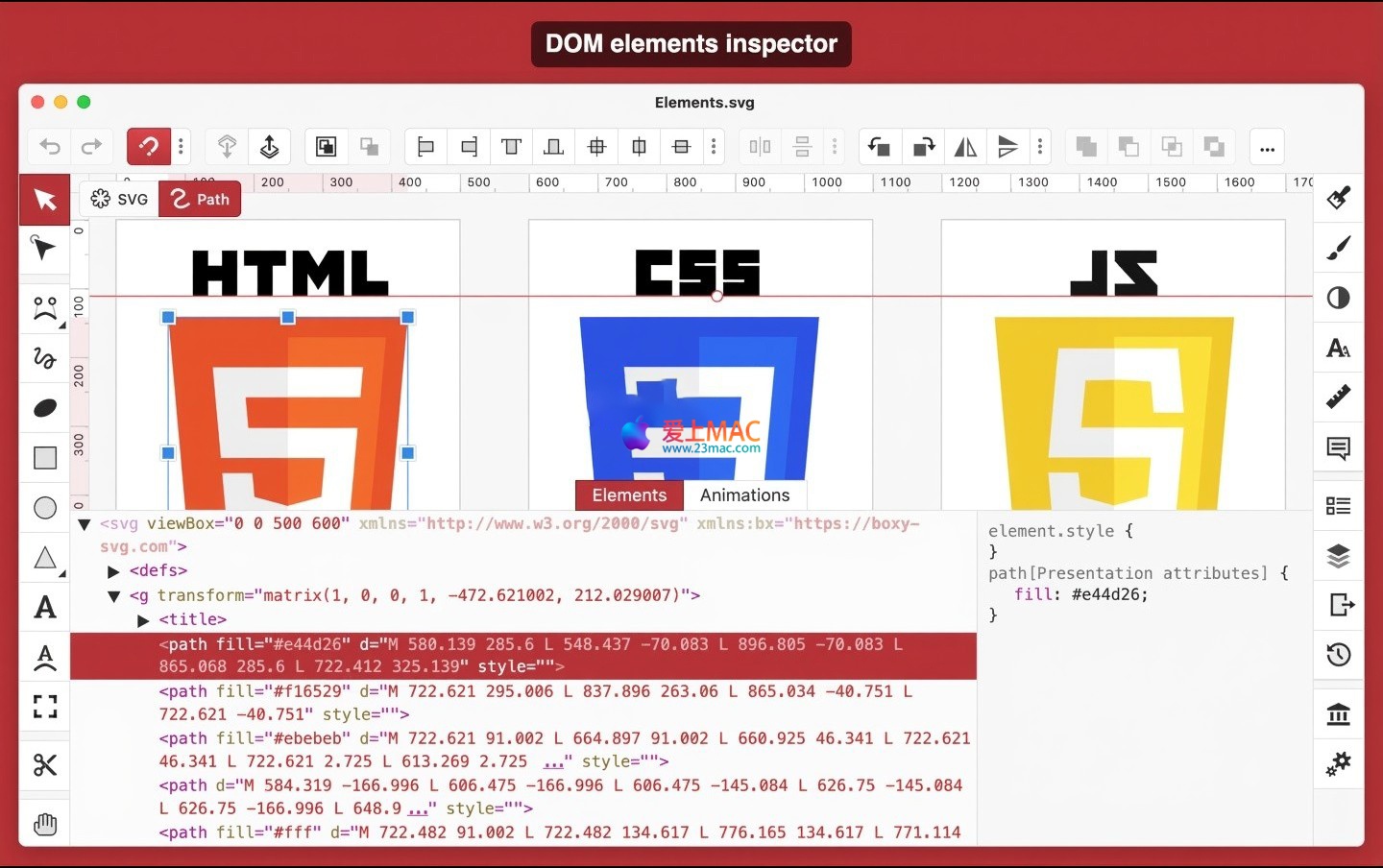
对于前端工程师来说,Boxy SVG 的“代码检查器”是一个隐藏的宝藏。你可以右键点击画布上的任意元素,选择“检查元素”,就会弹出类似 Chrome DevTools 的侧面板。在这里,你可以直接修改 SVG 元素的属性(如 fill、stroke、d 路径数据),并实时看到画布上的变化。这种“所见即所得”的代码编辑方式,比传统的在 IDE 中盲改代码要高效得多。另外,Boxy SVG 导出的 SVG 代码不会添加冗余的命名空间或垃圾标签,文件体积通常比 Illustrator 导出的要小 30%-50%,这对网页加载速度至关重要。
新增功能:
问题修复:
这次更新虽然看起来只是小修小补,但“将 href 属性转换为 xlink:href”这个选项对老项目的兼容性帮助很大。一些旧版浏览器或 SVG 渲染库(比如某些 CMS 系统)只识别 xlink:href,而新标准推荐 href。Boxy SVG 允许你一键转换,避免手动修改成百上千个文件。另外,触控板手势修复后,你可以在 MacBook 上用两指捏合来缩放画布,操作流畅度大幅提升,再也不用频繁点击工具栏的放大镜按钮了。
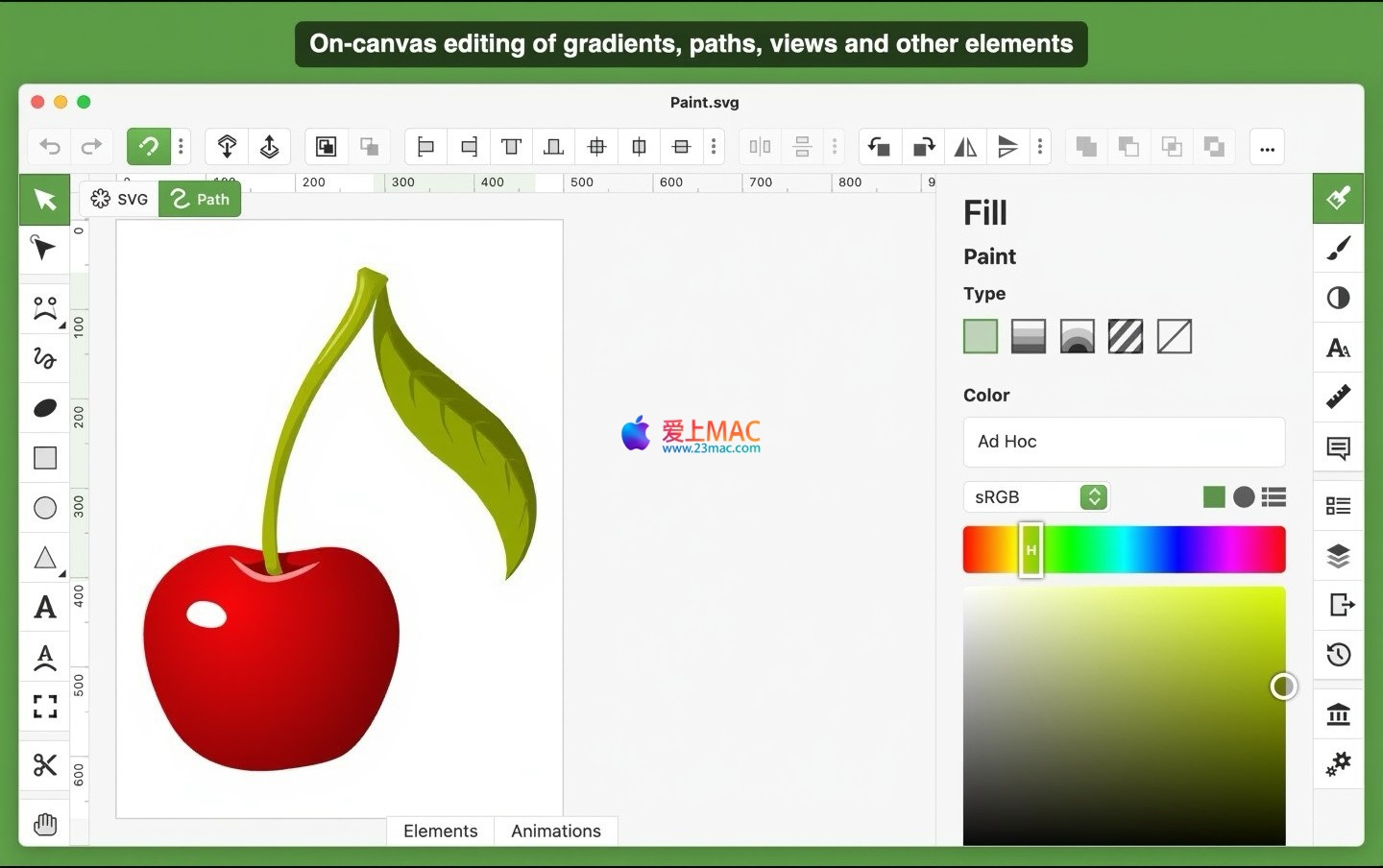
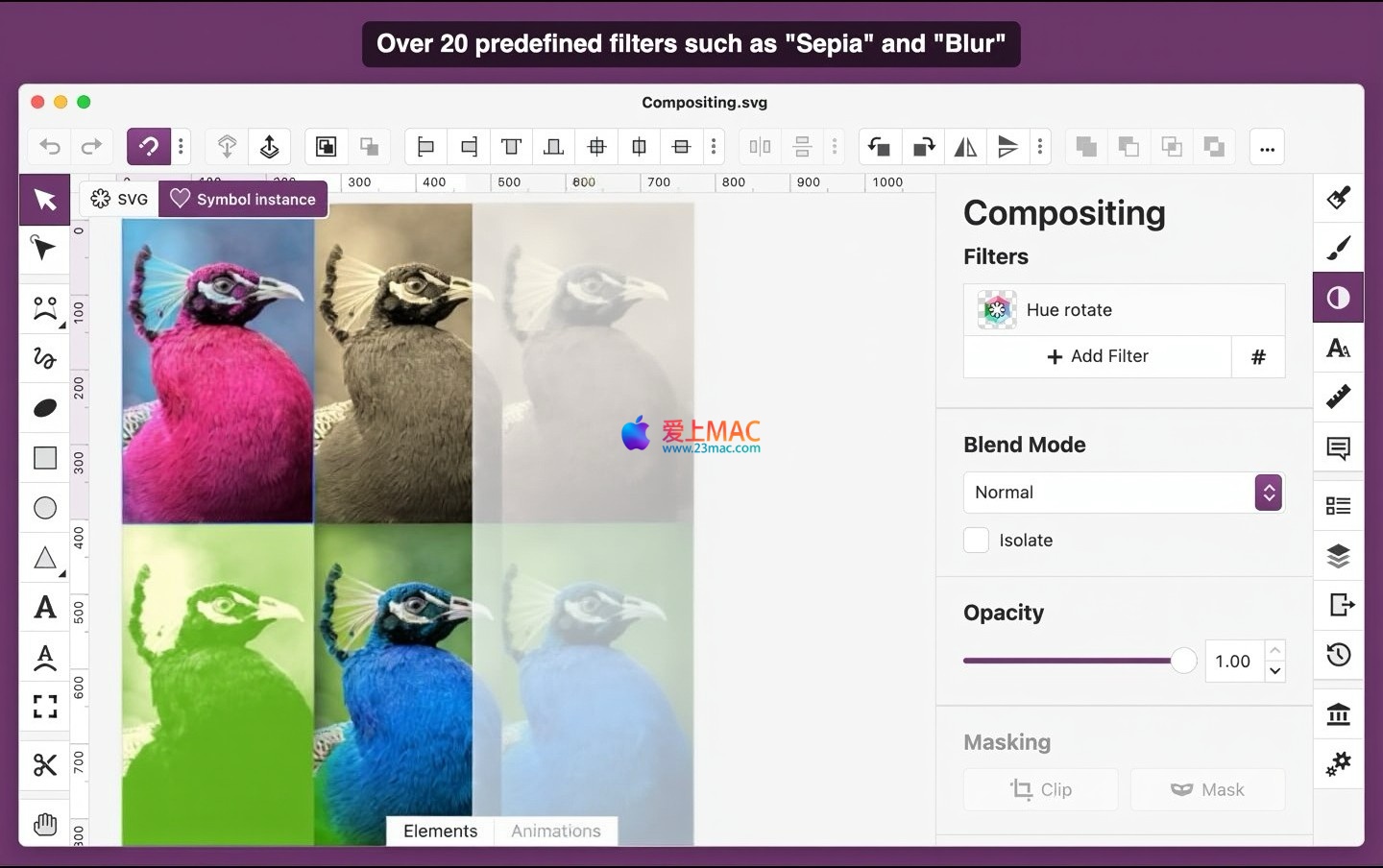
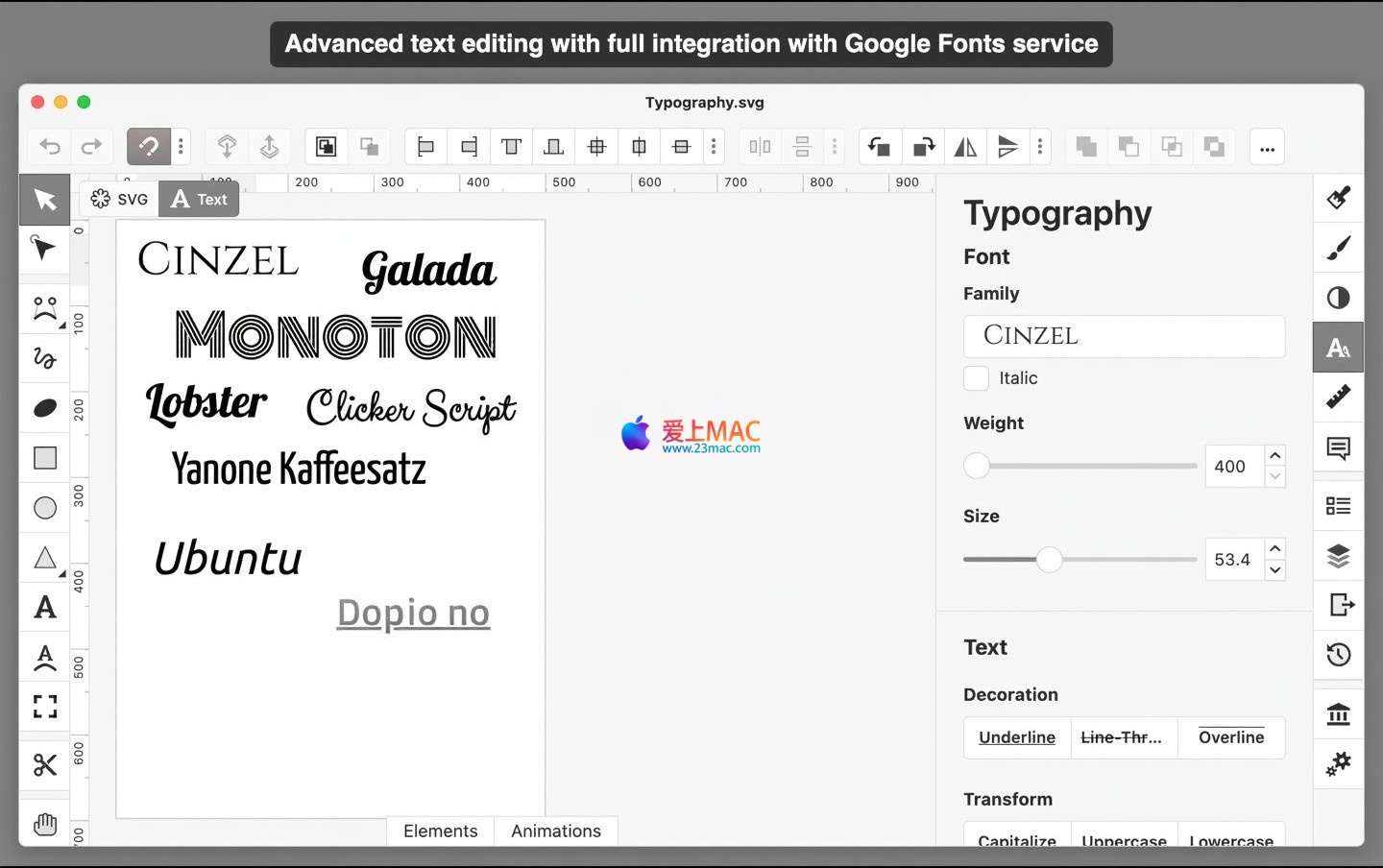
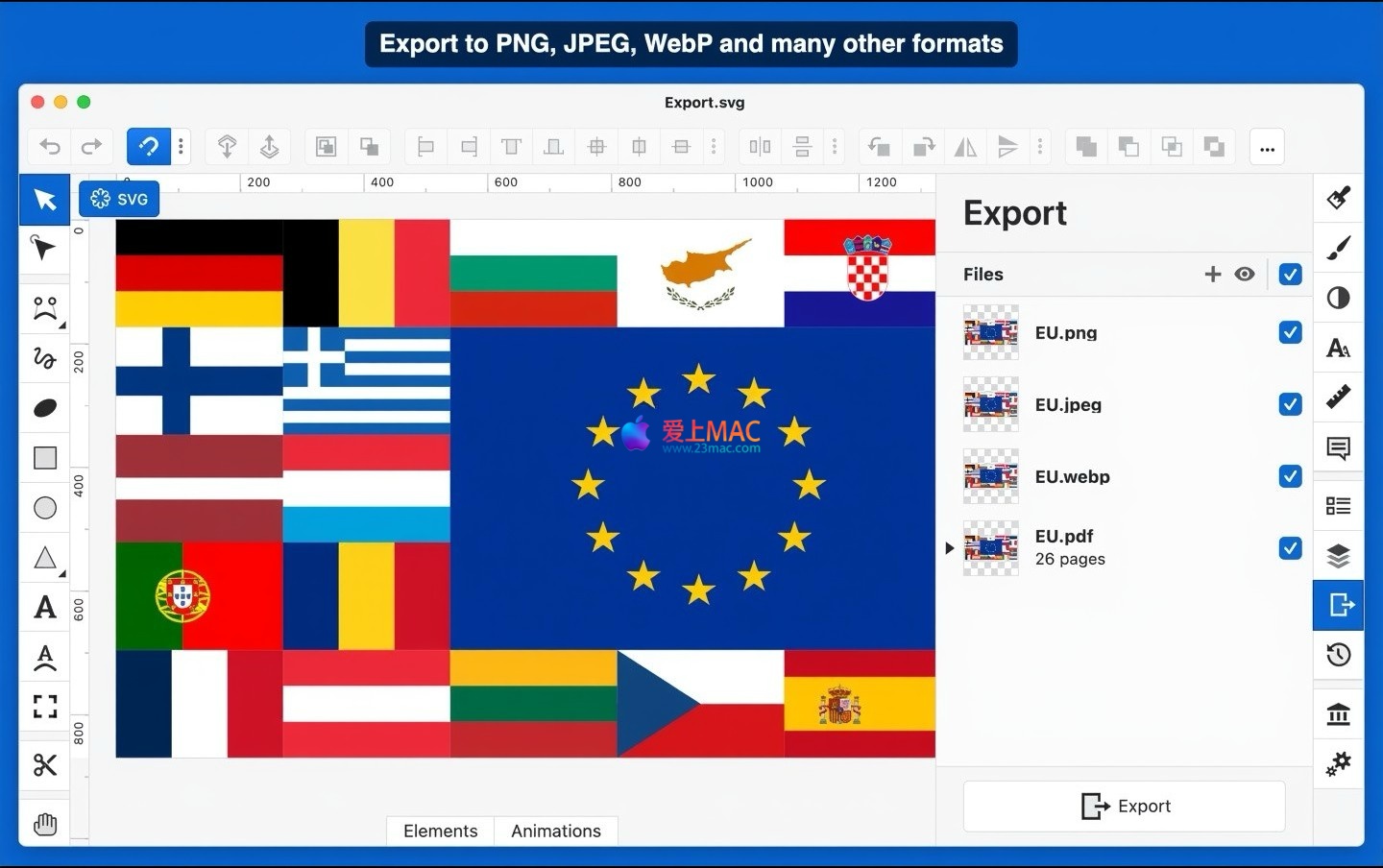
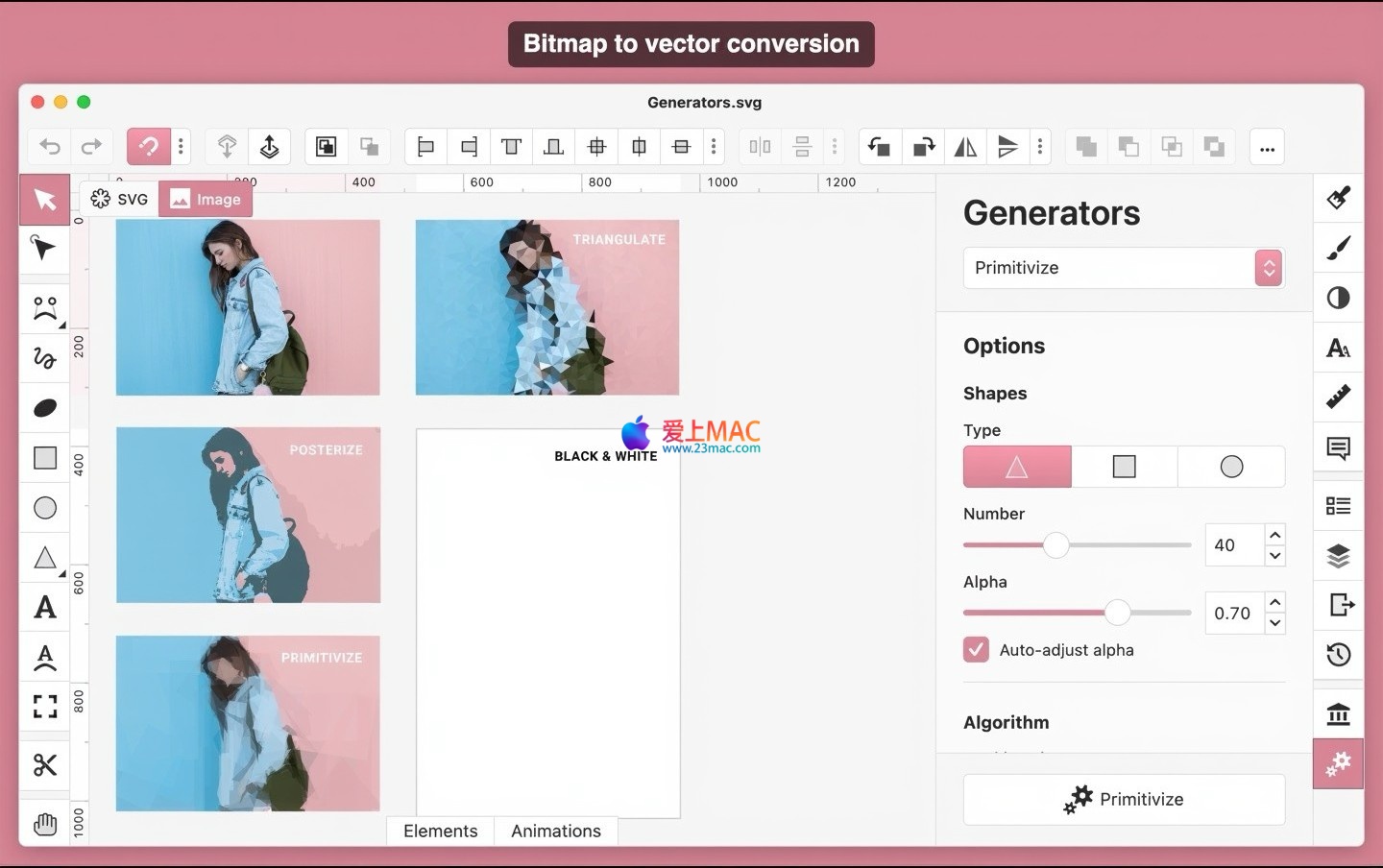
以下是 Boxy SVG for Mac v4.102.0 的运行界面截图:
Software Name: Boxy SVG for Mac v4.102.0
Software Description: Professional Vector Editor for SVG
Before starting the installation, ensure your Mac system version is macOS 10.15 (Catalina) or higher. Boxy SVG is developed based on the Chromium framework, with low system resource requirements, but it is recommended to have at least 8GB of RAM for smooth operation.
Click the download link on this page to get a .dmg format disk image file. Double-click the file to automatically mount and pop up the installation window. If you encounter the “Cannot Verify Developer” prompt, go to “System Preferences → Security & Privacy → General”, and click “Open”. This is the usual protection mechanism of macOS for non-App Store applications. The signing certificate for Boxy SVG is valid.
In the installation window, you will see the Boxy SVG icon and a shortcut to the Applications (Applications) folder. Drag the Boxy SVG icon directly to the Applications folder. After a few seconds, the system will prompt “Copying in progress.” After copying, you can find Boxy SVG in the “Launchpad” or “Applications” folder.
When launching for the first time, Boxy SVG may request “File and Folder” permission. It is recommended to click “Allow” to enable the software to read and save SVG files normally. If you accidentally clicked “Deny,” you can add Boxy SVG to the “System Preferences → Security & Privacy → Privacy → File and Folder” later.
The version provided on this page is a Chinese-activated version, requiring no additional input of a serial number. After launching, you can check the version number in the “Boxy SVG → About Boxy SVG” menu to confirm if it is v4.102.0. If it displays “Not Activated” or “Trial Version,” check if the download package is complete, or reinstall it.
It is recommended to configure basic settings in “Boxy SVG → Preferences” before starting to edit. In the “General” tab, check “Automatically Save” with a 5-minute interval. In the “Export” tab, the default SVG export options suggest checking “Clean Unused Properties” and “Compress Numeric Precision,” which can further reduce file size.
Boxy SVG comes with over 100 shortcuts, but the following 12 are the most commonly used, and it is recommended to memorize them first:
| Shortcut | Function | Applicable Scenario |
|---|---|---|
| ⌘ + Z | Undo | For correcting mistakes |
| ⌘ + Shift + Z | Redo | To recover the operation after undo |
| V | Select Tool | To select and move objects |
| A | Direct Selection Tool | To select and edit anchor points |
| P | Pen Tool | To draw Bezier curves |
| R | Rectangle Tool | To quickly draw rectangles or rounded rectangles |
| O | Ellipse Tool | To quickly draw circles or ellipses |
| ⌘ + D | Copy and Paste | To copy and paste objects in place |
| ⌘ + G | Group | To group multiple objects into a single entity |
| ⌘ + Shift + G | Ungroup | To split a grouped object |
| ⌘ + +/- | Zoom | To zoom in or out of the view |
| Spacebar (held down) | Temporary Grab Tool | To drag and pan the canvas |
These shortcuts are not randomly arranged. For example, “V” and “A” are the core tool switches in vector editing, and it is recommended to memorize them as muscle memory. Holding down the Spacebar temporarily switches the grab tool, which is a universal operation in most design software on Mac, helping you avoid frequent mouse movements between the tool bar and the canvas.
Cannot directly open. Boxy SVG natively supports SVG and SVGZ formats. If you have an .ai file, it is recommended to save it as SVG format in Illustrator first, then drag it into Boxy SVG Editor. Some complex effects in .ai files, such as 3D protrusion and bevel, may be lost during the conversion process.
When exporting, adjust the “Scale” option to 2x or 3x in the “Export Options”. For example, if you need a 100×100 pixel PNG, set the scale to 2x, resulting in a 200×200 pixel image. Then, reduce it to 100×100 in a photo editing software, and the jagged edges will be significantly reduced. Boxy SVG’s PNG export is optimized for Retina screens, so it is recommended to always use a 2x or higher scale.
Please check if the Chinese characters are using a font that is not installed on your system. Boxy SVG integrates Google Fonts, but some Chinese fonts (such as Source Han Sans SC) need to be manually downloaded and installed. In the “Text” panel, select the “Font” dropdown menu, check “Show All Fonts” to ensure the font you are using is installed on macOS. If the issue persists, try converting the text to paths (right-click → Convert to Paths), but this will lose the ability to edit the text.
Yes, but the layer functionality is basic. In the “Layers” tab of the right-side panel, you can create, delete, rename, and reorder layers. However, Boxy SVG does not support layer blending modes or layer masks. If you need complex layer management, consider using Sketch or Figma alongside Boxy SVG.
Boxy SVG does not support batch exporting natively. However, you can create a workflow using Automator (built-in to Mac). Choose “Get Specific Finder Items” → “Run Shell Script”, with the script content being for f in "$@"; do /Applications/Boxy SVG.app/Contents/MacOS/Boxy SVG --export-png "$f"; done. This requires some command-line knowledge, but it can significantly increase efficiency.
By default, Boxy SVG enables automatic recovery. After restarting the software, if it detects unsaved documents before the crash, it will automatically prompt for recovery. It is recommended to enable “Automatic Save” in the preferences and set the interval to 5 minutes. If recovery fails, you can search for .svg files in the directory ~/Library/Application Support/Boxy SVG/autosave/.
Both have different focuses. Sketch is a professional UI design tool with built-in component libraries, shared styles, and prototype interaction features. In contrast, Boxy SVG is more focused on deep SVG file editing, such as path operations, code checking, and sprite creation. If you mainly do icon design or SVG animations, Boxy SVG is lighter and more focused. For complete app interface design, Sketch is more suitable. Many designers use both: completing interface layouts in Sketch and exporting SVGs to Boxy SVG for code optimization.
Enter “Boxy SVG → Preferences → Keyboard” in the menu. Click the input box next to any command to set a new shortcut. Be careful not to conflict with macOS system shortcuts (like ⌘+Space). If you need to reset all shortcuts, click the “Reset to Defaults” button in the bottom right corner.
This is often due to mismatched color spaces. By default, Boxy SVG uses the sRGB color space, while some browsers (like Safari) may apply color management automatically. Ensure that the SVG code includes the color-interpolation-filters="sRGB" attribute when exporting. Additionally, check if your Mac display is set to “Color LCD” mode, which affects the display of all software.
Currently, only a macOS version is available. However, you can run a macOS app on iPad using Mac Catalyst technology, though the experience is not perfect. For SVG editing on iPad, it is recommended to try Affinity Designer or Vectornator.
For example, if you need to design a “Cloud Storage” icon with clouds and an upward arrow. First, use the “Ellipse Tool” and “Rectangle Tool” to combine the cloud shapes (three circles and a rounded rectangle), then select all shapes and click the “Merge” button (or press ⌘+Shift+U). Next, use the “Pen Tool” to draw an upward arrow path, then select the arrow and the merged cloud shapes and click the “Subtract” button to achieve a hollow effect. The entire process takes no more than 2 minutes, much more efficient than manually adjusting anchor points.
If your SVG animations (like a rotating gear) do not work as expected in a webpage, you can open the SVG file in Boxy SVG and right-click the gear object to select “Inspect Element”. In the right-side panel, find the <animateTransform> tag. You can directly modify the from and to attributes for the angle, or adjust the dur (duration) attribute to observe the animation changes in real-time. After debugging, save the changes to update the SVG file.
Assuming you received a file package with 50 SVG icons, all using the “Arial” font, and you need to uniformly change them to “Source Han Sans SC”. In Boxy SVG, open any SVG file and click “Edit → Find and Replace”. In the “Find” field, enter font-family="Arial", and in the “Replace with” field, enter font-family="Source Han Sans SC". Click “Replace All”. Then repeat the process for each file. If the file count is high, you can use an Automator script to batch process.
Assuming you need to write a blog post about “Mac Efficiency Tools” and need a 1200×630 pixel featured image. Here are the steps:
The entire process takes about 10 minutes, without needing to open Photoshop or Sketch. The lightweight features of Boxy SVG allow you to quickly complete such simple design tasks.
Boxy SVG for Mac v4.102.0 is a precise vector editing tool. It does not have the extensive feature matrix of Adobe Illustrator or the UI design ecosystem of Sketch, but it excels in creating, editing, and optimizing SVG files. For web developers, the built-in code checker and clean code output are killer features. For designers, the intuitive interface and rich resource library can significantly shorten the icon design workflow.
If you need to handle a large number of SVG icons, create web illustrations, or debug SVG animations, Boxy SVG is worth trying. It occupies little memory (typically under 200MB), starts quickly (within 3 seconds), and supports Retina screens. It is recommended to keep this software on your Mac as a supplementary tool to Sketch or Figma. If you encounter any issues, you can refer to the FAQ section on this page or visit the official documentation of Boxy SVG (https://boxy-svg.com/docs).
Lastly, if you encounter any issues during the download or installation process, feel free to leave a message below. We will respond promptly and ensure that you can use Boxy SVG smoothly. After all, the value of a tool lies in its use, not in its collection.
This resource requires login to download
Log in
CorelDRAW Graphics Suite 2026 for Mac v27.0.0.121 – Professional Graphic Design Software Download & Activation
Downloads:1152 | 2026-10-27

Mac System Monitor Menu Bar App v1.2.1 Activation Download
Downloads:2504 | 2026-10-27

Pathfinder: Kingmaker – Mac Role-Playing Game Download and Activation Bundle
Downloads:1187 | 2026-10-23

CAD Mini Drawing for Mac v3.4.6 Full Activated Chinese Edition Download
Downloads:1105 | 2026-10-22


Ratings & reviews
4.8
(Maximum 5 ratings, total 44 user reviews)
Let’s rate it.