

EazyDraw for Mac v12.4.1 Chinese Activation Edition Download
Here is the page providing EazyDraw for Mac v12.4.1 Drawing and Drafting Software with Chinese Activation Download | LoveMAC has tested and the download is available. If you encounter any issues with the link or after downloading, please leave a message to contact us.
EazyDraw is a vector graphics design software developed specifically for the macOS platform, designed for creating flowcharts, floor plans, technical drawings, charts, and various types of graphics. The software comes with a rich set of drawing tools and symbol libraries, supports importing and exporting PDF, SVG, DXF, and other mainstream file formats, and is compatible with Apple Pencil, providing users with precise and natural drawing experiences.
EazyDraw offers a balanced and comprehensive set of functions covering technical drawing, network and application interface design, printing and publishing, logo design, and page text layout, catering to both novice and complex project needs. Its design philosophy is to be both user-friendly and provide sufficient professional depth for complex projects.
Users can directly obtain EazyDraw from the Mac App Store:
EazyDraw is a universal application, natively supporting Apple chips. Its user interface adopts a dynamic semantic color and icon system, perfectly adapting to macOS’s light and dark mode, and supports accent colors and high-contrast accessibility settings. Users can switch modes in the system settings under the “General” tab without restarting the software.
Since late 2015,新款 MacBook Pro and iMac have adopted P3 wide gamut displays. EazyDraw versions 10 and above provide complete color management features, supporting the Display P3 high dynamic range color space, ensuring precise color visualization and labeling in web graphics and professional image output (PNG, JPG, TIFF, PDF, SVG).
EazyDraw provides comprehensive support for SVG (scalable vector graphics) import and export. Its import analysis feature can identify SVG files created by older software Intaglio and convert their layers and advanced geometric structures (such as rectangles, rotated rectangles) into EazyDraw’s native layers and editable geometric objects, providing a smooth transition path for Intaglio users.
This version mainly improved user experience, cross-device collaboration, and system compatibility:
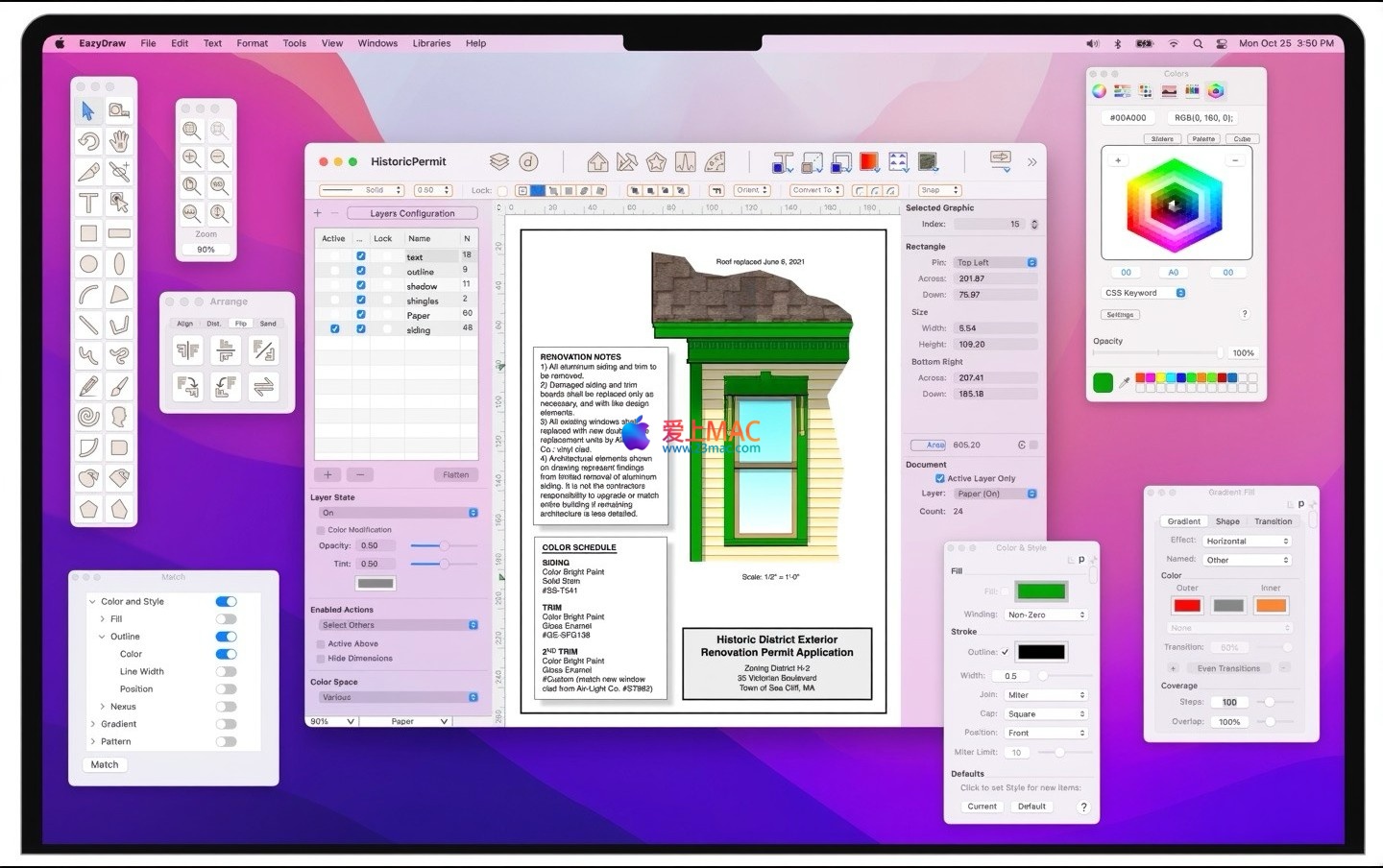
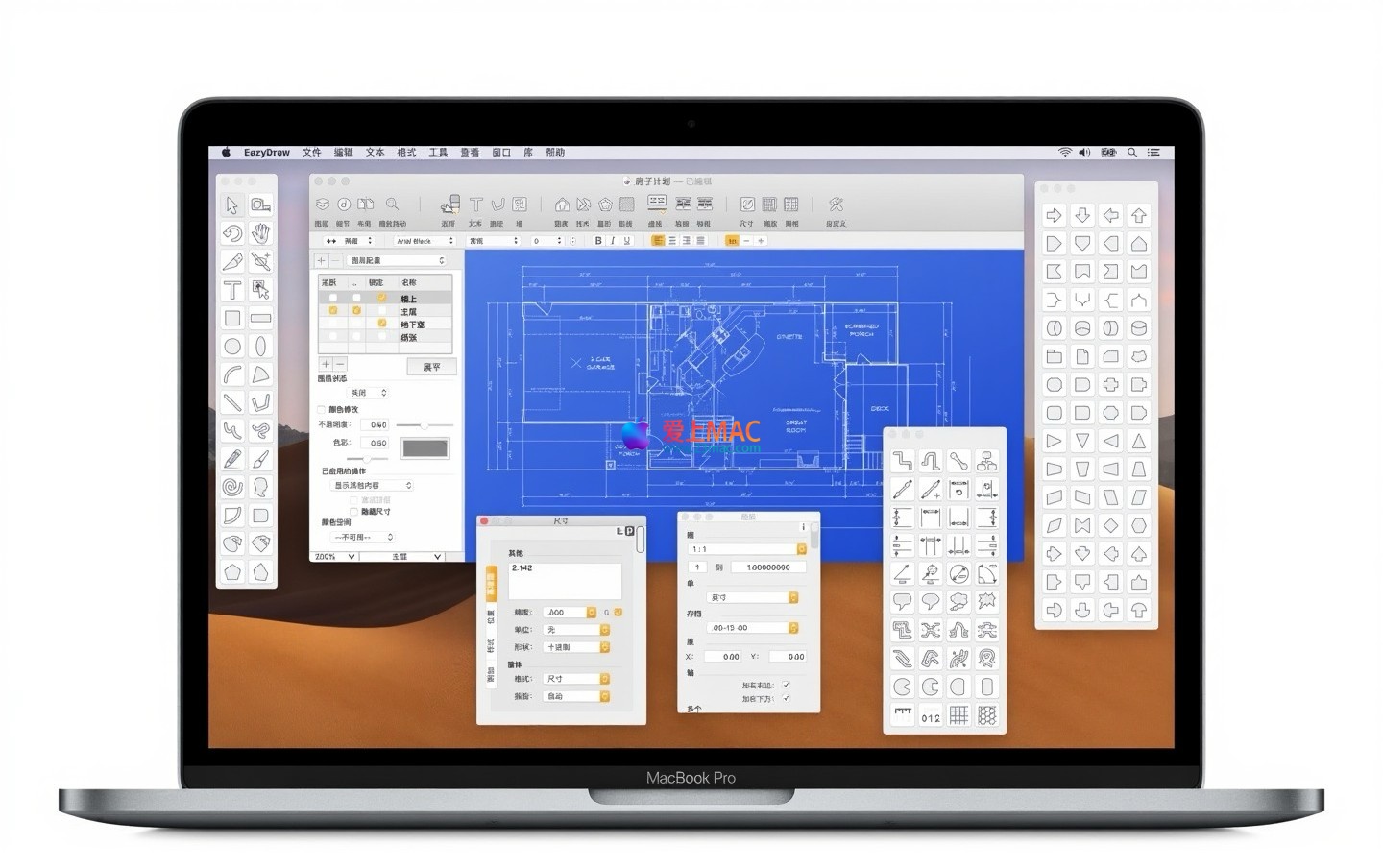
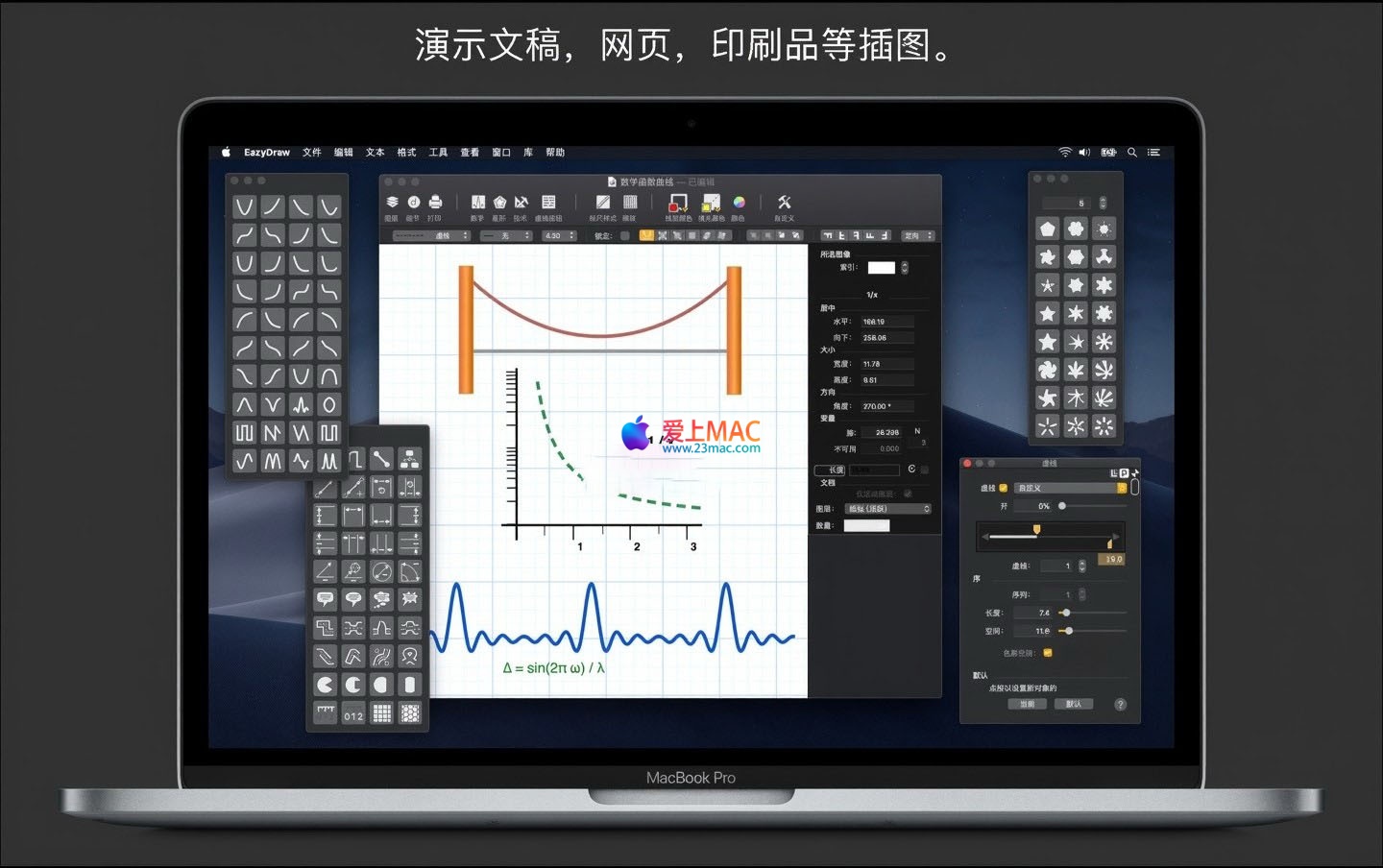
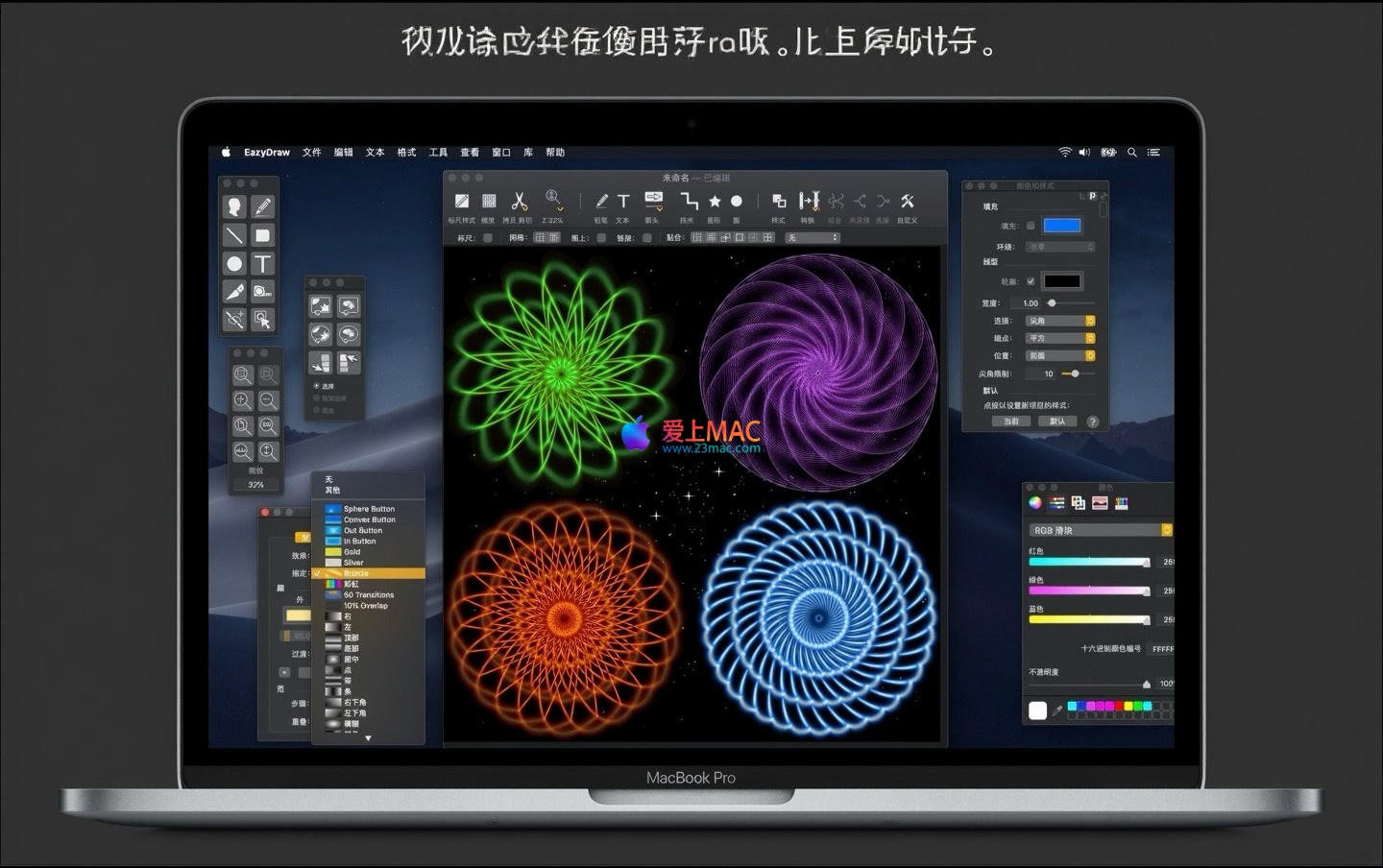
Here are screenshots of the EazyDraw for Mac v12.4.1 software interface:
Before starting the installation, please confirm that your Mac runs macOS 11.0 (Big Sur) or a later version. It is recommended to update your system to the latest version for optimal compatibility. Additionally, ensure that your Mac has at least 500MB of available disk space.
Step 1: Click the download link on this page to obtain the EazyDraw v12.4.1 installation package. The file format is typically .dmg or .zip.
Step 2: If the download is a .zip file, double-click to automatically decompress. If it is a .dmg file, simply double-click to mount the disk image.
Step 3: Drag the EazyDraw icon to the “Applications” folder icon in the opened window. This is the standard installation method for macOS.
Step 4: Wait for the progress bar to complete. When you first launch, the system may prompt you that “EazyDraw is from an internet downloaded application.” Click “Open” to confirm.
Step 5: Follow the prompts to input your Mac login password to complete authorization. Afterward, the software will automatically start.
Step 6: If you need to unlock all features, follow the prompts in the software to complete the subscription or purchase process.
After installation, it is recommended to open EazyDraw and create a new blank document. Try drawing a rectangle or a circle to ensure that all toolbars and menu functions are working properly. If everything goes smoothly, the installation has been successful.
A: EazyDraw v12.4.1 natively supports macOS 11.0 (Big Sur) and later versions, and has been optimized for macOS Tahoe. Older systems may not be able to run this version.
A: First, check the “Security & Privacy” settings in System Preferences. If the software is blocked, allow it to run. If the issue persists, try re-downloading the installation package or contacting our technical support.
A: The free version includes basic drawing functions, suitable for simple projects. The paid version (subscription or purchase of version 9) unlocks all professional tools, advanced format support, and unlimited export capabilities.
A: Yes. EazyDraw offers an iPadOS version, supporting Apple Pencil. You can switch between Mac and iPad workspaces using iCloud or接力 (接力 is a Chinese term for a feature in macOS that allows you to continue working on a document on another Mac or iPad).
A: EazyDraw supports importing DXF format files. Simply select “Import” from the “File” menu and choose your DXF file. The software will automatically parse and convert it into editable objects.
A: First, try restarting the software. If the issue persists, check your Mac’s memory and disk space. Close other unnecessary applications or update to the latest version.
A: In the “File” menu, select “Export,” then choose PDF format. You can adjust the resolution and color mode to ensure the output quality.
A: Yes. EazyDraw provides multilingual support, including Chinese. You can switch the language in the software preferences.
A: If the files were deleted from the “Trash,” you can use Time Machine to recover them. EazyDraw itself does not provide file recovery functionality.
A: You can still view and export existing files, but you will not be able to use the advanced editing features. Renewing your subscription will restore all functionalities.
The table below lists the commonly used shortcuts in EazyDraw, helping you enhance your drawing efficiency:
| Operation Category | Shortcut | Function Description |
|---|---|---|
| File Operations | ⌘ + N | Create a new document |
| File Operations | ⌘ + S | Save the current file |
| Editing Operations | ⌘ + Z | Undo the previous operation |
| Editing Operations | ⌘ + Shift + Z | Redo the undone operation |
| Selection Tools | V | Switch to the selection tool |
| Drawing Tools | R | Switch to the rectangle tool |
| Drawing Tools | O | Switch to the ellipse tool |
| View Operations | ⌘ + + | Zoom in |
| View Operations | ⌘ + – | Zoom out |
| Alignment Operations | ⌘ + Shift + A | Align the selected objects |
When using EazyDraw, leveraging the symbol library can significantly enhance efficiency. The software comes with hundreds of pre-designed symbols covering network topology, flowcharts, and architectural plans. Simply drag and drop symbols from the library onto the canvas to quickly build complex graphics.
An additional useful technique is layer management. By assigning different elements to separate layers, you can individually edit or hide them, avoiding accidental modifications. It is recommended to plan the layer structure at the beginning of the project.
In terms of color management, it is advised to work in the “Display P3” mode. This ensures that the colors you see on your Mac match those in the final output, reducing the hassle of post-production adjustments.
Suppose you need to create a flowchart for your company’s network architecture. Start by creating a new document and setting the page size to A4. Then, drag and drop the “server” and “router” symbols from the symbol library onto the canvas.
Next, use the “connector” tool to connect the devices. EazyDraw’s smart alignment feature will automatically align the nodes, ensuring neat lines. If you need to add text explanations, double-click the symbol to input text.
After laying out the basic structure, adjust the colors and line types. Set the main path to a blue thick line, and the backup path to a gray dashed line. Finally, export as a PDF format for easy sharing with colleagues.
When designing iOS app icons, EazyDraw’s P3 color support is a powerful tool. Create a new document with a 1024×1024 pixel size, and use the “rounded rectangle” tool to create the basic shape.
Then, use the “gradient fill” to add depth. Choose the Display P3 color space to ensure the icon looks vibrant on high-resolution screens. After completing the design, export as a PNG format and generate all necessary sizes.
It is recommended to frequently use the “preview” feature during the design process to check the icon’s appearance on different backgrounds. This helps avoid unnecessary revisions later.
EazyDraw for Mac v12.4.1 is a powerful vector drawing tool suitable for users ranging from beginners to professional designers. Its native Apple chip support, P3 color management, and cross-device collaboration capabilities set it apart from other software in its category.
Through the installation guide, shortcut table, and real-world cases provided in this article, you should be able to quickly get started and improve your efficiency. If you encounter any issues while using EazyDraw, feel free to leave a message. We will continue to update the content to provide assistance.
This resource requires login to download
Log in
Junkworld for Mac: Tower Defense Game – Download and Activation Version
Downloads:1995 | 2026-10-23

Crossbow Warrior for Mac: The William Tell Legend – Download and Activation Version
Downloads:1745 | 2026-10-23

Vector Drawing Design Software for Mac v7.2.3 Chinese Activation Download
Downloads:1050 | 2026-10-22

Photomator for Mac v3.3.1 Chinese Activation Version Download
Downloads:1351 | 2026-10-21


Ratings & reviews
5
(Maximum 5 ratings, total 35 user reviews)
Let’s rate it.