

Vector Graphics Design Software: Sketch for Mac v2026.2 Chinese Activation Edition Download
Sketch is a professional vector graphics design software tailored for macOS, a core tool for UI/UX designers, product designers, and icon designers. It focuses on digital product interface design, icon design, prototype design, and design system building, with its lightweight, high-efficiency, and high-precision features making it one of the industry benchmarks for mobile, web, and desktop digital product design. Key Features:
一、深度适配 macOS 原生特性
Sketch 完全基于 macOS 原生架构开发,深度适配苹果软硬件生态,带来极致的原生使用体验。全面兼容 Apple Silicon 芯片与 Intel 芯片的 Mac 设备,针对苹果芯片做了深度性能优化,启动速度快、运行流畅,低配 Mac 设备也能稳定无卡顿运行。原生支持 macOS 系统核心特性,包括深色模式、系统快捷键、原生字体渲染、P3 广色域颜色配置文件,完美适配 iCloud 云盘同步,可将设计文件保存在 iCloud 中实现多台 Mac 设备的自动同步与版本备份。界面遵循 macOS 设计规范,采用极简的原生 UI 布局,摒弃冗余功能模块与浮动面板,核心工具触手可及,让设计师可完全聚焦于创作本身,学习门槛远低于同类型重型设计软件。支持离线本地编辑,无需联网即可完成全部设计工作,同时可无缝衔接云端协作功能,兼顾单机创作与团队协同的双重需求。
二、专业级矢量编辑与像素级精准控制能力
以矢量编辑为核心,提供完整的专业矢量设计工具,支持无限缩放不损失画质,同时兼顾像素级的精准控制,完美满足 UI 设计的“Pixel Perfect”硬性要求。内置丰富的矢量形状预设,可快速创建矩形、椭圆形、线条、箭头、三角形、星形、多边形等基础矢量图形,支持一键调整圆角、平滑度等基础属性。提供专业的贝塞尔曲线与钢笔工具,可自由创建自定义矢量路径,支持多锚点精准编辑、路径平滑处理、锚点类型切换,满足图标设计、插画创作的精细化绘制需求。支持非破坏性布尔运算,提供并集、减去、相交、差集四种核心运算模式,运算后的图形可随时调整原始形状参数,无需反复重做路径编辑,大幅提升复杂图形的创作效率。完善的像素对齐能力,支持矢量点全像素、半像素、四分之一像素吸附,可一键切换像素预览模式,实时查看矢量图形导出后的像素显示效果,杜绝界面设计中的虚边、错位问题。提供无限延伸的画布,无固定尺寸限制,设计师可自由规划创作区域,同时支持多画板创建,可在同一画布内管理不同尺寸、不同页面的设计内容。
三、灵活的响应式布局与图层管理能力
内置强大的布局工具,可快速搭建适配不同设备尺寸的响应式界面,大幅降低多端适配的设计工作量。Stack 智能堆叠布局功能,可创建随容器尺寸、内容多少自动调整的自适应布局,支持自定义内边距、元素间距、对齐方式、分布规则,拖拽调整元素顺序即可自动更新布局,无需手动调整每个图层的位置与尺寸。Auto-Pin 自动固定功能,可一键锁定图层在画板中的相对位置,设置图层的相对尺寸规则,画板尺寸调整时图层可自动适配位置与大小,完美适配不同屏幕尺寸的界面设计。提供完善的网格与布局设置,可针对每个画板自定义列数、列宽、边距、间距,自定义网格颜色、块大小、线条间隔,适配不同平台的设计规范。完整的图层管理体系,支持图层分组、嵌套、锁定、隐藏、标记,可通过左侧图层列表快速管理画布内的所有元素,支持批量重命名、批量调整属性,大幅提升大型设计文件的管理效率。
四、组件化设计与设计系统搭建能力
拥有成熟的组件化与样式系统,是搭建企业级设计系统的核心工具,可实现设计规范的统一复用与全局同步。Symbols 符号组件系统,可将单个图标、按钮、甚至完整界面视图转换为可复用的组件,一次创建即可在全文档任意位置复用,修改主组件后,所有实例可一键全局同步更新,大幅降低重复修改的工作量。支持响应式符号组件,搭配智能布局功能,组件可根据内容自动调整尺寸,同时保持内部元素的间距与样式规则不变,适配不同内容场景的复用需求。提供全局颜色变量、图层样式、文本样式管理功能,可统一预设品牌色、渐变、阴影、边框、字体规范,在全文档内复用,修改预设后可全局同步更新,确保设计风格的一致性。Shared Libraries 共享库功能,可将设计组件、样式规范、颜色变量打包为共享库,团队成员可同步调用,共享库更新后全员可一键同步,实现团队设计系统的统一管理与迭代。
五、专业的文本排版与字体支持能力
内置全面的文本编辑与排版功能,完美适配界面设计的各类文本排版需求,兼顾易用性与专业性。全面支持 OpenType 字体与可变字体,可自由调整字体的字重、倾斜度、宽度等可变参数,解锁字体的连字、备用字符等高级特性,满足精细化的排版需求。原生支持 RTL 从右到左的语言排版,适配多语言界面设计需求,同时支持文本子范围样式编辑,可在同一段文本内设置不同的字体、颜色、字重、间距等属性。支持文本样式预设,可统一预设标题、正文、注释等不同层级的文本样式,全局复用与同步更新,确保界面文本规范的一致性。可将字体嵌入设计文档中,避免团队协作、文件分享时出现字体缺失的问题,保障设计文件的完整呈现。
六、高效的原型与交互设计能力
内置轻量化的原型设计工具,无需切换软件即可完成从静态设计稿到可交互原型的全流程制作,实现设计与原型的无缝衔接。可快速创建画板之间的交互跳转,支持点击、悬停、按下等多种触发方式,可通过热点工具自定义点击区域,适配不同的交互场景。提供智能动画过渡效果,可自定义动画的缓动曲线、持续时间,实现画板之间的平滑切换,还原真实的产品交互体验。支持叠加层、滚动区域功能,可将画板转换为弹窗、抽屉等叠加层效果,自定义水平、垂直或多向滚动区域,还原更真实的界面交互细节。制作完成的原型可通过链接分享,支持在浏览器、iOS/iPadOS 设备中直接预览测试,无需安装额外软件,方便团队内部评审与用户测试。
七、完善的设计交付与导出能力
拥有强大的导出功能,可满足设计师与开发团队的交付需求,支持多格式、多尺寸的批量导出,适配不同平台的开发规范。可针对单个图层、切片、画板设置导出规则,自定义导出倍率、格式、命名规则,支持 1x、2x、3x 等多倍率同时导出,自动添加后缀区分,适配 iOS、Android、网页等不同平台的切图规范。图层名称中的正斜杠可自动生成文件夹目录,批量导出时自动按目录分类整理切图,无需手动整理文件,大幅提升交付效率。支持丰富的导出格式,包括 PNG、JPEG、TIFF、WebP 等位图格式,以及 PDF、SVG 等矢量格式,可自定义导出质量、透明度、色彩配置文件等参数。内置开发者交付工具,团队成员可通过浏览器打开设计文件,自动标注图层尺寸、间距、颜色、字体参数,一键复制 CSS、Swift 等开发代码,直接下载对应切图,打通设计与开发的交付链路,降低沟通成本。
八、团队协作与文件管理能力
提供完整的云端协作功能,兼顾个人创作与团队协同工作流,实现设计项目的全流程管理。支持实时协作功能,多名团队成员可同时在同一个文档内进行编辑操作,无保存冲突、无需反复传输文件,实时同步创作内容,适配团队并行设计的需求。
Based on the Workspace workspace for team and project management, design files can be grouped by customer, project, and status for management. Custom document and project access permissions can be defined, and team members’ viewing, editing, and management permissions can be managed at a more granular level.
Complete version history functionality is available, automatically saving every update to a document. Users can revert to previous versions and restore content at any time to avoid loss due to accidental operations. Online sharing of design files is supported, allowing links to be shared for design drafts and prototypes. Online annotation and comments are also supported, enabling team members to annotate and provide feedback directly on the design document, facilitating efficient design reviews and communication.
One of the most active plugin ecosystems for design software, the software can be extended with third-party plugins to accommodate different designers’ personalized workflows and needs. Plugins cover a wide range of scenarios, including automation tasks, layout optimization, design standard validation, motion effect creation, data filling, and integration with third-party services. Features such as batch renaming, automatic annotation, design templates for one-click slicing, and real-time data filling with design standards can be implemented, significantly improving design efficiency. The software supports seamless integration with mainstream product design, project management, and development tools, including Jira, Trello, Slack, Figma, and AE, to streamline the product design workflow. The software provides a comprehensive developer API, allowing for custom plugin development. This enables teams to customize specific features based on their personalized workflows and meet enterprise-level customization needs.
Version 2026.2 Update Content:
Components and Resource Library
To prepare for future major updates to components, we have optimized the underlying architecture and improved performance: moving and scaling component instances is now about twice as fast, and modifying text content is even more noticeable. The “Replace Resource Library” function has been significantly sped up, with processing speeds now approximately 15 times faster, especially noticeable when handling complex resource libraries. When editing a resource library from the Workspace, the “Enable Resource Library” operation will now be displayed in the File menu, replacing the previously unclickable “Add to Resource Library” option. Components with automatic rounded corners will now calculate their concentric rounded radius based on their parent element, rather than directly inheriting the actual rounded radius from the component source file.
Inspector Panel
A “Align Pixels” quick button has been added to the top of the Inspector panel, next to the layer name and container type. This button will only appear when the “Pixel Alignment” option is enabled in the settings and the selected layer supports pixel alignment. In vector editing mode, “Align Pixels” will now round all selected anchor points according to the pixel alignment rule you have set (whole pixels, half pixels, quarter pixels). The toolbars with drop-down menus will now add an ellipsis at the end of the text, making it clearer which settings need to be configured. All controls with shortcut keys in the Inspector panel and sidebar will now display the corresponding shortcut in the hover prompt, making it easier to find and remember. When holding down the Option (⌥) key, the “Switch Layer Orientation” button will switch to the “Lock Scale” button, allowing you to directly adjust the orientation of the layer. When no layers are selected, the Inspector will now display all prototype start points on the current page, allowing you to play the prototype from the selected start point or jump directly to the corresponding canvas. The color panel now allows you to right-click on a gradient color stop and copy the color value or directly delete the color stop. The right-click menu for copying colors now includes a new icon, which is more recognizable for the SwiftUI format.
Layers and Editing Operations
The “Adaptive Fit Size” (shortcut ⇧⌘F) has been consolidated into a single adaptive function, with the menu bar text now dynamically changing based on the selected content: “Adaptive Fit Size” will now appear when selecting a board, text, or layout component, and “Restore Original Size” will now appear when selecting an image or non-layout component. The “Restore Original Size,” “Component Restore Original Size,” and “Component Instance Fit Content Size” options are no longer displayed in the menu bar, but they are still available in the right-click menu for images and component instances. The editing menu and command bar now include a new “Copy Layer (without Prototype Interaction)” option, allowing you to copy a layer while removing all jump interactions. When copying styles, the software will now more intelligently remove incompatible styles, with a more noticeable improvement for groups of layers. When deselecting a text layer that only contains spaces and other whitespace characters, the software will no longer automatically delete the layer. Support for multi-layer background blurring is now available, allowing you to see the blurred effect of the layer below through the blurred layer above.
General Functionality
Double-clicking a gradient color stop will now place it in the middle between two adjacent color stops, or you can choose “Place in Middle” from the right-click menu on the color panel. The right-click menu now includes a new “Evenly Distribute Color Stops” option, or you can hover over the reverse gradient button while holding down the Option (⌥) key to evenly distribute all intermediate color stops between the first and last stops. A new shortcut key for creating a new page has been added: ⇧⌘N. When opening Sketch for the first time, you can now install the latest iOS 27 and macOS 27 UI component library directly from the welcome screen.
Inspector Panel
1. Fixed the bug where the X and Y input boxes in the Inspector panel would still display “Mixed Value” after selecting multiple anchor points with different coordinates and inputting a fixed value in vector editing mode. 2. Fixed the bug where multiple anchor points selected in vector editing mode could not input relative values (e.g., +0.6, -0.8) in the X and Y input boxes. 3. Fixed the bug where the Inspector panel would shift unexpectedly when dragging the document window to adjust its size while the floating Inspector panel was visible. 4. Fixed the bug where the Inspector panel would display the vertical line dimension as width (W) instead of length (L) when setting the dimension to width. 5. Fixed the bug where the content in the Inspector input boxes would clear or reset to the original value when editing the input boxes. 6. Fixed the bug where the width and height input boxes would display values less than 1 after dragging or fine-tuning the width and height values below the minimum limit. 7. Fixed the bug where clicking the color mode marker in the Inspector panel would not respond, preventing it from being used as a color block. 8. Fixed the bug where the data button in the Inspector panel could not indicate whether a component instance was filled with data or text overwritten by a source. 9. Fixed the bug where the “Align Pixels” feature only applied to the layer position and did not synchronize the layer size. 10. Fixed the bug where the width and height input boxes would clear the unconfirmed values after changing the zoom point in the Inspector panel. 11. Fixed the bug where the “Clip Content” option would automatically re-enable after setting the layer’s corner radius to 0 and restoring the original corner radius. 12. Fixed the bug where the color adjustment effect would be removed directly instead of being disabled when resetting all parameters to their default values. 13. Fixed the bug where the shadow color overwrite was not displayed in the color panel in the selection area. 14. Fixed the bug where the “Stack Elements Align” button state would not refresh correctly. 15. Fixed the bug where clicking on a blank style category title in the Inspector panel would not open the paste style right-click menu. 16. Fixed the bug where the focus would shift to a different shadow when adding an external shadow to a layer that already had an internal shadow.
Color Panel
1. Fixed the bug where the hue slider in the color panel would automatically jump back to red when picking black and inputting #fff/#000, a grayscale hexadecimal color value, in vector editing mode. 2. Fixed the bug where the color panel data button could not be used to replace the image material when opening the color panel on a component instance’s selected image panel. 3. Fixed the bug where the color panel for the canvas background color would appear too high, causing it to be misaligned with the corresponding row in the Inspector panel. 4. Fixed the bug where clicking on the canvas background color would not automatically close the canvas background color panel. 5. Fixed the bug where the check for the canvas background color would not update when pressing the undo shortcut key (⌘Z). 6. Fixed the bug where the system sound would be triggered when using the numeric keypad to adjust the position of the canvas gradient color stop.
Import and Export
1. Fixed the bug where dragging a P3 color space image to the canvas would force it to convert to the sRGB color space. 2. Fixed the bug where the fixed preset size for exporting images would result in an extra pixel in the final size. 3. Fixed the bug where the image direction would be incorrect when importing a JPG image and reopening the document. 4. Fixed the bug where the canvas would restore the original size of an image that had been magnified after executing the “Replace Image” operation. 5.
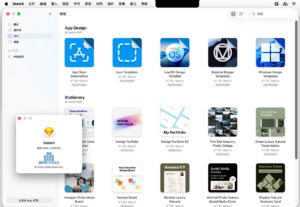
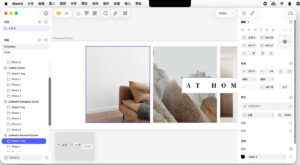
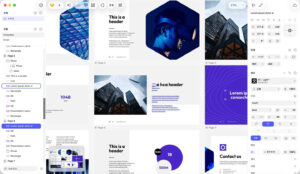
软件截图:
This resource requires login to download
Log in
MouseBoost Pro for Mac v5.2.8 Right-Click Assistant Professional Edition Chinese Activation Download
Downloads:1 | 2026-10-27

VideoProc Vlogger for Mac v1.2 Chinese Activation Download
Downloads:2233 | 2026-10-24

SketchUp Pro 2026 for Mac v26.0.428 Chinese Activation Edition Download
Downloads:1139 | 2026-10-22

Reeder 5 for Mac v5.0.3 News Reader Activation Download
Downloads:2690 | 2026-10-21


Ratings & reviews
No rating
Let’s rate it.