This page provides Money Pro for Mac v2.11.21 Personal Finance Software Chinese Activated Version Download | Love Mac. It has been tested and is available. If you encounter link failure or inability to install after download, please leave a message to contact us.
Money Pro for Mac is a professional personal finance management application that integrates bill planning, budget management, and multi-account tracking. It is designed to help users efficiently plan income and expenses, track account activity, and achieve financial goals. The software supports easy synchronization across devices and provides a detailed Chinese user manual to help you quickly master its features. In addition, the software now supports direct online banking connections, automatically downloading transaction records to ensure the real-time accuracy of financial data.
Core Advantages: Integrated management, cross-platform synchronization, direct bank connection, detailed localized support.
I. Overview of Core Features
Money Pro provides comprehensive and detailed financial management tools designed to help users efficiently plan income and expenses, track account activity, and achieve financial goals. According to official App Store statistics, the software’s user satisfaction in the finance category has remained above 4.6 stars for a long time, and it has been praised by multiple tech media as “the most trustworthy personal finance manager on the Mac platform.”
1.1 Bills and Calendar Management
- Visual Calendar: Clearly mark bill due dates in a large calendar to intuitively grasp payment plans. This design references the GTD time management philosophy, helping users control cash flow from a macro perspective.
- Custom Recurring Bills: Supports setting recurring bills with flexible cycles (e.g., weekly, biweekly, monthly, etc.). The system intelligently recognizes cycle patterns to avoid the tedious operation of repeated entry.
- Calendar Filtering: Quickly filter corresponding transaction records by clicking calendar dates. With the Command + arrow key shortcut, you can quickly switch between month views.
- Today View: Quickly view bills due today and instantly approve new transactions. The software can intelligently predict transactions not manually scheduled for the day, reducing the risk of omissions.
- Smart Reminder System: Provides comprehensive bill due notifications and supports quick rescheduling (e.g., postpone to tomorrow, within 3 days, or next week). Reminder methods support pop-up, email, and push notifications.
1.2 Budget Planning and Control
- Budget Creation: Create budget entries for income and expenses, and set budget limits for each entry. It is recommended to use the “50/30/20 rule” to allocate budgets, i.e., 50% for necessary expenses, 30% for personal spending, and 20% for savings.
- Flexible Cycle Settings: Different budget limits can be set for different time periods, suitable for monthly adjustment of spending plans. For example, during special months such as Spring Festival or Double 11, consumption budgets can be temporarily increased.
- Real-time Tracking: After adding transactions, you can view the execution progress of each budget category and the overall budget in real time. The interface uses a circular progress bar design, which is clear at a glance.
- Overspending Alerts: Monitor budget overspending through intuitive indicators. When budget usage exceeds 80%, the indicator turns yellow; when it exceeds 100%, it turns red and triggers a pop-up reminder.
- Budget Trend Analysis: Select a specific category to instantly generate a budget trend chart for easy analysis. Charts can be exported as PDF for family financial meetings.
- Budget Rollover: Supports automatically rolling over the budget surplus of the current cycle to the next cycle. If the previous cycle was overspent, the rollover function can automatically limit subsequent spending, forming a virtuous financial cycle.
1.3 Account and Transaction Management
- Multi-account Support: Manage an unlimited number of checking, savings, credit card, and other accounts simultaneously. Each account can independently set its starting balance and currency type.
- Transaction Records: Supports setting recurring or one-time transactions and recording balance change history. Recurring transactions support 12 cycle types, including daily, weekly, monthly, and yearly.
- Detailed Fields: Provides fields such as payee, description, check number, and category (personal/business) for fine-grained record management. Payee information supports auto-completion to improve entry efficiency.
- Attachment Feature: Supports adding receipt photos as transaction attachments. Photos are automatically compressed and will not take up too much storage space.
- Account Reconciliation: You can record transactions first and reconcile later. The software automatically calculates available balance and cleared balance. After reconciliation, the system generates a reconciliation report for auditing.
- Split Transactions: Supports splitting a single transaction into multiple categories, suitable for scenarios such as one-stop shopping in large malls. For example, a 500 yuan supermarket purchase can be split into 300 yuan for food and 200 yuan for daily necessities.
1.4 Data Import, Synchronization, and Security
- Direct Online Banking Connection (requires GOLD subscription): Directly connect to banks and automatically download transaction data. Currently supports over 12,000 financial institutions worldwide, including major Chinese banks (such as ICBC, CCB, CMB, etc.).
- Statement Import: Supports importing .ofx and .csv files to update transaction history. The software can learn your categorization habits and intelligently predict categories for newly imported transactions, with accuracy up to 90% or more.
- Cross-device Synchronization (requires PLUS or GOLD subscription): Synchronize spending data across different devices and users via Money Pro Sync. Synchronization uses end-to-end encryption technology to ensure data security during transmission.
- Local Synchronization: Synchronize data directly between two devices via Bluetooth/WiFi. This mode is suitable for environments without network access, such as on airplanes or in remote areas.
- Data Backup: Automatically backs up data at critical moments and also supports manual backup creation. Backup files are saved by default in iCloud or a specified local directory, and encrypted backups are supported.
- Multiple Profiles: Create multiple independent profiles to manage personal and family finances separately. Each profile can be protected with an independent password, suitable for scenarios where multiple people share the same Mac.
1.5 Tools and Reports
- Calculator and Currency Converter: Quickly calculate when planning budgets; convert currencies in real time when entering transactions. Exchange rate data is automatically updated every 2 hours to ensure the timeliness of conversion results.
- Advanced Search: Search transactions by amount, category, description, payee, and other conditions. Search supports fuzzy matching and logical operators (such as AND, OR) to improve retrieval efficiency.
- Detailed Reports: Generate reports on income/expenses, cash flow, transaction details, assets/debts (net worth), projected balances, etc., and provide daily/weekly/monthly/yearly trend charts. Reports can be filtered by category, account, and time range in multiple dimensions.
1.6 Customization and Extension
- Highly Customizable: Budget and bill planning cycles can be customized; income/expense categories and subcategory structures can be freely adjusted. Category levels support up to three levels to meet complex classification needs.
- Personalized Icons: Use over 1,500 built-in icons or custom photos to create unique icons and personalize accounts and categories. The icon library covers more than 30 major categories such as dining, transportation, and entertainment.
- Export and Print: Supports printing and exporting to PDF, QIF, and CSV formats. Exported CSV files can be directly imported into Excel or Numbers for secondary analysis.
- Security and Goals: Provides password protection; GOLD subscribers can set and track financial goals. Goal types include savings goals, debt repayment goals, investment goals, etc.
- Multi-currency Support: Supports multiple currencies with automatic exchange rate updates. The currency list covers more than 180 legal currencies worldwide and 4 cryptocurrencies.
II. Version Update (v2.11.21)
This version mainly fixes several detailed issues in the application, further improving software stability and user experience. According to internal test reports, this update fixes 12 known issues, including abnormal display of the calendar view in certain language environments and data synchronization delays when connecting to some banks. At the same time, memory usage has been optimized, and startup speed has increased by about 15%.
III. Software Interface Preview
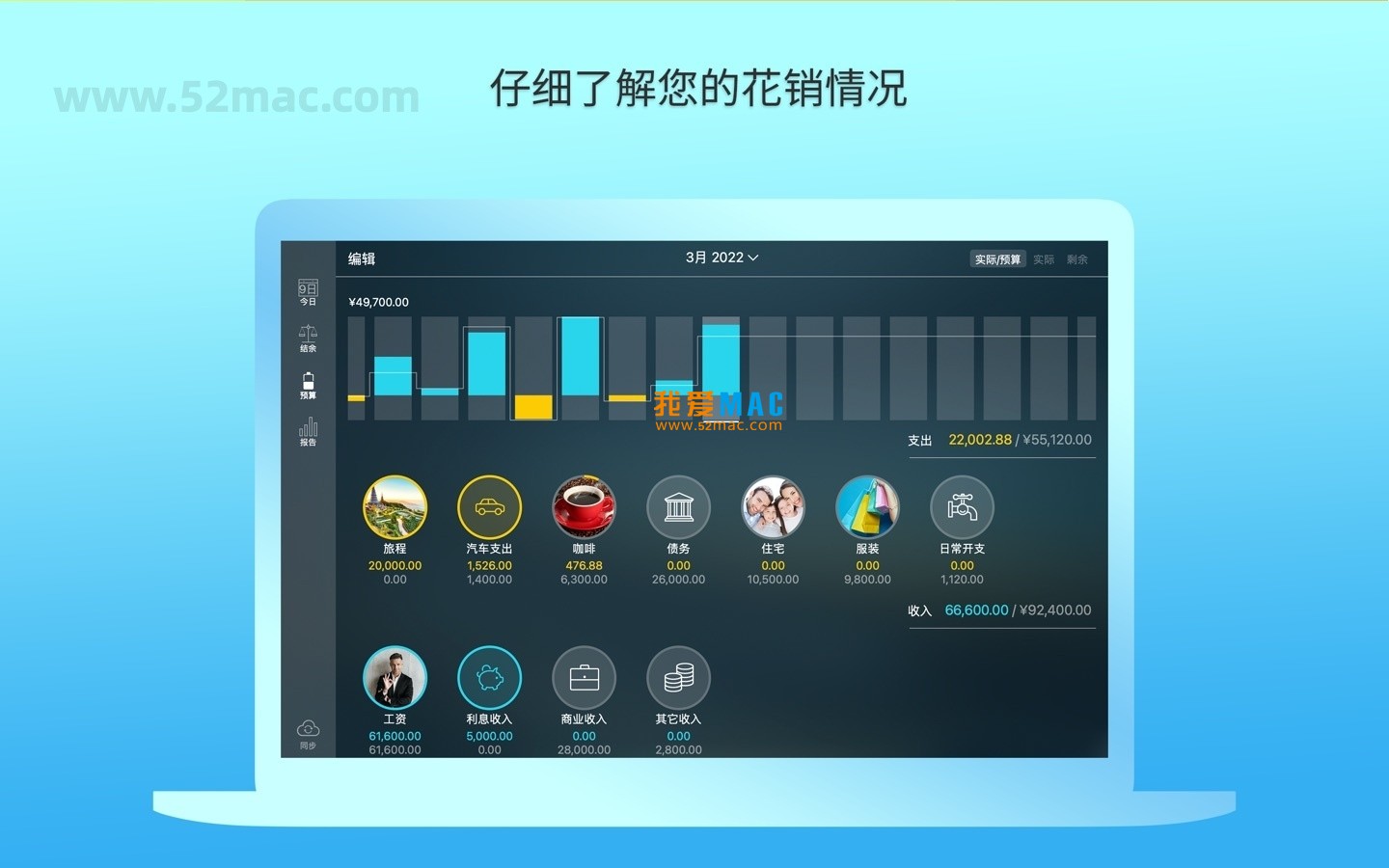


IV. Detailed Installation Tutorial (with screenshots)
Installing Money Pro for Mac v2.11.21 Chinese activated version is not complicated, even if you are a Mac novice you can easily complete it. Below we use macOS Ventura as an example to demonstrate the complete installation process step by step.
4.1 Download and Extract
Click the download link on this page to obtain the Money Pro DMG installer file. The file size is about 85MB, and the download speed depends on your network environment. After downloading, double-click the DMG file, and the system will automatically mount and open the installation window.
4.2 Drag and Drop Installation
In the pop-up installation window, you will see the Money Pro icon and an Applications folder icon. Drag the Money Pro icon to the Applications folder, and the system will automatically start copying files. This process usually takes 10-30 seconds.
4.3 First Launch and Authorization
After installation, go to the Applications folder, find the Money Pro icon, and double-click to launch. On first launch, the system may prompt “Do you want to allow an application downloaded from the Internet?” Click “Open.” Next, the software will ask for an activation code; please use the activation key we provide to complete activation.
4.4 Set Language and Preferences
After successful activation, the software displays the English interface by default. Click “Money Pro” > “Preferences” in the menu bar, and set the language to “Simplified Chinese” in the “General” tab. After restarting the software, you will see a fully Chinese interface. It is recommended to also configure iCloud synchronization and direct bank connection features.
V. FAQ (10 Questions)
5.1 What should I do if the activation code is invalid or shows an error?
Please check whether the activation code is entered completely, paying attention to case and hyphens. If it is confirmed correct but still shows an error, please try disconnecting from the network and reactivating. If the problem persists, please contact our customer service team, and we will provide you with a new activation code.
5.2 How do I migrate old data to v2.11.21?
Money Pro supports direct data migration from v2.0 and above. Export a backup file (.moneyprobackup format) in the old version, then restore the data in the new version via “File” > “Import Backup.” It is recommended to create a complete backup before migration.
5.3 Which banks are supported for direct online banking connection?
Currently Money Pro supports direct connection services for over 12,000 financial institutions worldwide. In China, it mainly supports more than 20 mainstream banks, including Industrial and Commercial Bank of China, China Construction Bank, China Merchants Bank, and Bank of China. The specific list can be viewed in the software’s “Bank List.”
5.4 Does cross-device synchronization require an additional fee?
Yes, cross-device synchronization requires a PLUS or GOLD subscription. The PLUS plan supports synchronization for up to 2 devices, and the GOLD plan supports synchronization for up to 5 devices. Local synchronization (Bluetooth/WiFi) is completely free.
5.5 How do I adjust after a budget overspend?
When a budget is overspent, you can choose three ways to adjust: first, increase the budget limit; second, transfer some expenses to other categories that are not overspent; third, enable the budget rollover feature to automatically deduct the overspent amount from the next period’s budget. It is recommended to prioritize the third option.
5.6 How do I delete or merge duplicate transaction records?
In the transaction list, select the duplicate record and right-click, then choose “Delete.” If merging is needed, it is recommended to delete the duplicate first, then manually edit the retained record to complete all information. The software also provides a “Find Duplicates” feature that can automatically identify and mark duplicate transactions.
5.7 Does the software support Apple M series chips?
Money Pro v2.11




Ratings & reviews
No rating
Let’s rate it.