This page provides Money Pro for Mac v2.11.14 Personal Finance App Chinese Activated Version Download | Love Mac, tested and working. If you encounter a broken link or cannot install after downloading, please leave a comment to contact us.
Money Pro for Mac is a professional personal finance management software that integrates bill planning, budget management, and multi-account tracking. It is designed to help users efficiently and clearly grasp their financial status and achieve seamless cross-device data synchronization. The software provides a detailed Chinese user manual to ensure users can fully utilize all features.
The software now supports direct online banking connection (subscription required), which can automatically download transaction records from linked banks, greatly improving bookkeeping efficiency and accuracy.
1. Core Features
1. Calendar and Bill Management
- Visual Calendar: Clearly mark bill due dates in a large calendar for an intuitive view of your payment schedule.
- Custom Recurring Bills: Supports setting bills that repeat at any interval, adapting to various regular income and expenses.
- Date Filtering: Quickly filter corresponding transaction records by clicking on calendar dates.
2. Today View and Smart Predictions
- Due Bill Overview: Quickly view bills pending for the day.
- Quick Approval: Confirm or categorize transactions instantly when they occur.
- Smart Predictions: The software can intelligently predict transactions that may occur on the day but have not been manually entered, based on historical records.
3. Reminders and Budget System
- Smart Reminders: A comprehensive reminder system promptly notifies you of upcoming bills and offers quick reschedule options like “Tomorrow,” “Within 3 days,” “Next week.”
- Detailed Budgeting: Create individual budgets for each income and expense category and set limits. Supports setting different budget values for different time periods, facilitating gradual savings or expense reduction plans.
- Budget Monitoring: Monitor budget execution and overspending risks in real time through intuitive indicators. After adding transactions, you can promptly view trend changes for each category and the total budget.
- Budget Rollover: Automatically roll over the budget surplus from the current period to the next. If the previous period was overspent, this feature can automatically limit subsequent spending to help get back on track.
4. Account Management and Transaction Processing
- Multi-Account Support: Supports creating an unlimited number of checking, savings, credit card, and other account types.
- Transaction Management: Supports setting up recurring or one-time transactions. Records include detailed fields such as payee, description, check number, category (personal/business), and can attach receipt photos.
- Account Reconciliation: Easily record transactions and reconcile them later; the software automatically calculates available and cleared balances.
- Split Transactions: Supports splitting a single transaction (e.g., a one-time shopping trip at a large store) into multiple categories for recording.
- Import and Learning: Supports importing .ofx and .csv bank statements to update accounts. The software learns your categorization habits and intelligently predicts categories for newly imported transactions.
5. Tools and Reports
- Built-in Tools: Includes a calculator and real-time currency converter for budget planning and recording international transactions.
- Advanced Search: Supports precise searching of transaction records by multiple criteria such as amount, category, description, payee, etc.
- Detailed Reports: Generate multi-dimensional reports including income/expenses, cash flow, transaction details, assets/liabilities (net worth), projected balance, and provide daily, weekly, monthly, and yearly trend charts.
2. Customization and Synchronization
- Highly Customizable: Budget and bill cycles can be customized (e.g., weekly, biweekly, monthly). Freely adjust the structure of income/expense categories and subcategories. Personalize account and category icons using over 1,500 built-in icons or custom photos.
- Data Sync (PLUS/GOLD subscription): Synchronize data across different devices via Money Pro Sync for cross-platform financial management.
- Local Sync: Synchronize data directly between two devices via Bluetooth or Wi-Fi, suitable for family budget sharing.
- Multiple Profiles: Supports creating multiple independent profiles to manage personal and family finances separately.
3. Data Security and Backup
- Automatic and Manual Backup: The software automatically backs up data during key operations and also supports manual backups at any time.
- Password Protection: Provides password protection for financial data to ensure privacy and security.
4. Other Advanced Features (Some Require Subscription)
- Export and Share: Supports printing and exporting to PDF, QIF, and CSV formats.
- Goal Tracking (GOLD subscription): Set and track specific financial goals.
- Multi-Currency Management: Supports multiple currencies with automatic exchange rate updates.
- Direct Online Banking (GOLD subscription): Securely connect to banks and automatically download transaction data.
5. Version Update (v2.11.14)
The latest version adds compatibility support for the macOS 26 Tahoe operating system.
6. Software Interface Preview
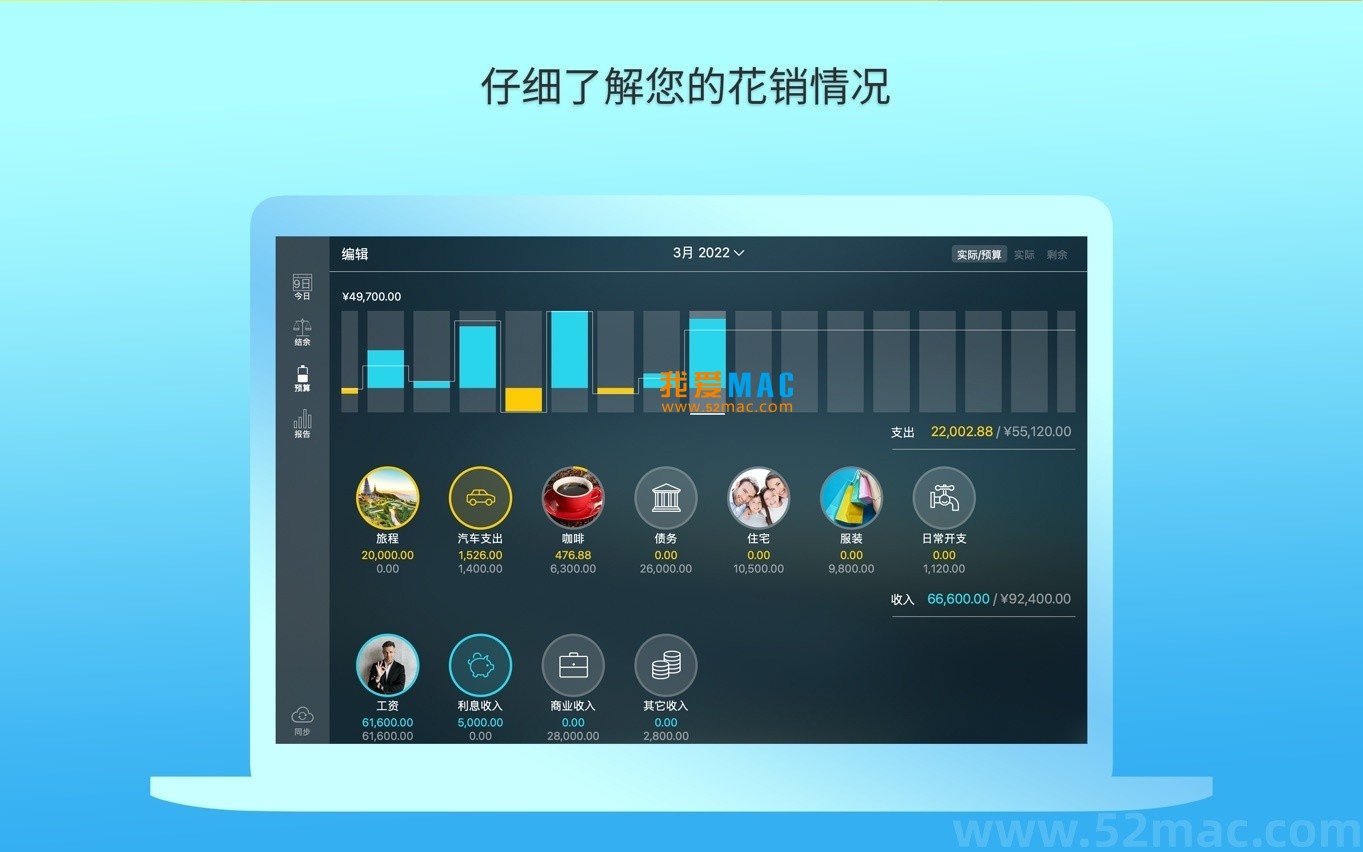


7. Detailed Installation Tutorial: Every Step from Download to Activation
Many friends may feel confused by the installation steps after downloading the software. Don’t worry, this guide will walk you through step by step to ensure you can use Money Pro smoothly.
Step 1: Download and Extract
After downloading from the “Love Mac” site, you will get a compressed file, usually in .zip or .dmg format. Double-click the file and the system will automatically extract it. If the system prompts “Cannot open,” go to “System Settings” > “Privacy & Security” and click “Open Anyway.”
Step 2: Install the Application
After extraction, you will see an icon named “Money Pro.” Drag it to the “Applications” folder. This will copy the program to your Mac. Wait a moment until the progress bar completes.
Step 3: First Launch and Activation
Open “Launchpad,” find the “Money Pro” icon, and click it. On first launch, the software will prompt you to enter an activation code. Copy and paste the activation code we provide and click “Activate.” If the code is correct, you will see a “Activation Successful” message.
Step 4: Initial Setup
After activation, the software will guide you through initial setup. You can choose to create a new account or import existing data. It is recommended to first create a “Test” account to familiarize yourself with the interface layout. Set your main currency type, such as RMB.
Step 5: Start Bookkeeping
After completing the initial setup, you can officially start your bookkeeping journey. Click the “+” button on the main interface to add a transaction. Enter the amount, category, account, and other information. Don’t forget to save. Now you have successfully installed and launched Money Pro.
8. FAQ (5-10 Questions and Answers)
During use, everyone will encounter some minor issues. We have compiled the most common ones to help you solve them quickly.
Question 1: What should I do if the activation code is invalid or expired?
Answer: First, please confirm that you did not copy extra spaces when copying the activation code. If it still says invalid, the code may have already been used. Please contact the customer service of the “Love Mac” site, and we will generate a new valid activation code for you.
Question 2: The software cannot sync to iPhone or iPad?
Answer: Cross-device synchronization requires a subscription to the Money Pro Sync service (PLUS or GOLD subscription). Please check your subscription status. If subscribed, ensure all devices are logged into the same iCloud account and that the iCloud sync switch for Money Pro is turned on.
Question 3: How to import bank statements?
Answer: Money Pro supports importing .ofx and .csv files. In the software menu bar, select “File” > “Import.” Choose your statement file, and the software will automatically parse and match categories. If the matching is inaccurate, you can adjust it manually.
Question 4: What are good ways to adjust when the budget is overspent?
Answer: Money Pro’s budget rollover feature is very useful. When a category is overspent, it automatically deducts from the next period’s budget. You can also manually adjust the budget amount or reclassify some expenses to other categories with a surplus.
Question 5: How to set up recurring bill reminders?
Answer: When adding a bill, select the “Repeat” option. You can set the bill’s recurrence cycle, such as “Monthly,” “Biweekly,” etc. In the “Reminder” option, you can set how many days in advance to remind you. This way, you won’t forget to pay rent or credit card bills.
Question 6: Does the software support multi-currency bookkeeping?
Answer: Fully supported. You can select different currencies for each account in the account settings. The software automatically converts based on real-time exchange rates and displays the multi-currency value of total assets in reports. This is especially friendly for users with overseas investments or spending.
Question 7: Is my financial data secure?
Answer: Very secure. Money Pro provides password protection; you can set an independent password for the entire database. Additionally, the software supports automatic and manual backups. It is recommended to regularly store backup files on iCloud or an external hard drive.
Question 8: How to use the direct online banking feature?
Answer: This feature requires a GOLD subscription. In “Account” settings, select “Connect Bank.” Search for your bank’s name and follow the prompts to log in to your online banking account. After authorization, the software will automatically download recent transaction records. This process is encrypted, and the bank does not provide your password to the software.
9. Common Mac Shortcuts Table (Money Pro Scenarios)
Mastering shortcuts can double your bookkeeping efficiency. The table below compiles the most frequently used shortcuts in Money Pro. We recommend bookmarking it.
| Shortcut Combination |
Function Description |
Applicable Scenario |
<td style="pa
Download info
This resource requires login to download
Log in
Note: This resource is for informational purposes. By using this resource, you agree that you accept full responsibility to the copyright holder. For questions, please
contact us.
×
![]()
Money Pro for Mac v2.11.14 Personal Finance App Chinese Activated Version Download




Ratings & reviews
No rating
Let’s rate it.