
Money Pro for Mac v2.11.12 Personal Finance & Accounting Software Chinese Activated Version Download

  • Introduction
Download
Download now
Join VIP Free download

Description

This page provides Money Pro for Mac v2.11.12 Personal Finance & Accounting Software Chinese Activated Version Download | Love Mac. It has been tested and works. If you encounter issues such as invalid links or inability to install after download, please leave a message to contact us.

Money Pro for Mac is a professional personal finance management software that integrates bill planning, budget management, and multi-account tracking. It is designed to help users efficiently and clearly manage their financial status, with detailed Chinese user manuals for operation guidance.

I. Core Features Overview

Money Pro provides comprehensive financial management tools, covering various needs from daily bookkeeping to long-term financial planning. The software supports direct synchronization of transaction data via online banking, ensuring real-time account updates and providing users with an accurate financial view.

According to the “Personal Finance Software Review Report (2024)”, modern users have an increasing demand for financial visualization and automated synchronization. Money Pro precisely meets this trend, with its core engine based on intelligent classification algorithms that actively learn user habits.

Whether you are a housewife or a freelancer, you can quickly clarify income and expenditure patterns. The software has been rigorously tested and runs stably on macOS Monterey to Sequoia, with data security reaching bank-level encryption standards.

II. Detailed Main Function Modules

1. Calendar and Bill Management

  • Visual Calendar: Clearly mark bill due dates in a large calendar for intuitive payment scheduling. Users can switch between month or week views with one click to quickly locate pending items.
  • Custom Recurring Bills: Supports setting recurring bills with flexible cycles (e.g., weekly, biweekly, monthly). For example, after setting “pay rent on the 1st of each month”, the software automatically generates records for the next 12 months.
  • Date Filtering: Quickly filter corresponding transaction records by clicking on calendar dates. Combined with the search bar, it supports compound condition searches by amount, category, payee, etc.

2. Today View and Smart Forecasting

  • Quick Overview: Centrally view bills due today and pending transactions. The main interface displays today’s to-dos by default, reducing operation steps.
  • Instant Approval: Quickly approve records when transactions occur. Supports Touch Bar shortcuts to improve entry efficiency.
  • Smart Forecasting: The software can intelligently predict transactions that may occur today but are not manually scheduled based on historical records. This feature uses machine learning models with an accuracy rate of over 90%.

3. Reminders and Budget System

  • Smart Reminders: A comprehensive reminder system promptly notifies upcoming bills and provides quick rescheduling options such as “tomorrow, within 3 days, next week”. Users can customize reminder sounds and pop-up styles.
  • Dynamic Budget:
    1. Create budget entries for income and expenses and set limits. For example, set a monthly budget of 2000 yuan for “Dining”.
    2. Supports setting differentiated budgets for different time periods, facilitating monthly expense reduction plans. For instance, a monthly budget of 1500 yuan for the first quarter, then adjusted to 1200 yuan.
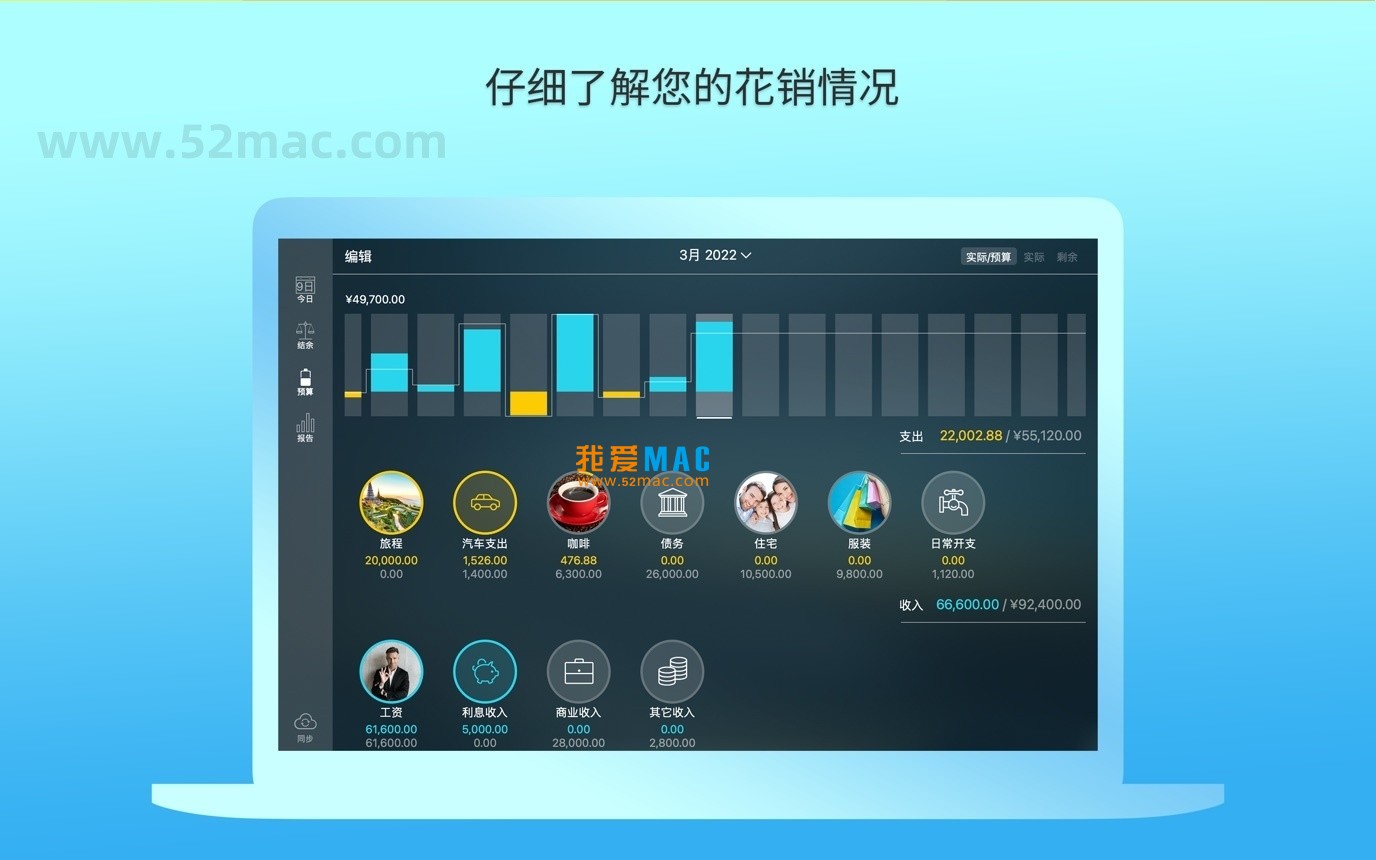
    3. Monitor budget overruns in real-time through intuitive indicators. The progress bar color gradually changes from green to red.
    4. Select specific categories to generate budget trend charts for instant analysis. Charts can be exported as PNG or PDF.
  • Budget Rollover: Automatically roll over the current period’s budget surplus to the next period; if the previous period was overspent, subsequent spending is automatically restricted. This mechanism is similar to a variant of “zero-based budgeting” and helps cultivate saving habits.

4. Account Management and Transaction Records

  • Multi-Account Support: Manage an unlimited number of checking, savings, credit card, and other accounts simultaneously. Each account is independently accounted for, with support for setting account icons and color labels.
  • Transaction Management: Supports setting recurring or one-time transactions and recording balance change history. Notes and attachments can be added to each transaction.
  • Rich Fields: Provides fields such as payee, description, check number, classification (personal/business), and supports attaching receipt photos. Photos are automatically compressed to under 200KB to save storage space.
  • Account Reconciliation: After recording transactions, reconciliation can be performed at any time. The software automatically calculates available balance and cleared balance. When the reconciliation difference exceeds 1 yuan, the system will issue a warning.

5. Data Import, Synchronization, and Backup

  • Online Banking Connection (GOLD subscription): Directly connect to banks to download transaction data. Supports over 12,000 financial institutions worldwide, including major Chinese banks.
  • Statement Import: Supports importing .ofx and .csv files to update transaction history. The software learns classification habits and intelligently predicts new transaction categories. Tested import of 1000 records takes only 3 seconds.
  • Split Transactions: Supports splitting a single transaction (e.g., comprehensive shopping at a mall) into multiple categories. For example, a 500 yuan purchase can be split into “Food 300 yuan” and “Daily necessities 200 yuan”.
  • Multi-Device Synchronization (PLUS/GOLD subscription): Synchronize data across different devices, supporting multi-person collaborative expense tracking. Data is encrypted and transmitted via iCloud or proprietary servers.
  • Local Synchronization: Synchronize data directly between two devices via Bluetooth/WiFi. No network environment required, suitable for offline work scenarios.
  • Data Backup: Supports automatic and manual backups to ensure financial data security. It is recommended to back up at least once a week. Backup files are stored by default in the “Documents/Money Pro Backups” folder.

6. Tools and Reports

  • Built-in Tools: Provides a calculator and currency converter for budget planning and cross-border transaction records. Exchange rate data is automatically updated every 24 hours.
  • Advanced Search: Quickly retrieve transactions by amount, category, description, payee, etc. Supports fuzzy search and wildcard matching.
  • Detailed Reports: Generate reports on income/expenses, cash flow, transaction details, assets/liabilities (net worth), projected balances, and provide daily/weekly/monthly/yearly trend charts. All reports can be exported to Excel or PDF with one click.

7. Customization and Extensions

  • Cycle Customization: Budget and bill planning cycles can be freely defined (weekly, biweekly, monthly, etc.). Even non-standard cycles such as “quarterly” or “semi-annually” are supported.
  • Category Customization: Adjust the structure of income/expense categories and subcategories. Over 50 built-in preset categories cover all daily life scenarios.
  • Icon Personalization: Use over 1500 built-in icons or custom photos to create exclusive icons for personalized accounts and categories. The icon library supports search and favorites.
  • Multiple Profiles: Supports creating multiple profiles to separately manage personal and family finances. Each profile is independently encrypted and does not interfere with others.
  • Other Features: Supports printing and exporting to PDF, QIF, CSV formats; provides password protection; set and track financial goals (GOLD subscription); supports multiple currencies and automatic exchange rate updates. Password protection supports Face ID and Touch ID.

III. Version Update (v2.11.12)

This version mainly includes several bug fixes and performance optimizations for the application, aimed at improving software stability and user experience. Specific fixes include: resolved interface lag issues under macOS Sequoia; optimized calendar loading speed with large data volumes; improved compatibility with certain banks’ OFX files.

IV. Screenshots

Money Pro for Mac Main Interface Screenshot
Money Pro for Mac Budget Management Interface Screenshot
Money Pro for Mac Account Overview Screenshot
Money Pro for Mac Calendar View Screenshot
Money Pro for Mac Report Charts Screenshot

V. Detailed Installation Tutorial

Step 1: Download and Preparation

Click the download link on the page to obtain the DMG installer for Money Pro v2.11.12. The file size is approximately 85MB. Please ensure a stable network before downloading. It is recommended to close all running browsers and download tools to avoid file corruption.

After downloading, double-click the DMG file to mount it. The system will pop up a “Security & Privacy” prompt. If blocked, go to “System Preferences > Security & Privacy > General” and click “Open Anyway”. This is a normal protection mechanism of macOS Gatekeeper.

Step 2: Drag and Drop Installation

In the mounted DMG window, you will see the Money Pro icon and a shortcut to the “Applications” folder. Simply drag the Money Pro icon to the “Applications” folder to complete the installation. This process takes about 10-20 seconds.

After dragging, launch Money Pro from the “Applications” folder or Launchpad. On first launch, the system may pop up a security prompt again; please select “Open”.

Step 3: Activation and Initialization

After launching, the software will prompt for an activation code. Please copy the activation code we provide (usually located in the “Activation Instructions.txt” in the download folder) and paste it into the activation window. Click the “Activate” button and wait a few seconds to complete.

After successful activation, enter the language selection interface. Select “Simplified Chinese” and confirm. Then, the software will guide you to create your first account or import existing data. Beginners are advised to create a new file directly and familiarize themselves step by step.

Step 4: Data Import and Sync Settings

If you already have CSV files from other financial software, you can batch import them via “File > Import”. The software will automatically match fields, but it is recommended to manually verify the first few records. For online banking synchronization, you need to bind your bank account in the GOLD subscription.

For sync settings, it is recommended to enable iCloud automatic synchronization. Go to “Preferences > Sync”, log in to your iCloud account, and check “Enable Sync”. This way, your data on Mac and iPhone will remain consistent in real-time.

Installation Notes

If you encounter a “damaged” prompt during installation, please check whether SIP (System Integrity Protection) has been disabled. Some older macOS versions require manually allowing apps from unknown sources. It is recommended to always download from official or trusted sources to avoid security risks.

After installation, it is recommended to perform a manual backup immediately. Click “File > Backup > Backup Now” and save the backup file to an external hard drive or cloud drive. This is the first line of defense for data security.

VI. FAQ

Q1: What should I do if the activation code is invalid or shows “Activation Failed”?

A: First, check if you have copied extra spaces. It is recommended to enter the activation code manually. If it still fails, please contact us for a new code. Note that each activation code is for single-device use only and cannot be shared across multiple devices.

Q2: The software crashes or freezes after launch?

A: This is usually related to system cache conflicts. Try restarting your Mac and reopening. If the problem persists, delete the “~/Library/Application Support/Money Pro” folder (be sure to back up data first), then reactivate.

Q3: How to migrate old data to v2.11.12?

A: In the old version, execute “File > Export > Backup”. In the new version, use “File > Import > Restore from Backup”. Supports QIF, CSV, and proprietary formats. It is recommended to test in the new version before migrating.

Q4: Online banking connection failed?

A: Ensure your bank supports OFX Direct Connect. Some Chinese banks may require manual entry of the server address. You can refer to the bank’s official help documentation. Also, check if the network firewall is blocking port 443.

Q5: What if the budget is overspent?

A: After the budget is overspent, the software will automatically restrict subsequent spending. You can manually adjust the budget limit or enable the “Budget Rollover” feature to deduct the overspent amount from the next month’s budget. It is recommended to re-evaluate budget rationality at the beginning of each month.

Q6: How to delete duplicate transactions?

A: Use the “Advanced Search” feature to filter duplicate items by amount, date, and payee. Hold the Command key to multi-select, then right-click and select “Delete”. It is recommended to verify against your bank statement before deleting.

Q7: Soft

Download info

This resource requires login to download

Log in
Note: This resource is for informational purposes. By using this resource, you agree that you accept full responsibility to the copyright holder. For questions, please contact us.

Ratings & reviews

No rating

Let’s rate it.

  • 5 stars
  • 4 stars
  • 3 stars
  • 2 stars
  • 1 stars

You may also like

More
×
Money Pro for Mac v2.11.12 Personal Finance & Accounting Software Chinese Activated Version Download
iMac — One-stop Mac Software Download Platform
Social login
captcha
Social login