This page provides Money Pro for Mac v2.11.7 Financial Accounting Software Chinese Activated Version Download | Love Mac, tested and working. If you encounter issues such as invalid links or inability to install after download, please leave a message to contact us.
Money Pro for Mac is a professional financial management software integrating bill planning, budget management, and multi-account tracking. It is designed to help users efficiently and clearly manage personal and family finances. The software offers seamless synchronization and comes with a detailed Chinese user manual to ensure users can fully utilize its powerful features.
Through secure connections with online banks, Money Pro can automatically download transaction records, enabling real-time updates and unified management of financial data.
Core Value: Money Pro is committed to providing users with a comprehensive, flexible, and intuitive financial management platform. Through automation and intelligent tools, it reduces the burden of bookkeeping and enhances financial planning capabilities.
I. Core Features
The following are the main functional modules of Money Pro, designed to provide a comprehensive and flexible financial management experience.
1.1 Calendar and Bill Management
- Visual Calendar: Clearly mark all bill due dates in a large calendar to avoid overdue payments.
- Custom Recurring Bills: Supports setting recurring bills at any interval (e.g., weekly, biweekly, monthly, etc.).
- Date Filtering: Quickly filter and view transactions for a specific date by clicking on a calendar date.
1.2 Today View and Quick Actions
- Due Bills Overview: Quickly view all pending bills for the day.
- Instant Transaction Approval: Quickly confirm and record transactions when they occur.
- Smart Prediction: The software can intelligently predict transactions that may occur on the day but are not manually scheduled, based on historical records.
1.3 Smart Reminder System
- Comprehensive Reminders: Remind upcoming bills in advance through the notification system.
- Quick Rescheduling: Provides convenient options (e.g., “Tomorrow,” “Within 3 days,” “Next week”) to adjust bill plans with one click.
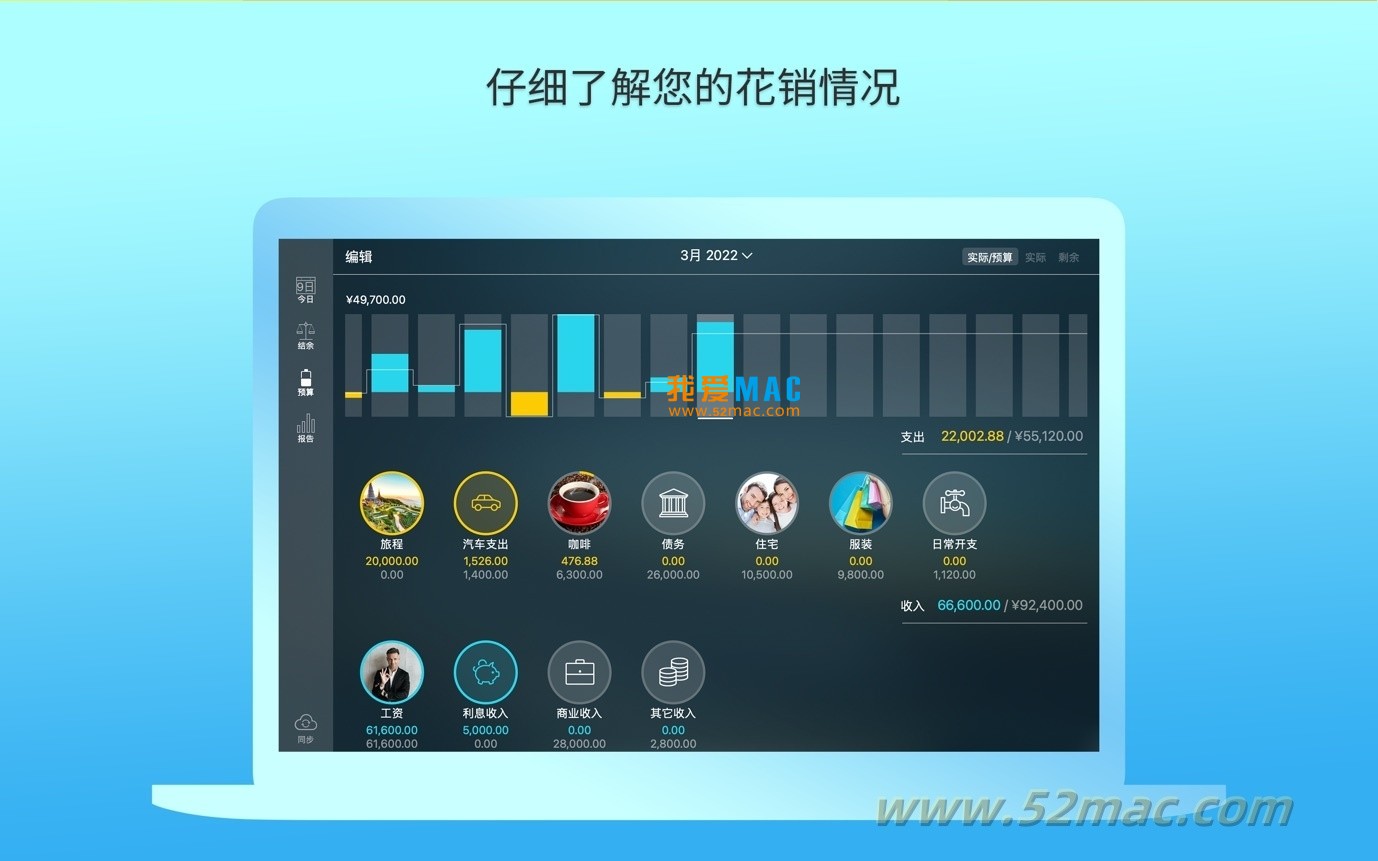
1.4 Budget Planning and Control
- Custom Budget Items: Create independent budgets for various income and expenses and set limits.
- Flexible Periodic Budgets: Supports setting different budget limits for different time periods, suitable for gradual expense reduction plans.
- Real-time Progress Tracking: After adding transactions, view the execution progress of each category and the total budget in real time.
- Overspending Warning Indicator: Monitor budget overspending through intuitive visual indicators.
- Budget Trend Analysis: Select any category to instantly generate a budget trend chart for analysis.
1.5 Budget Carryover Function
- Balance Carryover: Automatically transfer the balance of the current budget period to the next period.
- Overspending Limit: If the previous period was overspent, the carryover function can automatically limit spending in subsequent periods to help restore financial balance.
1.6 Account and Transaction Management (Checkbook Register)
- Multi-Account Support: Create and manage unlimited checking, savings, credit card, and other accounts.
- Transaction Types: Supports setting recurring or one-time transactions.
- Balance History: Complete record of account balance changes.
- Detailed Record Fields: Provides fields such as payee, description, check number, category (personal/business) for refined management.
- Receipt Attachments: Supports adding photo receipts as attachments to transactions.
1.7 Account Reconciliation
- Convenient Reconciliation Process: After recording transactions, you can verify and settle them later.
- Automatic Balance Calculation: Automatically distinguishes and calculates available balance and cleared balance.
1.8 Data Import and Online Services
- Online Banking Connection (GOLD Subscription): Securely connect to banks and automatically download transaction data.
- Statement Import: Supports importing bank statements in .ofx and .csv formats to quickly update account transaction history.
- Smart Category Learning: The software learns your categorization habits and intelligently predicts categories for imported transactions.
1.9 Advanced Transaction Processing
- Split Transactions: Supports splitting a single transaction into multiple categories (e.g., when purchasing multiple types of items at a store in one go).
- Built-in Calculator and Currency Converter: Calculate directly when planning budgets; convert multiple currencies in real time when entering transactions.
1.10 Search and Reports
- Powerful Search Engine: Quickly search transactions by amount, category, description, payee, etc.
- Detailed Financial Reports: Provides multi-dimensional reports such as income/expense, cash flow, transaction details, assets/debts (net worth), projected balance, etc.
- Trend Charts: Generate daily, weekly, monthly, and yearly financial trend charts to visually display changes in financial status.
1.11 High Customizability
- Period Customization: Budget and bill planning periods can be fully customized.
- Category Structure Customization: Freely adjust the category and subcategory structure of income and expenses.
- Icon Personalization: Use over 1500 built-in icons or custom photos to create unique identifiers for accounts and categories.
1.12 Synchronization, Backup, and Multi-User Support
- Cross-Device Synchronization (PLUS/GOLD Subscription): Synchronize financial data across different devices for multi-platform access.
- Family Budget Synchronization: Synchronize data directly between two devices via Bluetooth or Wi-Fi, facilitating family collaboration.
- Automatic and Manual Backup: The software automatically backs up data during key operations and also supports manual backup creation.
- Multiple Profiles: Create multiple independent profiles to manage personal and family finances separately.
1.13 Other Practical Features
- Export and Print: Supports exporting data to PDF, QIF, CSV formats and printing reports.
- Security Protection: Provides password protection to safeguard financial privacy.
- Goal Tracking (GOLD Subscription): Set and track financial goals such as savings or spending.
- Multi-Currency Support: Supports multiple currencies with automatic exchange rate updates.
II. Version Update (v2.11.7)
This update focuses on internal optimization and system compatibility improvements:
- Updated core application libraries and software development kits (SDK).
- Fixed several issues identified in previous versions.
- Optimized the user interface to ensure perfect compatibility with the new version of the operating system.
III. Software Interface Screenshots
The following are screenshots of the main functional interfaces of Money Pro for Mac:


IV. Detailed Installation Tutorial: Step-by-Step Guide
Many friends are confused about the installation process after downloading. Here we have compiled a set of verified installation steps; follow them to use it smoothly.
4.1 Download and Preparation
- Download Image: Download the Money Pro installation package from the link provided on this page, usually in .dmg format.
- Check System: Ensure your Mac is running macOS 10.12 or later, which is the official minimum requirement.
- Security Settings: Open “System Preferences” > “Security & Privacy” and allow apps from the App Store and identified developers to avoid installation being blocked.
4.2 Installation Steps
- Mount Image: Double-click the downloaded .dmg file; the system will automatically mount it and pop up an installation window.
- Drag and Drop Installation: In the pop-up window, drag the “Money Pro” icon to the “Applications” folder icon on the right. This is the standard installation method for Mac software.
- Wait for Copying: The system will start copying files, which usually takes only a few seconds. If prompted for a password, enter your Mac login password.
- First Launch: Open the “Applications” folder, find and double-click the “Money Pro” icon to launch. The first launch may be slow as the software configures the environment.
4.3 Activation and Configuration
- Activation Steps: After launching, the software will pop up an activation window. Enter the activation code or serial number we provide and click “Activate.” Note that activation methods may vary slightly between versions; please refer to the instructions in the compressed package.
- Language Settings: After activation, go to “Preferences” > “General” and switch the language to “Simplified Chinese.” Restart the software to enjoy the full Chinese interface.
- Data Import: If you have used other accounting software before, you can select “Import” from the “File” menu, supporting formats such as CSV and QIF.
V. FAQ
Based on user feedback, we have summarized some common questions to help you quickly resolve doubts.
5.1 What should I do if I get the message “Cannot be opened because Apple cannot check it for malicious software” during installation?
This is a macOS security mechanism. You can go to “System Preferences” > “Security & Privacy” > “General” and click the “Open Anyway” button. If the button is grayed out, first click the lock icon in the lower left corner to unlock.
5.2 The activation code is invalid or expired after entering?
Please first confirm whether you entered the activation code provided by our site. Sometimes copying and pasting may include spaces; it is recommended to enter it manually. If the problem persists, the activation code may have been used; please contact us for a new one.
5.3 How does the software sync data with iPhone or iPad?
Money Pro supports synchronization via iCloud or its own server. On the Mac, go to “Preferences” > “Sync,” log in with your iCloud account or register a Money Pro account, and then log in with the same account on your iOS device.
5.4 How to create a family shared budget?
You can create a “Family” profile in “File” > “New Profile.” Then, through the “Sync” function, invite family members to join. They need to install Money Pro on their devices and accept the invitation.
5.5 Which banks does the software support for automatic transaction import?
Money Pro’s GOLD subscription service supports automatic transaction import from thousands of banks worldwide.




Ratings & reviews
No rating
Let’s rate it.