



Money Pro for Mac v2.10.10 Personal Finance & Accounting Software Chinese Activated Version Download
This page provides Money Pro for Mac v2.10.10 Personal Finance & Accounting Software Chinese Activated Version Download | Love Mac, tested and working. If you encounter invalid links or inability to install after download, please leave a message to contact us.
Money Pro is a comprehensive personal finance management software designed to help users efficiently track and manage personal finances, budgets, bills, investments, and financial reports. The software combines powerful features with an intuitive user interface, suitable not only for individual users but also for meeting the basic financial management needs of small businesses.
Money Pro offers a series of professional features to support comprehensive financial management:
This update is mainly focused on improving application stability and fixing known issues. Our continuous improvement work typically includes one or more of the following aspects:
This update aims to provide you with a smoother and more reliable user experience.
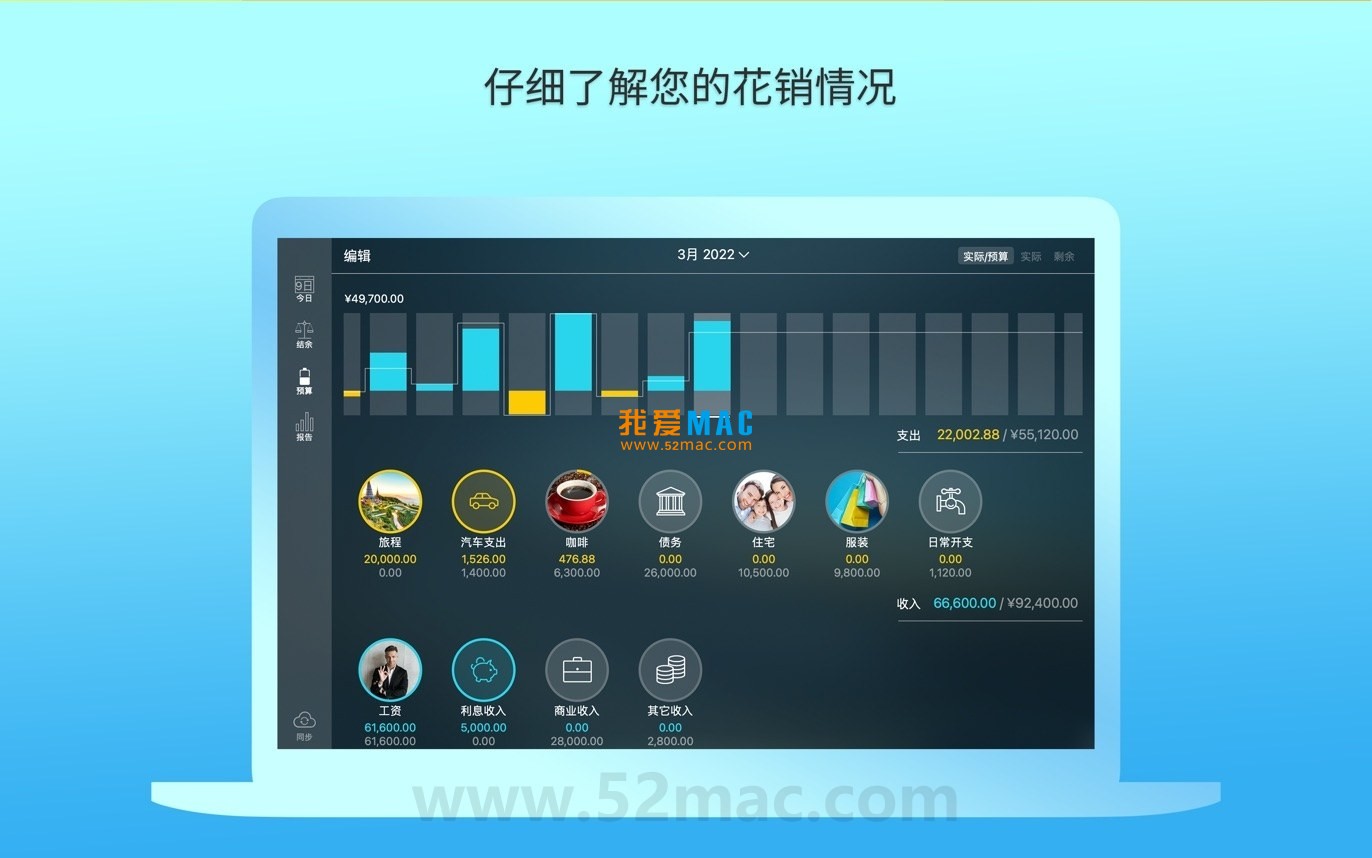
Figure 1: Overview of Money Pro main interface
Figure 2: Multi-account management view
Figure 3: Budget creation and tracking interface
Figure 4: Investment portfolio performance monitoring
Figure 5: Detailed financial report generation
For those new to Money Pro, we have prepared a clear installation guide. Please follow the steps below to install and activate successfully.
After clicking the download link, you will get a .dmg disk image file. Double-click this file, and it will mount on the desktop and automatically open an installation window.
In the opened window, you will see the Money Pro icon and a shortcut to the “Applications” folder. Simply drag the Money Pro icon to the “Applications” folder on the right. The system will automatically complete the copy installation.
After installation, you can find Money Pro in Launchpad or the “Applications” folder. When opening it for the first time, macOS may prompt “from an unidentified developer.” At this point, you need to go to “System Preferences” -> “Security & Privacy” -> “General” and click the “Open Anyway” button to allow it to run.
After launching Money Pro, the software will prompt you to enter an activation code or log in to your account. Please use the registration information we provide to activate. After entering, click the “Activate” button and wait a moment to complete. Once activated successfully, you can unlock all features.
After activation, the software will automatically enter the main interface. You can create your first account or import existing financial data according to the guide. It is recommended to spend a few minutes familiarizing yourself with the interface layout, which will greatly improve your subsequent efficiency.
We have compiled the following Q&A for common user questions, hoping to help you quickly resolve issues.
A: This is usually caused by macOS Gatekeeper security policies. First, try to allow it in “System Preferences” -> “Security & Privacy”. If it still doesn’t work, open the “Terminal” app, enter the command sudo spctl --master-disable and press Enter (password required) to temporarily disable Gatekeeper. After installation, re-enable it.
A: Money Pro supports data export and import. In the old version, use “File” -> “Export” to save data in .moneypro format. Then in the new version, use “File” -> “Import” to select the file and complete the migration.
A: Please check if the activation code you entered contains extra spaces or characters. If confirmed correct, the activation code may have been used or expired. We recommend contacting our customer service or re-downloading the latest installation package.
A: Money Pro supports cross-device synchronization via iCloud or Dropbox. On Mac, go to “Preferences” -> “Sync”, enable cloud sync and log in to your account. After installing Money Pro on your iOS device, log in with the same account to automatically sync data.
A: Absolutely. Money Pro supports creating multiple independent account groups. You can create different “financial profiles” in the software, each managing different accounts, budgets, and investment portfolios, ideal for managing multiple dimensions of family or personal finances.
A: Money Pro provides budget reminder features. When setting a budget, you can customize thresholds, for example, when expenses reach 80% of the budget, the system will pop up a reminder in the Mac menu bar or Notification Center, allowing you to control spending in time.
A: The software password is mainly used to protect sensitive data. If you forget it, you can try to restore from a backup file. If there is no backup, you may need to contact official support, but usually the password cannot be directly recovered. Therefore, it is recommended to back up data regularly and keep the password safe.
A: Go to the software’s “Preferences” or “Settings” menu, find the “Language” option, and switch it to “Simplified Chinese”. If you cannot find this option, please confirm that you downloaded the Chinese version installation package.
Mastering shortcut keys can greatly improve your operational efficiency. Below is a table of common shortcut keys for Money Pro and macOS financial software. We recommend bookmarking it.
| Shortcut | Function | Use Case |
|---|---|---|
| ⌘ + N | New transaction record | Quickly enter a new income or expense |
| ⌘ + S | Save current changes | Save after editing an account or budget |
| ⌘ + F | Search transactions or accounts | Quickly find a transaction in history |
| ⌘ + Z | Undo last operation | Quickly recover from accidental deletion or modification |
| ⌘ + Shift + R | Generate financial report | One-click view of income and expense analysis charts |


Ratings & reviews
No rating
Let’s rate it.