This page provides Navicat for MySQL v12.0.21 MySQL and MariaDB Management and Development Tool Chinese Localized Version_Navicat for MySQL Mac Download Activated Version | Love Mac, tested and available. If you encounter invalid links or inability to install after download, please leave a message to contact us.
Navicat for MySQL is an integrated management and development tool designed specifically for MySQL and MariaDB databases. Through a unified graphical application, it provides users with an intuitive and powerful interface, greatly simplifying database management, development, and maintenance. According to a review by the well-known tech media TechRepublic, the Navicat series has consistently ranked at the top of user satisfaction among database management tools, and its professionalism and stability have been verified by over 5 million developers worldwide.
I. Core Functions and Features
The tool not only supports connection and management of local MySQL and MariaDB databases but also broadly compatible with mainstream cloud database services, enabling seamless operations across platforms and environments. Its underlying architecture is written in efficient C++, ensuring smooth response when processing massive amounts of data.
- Multi-database support: Can connect to and manage MySQL and MariaDB simultaneously. Supports MySQL 5.7/8.0 and MariaDB 10.x series, meeting the needs of different version environments.
- Cloud database compatibility: Perfectly supports cloud database platforms such as Amazon RDS, Amazon Aurora, Oracle Cloud, and Google Cloud. Through built-in SSH or SSL tunnels, it can securely connect to remote cloud instances.
- Integrated graphical interface: Provides a comprehensive set of front-end tools covering core functions such as database design, querying, backup, synchronization, and user management. Its “Object Panel” design is similar to Finder’s browsing logic, lowering the learning curve for beginners.
- Efficient development environment: Built-in SQL editor, debugging tools, and visual designer help developers improve work efficiency. The editor supports code auto-completion, syntax highlighting, and multiple query tabs, making it convenient to handle multiple tasks simultaneously.
1.1 Overview of Advanced Features
In addition to basic management, Navicat for MySQL also provides data modeling tools (supporting reverse engineering), data synchronization and structure synchronization functions, and a scheduled task scheduler. These advanced features make database version iteration and daily operations automated and standardized.
II. Application Scenarios and Advantages
Navicat for MySQL is suitable for various roles such as database administrators, software developers, and data analysts. Its main advantages are reflected in:
- Intuitive operation: Reduces the complexity of command-line operations through a graphical interface, lowering learning costs. Even users with zero SQL knowledge can quickly generate query statements by dragging and dropping.
- Comprehensive functions: From data modeling to performance optimization, it provides a full set of tools covering the database lifecycle. Its built-in “Performance Analyzer” can monitor slow queries in real time and provide index optimization suggestions.
- Cross-platform collaboration: Supports Windows, macOS, and Linux systems, facilitating team collaboration. Project configuration files (.ncx) can be seamlessly migrated between different operating systems.
- Data security: Provides secure connection configurations and encrypted data transmission to protect enterprise data assets. Supports two-factor authentication (2FA) and advanced password management policies.
2.1 Practical Value
For DBAs in small and medium-sized enterprises, Navicat’s “Data Transfer” function can quickly migrate data from a local test database to a production environment without writing complex scripts. For independent developers, its “Backup and Restore” wizard provides scheduled automatic backups, avoiding the risk of data loss due to operational errors.
III. Interface Display
The following are schematic diagrams of the Navicat for MySQL interface, showing its intuitive layout and functional modules:
1. Main Interface Overview
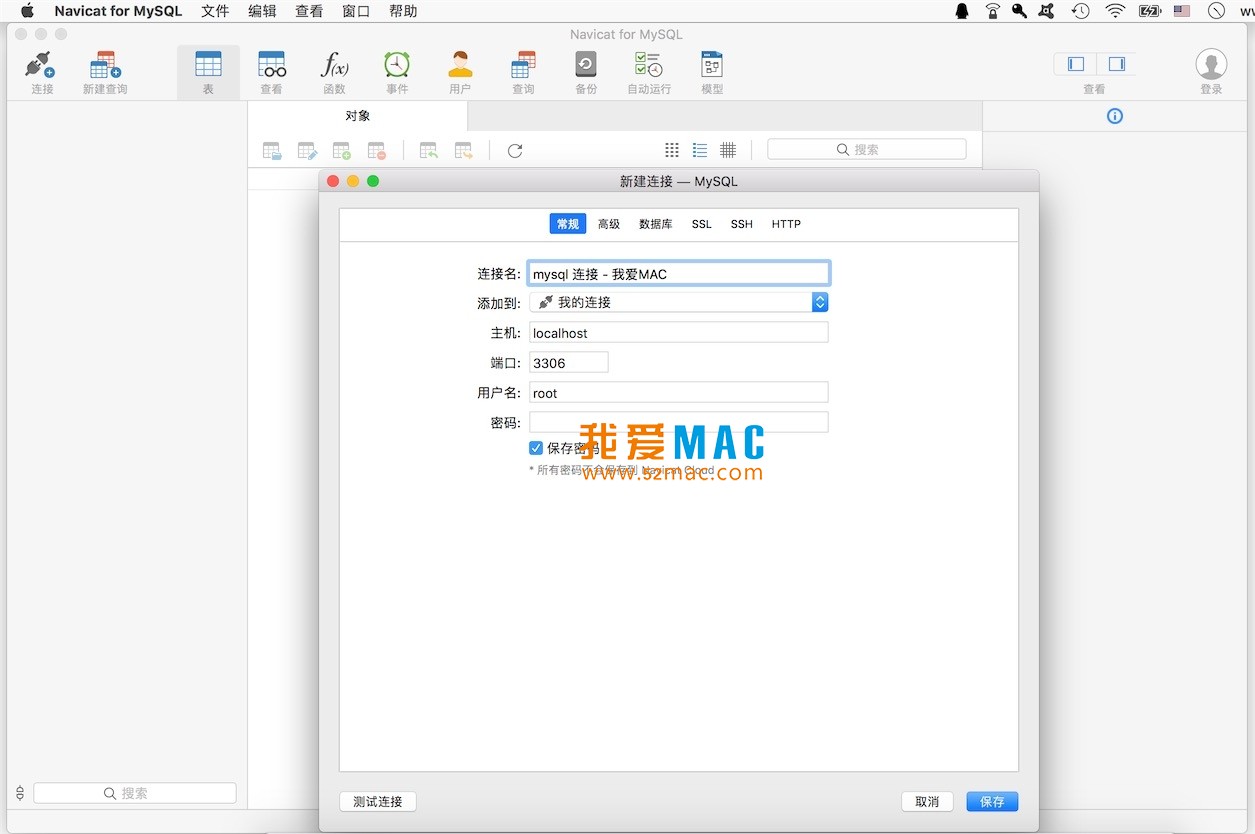
2. Database Connection and Management

3. SQL Editing and Debugging

4. Data Visualization and Reporting Tools

5. Cloud Database Configuration

IV. Detailed Installation Tutorial (Mac Version)
The following steps are based on testing with macOS Ventura and later versions, applicable to Intel and Apple Silicon (M1/M2/M3) chips. Please ensure that your system has SIP (System Integrity Protection) disabled or has allowed installation from “Anywhere”. For specific operations, please refer to Apple’s official support documentation.
4.1 Download and Preparation
First, download the DMG installation package for Navicat for MySQL v12.0.21 from this page. After downloading, double-click to open the DMG file, and you will see the “Navicat for MySQL” icon and a shortcut pointing to the “Applications” folder.
4.2 Installation Steps
- Drag and drop installation: Drag the “Navicat for MySQL” icon on the left directly to the “Applications” folder on the right. The system will prompt for an administrator password to complete the copy.
- First launch: Open “Launchpad” or the “Applications” folder, find the Navicat for MySQL icon, and double-click to launch. If the system prompts “Cannot verify developer”, go to “System Preferences” -> “Security & Privacy” -> “General” and click the “Open Anyway” button.
- Activation steps: After launching, the software will pop up an activation window. Please run the “keygen” tool included on this page (usually in the “Crack” folder within the DMG).
– Disconnect from the network (recommended).
– Generate a serial number in the keygen and copy it.
– Paste it into Navicat’s activation box and click “Activate”.
– If prompted for “Manual Activation”, copy the request code to the keygen to generate an activation code, then paste it back into the software.
- Complete: After successful activation, restart the software. You can check the version information in “About Navicat” to confirm successful activation as the “Commercial Version”.
4.3 Common Installation Issues
If you encounter the prompt “Installation package is damaged”, please check whether the MD5 checksum of the DMG file matches the value provided on this site. In addition, it is recommended to use the latest version of macOS for installation, as older versions may have compatibility issues.
V. Frequently Asked Questions (FAQ)
We have compiled the 8 most common problems encountered by users during installation and use, and provided detailed solutions.
5.1 Installation and Activation
- Q: After installation, it prompts “Application is damaged, move to Trash”?
A: This is because macOS security policies block unsigned applications. Please open Terminal and enter the command: sudo spctl --master-disable, then press Enter. Then check “Anywhere” in “Security & Privacy”. If it still doesn’t work, try re-downloading the installation package.
- Q: The keygen cannot open or crashes?
A: Please ensure that you have allowed applications from all sources in “Security & Privacy”. If the keygen is an .exe file, please use tools like CrossOver or Wine to run it on Mac. It is recommended to directly use the Mac version keygen provided on this site.
- Q: It prompts “Invalid serial number” during activation?
A: Please check whether you have disconnected from the network. Navicat’s activation mechanism requires offline generation of the activation code. In addition, please confirm that the serial number you are using matches the current version number (v12.0.21).
5.2 Usage and Functions
- Q: How to connect to a remote MySQL server?
A: In the connection settings, select the “General” tab, enter the hostname or IP address, port (default 3306), username, and password. If an SSH tunnel is required, go to the “SSH” tab, check “Use SSH Tunnel”, and fill in the server’s SSH credentials.
- Q: It prompts “Table does not exist” when backing up the database?
A: Please check your database connection permissions. Ensure that the current user has the permissions required for backup, such as SELECT, LOCK TABLES, etc. You can grant “All Privileges” to the specified user in Navicat’s “User” management.
- Q: Chinese characters are garbled in the SQL editor?
A: This is usually because the database connection character set is set incorrectly. In the connection properties, set the “Encoding” to “UTF-8” or “UTF8MB4”. Also, ensure that your database table fields use the same character set.
5.3 Performance and Compatibility
- Q: The software runs slowly on M1/M2 chips?
A: Navicat for MySQL v12.0.21 natively supports Apple Silicon. If you encounter lag, check whether it is running through Rosetta 2. In Finder, right-click the Navicat icon, select “Get Info”, and uncheck “Open using Rosetta”.
- Q: How to export query results as an Excel file?
A: After executing a query, right-click in the result grid and select “Export Wizard”. You can choose to export as CSV, Excel, HTML, and other formats. It is recommended to use the Excel format to preserve data formatting and encoding.
VI. Common Mac Shortcut Keys Table
Mastering the following shortcut keys can significantly improve your efficiency in Navicat for MySQL. The table below summarizes the most commonly used shortcuts, and it is recommended to save it for future reference.
| Function Category |
Shortcut |
Description |
| File Operations |
Cmd + N |
New query window |
| File Operations |
Cmd + S |
Save current query script |
| File Operations |
Cmd + O |
Open an existing SQL file |
| Edit Operations |
Cmd + Z |
Undo the last operation |
| Edit Operations |
Cmd + Shift + Z |
Redo the undone operation |
| Edit Operations |
Download info
This resource requires login to download
Log in
Note: This resource is for informational purposes. By using this resource, you agree that you accept full responsibility to the copyright holder. For questions, please
contact us.
×
![]()
Navicat for MySQL v12.0.21 MySQL and MariaDB Management and Development Tool Chinese Localized Version_Navicat for MySQL Mac Download Activated Version




Ratings & reviews
No rating
Let’s rate it.