



Valentina Studio for Mac v12.0 Database Management GUI Tool Activated Version Download
This page provides Valentina Studio for Mac v12.0 Database Management GUI Tool Activated Version Download | Love Mac, tested and working. If you encounter invalid links or installation issues after download, please leave a comment to contact us.
Valentina Studio for Mac is a powerful cross-platform database management tool designed for database architects, developers, database administrators (DBAs), and even end users. It is compatible with various mainstream relational database management systems (RDBMS), including MySQL, PostgreSQL, SQLite, SQL Server, and ValentinaDB. The tool integrates data modeling, database schema management, SQL development, and server management, providing an efficient and visual operation experience.
In actual development work, the choice of database management tool directly affects work efficiency. With its lightweight architecture and rich features, Valentina Studio has become a highly regarded choice on the Mac platform. Whether for daily queries or complex migrations, it is up to the task.
Valentina Studio includes a series of powerful visual editors covering the entire database development and management workflow:
Users can open multiple editors simultaneously in tabs and operate across different databases or servers. Additionally, the tool offers practical functions such as data import/export, dump, diagnostics, cloning, and index rebuilding.
It is worth mentioning that all editors in Valentina Studio support drag-and-drop operations. For example, you can drag a table name directly from the schema tree to the SQL editor, and the system will automatically insert the full table name, saving manual typing time.
For professional users, Valentina Studio offers the following enhanced features:
For team collaboration scenarios, Valentina Studio’s version control integration is particularly useful. You can include database schema files in Git management, trace history for every change, and avoid risks from misoperations.
This update marks Valentina Studio’s expansion from traditional relational databases to the NoSQL field. For developers using both MySQL and MongoDB, all operations can now be completed in the same tool without switching software.
The workspace feature is particularly suitable for developers working on multiple projects in parallel. You can create separate workspaces for each project, save dedicated database connections and query snippets, and avoid information clutter.
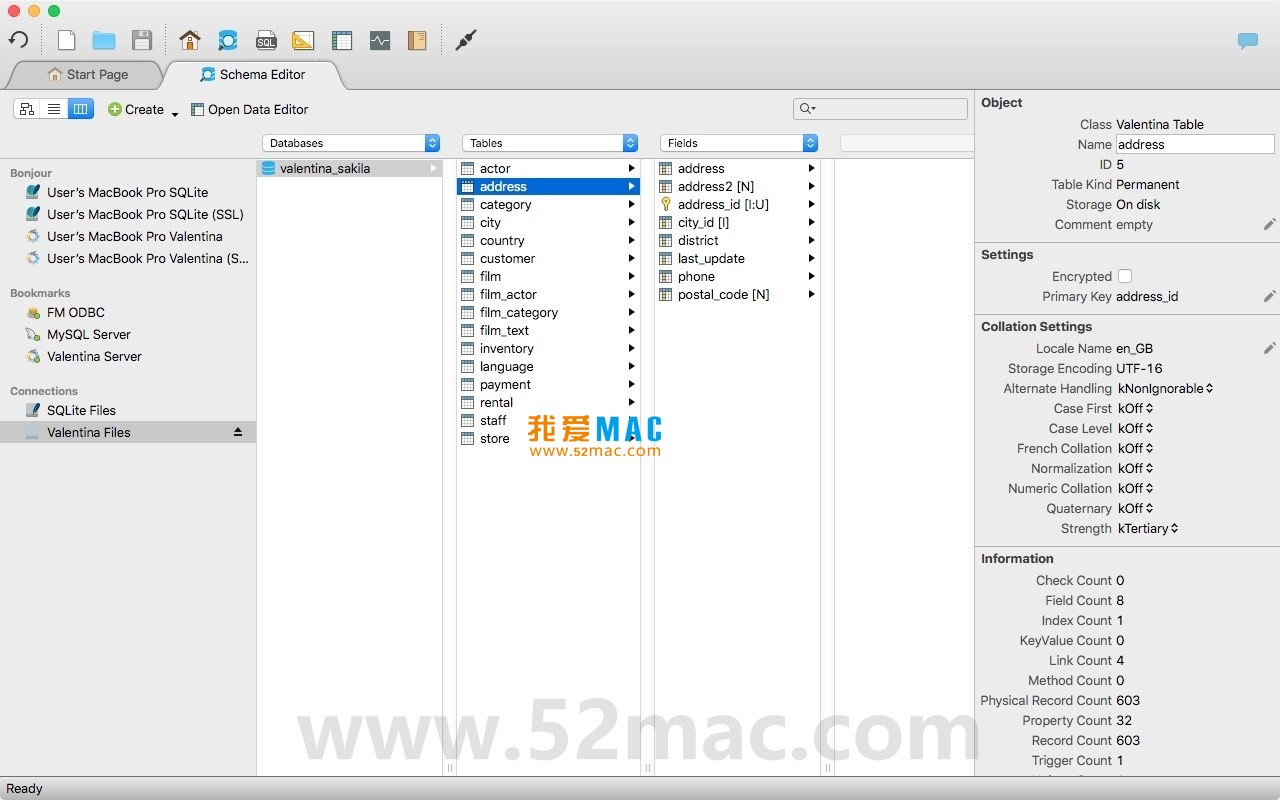
As can be seen from the screenshots, Valentina Studio’s interface design follows the native Mac style with a clear layout. The schema tree on the left allows quick browsing of all database objects, and the editor area on the right supports multi-tab switching, making operations very smooth.
The installation process of Valentina Studio for Mac is not complicated, but to ensure smooth use, it is recommended to follow these steps:
Download the Valentina Studio for Mac v12.0 activated version from the link provided on this page. The file format is usually .dmg or .zip. If it cannot be opened after download, check the Security & Privacy settings in System Preferences.
Double-click the downloaded .dmg file, and the system will automatically mount and pop up the installation window. Drag the Valentina Studio icon to the Applications folder. This is the standard installation method for Mac software.
Open Launchpad, find the Valentina Studio icon, and click it. On first launch, the system may prompt “cannot verify developer,” which is a macOS security mechanism. Go to “System Preferences” > “Security & Privacy” > “General” and click “Open Anyway.”
After installation, open Valentina Studio. If prompted for an activation code, use the activation information provided on this page. After entering the correct activation code, the software will display an “Activation Successful” message. Once activated, all advanced features are unlocked.
After launching, click the “New Connection” button in the upper left corner, select your database type (MySQL, PostgreSQL, etc.), and fill in the server address, port, username, and password. Click “Test Connection” to confirm, then save.
After a successful connection, the schema tree on the left will display the database list. Try expanding any database to view its tables, views, and other objects to confirm everything is working. If you encounter garbled characters, adjust the character encoding in the connection settings.
If you encounter any problems during installation, please refer to the FAQ section below. Most issues can be resolved by adjusting system settings or re-downloading.
This is caused by macOS security mechanisms. Open the “Terminal” app and enter the following command: sudo spctl --master-disable. Then go to “System Preferences” > “Security & Privacy” and select “Anywhere.” If the problem persists, re-download the installer.
Check if you have copied extra spaces. It is recommended to enter the activation code manually to avoid formatting issues from copy-paste. If it still doesn’t work, confirm that you downloaded version v12.0, as activation codes for older versions are not compatible.
Valentina Studio includes drivers for common databases, but some versions may require additional installation. Go to “Preferences” > “Drivers” and check if the MySQL driver is enabled. If not, click the “Download” button to get it automatically.
In the SQL editor, click “File” > “Open” and select your .sql file. Or drag the file directly into the SQL editor. It is recommended to check the syntax before executing to avoid misoperations.
In the connection settings, find the “Advanced” tab and set the character encoding to UTF-8. If the problem persists, check the database’s own character set settings. UTF-8MB4 encoding is recommended.
Right-click the target database and select “Dump.” In the dialog box, select the tables and format to back up. SQL format is recommended for easy restoration. The backup file is saved to the desktop by default.
In version v12.0, the workspace feature is enabled by default. Click the workspace button in the upper right corner to create a new workspace. Each workspace can save independent tabs and query history, suitable for multi-project management.
First, check if the database connection is normal; network latency may cause lag. Second, close unnecessary tabs and editors. If connecting to a large database, it is recommended to enable the schema cache feature to reduce loading time.
This resource requires login to download
Log in
Bootstrap Studio for Mac v5.2.1 Create Responsive Websites Activated Version Download_macOS
Downloads:1040 | 2026-10-17

Claris FileMaker Pro for Mac v19.2.2.234 Chinese Activated Version Download
Downloads:3054 | 2026-10-17

MAMP PRO for Mac 5.0.1 Installation and Development Environment Management Activated Version Download
Downloads:1000 | 2026-10-17

Blocs for Mac v3.3.0 Visual Web Design Tool Activated Version Download
Downloads:2364 | 2026-10-17


Ratings & reviews
No rating
Let’s rate it.