



WonderPen for Mac v2.4.0 – Professional Writing Software (Chinese Activated Version) Download
This page provides WonderPen for Mac v2.4.0 – Professional Writing Software (Chinese Activated Version) Download | Love Mac. Tested and working. If you encounter invalid links or installation issues after download, please leave a comment to contact us.
WonderPen for Mac is a well-designed and powerful professional writing tool, aimed at providing writers, students, content creators, and writing enthusiasts with an efficient and focused creative environment, helping users easily complete various writing projects.
This software integrates multiple core functions to enhance writing efficiency and experience:
The latest version brings the following important feature enhancements and optimizations:
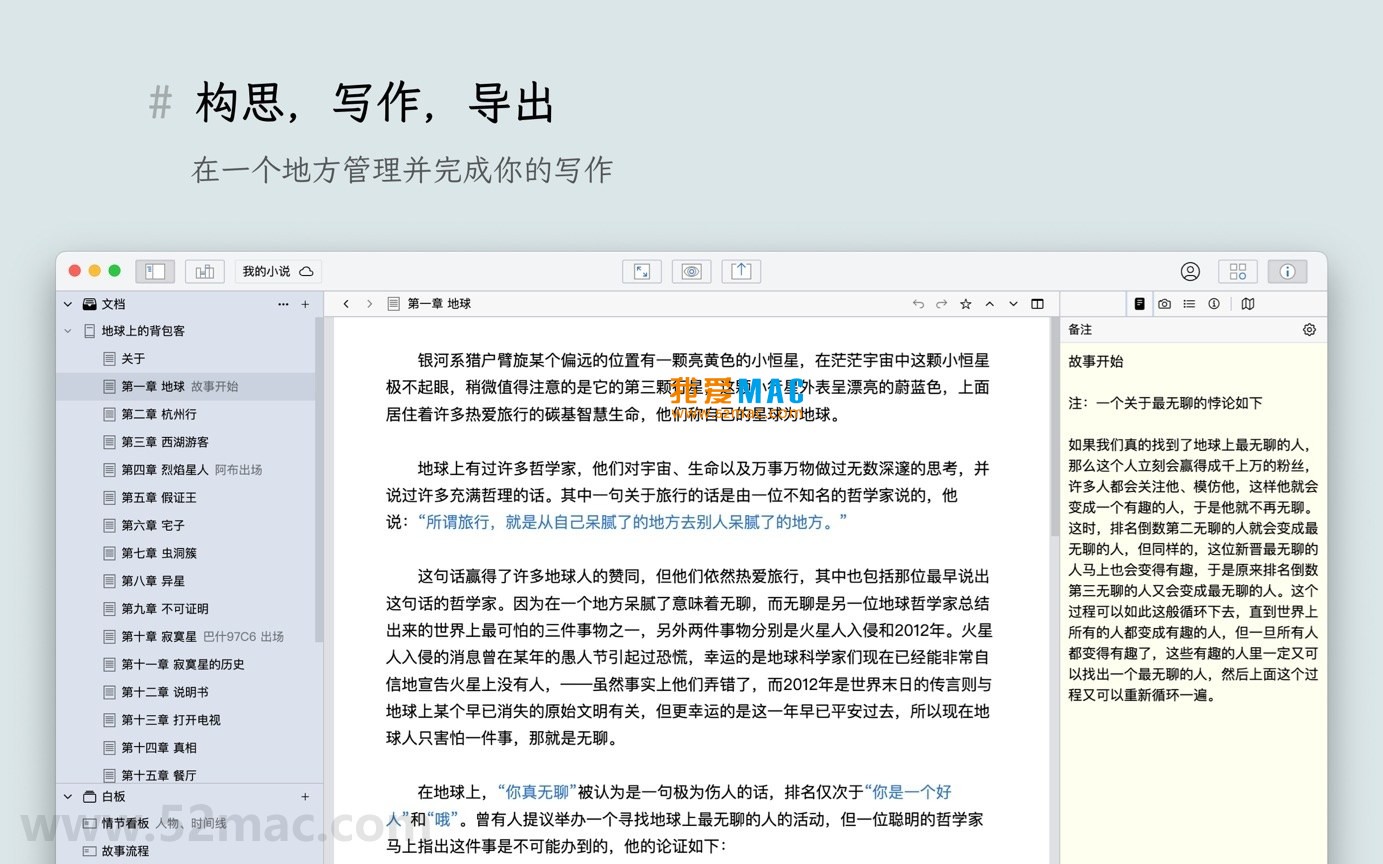
The following screenshots show the main working interface and features of WonderPen for Mac:
Don’t worry if you’re new to WonderPen. The installation process is very simple. Let’s go step by step:
Get the installer for “WonderPen for Mac v2.4.0” from the download link provided on this page. The file format is .dmg, the standard format for Mac software.
Double-click the downloaded .dmg file, and the system will automatically mount a virtual disk window. You will see the software icon and a shortcut pointing to the “Applications” folder.
Drag the WonderPen icon directly onto the adjacent “Applications” folder icon. The system will automatically complete the copy. This is the classic installation method on Mac, with no extra steps required.
Go to the “Applications” folder, find the WonderPen icon, and double-click to open it. On first launch, the system may prompt “WonderPen is an application downloaded from the Internet”. Click “Open” to proceed.
After the software starts, enter the activation information as prompted. If you downloaded an activated version, verification is usually completed automatically, and you will enter the main interface directly.
We have compiled the most common questions beginners encounter to help you quickly troubleshoot:
This is usually due to Mac security policy restrictions. Go to “System Preferences” > “Security & Privacy” > “General” and select “Open Anyway”. If that doesn’t work, try entering the command in Terminal: sudo spctl –master-disable to temporarily disable Gatekeeper.
WonderPen supports importing Markdown, TXT, HTML, and other formats. You can drag and drop files directly into the software window, or use “File” > “Import” for batch operations. It is recommended to organize the source file directory first.
The basic cloud sync function in v2.4.0 is included in the software license. However, please note that sync speed depends on the network environment. It is recommended to use it under a stable Wi-Fi connection.
This is usually because Word’s default styles are incompatible with WonderPen’s Markdown syntax. It is recommended to export to PDF first, then open the PDF file with Word. Alternatively, carefully check whether the Markdown format is standard before exporting.
Fully supported. WonderPen has deep adaptation for Chinese input methods, whether Sogou, Baidu, or the system’s built-in input method, all can be used smoothly. In focus mode, the input experience is very smooth.
You can enable automatic backup in WonderPen’s “Preferences”. Backup files are stored by default in the “WonderPen Backups” folder under the user directory. You can also manually export the entire document library as a .zip file.
Gray nodes usually indicate that the document is in “Focus View” state. You can find the “Exit Focus” button at the top of the document tree and click it to restore full display.
Mastering these shortcuts can double your writing efficiency. The following table covers the most commonly used operations in WonderPen:
| Category | Shortcut | Function |
|---|---|---|
| File Operations | Command + N | New Document |
| File Operations | Command + S | Save Current Document |
| File Operations | Command + Shift + S | Save As |
| Edit Operations | Command + Z | Undo |
| Edit Operations | Command + Shift + Z | Redo |
| Edit Operations | Command + X | Cut |
| Edit Operations | Command + C | Copy |
| Edit Operations | Command + V | Paste |
| Format Operations | Command + B | Bold |
| Format Operations | Command + I | Italic |
| Format Operations | Command + U | Underline |
| View Operations | Command + Shift + F | Toggle Full-screen Focus Mode |
| View Operations | Command + Option + N | Toggle Night Mode |
| Navigation Operations | Command + F | Search Document Content |
| Navigation Operations | Command + G | Find Next |
Knowing the features is not enough. See how others use WonderPen to write great works:
When writing a long novel, the biggest fear is structural confusion. In WonderPen, you can create a node for each chapter and sub-nodes for each section. When dragging to adjust the order, the entire chapter content automatically follows. A signed author reported that using WonderPen to write a 200,000-word novel, reordering chapters took only 10 minutes.
Inspiration strikes and can’t be stopped? Open whiteboard mode and casually add sticky notes to record keywords. You can freely arrange content as if on a physical whiteboard. A content creator used it to plan topics for 10 articles, increasing efficiency by 50%.
When writing late at night, turn on both focus mode and night mode. The screen only shows the current paragraph, and the background turns dark. A student user shared that using this combination for a graduation thesis, they could write 2,000 more words per day.
Xiao Zhang is a tech blogger who needs to produce 2-3 articles daily. He uses WonderPen’s tree directory to manage topic ideas, Markdown for quick formatting, and finally exports to HTML to publish directly to his blog. The cloud sync feature allows him to seamlessly switch between the office and the cafe. Over a month, his article output increased by 30%.
WonderPen for Mac, with its structured document management, immersive writing environment, rich extension functions, and reliable data management, has become a tool that can meet the needs of the entire creative process from simple notes to complex manuscripts.
This resource requires login to download
Log in
iA Writer for Mac v5.6.14 Professional Writing App Chinese Activated Version Download
Downloads:2333 | 2026-10-17

MarkMyWords for Mac v2.4.0 Comprehensive Writing Environment Activated Version Download
Downloads:1612 | 2026-10-17
iA Writer for Mac v6.0.11 Professional Writing App Chinese Activated Version Download
Downloads:427 | 2026-10-17

Final Draft 13 for Mac v13.2.1 Screenwriting Software Activated Version Download
Downloads:2385 | 2026-10-17


Ratings & reviews
No rating
Let’s rate it.