



WonderPen for Mac v2.3.5 – Professional Writing Software (Chinese Activated Version) Download
This page provides WonderPen for Mac v2.3.5 – Professional Writing Software (Chinese Activated Version) Download | Love Mac. Tested and working. If you encounter invalid links or installation issues after download, please leave a comment to contact us.
WonderPen is a professional writing software designed for the macOS platform. With its intuitive and easy-to-use interface and rich, powerful features, it serves writers, students, scholars, and a wide range of writing enthusiasts. Whether you are creating short stories, academic papers, or planning a lengthy novel, WonderPen provides an efficient and smooth writing experience, helping users focus on content creation itself.
This software integrates a variety of practical features needed for modern writing, aimed at improving creative efficiency and organizational skills:
This update focuses on feature optimization and experience improvement, with the following specifics:
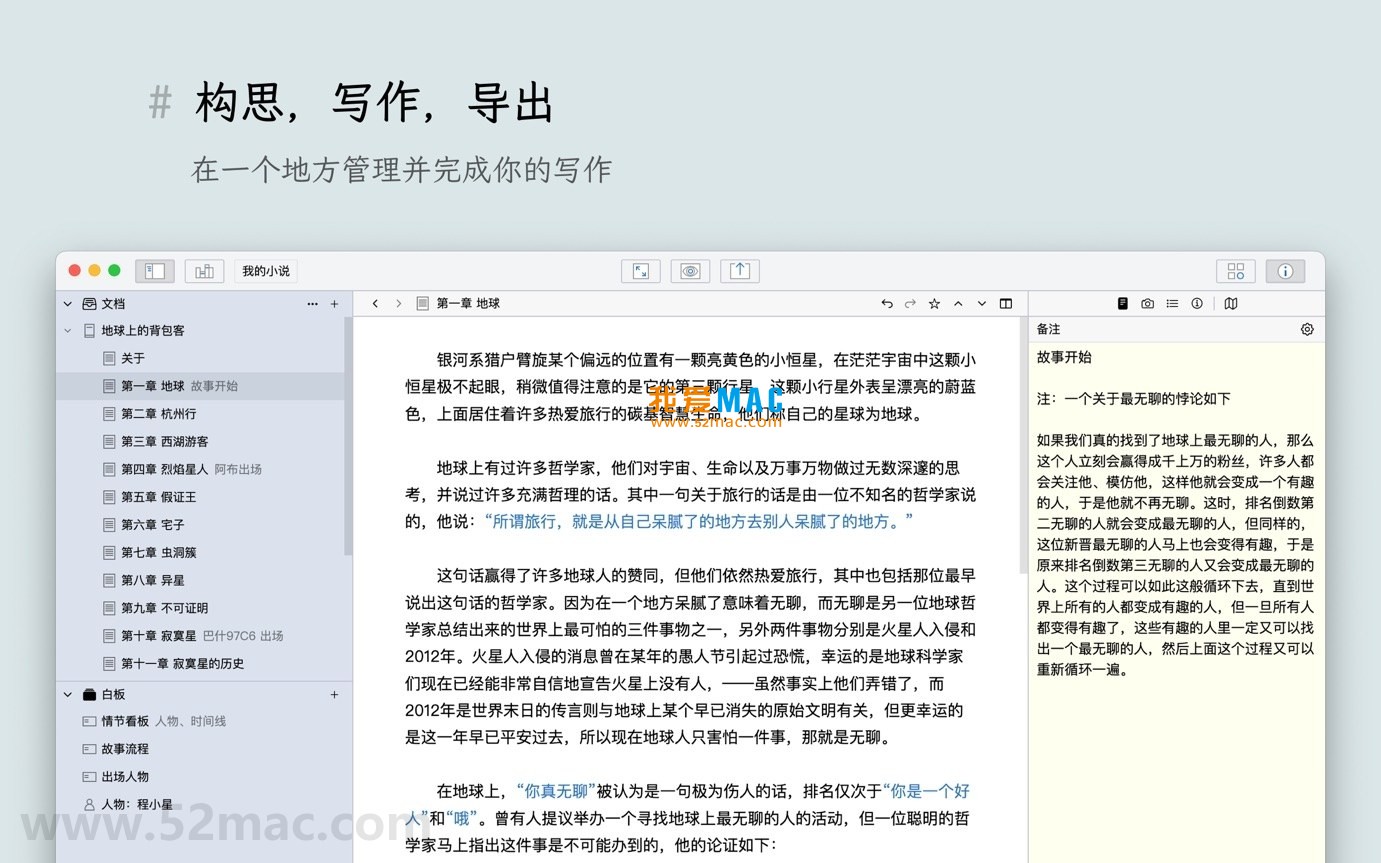
The following screenshots show the main working interface and features of WonderPen:
(Images are for illustrative purposes; actual interface may vary by version.)
To help you get started with WonderPen smoothly, we have prepared detailed installation steps. Please follow the process below:
First, download the WonderPen v2.3.5 installation package from the link provided on this page. The file is usually in .dmg format.
It is recommended to disable the “auto-extract” feature of Safari or other browsers to avoid file structure confusion caused by automatic extraction.
After downloading, double-click the .dmg file to mount it on the desktop.
After mounting successfully, you will see a window containing the WonderPen icon. Please follow these steps:
The entire process usually takes only a few dozen seconds and is very quick.
After installation, go to Launchpad or the Applications folder, find the WonderPen icon, and double-click to open it.
On first launch, macOS may prompt: “WonderPen is an application downloaded from the Internet. Are you sure you want to open it?” Click “Open” to proceed.
Then, the software will enter the activation interface. Please enter the corresponding serial number or license file according to the activation instructions provided on the download page.
After successful activation, you can start enjoying the smooth writing experience brought by WonderPen.
To confirm the installation is correct, you can create a new document, try typing text, and switch to focus mode.
If all functions work properly, the installation is perfectly completed.
If you encounter any issues, please refer to the FAQ below or contact us.
We have compiled the most common questions users encounter, hoping to help you quickly resolve your doubts:
WonderPen v2.3.5 supports macOS 10.13 (High Sierra) and above.
It is recommended to keep your system up to date for best compatibility.
In WonderPen, click “File” > “Export” > “Microsoft Word” in the menu bar.
The software will automatically convert the format and generate a .docx file.
First, check whether the activation code you entered contains extra spaces.
If confirmed correct, the activation code may have been used or expired. Please contact us via the contact information at the bottom of the page.
WonderPen itself does not have built-in cloud sync service, but you can use third-party services such as iCloud Drive or Dropbox.
Simply place WonderPen’s document library folder in these cloud drive directories to achieve multi-device synchronization.
WonderPen supports automatic backup. You can view and adjust the backup frequency in “Preferences” > “Backup”.
Additionally, regularly copying the entire WonderPen document library folder to an external hard drive or cloud drive is also a good habit.
After opening whiteboard mode, you can directly drag image files from Finder onto the whiteboard.
Alternatively, click the “Image” icon on the whiteboard toolbar to select and insert images from your local files.
First, ensure your Mac meets the minimum system requirements and close other unnecessary applications.
If the problem persists, try disabling the “Real-time Rendering Preview” feature in “Preferences”.
Absolutely. WonderPen’s tree-structured directory is very suitable for managing chapters and scenes of long novels or scripts.
Combined with full-screen focus mode, it allows you to fully immerse yourself in story creation.
Mastering WonderPen’s shortcut keys can double your writing efficiency. The following table summarizes the most commonly used shortcut combinations:
| Function Description | Shortcut Keys |
|---|---|
| New Document | Command + N |
| Save Document | Command + S |
| Full-screen Focus Mode | Control + Command + F |
| Open/Close Document Tree | Command + 0 |
| Switch to Whiteboard Mode | Command + Shift + B |
| Find and Replace | Command + F |
| Export Document | Command + E |
| Toggle Night Mode | Control + Command + T |
| Bold | Command + B |
| Italic | Command + I |
It is recommended to memorize these shortcuts or print them out and stick them near your desk; muscle memory will develop quickly.
Knowing the features is not enough; how to use WonderPen well is key. Here are some tips and cases:
This resource requires login to download
Log in
WonderPen for Mac v1.7.9 Writing Software Chinese Activated Version Download
Downloads:927 | 2026-10-17

iA Writer for Mac v7.0.3 Professional Writing App Chinese Activated Version Download
Downloads:350 | 2026-10-17

Final Draft 13 for Mac v13.0.1 Screenwriting Software Activated Version Download
Downloads:940 | 2026-10-17
Final Draft 13 for Mac v13.2.3 Screenwriting Software Activated Version Download
Downloads:151 | 2026-10-17


Ratings & reviews
No rating
Let’s rate it.