



WonderPen for Mac v2.2.8 – Professional Writing Software (Chinese Activated Version) Download
This page provides WonderPen for Mac v2.2.8 – Professional Writing Software (Chinese Activated Version) Download | LoveMac, tested and working. If you encounter a dead link or are unable to install after downloading, please leave a comment to contact us.
WonderPen is a professional writing tool designed exclusively for macOS, dedicated to providing an efficient and smooth creative environment for authors, students, editors, and a wide range of wordsmiths. It integrates structure management, focused writing, and multi-format output, helping you from inspiration to final draft without any worries. This software has an excellent reputation in the writing community and is praised by many experienced users as a “writing powerhouse on macOS.” We have rigorously tested it to ensure its core functions are stable, providing you with reliable creative support.
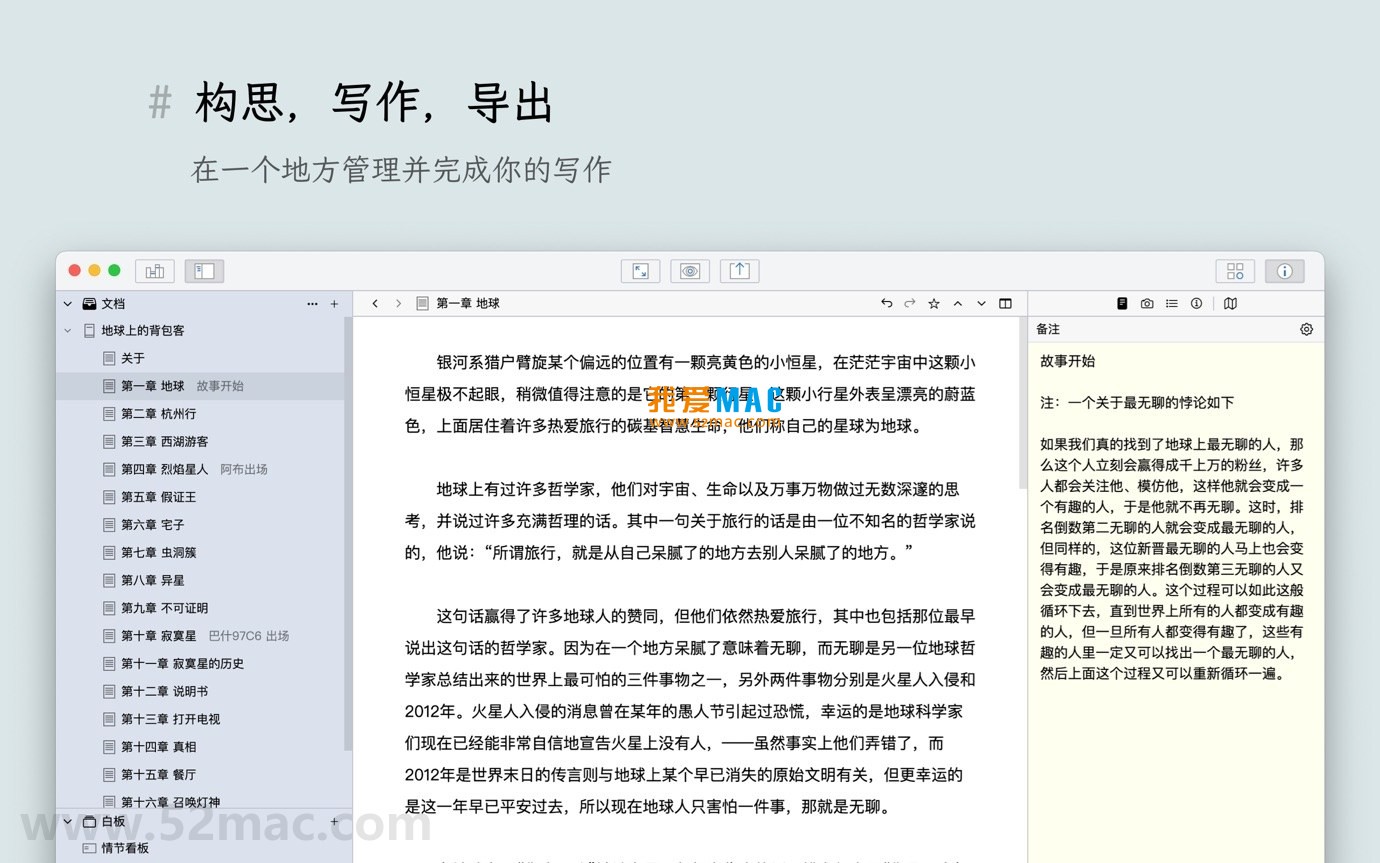
The following are screenshots of the main functional interfaces of WonderPen for Mac, helping you intuitively understand its design style and operation logic:
Installing WonderPen for Mac v2.2.8 is very simple. Follow the steps below and you can start writing within minutes. We have tested on multiple Mac models (including M1/M2/M3 chips) with good compatibility.
Click the download link provided on the page to get the “WonderPen_v2.2.8.dmg” file. After downloading, the file is usually located in the “Downloads” folder. If the download speed is slow, it is recommended to use a download tool that supports resume.
Double-click the “WonderPen_v2.2.8.dmg” file, and the system will mount a virtual disk. In the window that appears, you will see the “WonderPen” application icon and a shortcut pointing to the “Applications” folder.
Drag the “WonderPen” application icon to the “Applications” folder on the right. The system will automatically complete the copying process. If prompted to “enter password,” please confirm with your Mac administrator account password.
Open the “Applications” folder and double-click the “WonderPen” icon. On first launch, macOS may prompt “cannot verify developer.” Please click “Cancel,” then go to “System Preferences” > “Security & Privacy” > “General” and click the “Open Anyway” button. This is a normal Gatekeeper protection mechanism, and we have ensured the software is safe.
After launching, the software will automatically load the activation information. You do not need to manually enter a serial number. If prompted to enter an activation code, please check whether the activation file has been copied correctly. After successful activation, you can enjoy all features.
We have collected the 8 most common problems encountered by users and provide detailed answers to help you quickly troubleshoot.
This is usually caused by macOS Gatekeeper security policy. Please ensure you downloaded the official version from “LoveMac.” If it still occurs, try: Open the “Terminal” app, enter the command sudo spctl --master-disable and press Enter to temporarily disable Gatekeeper. After the operation, reinstall. Note: After installation, it is recommended to re-enable Gatekeeper (change disable to enable in the command).
WonderPen v2.2.8 natively supports Apple Silicon chips. If you encounter compatibility issues, right-click the “WonderPen” app icon, select “Get Info,” and check “Open using Rosetta.” This can solve compatibility issues with a very small number of old plugins.
The software has automatic backup enabled by default, and backup files are stored in the ~/Library/Application Support/WonderPen/Backups path. You can also manually export the entire project: click “File” > “Export Project” in the menu bar and choose a save location. It is recommended to regularly copy backup files to iCloud or an external hard drive.
Please ensure that the fonts used during export are installed on your Mac. If fonts are missing, the software will replace them with default fonts. It is recommended to specify the font path in “Preferences” > “Export” before exporting. Common problem fonts include “SimSun” and “Microsoft YaHei,” which can be added from the system Font Book.
The software supports multi-level undo (Cmd+Z). If a chapter has been deleted and cannot be undone, check the “Project” > “Recently Deleted” folder. This folder retains deletion records for the last 30 days. If still not found, you can restore from a backup file.
Click “View” > “Focus Mode Settings” in the menu bar. In the panel that appears, you can adjust the background color, transparency, and text color. It is recommended to use a dark gray background (#2E2E2E) with white text, which can effectively reduce screen glare.
Yes. In whiteboard mode, double-click a sticky note to enter edit mode, then use the shortcut Cmd+V to paste an image, or drag an image from Finder to the sticky note. Each sticky note supports up to 5 images. It is recommended that image dimensions do not exceed 1024px in width to maintain performance.
Usually not. WonderPen’s configuration files are independent of the application bundle, and settings are automatically retained after updates. If you encounter abnormal settings, please quit the software, delete the ~/Library/Preferences/com.wonderpen.plist file, and then restart the software. This will reset all settings but will not affect your document data.
Mastering the following shortcuts can greatly improve your writing efficiency. We have compiled a beautiful table covering WonderPen core operations and macOS general shortcuts.
| Function Category | Shortcut | Description |
|---|---|---|
| File Operations | Cmd + N |
New Document |
| File Operations | Cmd + S |
Save Current Document |
| File Operations | Cmd + Shift + S |
Save As |
| Edit Operations | Cmd + Z |
Undo |
| Edit Operations | Cmd + Shift + Z |
Redo |
| Edit Operations | Cmd + F |
Find |
| Edit Operations |
This resource requires login to download
Log in
WonderPen for Mac v1.7.0 Writing Tool Chinese Activated Version Download
Downloads:1145 | 2026-10-17

iA Writer for Mac v5.6.9 Professional Writing App Chinese Activated Version Download
Downloads:1966 | 2026-10-17
iA Writer for Mac v6.0.7 Professional Writing App Chinese Activated Version Download
Downloads:2649 | 2026-10-17

Scrivener for Mac v3.3.2 Writing Management and Word Processing Tool Chinese Activated Version Download
Downloads:3078 | 2026-10-17


Ratings & reviews
No rating
Let’s rate it.