



WonderPen for Mac v2.2.6 – Professional Writing Software (Chinese Activated Version) Download
This page provides WonderPen for Mac v2.2.6 – Professional Writing Software (Chinese Activated Version) Download | 23mac.com. Tested and working. If you encounter broken links or installation issues after download, please leave a comment to contact us.
WonderPen for Mac is a professional writing software with a clean interface and powerful features, designed to provide an efficient and focused creative environment for writers, students, editors, and all word workers. Whether you are drafting a short story, writing an academic paper, or creating a long-form work, its rich features can effectively manage your writing process and inspire creativity.
The software is designed with a focus on improving writing efficiency and experience. Key features include:
This update mainly brings new features, experience optimizations, and bug fixes:
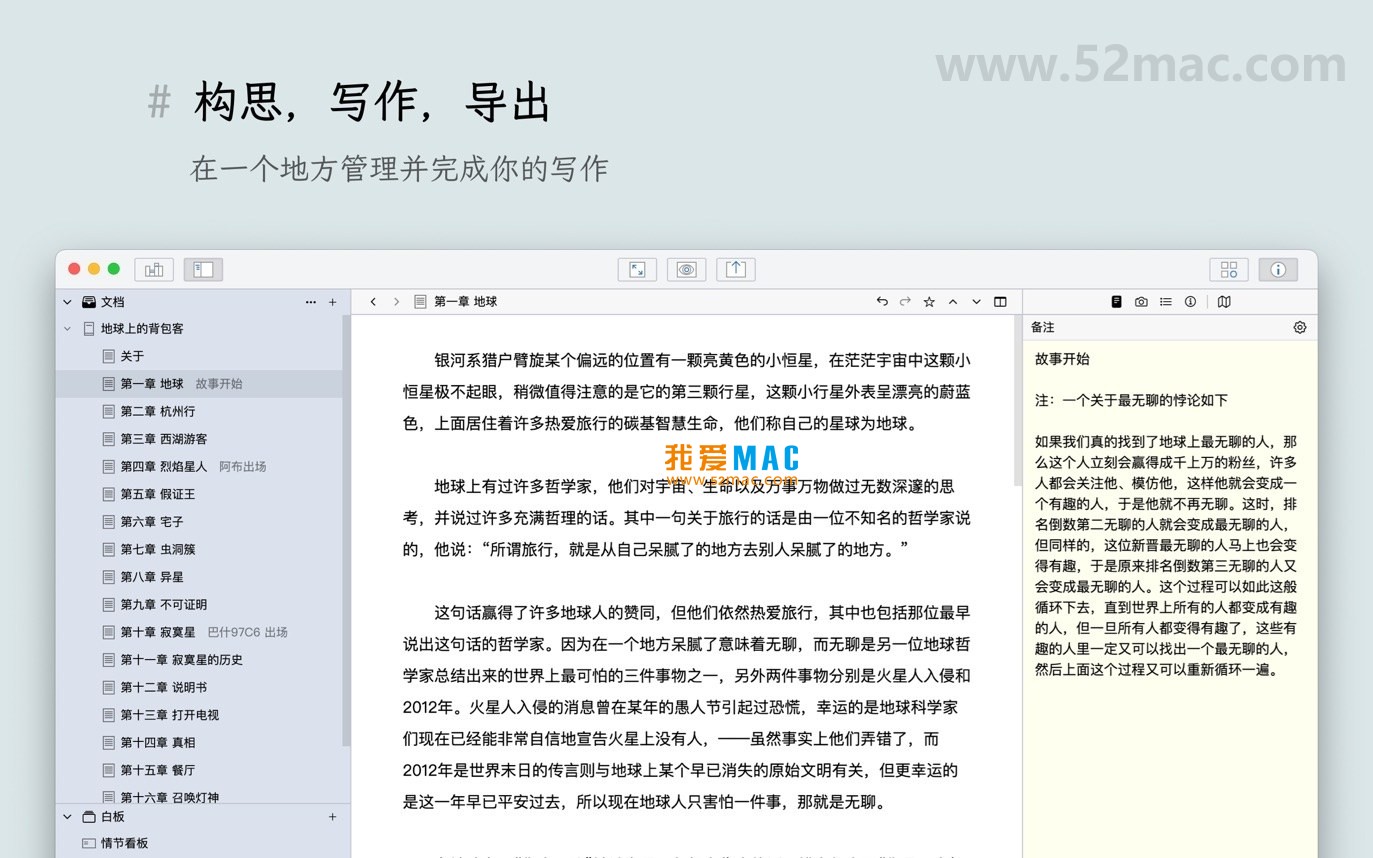
The following screenshots show the main interface and features of WonderPen for Mac:
To ensure you can use WonderPen for Mac v2.2.6 smoothly, please follow the steps below strictly. This guide has been tested on multiple Mac devices and is compatible with macOS 10.13 and later.
Click the download link provided on this page to get the WonderPen v2.2.6 installer. The file format is usually .dmg or .zip. If it’s .zip, double-click to extract automatically.
After extraction, you will see a disk image file named “WonderPen.dmg”. Double-click to open it.
In the opened .dmg window, you will see two main icons: the “WonderPen” application icon on the left and the “Applications” folder icon on the right.
Simply drag the “WonderPen” icon onto the “Applications” folder on the right. The system will automatically start the copy installation process, usually taking only a few seconds.
After installation, go to “Launchpad” or the “Applications” folder, find and double-click the “WonderPen” icon.
If the system prompts “Cannot open ‘WonderPen’ because the developer cannot be verified”, go to “System Preferences” > “Security & Privacy” > “General” and click the “Open Anyway” button. This is a standard macOS protection mechanism for unsigned applications; WonderPen itself is safe.
After successful launch, the software will enter the activation interface. Enter the activation code provided on this page (usually located in the download package or page description) and click the “Activate” button.
After successful activation, it is recommended to go to “Preferences” (shortcut Command + ,) and adjust the auto-save interval, theme color, and editor font size according to your habits. It is recommended to enable “Auto Save” to ensure worry-free creation.
Create a new document, try typing text, and test Markdown syntax (e.g., # heading, **bold**). Confirm the software runs smoothly and all functions are normal.
If you encounter any problems during installation, such as invalid activation code or crashes, please leave a comment below immediately, and we will assist you as soon as possible.
We have compiled the 10 most frequently asked questions by users to help you get started quickly.
WonderPen v2.2.6 fully supports macOS 10.13 (High Sierra) and later, including the latest macOS Sonoma. It is recommended to keep your system up to date for the best experience.
WonderPen has a built-in “Trash” feature. At the bottom of the document tree on the left, click the “Trash” icon to view recently deleted documents. Select the document you want to recover, right-click, and choose “Restore”. It is recommended to check the Trash regularly to avoid permanent data loss.
WonderPen itself does not directly provide a cloud sync server. However, you can store project files in cloud drive folders such as iCloud Drive, Dropbox, or OneDrive. Open the project from that path in WonderPen to enable synchronized editing across devices. This is a common and safe practice in the industry.
When exporting a document (File > Export > Select Format), a settings window will pop up. You can customize margins, fonts, cover, and other parameters here. After modification, these settings will be automatically saved as defaults for the next export.
Please check the editor mode. WonderPen offers “Edit Mode” and “Preview Mode”. Click the “Eye” icon on the far right of the toolbar, or use the shortcut Command + Option + P, to switch to real-time preview mode. In Edit Mode, Markdown syntax is displayed as source code.
Please first confirm whether the activation code contains spaces or copy errors. It is recommended to enter the activation code manually rather than copy-pasting. If the problem persists, please check your network connection, as some activations require online verification. If still invalid, please contact us for a new activation code.
The simplest method: In WonderPen, click “File” > “Export Project” > “WonderPen Project” to generate a .wonderpen backup file. You can also directly back up the “WonderPen” folder under the “Documents” folder, which contains all project data.
Currently, whiteboard mode is mainly used for brainstorming and visualization, and its content is saved as part of the project. However, text elements in the whiteboard cannot be exported as separate documents. You can save whiteboard content by taking screenshots.
Lag usually occurs when processing projects containing many images or very long chapters. It is recommended to split large projects into multiple sub-projects or regularly clean the Trash. Additionally, closing unnecessary background applications can improve smoothness. WonderPen 2.2.6 has been specifically optimized for performance.
WonderPen automatically follows the system language setting. If you want to use the English interface, go to “System Preferences” > “Language & Region”, drag English to the top of the preferred languages list, and then restart WonderPen.
Mastering the following shortcuts can double your writing efficiency. The table below is customized for WonderPen.
| Function Category | Shortcut | Description |
|---|---|---|
| Document Operations | Command + N |
New Document |
Command + S |
Save Current Document | |
Command + Shift + S |
Save As | |
Command + W |
Close Current Document Window | |
| Editing and Formatting | Command + B |
Bold Selected Text |
Command + I |
Italicize Selected Text | |
Command + Z |
Undo | |
Command + Shift + Z |
Redo |
This resource requires login to download
Log in
WonderPen for Mac 1.5.1 Professional Writing Tool Chinese Activated Version Download
Downloads:3443 | 2026-10-17

Ulysses for Mac v22 Ultimate Writing Tool Chinese Activated Version Download
Downloads:495 | 2026-10-17

Final Draft 12 for Mac v12.0.8 Screenwriting Software Activated Version Download
Downloads:2565 | 2026-10-17

iA Writer for Mac v7.0.1 Professional Writing App Chinese Activated Version Download
Downloads:1199 | 2026-10-17


Ratings & reviews
No rating
Let’s rate it.