
WonderPen for Mac v2.2.3 – Professional Writing Software (Chinese Activated Version) Download

  • Introduction
Download
Download now
Join VIP Free download

Description

This page provides WonderPen for Mac v2.2.3 – Professional Writing Software (Chinese Activated Version) Download | 爱上MAC. Tested and working. If you encounter broken links or installation issues after download, please leave a comment to contact us.

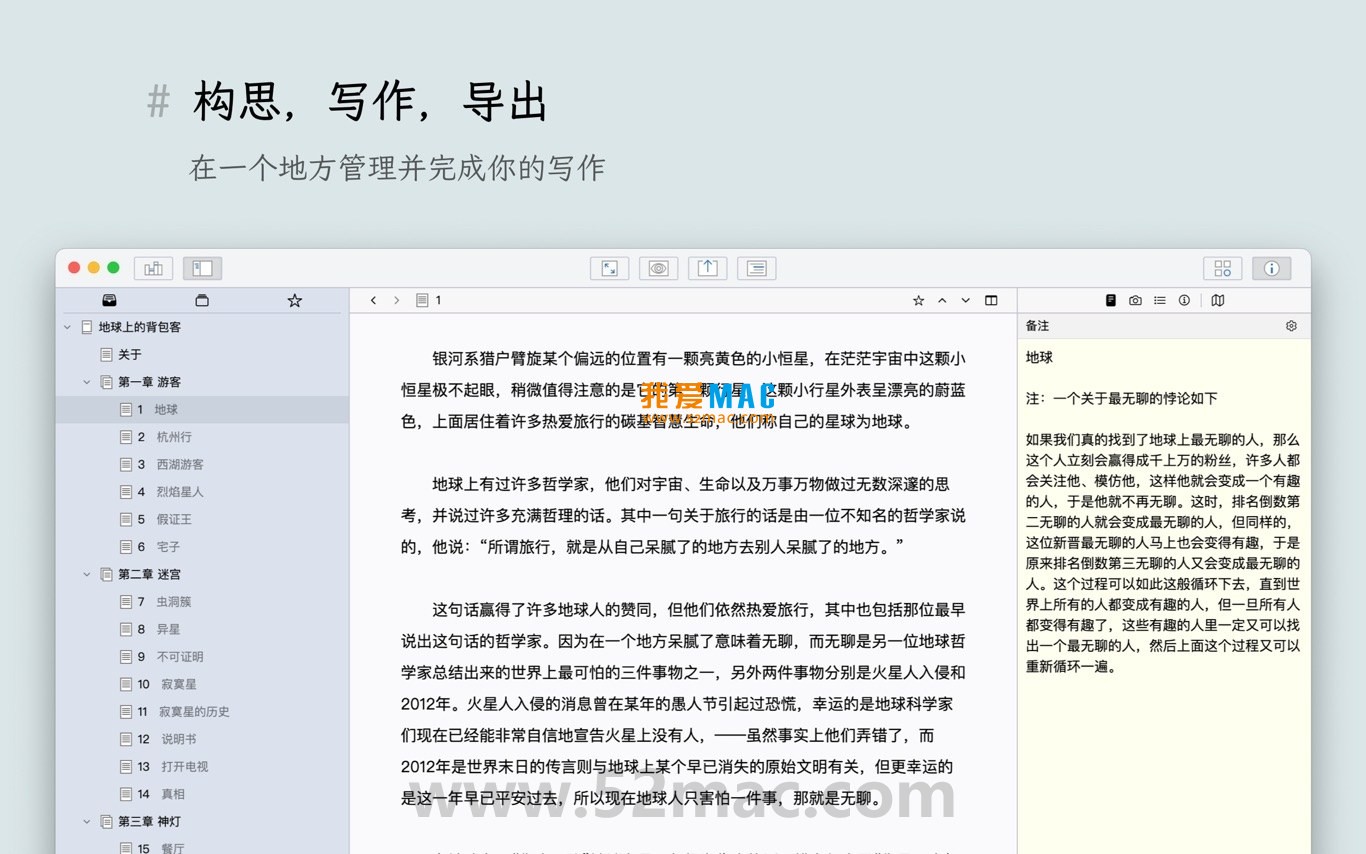
WonderPen is a professional writing software designed specifically for macOS, aiming to provide an efficient and smooth creative environment for writers, students, content creators, and writing enthusiasts. It integrates core features such as structure management, focused writing, and flexible export, helping users manage complex writing projects from conception to final draft.

1. Core Features

The software offers the following core features to meet writing needs in various scenarios:

  • Tree-structured multi-level directory management: Supports drag-and-drop to freely adjust document order and nesting levels, making the structure of long works clearly visible for overall planning and navigation.
  • Markdown editor: Built-in concise and efficient text editor with full Markdown syntax support, allowing you to focus on content creation.
  • Focus mode: One-click switch to a full-screen focus interface, hiding all distracting elements to create an immersive writing experience.
  • Multi-format export: Conveniently export works to PDF, Word, HTML, images, and other common formats for easy sharing and publishing.
  • Whiteboard mode: Provides an infinite canvas whiteboard workspace where you can freely add sticky notes, tables, kanban boards, and Excalidraw drawing boards for brainstorming and organizing ideas.
  • Smart document management: Supports adding independent notes to individual documents; the “node focus” feature hides irrelevant branches in complex document trees, allowing you to concentrate on the current chapter.
  • Full-text search and replace: Provides powerful global search and batch replace functions for efficient manuscript management.
  • Night mode: Offers a dark theme to reduce visual fatigue during long writing sessions.
  • Data security and backup: Supports automatic document saving, automatic backup, and manual import/export of project data, ensuring the safety of your creative work.

2. Version 2.2.3 Changelog

This update mainly brings new features and bug fixes, as follows:

  1. New Features:
    • Whiteboard mode now supports inserting Excalidraw drawing boards for creating diagrams and sketches.
    • The editor’s top toolbar now includes undo and redo buttons for more intuitive and convenient operation.
    • The “one-click formatting” feature now includes an option to convert half-width commas and periods to full-width, adapting to Chinese typesetting conventions.
  2. Bug Fixes:
    • Fixed an issue where word counts for sub-documents and directory details were not updated in a timely manner under certain circumstances.
    • Corrected abnormal behavior that could occur in some find-and-replace operations.
    • Resolved several issues that could be encountered during chapter splitting and merging operations.
    • Implemented multiple detail optimizations and minor bug fixes, improving overall software stability and user experience.

3. Software Screenshots

The following screenshots show the main interface and features of WonderPen:

WonderPen main interface and directory management view
Editor and Markdown writing interface
Full-screen focus mode example
Whiteboard mode and sticky notes feature
Export format selection interface
Night mode effect display

4. Detailed Installation Tutorial (Step-by-Step)

To ensure you can use WonderPen for Mac v2.2.3 smoothly, we have prepared a detailed installation process. Please follow these steps:

  1. Download the installer: Click the download link on this page to get the latest DMG installer file.
  2. Open the DMG file: Double-click the downloaded .dmg file; the system will automatically mount it and open the installation window.
  3. Drag to install: In the pop-up window, drag the WonderPen icon onto the “Applications” folder icon on the right.
  4. Wait for copying: The system will automatically complete the file copy process, usually within a few seconds to a minute.
  5. First launch: Open the “Applications” folder, find the WonderPen icon, and double-click to launch.
  6. Security prompt: If the system says “cannot be opened,” go to “System Preferences” > “Security & Privacy” > “General” and click “Open Anyway.”
  7. Activate the software: After launching, enter the activation code as prompted or use the pre-activated version to start using it.
  8. Create a project: After entering the main interface, click “New Project” or “New Document” to begin your writing journey.
  9. Verify installation: Check the version number in “About WonderPen” to confirm it is v2.2.3.
  10. Clean up the installer: After installation, you can move the downloaded .dmg file to the Trash to free up disk space.

5. FAQ (5-10 Questions and Answers)

Based on high-frequency user feedback, we have compiled the following FAQ list to help you quickly resolve common issues:

Q1: Which macOS versions does WonderPen support?

WonderPen v2.2.3 supports macOS 10.13 and later, including the latest macOS Sonoma and Sequoia. It is recommended to keep your system updated for the best experience.

Q2: How do I export to Word format?

In the document editing interface, click “File” > “Export” > “Word (.docx)” in the top menu bar. The system will automatically generate the file and open a save dialog.

Q3: How do I exit focus mode?

In focus mode, press the Esc key on your keyboard, or click the “Exit Focus Mode” button at the top of the screen to return to the regular interface.

Q4: Where are documents automatically saved?

By default, automatic backup files are stored in the ~/Library/Application Support/WonderPen/backups/ directory. You can adjust the backup interval in “Preferences.”

Q5: How do I recover accidentally deleted documents?

If the document has not been permanently deleted, you can find it in the “Trash” folder. If the Trash has been emptied, please use a Time Machine backup or restore from a manually exported backup file.

Q6: Does whiteboard mode support export?

Yes, whiteboard mode supports export as images (PNG/JPEG) or PDF. Click the export button in the upper right corner of the whiteboard to select the format.

Q7: Does WonderPen support cloud sync?

WonderPen does not have built-in cloud sync, but you can save project files in cloud drive directories such as iCloud Drive, Dropbox, or OneDrive to achieve multi-device synchronization.

Q8: How do I change the interface language?

In “Preferences” > “General” > “Language,” you can select Chinese or English. You need to restart the software for the change to take effect.

Q9: What should I do if the software crashes?

First, make sure you have installed the latest version. If the problem persists, try restarting your Mac, or contact our technical support team and submit a crash log.

Q10: What if I lose my activation code?

Please contact us via the email used for purchase and provide your order information; we will help you recover your activation code.

6. Common Mac Keyboard Shortcuts Table

Mastering the following shortcuts can greatly improve your writing efficiency in WonderPen. We have prepared a beautifully formatted table for your reference:

Function Category Shortcut Combination Description
File Operations Cmd + N New Document
File Operations Cmd + S Save Current Document
File Operations Cmd + Shift + S Save As
Edit Operations Cmd + Z Undo Last Action
Edit Operations Cmd + Shift + Z Redo Last Action
Edit Operations Cmd + C Copy Selected Content
Edit Operations Cmd + V Paste Content
Formatting Operations Cmd + B Bold Selected Text
Formatting Operations Cmd + I Italicize Selected Text
Formatting Operations Cmd + U Underline Selected Text

Download info

This resource requires login to download

Log in
Note: This resource is for informational purposes. By using this resource, you agree that you accept full responsibility to the copyright holder. For questions, please contact us.

Ratings & reviews

No rating

Let’s rate it.

  • 5 stars
  • 4 stars
  • 3 stars
  • 2 stars
  • 1 stars

You may also like

More
×
WonderPen for Mac v2.2.3 – Professional Writing Software (Chinese Activated Version) Download
iMac — One-stop Mac Software Download Platform
Social login
captcha
Social login