



WonderPen for Mac v2.1.8 Writing Software Chinese Activated Version Download
This page provides WonderPen for Mac v2.1.8 Writing Software Chinese Activated Version Download | 爱上MAC. It has been tested and is available. If you encounter issues such as invalid links or inability to install after download, please leave a message to contact us.
WonderPen is a professional writing software for the macOS platform. With its intuitive design and powerful features, it serves writers, students, editors, and writing enthusiasts. Whether you are creating short stories, academic papers, or conceiving lengthy masterpieces, it provides an efficient and focused writing environment to help users smoothly transform inspiration into text.
This software integrates various practical features required by modern writers, aiming to improve writing efficiency and experience:
This update mainly optimizes stability and user experience, with specific contents including:
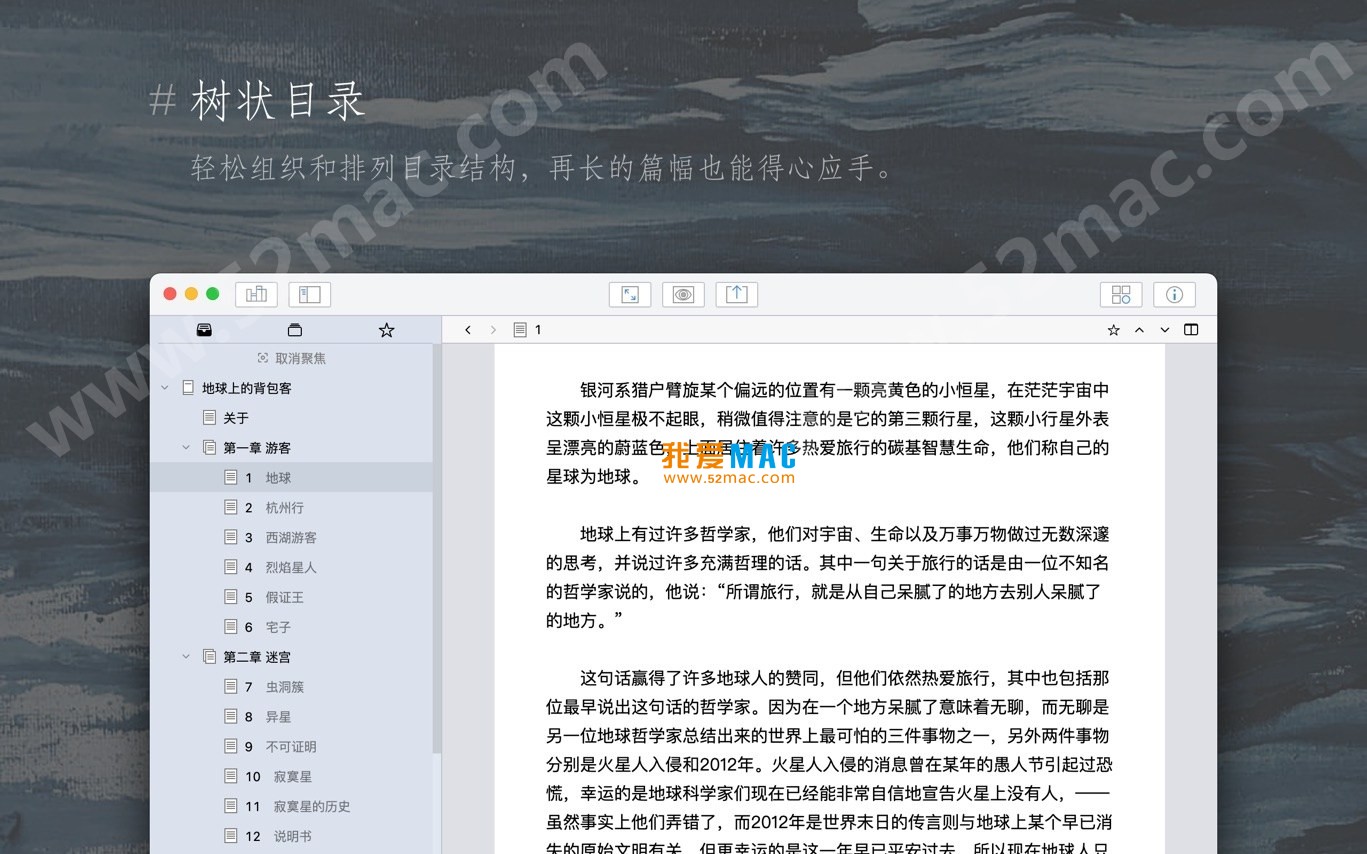
The following screenshots show the main working interface and features of WonderPen:
To ensure you can use WonderPen smoothly, we have organized the following installation steps. Please follow them in order:
Click the download link on the page to obtain the “WonderPen_v2.1.8.dmg” file. After downloading, double-click the file, and the system will automatically mount and open the installation image window.
In the opened window, you will see a “WonderPen” application icon and an “Applications” folder. Drag the former into the latter to complete the core installation.
Open “Launchpad”, find and click the “WonderPen” icon. The system may prompt “Cannot verify developer”. Please go to “System Preferences > Security & Privacy > General” and click “Open Anyway”.
After launching, the software will automatically load the activation status. If an activation window appears, please ignore or close it. The program has built-in authorization, and all functions can be used directly.
After entering the main interface, you can set the default document path, theme preferences, etc. according to the prompts. It is recommended to check “Automatically backup on startup” to ensure data security.
We have compiled several questions that users care about most and provided answers:
This is caused by macOS security mechanisms. Please open “Terminal”, enter the command: sudo spctl –master-disable, then go to “Security & Privacy” and check “Anywhere” to allow.
Fully supported. WonderPen has good compatibility with macOS’s built-in Chinese input method and third-party input methods such as Sogou and Baidu, providing a smooth writing experience.
Click the menu bar “File > Export > Word Document”, and the software will automatically convert. It is recommended to save the project file first to avoid unexpected interruptions during export due to complex formats.
By default, WonderPen automatically saves every 30 seconds. You can adjust the interval in “Preferences > General”. It is recommended to set it to 15 seconds for enhanced security.
Currently, whiteboard mode is mainly used for brainstorming. Sticky note content can be backed up together with the project file, but it does not currently support separate export as images or text.
WonderPen itself is only about 50MB. Documents are stored in a lightweight format. A 1-million-word novel project usually does not exceed 5MB, so there is no need to worry about space.
If a document is accidentally deleted, immediately check the “Automatic Backup” folder (default location: “Documents/WonderPen/Backups”). If backup is not enabled, try to recover from the macOS “Trash”.
The software itself does not have built-in cloud sync, but you can place the project folder in cloud drives such as iCloud Drive or Dropbox to achieve file synchronization across multiple devices.
No. WonderPen updates do not affect user data. It is recommended to manually back up the project once before updating to prevent anomalies caused by system cache.
First try restarting the software. If the problem persists, go to “Help > Feedback” to submit logs, or delete the preferences file (located at ~/Library/Preferences/com.wonderpen.plist).
Mastering shortcut keys can significantly improve writing efficiency. Below is a summary of high-frequency shortcut keys in WonderPen and macOS:
| Shortcut Key Combination | Function Description | Applicable Scenario |
|---|---|---|
| Cmd + N | New Document | Quickly start a new chapter or note |
| Cmd + Shift + N | New Folder/Group | Organize volume structure of a long novel |
| Cmd + B | Bold Selected Text | Emphasize keywords or titles |
| Cmd + I | Italicize Selected Text | Mark foreign words or book titles |
| Cmd + K | Insert Hyperlink | Cite reference materials or external resources |
| Cmd + Option + F | Full-text Search and Replace | Batch modify character names or terminology |
| Cmd + Shift + F | Enter Full-screen Focus Mode | Eliminate distractions, immersive writing |
| Cmd + E | Export Current Document | Quickly generate PDF or Word version |
| Cmd + Shift + E | Export Entire Project | Package all chapters into a single file |
| Cmd + Z | Undo | Revert accidental deletion or modification |
| Cmd + Shift + Z | Redo | Restore accidentally undone content |
| Cmd + S | Manually Save Document | Force save outside automatic save interval |
| Cmd + Option + S | Save As | Create a copy of the current document |
| Control + Tab | Switch Tabs/Documents | Quickly jump between multiple chapters |
When writing a long novel, the directory tree can easily become bloated. Right-click a chapter and select “Node Focus”, and the software will temporarily hide other branches. This allows you to focus on adjusting the current volume and avoid visual fatigue.
Enable whiteboard mode in the “View” menu, drag in sticky notes to record key events, and use lines to mark causal relationships. This method is more intuitive than linear outlines, especially suitable for suspense or multi-threaded narratives.
You don’t need to remember all syntax. After selecting text, click the top toolbar
This resource requires login to download
Log in
WonderPen for Mac v1.7.6 Professional Writing Software Chinese Activated Version Download
Downloads:2754 | 2026-10-17

iA Writer for Mac v5.6.3 Professional Writing App Chinese Activated Version Download
Downloads:110 | 2026-10-17

Ulysses for Mac v33.1 All-in-One Writing Software Chinese Activated Version Download
Downloads:2005 | 2026-10-17
iA Writer for Mac v7.2.6 Professional Writing App Chinese Activated Version Download
Downloads:2425 | 2026-10-17


Ratings & reviews
No rating
Let’s rate it.