



WonderPen for Mac v2.1.6 – Professional Writing Software (Chinese Activated Version) Download
This page provides WonderPen for Mac v2.1.6 – Chinese Activated Version Download | 爱上MAC. It has been tested and is working. If you encounter broken links or installation issues after download, please leave a comment to contact us.
WonderPen is a professional writing software designed for macOS. With its intuitive interface and powerful features, it serves writers, students, editors, academic researchers, and writing enthusiasts. Whether you are writing short articles, academic papers, or planning a long-form book, WonderPen provides an efficient and focused writing environment to help you turn inspiration into well-structured, professionally formatted works.
WonderPen integrates multiple practical features needed for modern writing, aiming to enhance writing efficiency and management experience:
This update mainly optimizes stability and user experience, including:
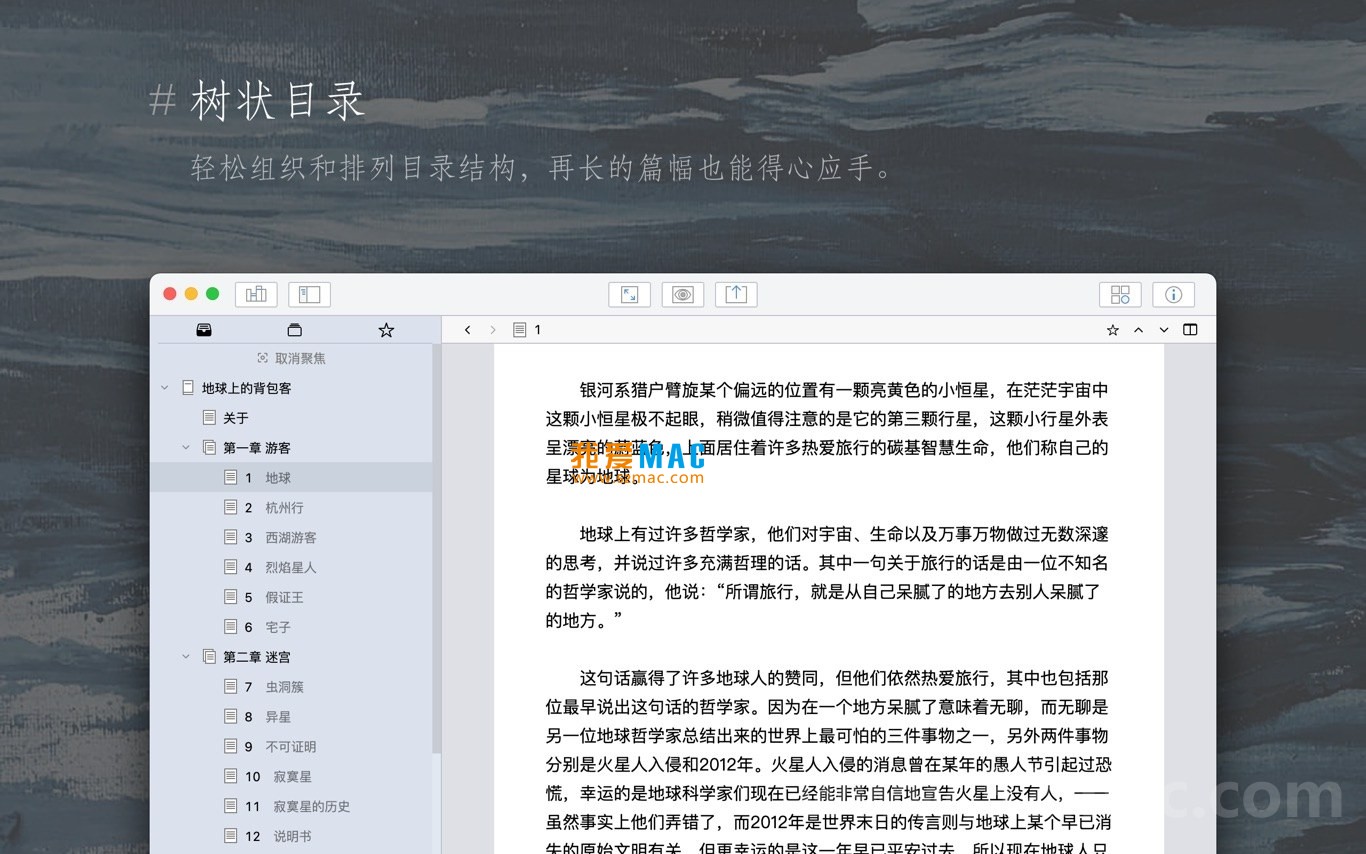
Below are screenshots of WonderPen for Mac, showcasing its core workspace and feature layout:
Step 1: Download the installer. Get the DMG image file of “WonderPen for Mac v2.1.6” from the link provided on this site. It is recommended to use Chrome or Safari for direct download.
Step 2: Double-click the DMG file. Locate the downloaded .dmg file in Finder and double-click to mount. The system will pop up an installer window showing the WonderPen icon and the Applications folder.
Step 3: Drag to install. Drag the WonderPen icon directly into the Applications folder on the right. The system will automatically complete the copy process, usually taking 10-30 seconds.
Step 4: First launch. Open the Applications folder, find the WonderPen icon, and double-click. Since the software is from an unidentified developer, the system may show a security prompt.
Step 5: Bypass security restrictions. If prompted “cannot be opened”, go to System Settings > Privacy & Security. At the bottom of the page, click the “Open Anyway” button to confirm.
Step 6: Complete activation. After launching the software, enter the activation code provided on this site. Click the “Activate” button and wait a few seconds for the activation success message.
Step 7: Configure preferences. Go to software preferences to adjust font, theme, auto-save interval, and other parameters. It is recommended to enable “Auto Save” and “Auto Switch to Night Mode”.
Step 8: Start writing. Create a new project and build a tree-structured directory. You can write directly using Markdown syntax or switch to focus mode to start creating.
Q1: What to do if the software cannot be opened after download?
Please confirm you have obtained the latest version from this site. If the system says “cannot verify developer”, go to System Settings > Privacy & Security and click “Open Anyway”.
Q2: Activation code is invalid after entering?
Check for extra spaces. It is recommended to copy and paste the activation code directly. If still invalid, please contact our customer service for a new activation code.
Q3: How to migrate data from an old version to 2.1.6?
Open the old version of WonderPen, use the “Export Project” feature to save as a .wonderpen file. Then use “Import Project” in the new version.
Q4: How to export sticky notes from whiteboard mode?
Whiteboard mode supports exporting the entire board as an image or PDF. Select “Export Whiteboard” from the File menu and choose the format.
Q5: How to enable automatic night mode switching?
In Preferences > Appearance, check “Follow System Automatically”. The software will adjust automatically based on macOS dark mode settings.
Q6: Markdown syntax does not support table rendering?
WonderPen supports standard Markdown tables. Ensure you use correct pipe characters and hyphens. If still not rendering, try restarting the editor.
Q7: How to recover accidentally deleted documents?
In the document manager, right-click the “Trash” icon. Select “Restore” to return the document to its original location.
Q8: Software lags on M-series chips?
WonderPen 2.1.6 natively supports Apple Silicon. If you experience lag, check if other applications are using a lot of memory.
Q9: Can projects be synced via iCloud?
Currently WonderPen does not directly support iCloud sync. However, you can store project files in iCloud Drive for manual syncing.
Q10: Chinese characters garbled when exporting PDF?
Ensure Chinese fonts are installed on your system. In export settings, select the “Embed Fonts” option to resolve this.
| Shortcut | Function | Use Case |
|---|---|---|
Cmd + N |
New Document | Quickly create a new chapter or note |
Cmd + Shift + N |
New Project | Start a new writing project |
Cmd + B |
Bold Text | Highlight keywords or headings |
Cmd + I |
Italic Text | For quotations or emphasis |
Cmd + K |
Insert Link | Add external references or footnotes |
Cmd + Shift + M |
Toggle Focus Mode | Enter full-screen immersive writing |
Cmd + Shift + P |
Open Command Palette | Quickly access all features |
Cmd + F |
Full-text Search | Find content in the current document |
Cmd + Shift + F |
Global Search | Search across all documents |
Cmd + Z |
Undo | Revert to the previous editing state |
Cmd + Shift + Z |
Redo | Restore undone content |
Cmd + S |
Save Document | Manually save current progress |
Cmd + Shift + E |
Export Document | Export content as PDF/Word, etc. |
Cmd + Option + N |
Toggle Night Mode | Quickly enable dark theme |
This resource requires login to download
Log in
WonderPen for Mac 1.5.1 Professional Writing Tool Chinese Activated Version Download
Downloads:3443 | 2026-10-17

Storyist 4 for Mac v4.1.1 Novel and Screenwriting Tool Activated Version Download
Downloads:2303 | 2026-10-17

WonderPen for Mac v1.7.9 Writing Software Chinese Activated Version Download
Downloads:927 | 2026-10-17
Storyist 4 for Mac v4.3 Novel Story Screenwriting Writing Tool Activated Version Download
Downloads:2984 | 2026-10-17


Ratings & reviews
No rating
Let’s rate it.