



WonderPen for Mac v2.1.4 – Chinese Activated Version Download
This page provides WonderPen for Mac v2.1.4 – Chinese Activated Version Download | 爱上MAC, tested and working. If you encounter invalid links or installation issues after download, please leave a comment to contact us.
WonderPen is a modern writing software designed specifically for macOS, dedicated to providing writers, students, content creators, and writing enthusiasts with an efficient, focused, and powerful creative environment. Whether you are brainstorming a short story, writing an academic paper, or creating a long-form book, WonderPen helps you organize your thoughts smoothly and complete your work.
WonderPen integrates multiple professional writing tools aimed at improving creative efficiency and experience:
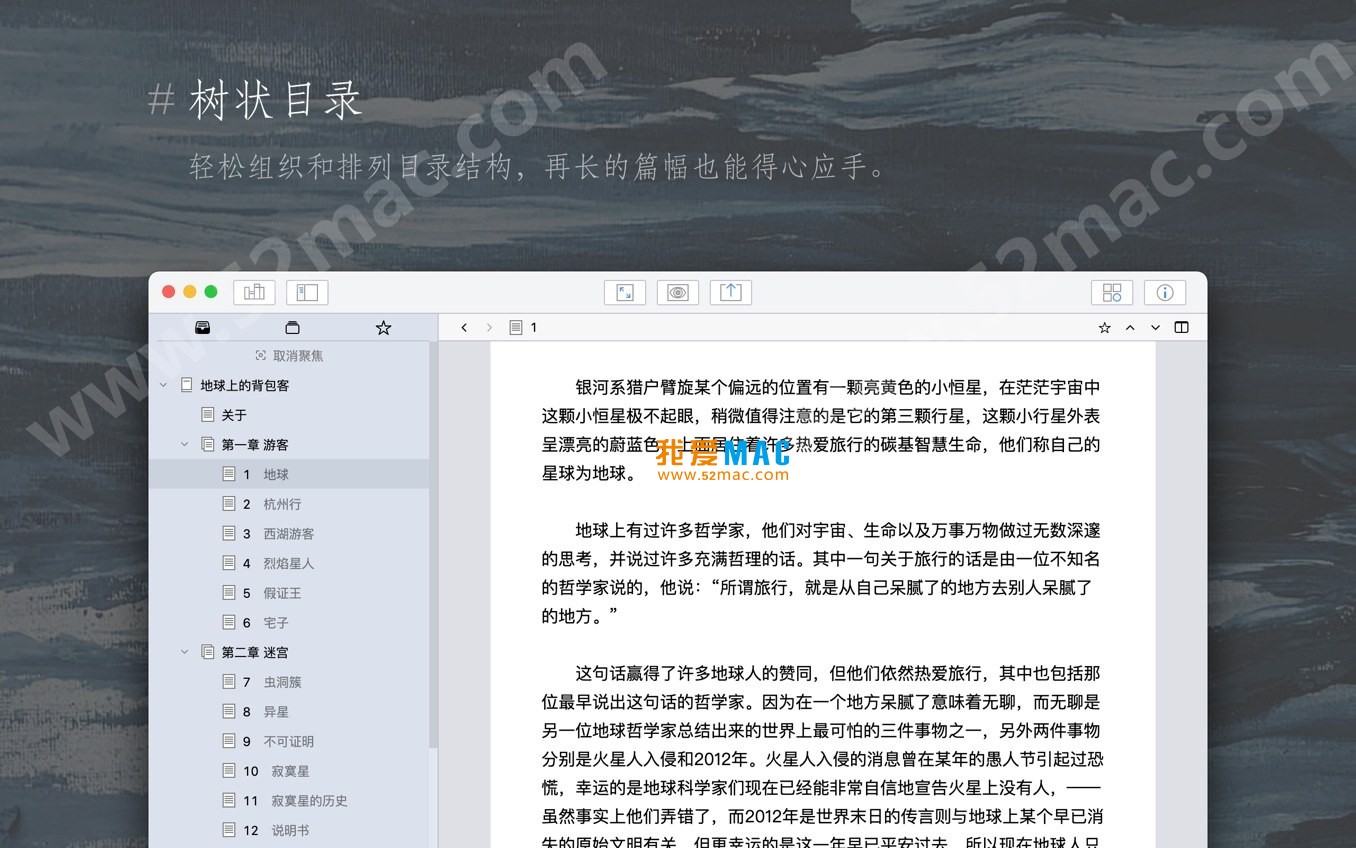
The following are the main interface displays of WonderPen for Mac:
Installing WonderPen v2.1.4 is not complicated. Please follow the steps below to ensure a smooth activation.
Get the WonderPen for Mac v2.1.4 Chinese Activated Version from the download link provided on this page. It is recommended to use the browser’s built-in download function to avoid file interruption by third-party download tools.
After downloading, double-click the .dmg file. The system will mount a virtual disk and pop up an installation window. You will see the “WonderPen” icon and a shortcut to the “Applications” folder.
Drag the “WonderPen” icon directly to the “Applications” folder on the right. This will copy the software to your Applications directory. Wait for the progress bar to complete.
Open “Launchpad” or the “Applications” folder, find the WonderPen icon, and double-click it. Since it is an unsigned developer application, macOS may show a security prompt. At this point, go to “System Preferences” > “Security & Privacy” > “General” and click the “Open Anyway” button.
After launching, the software will prompt for an activation code. Please refer to the Readme.txt or 激活说明.txt file in the download package. Copy the provided serial number or activation code, paste it into the corresponding input field, and click “Activate”.
After successful activation, WonderPen will display the full-featured interface. You can check the “About WonderPen” menu to confirm the version number is 2.1.4. At this point, installation and activation are complete.
Yes. WonderPen natively supports Chinese and will automatically match the system language after installation. If it displays in English, you can manually switch to Simplified Chinese in “Preferences” > “General”.
Usually not. WonderPen’s export engine is optimized and can preserve Markdown formatting well. However, if the document contains complex tables or special symbols, it is recommended to fine-tune after export. According to official documentation, the export quality is close to commercial standards.
WonderPen has a built-in automatic backup feature. You can find the “Reopen Recent Closed Document” option in the “File” menu. In addition, the software automatically saves every 5 minutes by default, so the risk of data loss is very low.
Yes. Whiteboard mode is an independent canvas, but you can drag sticky notes or mind maps from the whiteboard directly into the document editor as text content. This design is very suitable for the transition from brainstorming to drafting.
WonderPen itself does not directly integrate iCloud, but you can place the entire document library folder in iCloud Drive. You can achieve multi-device sync by changing the storage path in “Preferences”. However, it is not recommended to sync frequently while editing to avoid conflicts.
Please check if your macOS version is 10.14 or higher. Night mode relies on the system dark mode API. If it still cannot be enabled, try manually toggling it in the “View” menu.
First, confirm that there are no extra spaces in the activation code you entered. If it still reports an error, check whether the download package contains the latest activation patch. Some antivirus software may mistakenly delete activation files; please temporarily disable them and try again.
WonderPen supports importing plain text, Markdown, and OPML formats. You can select the corresponding file in “File” > “Import”. For Scrivener or Ulysses users, it is recommended to export as OPML format first, then import into WonderPen, as this preserves the structure most completely.
First, try restarting WonderPen. If the problem persists, clear the cache: go to the ~/Library/Caches/com.wonderpen folder and delete all contents. According to community feedback, version 2.1.4 has greatly improved stability, with very few crashes.
The free version has a document limit (usually 10) and limited export functionality. The activated version unlocks all features, including unlimited documents, whiteboard mode, and advanced export formats. The version provided on this page is the activated version.
The following are common shortcuts for WonderPen on macOS to help you improve your creative efficiency. The table is categorized by function for easy reference.
| Shortcut | Function Description | Use Case |
|---|---|---|
| ⌘ + N | New document | Quickly start a new chapter or note |
| ⌘ + S | Save current document | Manually save to prevent accidents |
| ⌘ + Shift + F | Toggle focus mode | Enter full-screen writing state |
| ⌘ + B | Bold selected text | Markdown quick formatting |
| ⌘ + I | Italicize selected text | Emphasize key content |
| ⌘ + K | Insert hyperlink | Add references or citations |
| ⌘ + Option + T | Toggle night mode | Writing in low-light environments |
| ⌘ + Shift + E | Export current document | Quickly generate PDF or Word files |
| ⌘ + F | Full-text search | Locate specific words or paragraphs |
| ⌘ + Option + R | Replace text | Batch modify terms or typos |
| ⌘ + Shift + M | Open whiteboard mode | Brainstorming or content planning |
| ⌘ + Option + ← | Collapse current directory node | Manage long document structure |
Tip: You can customize these combinations in “Preferences” > “Shortcuts” to suit your personal habits.
This resource requires login to download
Log in
Final Draft 11 for Mac v11.0.3 Screenwriting Software Activated Version Download
Downloads:2741 | 2026-10-17

Ulysses for Mac v19.1 – The Ultimate Note-Taking and Writing Tool, Chinese Activated Version Download
Downloads:514 | 2026-10-17

OmmWriter for Mac v1.67 Focused Writing Tool Activated Version Download
Downloads:1879 | 2026-10-17

iA Writer for Mac v7.2.6 Professional Writing App Chinese Activated Version Download
Downloads:2425 | 2026-10-17


Ratings & reviews
No rating
Let’s rate it.