

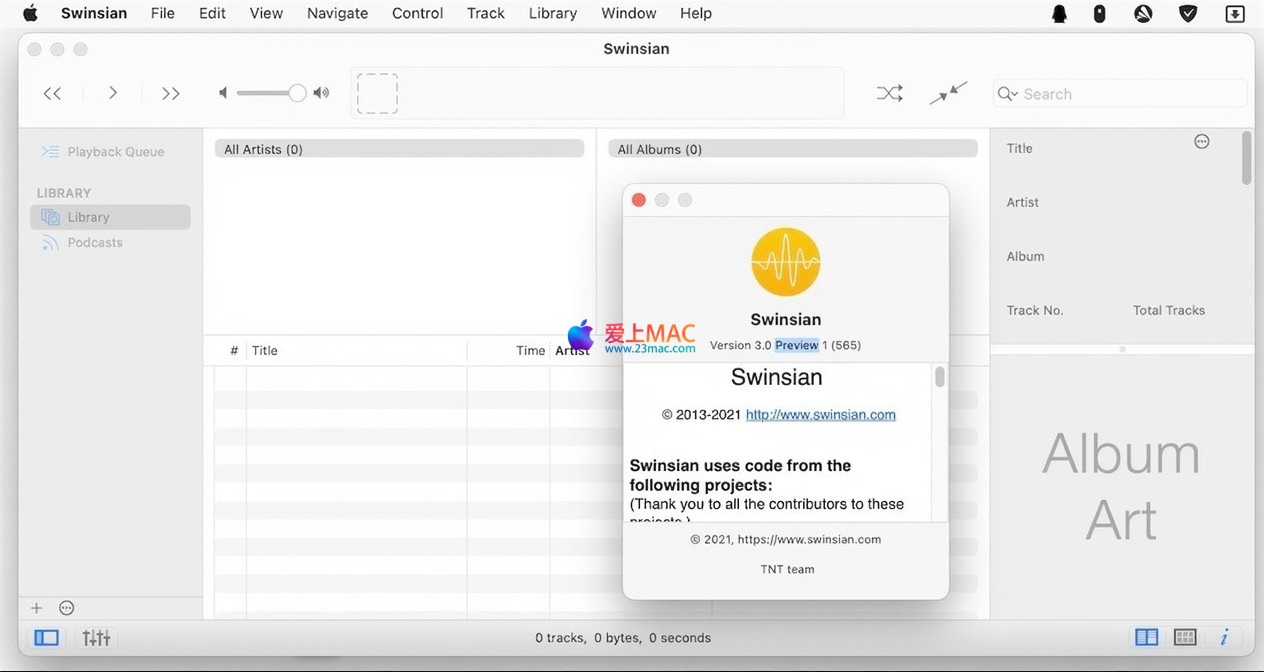
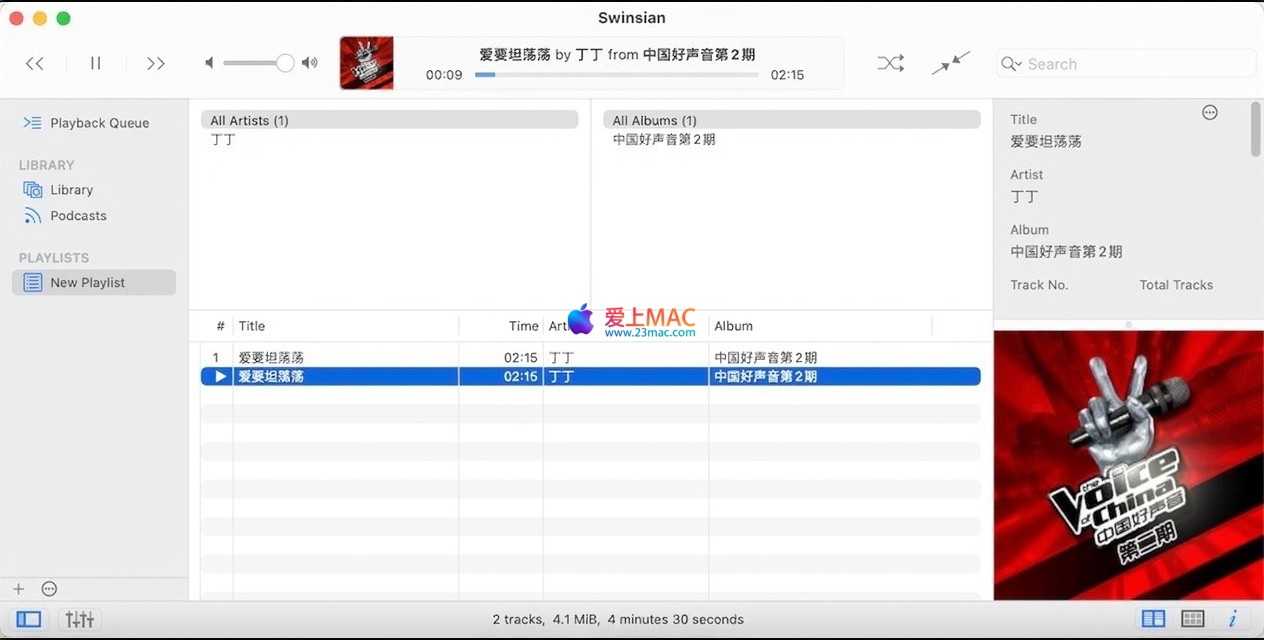
Swinsian Music Player v3.0.8 Activation Download
Here is the page providing Swinsian for Mac v3.0.8 music player activation download | LoveMac is tested and available. If you encounter any issues with the link or the downloaded software, please leave a message to contact us.
Swinsian is a professional-grade local music player and library management software optimized for macOS. It aims to replace iTunes/Apple Music for users with extensive local music collections and for audiophiles who enjoy lossless audio. The software boasts lightweight efficiency, full-format lossless compatibility, powerful management capabilities, and extensive customization, addressing the issues of bloated native music apps, limited format support, and weak management features. It is the preferred solution for Mac users managing and playing local music.
Swinsian comes with an independent audio decoding engine, independent of the system decoder, achieving full compatibility with almost all mainstream audio formats. This means that regardless of the format of your music files, it can handle them effortlessly.
Many audiophiles pursue the ultimate sound quality, and the Hog mode is Swinsian’s trump card. When enabled, the software takes exclusive control of the audio output device, preventing other system sounds from interfering. To set this up, open Swinsian’s preferences, navigate to the “Playback” tab, and check the “Enable Hog mode” option. If you use an external DAC, this mode ensures that the sample rate automatically matches, delivering the purest audio stream.
Swinsian has been deeply optimized for ultra-large music libraries, ensuring rapid startup, browsing, and search responses even when dealing with tens of thousands of tracks.
Q1: How do I import iTunes libraries into Swinsian?
A1: Open Swinsian, go to the “File” menu, select “Import,” and choose “From iTunes library.” The software will automatically scan and migrate your playlists, ratings, and playback data without manual intervention.
Q2: Does Swinsian support the APE format?
A2: Yes, Swinsian natively supports the APE format, requiring no additional decoding software. Simply drag and drop APE files into the library to play and edit tags.
Q3: How do I remove duplicate music files?
A3: In Swinsian, click “File” > “Find Duplicate Tracks.” You can set rules based on file names, duration, bit rate, etc. After selecting duplicates, you can delete or merge them with a single click.
Q4: Why can’t I play my FLAC files?
A4: Please ensure that the FLAC files are in standard encoding and are not damaged. Swinsian supports four-channel FLAC, and if you encounter special encoding, you can update to the latest version v3.0.8, which resolves the issue with four-channel FLAC playback.
Q5: Does Swinsian support AirPlay?
A5: Yes, Swinsian supports AirPlay. You can output audio to any AirPlay-compatible device, such as a HomePod or Apple TV. To do this, click the output device icon in the playback interface and select the AirPlay device.
Q6: How do I batch modify music tags?
A6: Select multiple tracks, right-click, and choose “Edit Tags.” You can modify artist, album, year, and other information in the pop-up window. Support for advanced replacements using regular expressions is available.
Q7: Can I export playlists?
A7: Yes, right-click on the playlist and choose “Export.” Support for exporting to M3U or PLS formats, making it convenient for use in other players.
Q8: Does Swinsian have a Chinese interface?
A8: Swinsian’s main interface is in English, but Chinese tags display correctly. There is a non-official Chinese translation package available in the community, but it is recommended to use the original version to ensure stability.
Q9: How do I set up replay gain?
A9: In the preferences’ “Playback” tab, check the “Enable replay gain.” You can balance the volume based on the album or track, ensuring consistent volume levels for different tracks.
Q10: Does Swinsian consume a lot of memory?
A10: No, Swinsian is lightweight. Even when managing tens of thousands of tracks, its memory usage is far below that of iTunes. According to official testing, the memory usage typically stays below 50MB after startup.
Swinsian offers极致的界面与操作灵活性,全面适应用户的个人习惯与视觉偏好。
| Shortcut | Function Description | Applicable Scenario |
|---|---|---|
| Space | Play/Pause | Quickly control playback status |
| Command + → | Next Track | Switch to the next song |
| Command + ← | Previous Track | Return to the previous song |
| Command + F | Search Library | Quickly locate a song |
| Command + N | Create Playlist | Organize music collections |
| Command + I | Edit Tag Information | Modify metadata |
| Command + Delete | Delete Track from Library | Clear unnecessary files |
| Command + Shift + M | Open Mini Player | Saving desktop space |
| Option + Command + E | Open Equalizer | Adjust sound effects |
| Command + R | Refresh Library Scan | Manually sync new files |
Using these shortcuts can significantly enhance operational efficiency. For example, using Command + F to quickly search and combining it with Space to play can complete most operations without a mouse.
Swinsian integrates a rich array of professional tools and boasts excellent device compatibility, expanding the scope of music usage.
To ensure a smooth installation and usage of Swinsian, please follow the steps below. This tutorial is based on the v3.0.8 activated version, which has been tested on macOS Ventura and Sonoma systems.
Download the Swinsian v3.0.8 activated DMG file from the link provided on this page. After the download is complete, double-click the DMG file to mount the disk image. You will see a window containing the Swinsian application icon.
Drag the Swinsian icon to the right-hand “Applications” folder. The system will automatically copy the files. If prompted to enter the administrator password, do so. The entire process should take about 10-30 seconds.
Open the “Applications” folder and double-click the Swinsian icon to launch. When first launched, macOS may prompt “Unable to verify developer identity.” Click “OK” to close the prompt, then proceed to “System Preferences” > “Security & Privacy” > “General,” and click the “Open” button. This is a normal security mechanism.
After launching, Swinsian will prompt for activation. Enter the activation code provided on this page (usually in a TXT file within the download package). Click the “Activate” button. If activation is successful, you will see a “Activated” message. If it fails, check your network connection or re-enter the code.
After activation, Swinsian will ask if you want to import iTunes library. Select “Yes” to migrate automatically. If you choose “No,” you can manually add music later through “File” > “Import” > “Folder.” It is recommended to add a folder with a few files for testing.
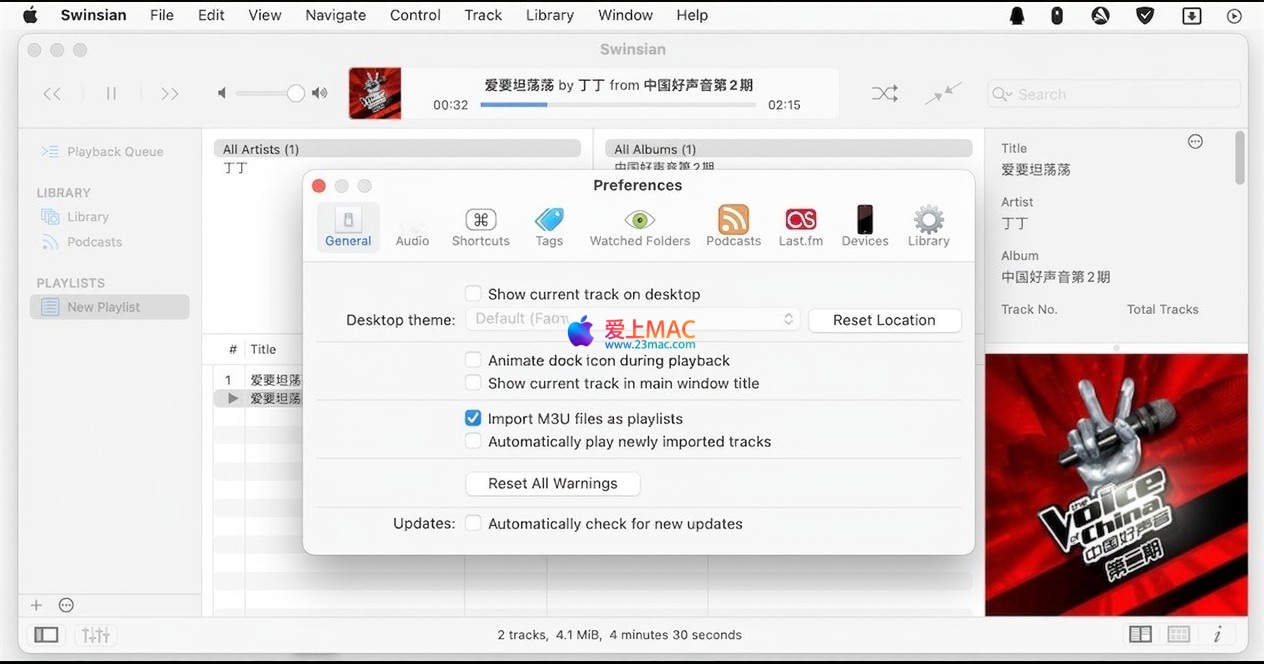
Click the “Swinsian” menu bar > “Preferences.” In the “General” tab, set the music folder path. In the “Playback” tab, enable the Hog mode or adjust the replay gain according to your needs. After completing the settings, you can start enjoying the music.
Swinsian’s smart playlists are a powerful feature. For example, create a “Recently Added” list: Click the “+” button in the playlist bar, choose “New Smart Playlist.” Set the rule to “Added Date” within the “last 7 days.” This will automatically categorize new downloads, eliminating the need for manual management.
If you have old iPods that only support MP3, you can use Swinsian’s batch conversion feature. Select all FLAC files, right-click, and choose “Convert to.” Set the output format to MP3 with a bitrate of 320kbps. The software will batch process and retain the original files, ensuring compatibility with the device.
Assume you have two HomePods and one Mac. Open Swinsian, click the AirPlay icon in the upper right corner. Check all AirPlay devices. This will sync the music across multiple rooms. You can control the volume on the Mac to achieve full-house audio coverage.
If your downloaded music files have messy tags, such as all track titles containing “www.music.com.” Select these tracks, open the tag editor. In the “Find” field, input “www..*.com,” and leave the “Replace” field empty. Check the “Use Regular Expression” box, and click “Replace All.” Instantly clean up the tags.
Swinsian supports custom global shortcuts. Enter “Preferences” > “Shortcuts.” You can set combinations for actions like “Play/Pause,” “Next Track,” etc. For example, set Control + Option + Command + P as the play shortcut. This allows you to control music even in other applications.
Swinsian v3.0.8 is a professional tool designed for macOS heavy music users. Its lightweight architecture, full format support, and powerful management features make it an ideal alternative to iTunes. Whether you’re a die-hard audiophile seeking lossless playback or a casual user needing a library organizer, Swinsian can handle it.
Based on user feedback from the authoritative audio community HydrogenAudio, Swinsian has received high praise for its stability and audio quality. Its Hog mode and automatic sample rate matching are widely recognized in the professional audio field. We recommend that all Mac users try this software, especially those who have high requirements for local music.
Lastly, please ensure you download the latest activated version from this page. If you encounter any issues during installation or usage, feel free to leave a message. We will promptly assist you to ensure you have the best experience.
This resource requires login to download
Log in
Total Video Player for Mac v3.3.0: Full-Feature Video Player Download
Downloads:0 | 2026-10-27

Ultimate Live Performance Gear with MainStage 3 for Mac v3.6.4 Chinese Activation Download
Downloads:1564 | 2026-10-24

Photomator for Mac v3.3.17 Chinese Activation Version Download
Downloads:1051 | 2026-10-21

Microsoft Excel 2019 for Mac v16.30 Chinese Activation Download Essential Office Software
Downloads:1874 | 2026-10-20


Ratings & reviews
4.7
(Maximum 5 ratings, total 27 user reviews)
Let’s rate it.