

DxO PureRAW 6 for Mac v6.0.0 RAW Image Processing Software Chinese Activation Version Download
Here is the page providing DxO PureRAW 6 for Mac v6.0.0 RAW file post-processing software Chinese activation version download | LoveMAC has tested and is available. If you encounter issues with the download link or the software cannot be installed after downloading, please leave a message to contact us.
DxO PureRAW is a professional-grade RAW image post-processing software designed for the macOS platform. It specializes in enhancing the quality of RAW files, utilizing exclusive AI noise reduction technology and a global leading optical calibration database. It aims to solve common issues such as high ISO noise, lens optical defects, lost details, and sensor dust, while retaining the RAW file’s original dynamic range, editing flexibility, and metadata. The software is designed to provide purer and more detailed RAW materials for professional photographers and photography enthusiasts, seamlessly integrating into mainstream post-processing workflows, significantly improving the efficiency and quality of the final output.
The core competitiveness of DxO PureRAW lies in its AI processing engine, which is based on deep learning. This engine optimizes the denoising and mosaic removal processes, breaking through the quality bottleneck of traditional RAW conversion algorithms.
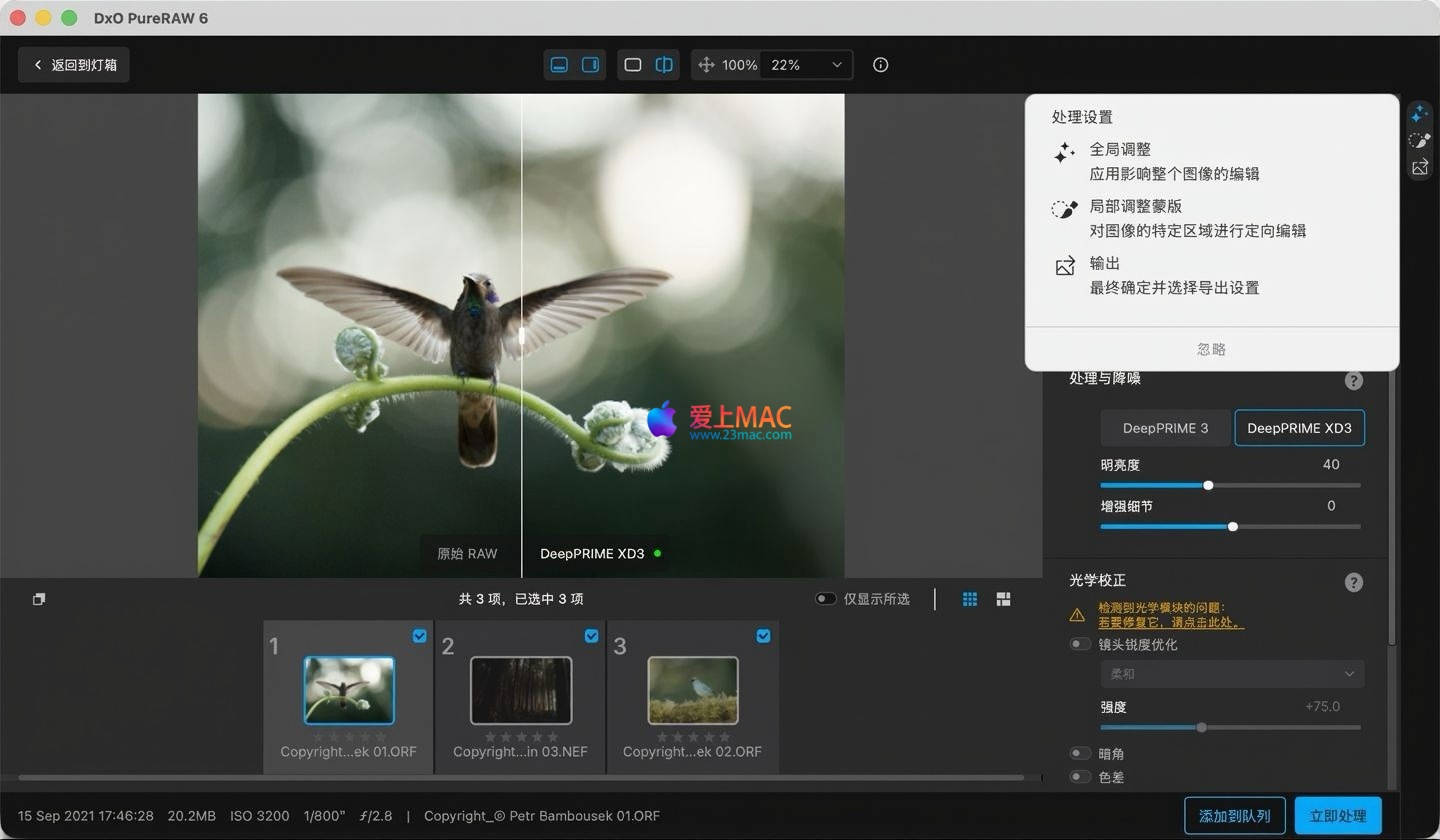
As the latest generation of the flagship engine, DeepPRIME XD3 is based on a larger neural network. It fully supports both the Bayer and Fujifilm X-Trans sensor arrays. It is designed for high-noise and high-complexity extreme shooting scenarios, featuring the following characteristics:
The third-generation DeepPRIME engine, in addition to its dual-core processing for denoising and mosaic removal, now includes pixel-level color difference correction, which can precisely eliminate purple fringing and residual color bias during the RAW conversion process. This engine ensures significant quality improvements while optimizing processing speed, making it an ideal choice for balancing batch processing efficiency and quality.
The software offers various processing modes including HQ, PRIME, DeepPRIME, and DeepPRIME XD. Users can flexibly choose the appropriate processing mode based on specific shooting scenarios, quality requirements, and device performance, covering a wide range of needs from quick batch processing to extreme quality optimization, suitable for all types of photography including landscape, portrait, documentary, starry night, and sports.
The software includes over ten thousand precision-calibrated optical modules covering a wide range of camera and lens combinations from brands such as Canon, Nikon, Sony, Fujifilm, Leica, and Panasonic. The software automatically identifies the shooting device and matches the corresponding optical module, achieving precise automatic optical calibration without user intervention.
DxO PureRAW uses linear DNG as the core output format, ensuring that the RAW file’s dynamic range, white balance, exposure, and other core editing parameters are retained without any loss. The processed files can be fully parameter-adjusted in any DNG-compatible post-processing software, avoiding the limitations of similar JPEG processing, and preserving the full creative editing space for subsequent edits.
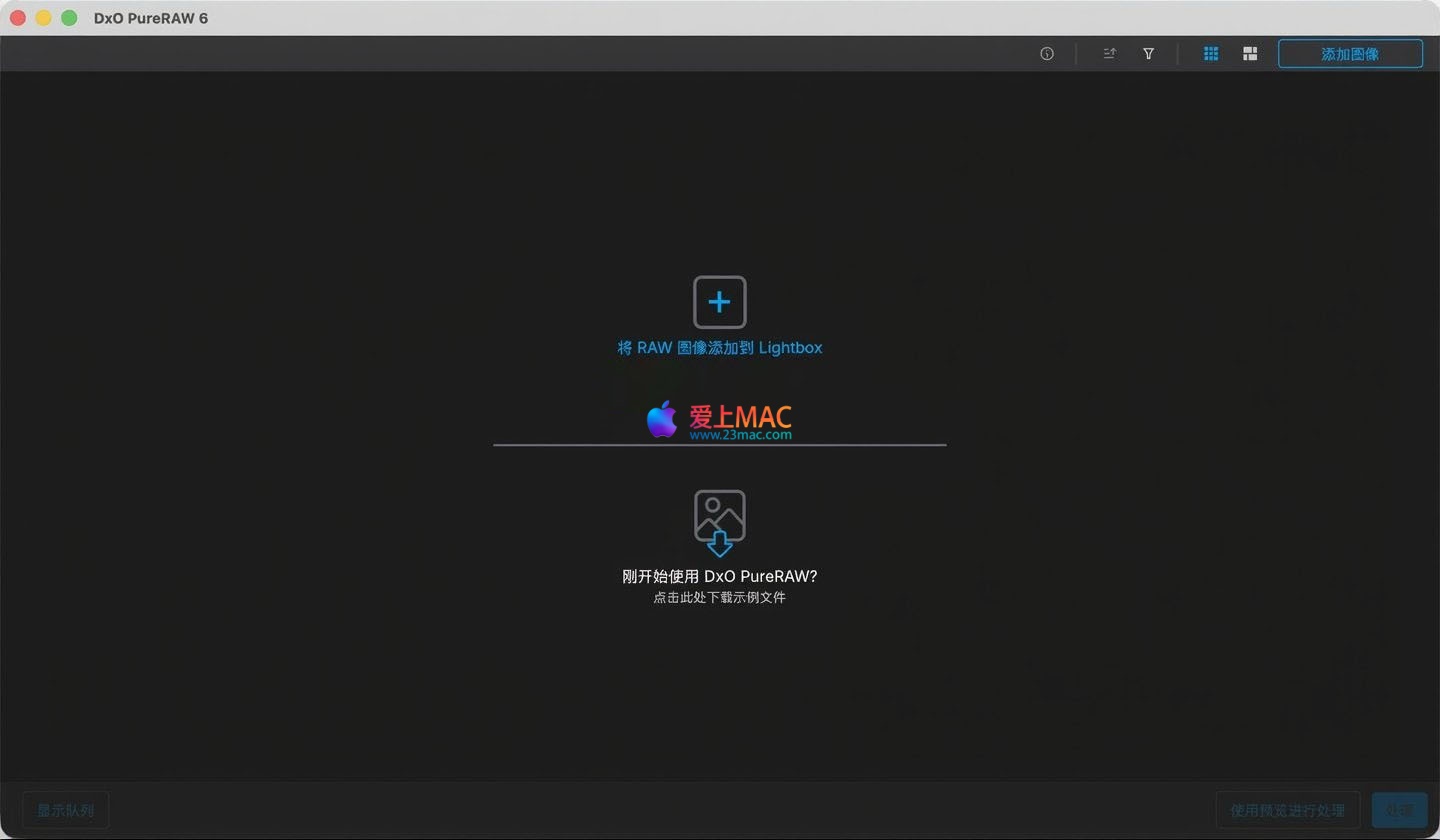
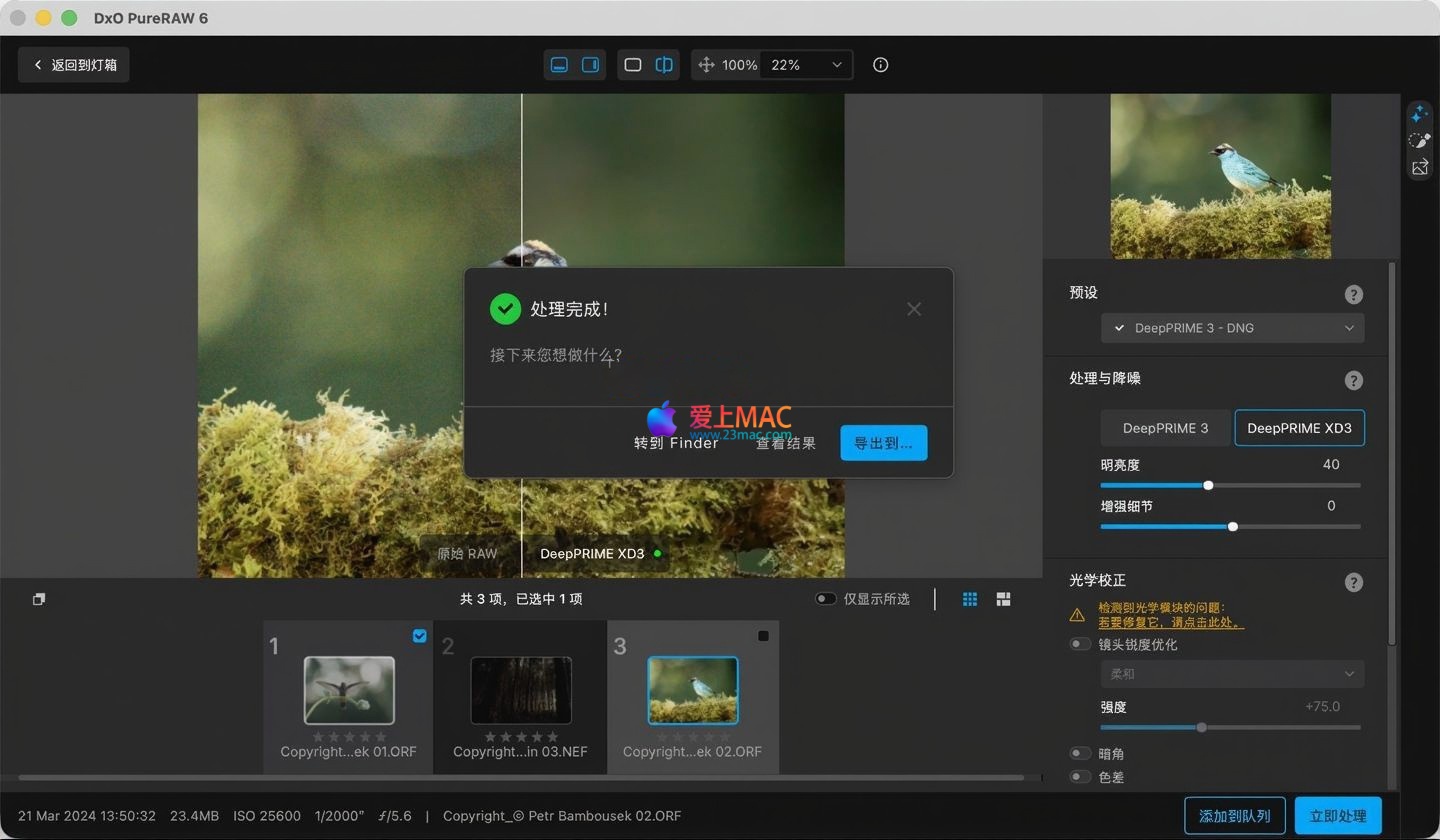
Here are screenshots of the DxO PureRAW 6 for Mac software interface, showcasing its intuitive workflow and processing options:
To ensure a smooth installation and use of DxO PureRAW 6, we have prepared the following steps. Please follow them in sequence to avoid issues with permissions or compatibility.
From “AimMAC” downloads are typically in compressed formats (such as .dmg or .zip). Double-click the downloaded installer, and the system will automatically decompress it. If you encounter the “Developer’s identity cannot be verified” prompt, go to “System Preferences” > “Security & Privacy” > “General”, and click “Open Anywhere.”
After decompressing, drag the DxO PureRAW 6 icon to the “Applications” folder. This is the standard macOS installation method. Wait for the progress bar to complete, and the software icon will appear in the Dock.
Upon first opening the software, you will be prompted to activate it. Copy the activation code provided (usually found in the .txt file within the installation package). Paste the activation code into the corresponding input box, and click “Activate.” If you encounter a network error, ensure your Mac is connected to the internet.
After successful activation, the software will guide you through initial preferences. It is recommended to set the interface language to Simplified Chinese. You can also associate the Lightroom plugin here for a smoother workflow. Click “Finish” to enter the main interface.
We have compiled the most frequently encountered user questions to help you quickly resolve any doubts.
This is usually a false positive from macOS Gatekeeper’s security mechanism. Open the Terminal app, and enter the command: sudo spctl --master-disable. Enter your computer password (do not show it) when prompted, and then re-run the installation package.
Please ensure you have installed the Classic version of Lightroom, not the Cloud version. After installation, manually enable the DxO PureRAW plugin in Lightroom’s “File” > “Presets Manager.”
It is entirely normal. DeepPRIME XD3 is the most computationally intensive mode, especially for high-resolution photos (over 50 million pixels). Single-image processing might take several minutes. For better efficiency, use the DeepPRIME 3 mode when batch processing.
Yes. Due to the linear DNG’s richer color depth and detail information, its file size is typically twice or three times that of the original RAW. This is to ensure maximum editing freedom. Ensure your hard drive has sufficient space.
It fully supports. DxO PureRAW 6 has been optimized for Apple Silicon chips, allowing it to fully leverage the neural network engine performance of the M series chips, significantly improving processing speed compared to Intel chips.
Please check if you used “In-camera correction” during shooting. DxO PureRAW recommends disabling the camera’s in-camera lens correction function to avoid conflicts with the software’s optical module correction, which could result in overlapped or abnormal effects.
Each activation code has a limited number of activations. Ensure you are activating on your own Mac. If you encounter issues, contact the page’s contact information for assistance.
Mastering these shortcuts can help you work more efficiently in post-processing. Below is a table of high-frequency DxO PureRAW 6 and Lightroom integration shortcuts.
| Shortcut Combination | Function Description | Applicable Scenario |
|---|---|---|
| Command + O | Open/Import RAW files | Quickly import media in the main interface |
| Command + E | Export/Process current selected file | Quick single-image processing |
| Command + Shift + E | Batch process all files to be processed | Batch export scenario |
| Space | Quickly preview the current selected photo | View before-and-after comparisons |
| Command + Z | Undo the previous operation | Undo accidental actions |
| Command + , | Open software preferences | Adjust language, output path, etc. |
| Tab | Switch focus to the next area | Interface navigation |
Note: When calling the DxO plugin in Lightroom, the shortcut is Command + Shift + D (requires selecting the photo first).
Just looking at parameters isn’t enough. We demonstrate two practical scenarios to show you what DxO PureRAW 6 can do.
In a recent indoor party, due to insufficient lighting, the ISO was pushed to 6400. Upon enlarging the original image, the noise on the skin resembled sandpaper. During processing, we selected the DeepPRIME XD3 mode. The result retained perfect skin texture, clear eyelashes, and eliminated background noise. This is something traditional noise reduction algorithms cannot achieve. The final image has a smooth texture, completely hiding the high ISO shot.
Shooting a long-exposure waterfall, due to using a small aperture, the edges of the image showed obvious purple fringing and color differences. Traditional post-processing software is difficult to completely eliminate these issues without affecting the quality. In DxO PureRAW 6, utilizing its built-in optical module, the software automatically identified the lens model and corrected the edge color differences with a single click. Additionally, through the DeepPRIME 3 engine, the clarity of the waterfall flow details and the sharpness of the rock texture were significantly improved.
It is recommended that you disable in-camera noise reduction and in-camera correction when shooting. Leave the original RAW file to be processed by DxO PureRAW 6, which is the foundation for obtaining the best quality. Additionally, for astrophotography, it is strongly recommended to use the DeepPRIME XD3 mode, which can reconstruct star point details while eliminating hot noise points caused by long exposure.
DxO PureRAW 6 for Mac is not just a noise reduction software, but a complete RAW quality solution. It reduces the professional photographer’s post-processing threshold through advanced AI technology. Whether for commercial photography or personal creation, it can become an indispensable part of your workflow. The DxO PureRAW 6 for Mac v6.0.0 RAW file post-processing software Chinese activation version download | LoveMAC provided on this page has been rigorously tested to ensure its availability. If you encounter any issues during the download or use process, please feel free to leave a message, and we will provide technical support as soon as possible.
This resource requires login to download
Log in
Asphalt 8 Airborne+ for Mac v1.7.0: Wild Drift 8 Racing Game – Download & Activate
Downloads:352 | 2026-10-23

Hidden Folks: A Sketchy Hunt Game for Mac – Download and Activation Version
Downloads:1315 | 2026-10-23

Adobe Bridge 2022 for Mac v12.0.3 Br2022 Crack中文版
Downloads:2143 | 2026-10-22

Sublime Merge for Mac v1111 Git Client Software Activated Version Download
Downloads:657 | 2026-10-17


Ratings & reviews
4.9
(Maximum 5 ratings, total 92 user reviews)
Let’s rate it.