

CleanShot X for Mac v4.8.8 Screen Recording Software Activation Download
Here is the page providing CleanShot X for Mac v4.8.8 screen recording software activation download | LoveMAC has been tested and is available. If you encounter issues with the link or the software fails to install after downloading, please leave a message to contact us.
CleanShot X is a full-featured screen capture and recording tool designed specifically for macOS. It seamlessly integrates the various stages of screen capture, featuring over 50 functions including screenshot, screen recording, annotation, and OCR text recognition. Users have praised it as a “tool that can replace seven independent applications.”
CleanShot X offers a streamlined workflow to connect the various stages of screen capture, with its main feature modules including:
In addition to the core capture functions, CleanShot X includes a range of auxiliary tools to enhance efficiency:
Note: If the software’s permissions cannot be properly enabled, you may need to reset system permissions settings. Follow these steps:
Steps:
tccutil reset All pl.maketheweb.cleanshotx
This command resets all permissions for CleanShot X. After completing the reset, restart the software and grant the necessary permissions as prompted.
The main updates for this version address the following issues and improve the user experience with minor optimizations:
Many novice users have reported difficulties in granting permissions during the installation of CleanShot X. Here, we break down the installation process step-by-step to ensure a successful installation.
First, download CleanShot X v4.8.8 activation version from the provided link on this page. After downloading, double-click the .dmg file to mount the image. Drag the CleanShot X icon from the left to the Applications folder on the right. This is a standard procedure that should take about 10 seconds.
Launch CleanShot X from the Launchpad by clicking on its icon. Upon the first launch, macOS will prompt you with multiple permission request dialog boxes. Please ensure to click “Allow” or “OK.” If any request is missed, you can manually enable the required permissions in the “System Settings” > “Privacy & Security” section. The necessary permissions include screen recording, assistive technology, microphone, and file and folder access. These permissions are foundational for the software to function properly and are essential.
After granting all permissions, press the shortcut Shift + Command + 5 to see the familiar system screenshot toolbar. However, CleanShot X will take over this shortcut and display its own floating toolbar. At this point, you can try capturing a region and observe if the “Quick Access” floating panel appears. If everything works as expected, congratulations! The installation is successful.
If you encounter the “Cannot Open” or “Damaged” prompt during installation, check if Gatekeeper is disabled. In the Terminal, enter sudo spctl --master-disable and press Enter (you will need to enter your password). Then, try opening the software again. If the issue persists, refer to the permission reset solution in Chapter Three of this article.
We have compiled the top 10 frequently asked questions by users and provided detailed answers to help clear any obstacles you might encounter during use.
The built-in tools are basic and can only perform simple screenshots and screen recordings. In contrast, CleanShot X offers over 50 features, including scroll screenshots, intelligent annotations, local OCR, background tools, and fixed screenshots. It’s more like an integrated workspace rather than a single tool.
Yes, it fully supports Apple Silicon chips. CleanShot X began to adapt to M1 chips from its early versions and is now compatible with M1, M2, and M3 series chips. It has also been optimized for Apple Silicon, resulting in better performance, lower power consumption, and smoother operation.
Before starting the screen recording, click the CleanShot X icon in the menu bar and select “Screen Recording.” In the settings window that appears, find the “Audio” option and choose “System Audio.” This will only record the internal sounds of your computer, not your voice.
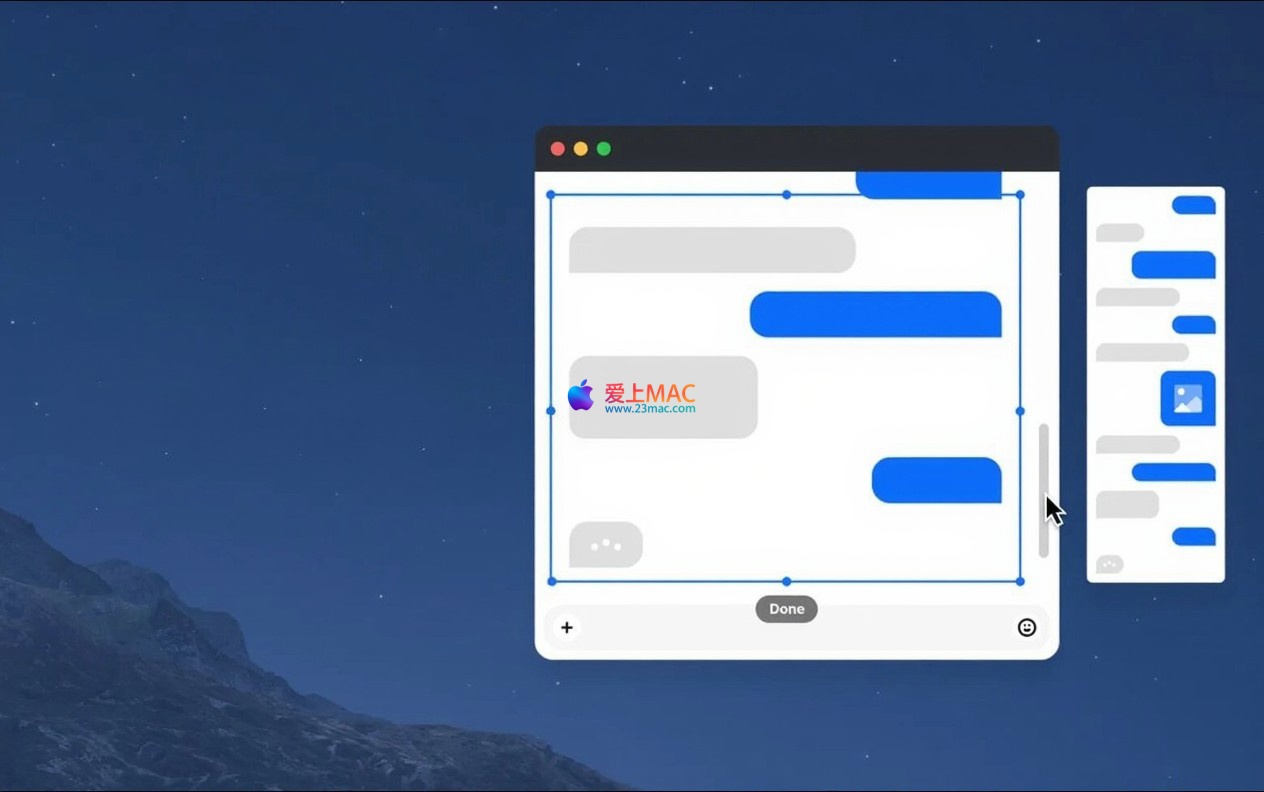
The scroll screenshot feature works well in most mainstream browsers (Safari, Chrome, Edge), code editors (VS Code, Sublime Text), and some document applications. However, it may not work perfectly in some outdated or non-standard window applications. In such cases, manual screenshot stitching might be a better option.
The OCR engine in CleanShot X is based on a local engine and runs offline. It has a high accuracy rate for printed English and Chinese text, reaching over 95%. For handwritten or artistic fonts, the accuracy rate may be lower. Overall, it is sufficient for extracting text information in daily use.
Open the settings panel in CleanShot X and find the “General” tab. In the “Save Location” option, you can choose from pre-set folders like “Desktop” or “Pictures,” or click “Choose” to create a custom folder. It is recommended to create a folder named “Screenshots” for easier management.
When running in the background, CleanShot X consumes approximately 50MB to 100MB of memory, which is negligible for modern Macs. CPU usage only increases briefly during screenshot or recording operations. Overall, it is a lightweight and efficient tool.
Select the arrow or line you have added, and the tool options bar will appear with a slider for “Outline Width.” Drag the slider to adjust the thickness in real-time. You can also set the default outline width and color in the settings panel under the “Annotation” option.
CleanShot X includes a simple video editing feature, but does not offer deep compression options. You can import the recorded video into HandBrake or QuickTime Player to adjust the bitrate and resolution for file size reduction. Alternatively, if you only need to demonstrate operations, recording GIF files would be more compact.
Yes, the custom shortcuts in CleanShot X will be reset to the default macOS settings after uninstalling the software. If you are concerned about conflicts, you can reset all shortcuts to default before uninstalling.
Mastering the shortcuts in CleanShot X can greatly enhance your efficiency during use. Below is a table of the most commonly used shortcuts, which you are encouraged to save.
| Function Description | Shortcut | Notes |
|---|---|---|
| Capture selected area | Shift + Command + 4 |
This shortcut is taken over by CleanShot X |
| Capture entire screen | Shift + Command + 3 |
Includes all monitors |
| Capture specific window | Shift + Command + 4 followed by the space bar |
Click on the window to capture |
| Scroll screenshot | Option + Shift + Command + 4 |
Select the area and then scroll |
| Start/Stop screen recording | Shift + Command + 5 |
Opens the screen recording control bar |
| Open quick access panel | Option + Shift + Command + 5 |
Manages recent screenshots |
| Pin/unpin screenshot | Shift + Command + P |
Displays the screenshot on top |
| Open annotation toolbar | Appears automatically after taking a screenshot | Also available by clicking the floating panel |
Having the tool is not enough; using it wisely is the key. Below, I share a few real-world usage tips to help you fully unleash the productivity of CleanShot X.
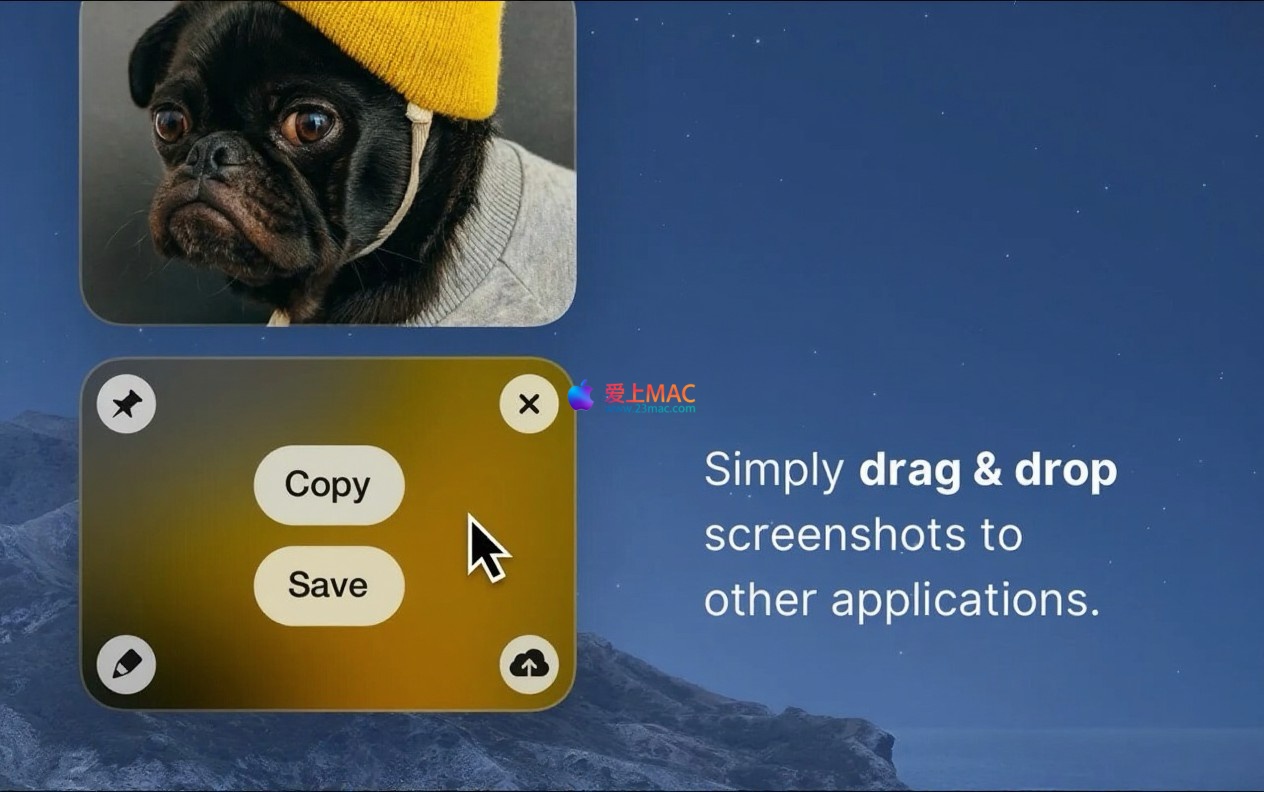
Many designers and developers need to frequently screenshot and share. You can set it up in CleanShot X settings: set “Screenshot After Operation” to “Open Quick Access Panel automatically”. This way, a floating panel will appear after each screenshot, allowing you to copy, save, or drag-and-drop to chat apps with a single click. Pairing this with the “Background Tool”, you can add a beautiful gradient background beneath the screenshot automatically, making it easy to share on social media or Twitter without the need for post-processing.
Programmers often need to refer to another file or document while writing code. The traditional method involves switching between windows, which is inefficient. Using CleanShot X’s “Fixed Screenshot” feature, you can take a screenshot of key parts of the reference document and press Shift + Command + P to fix it in the corner of the screen. Adjusting the transparency to 70% ensures it doesn’t obstruct the main window. You can write code while viewing the reference image, experiencing a smooth workflow.
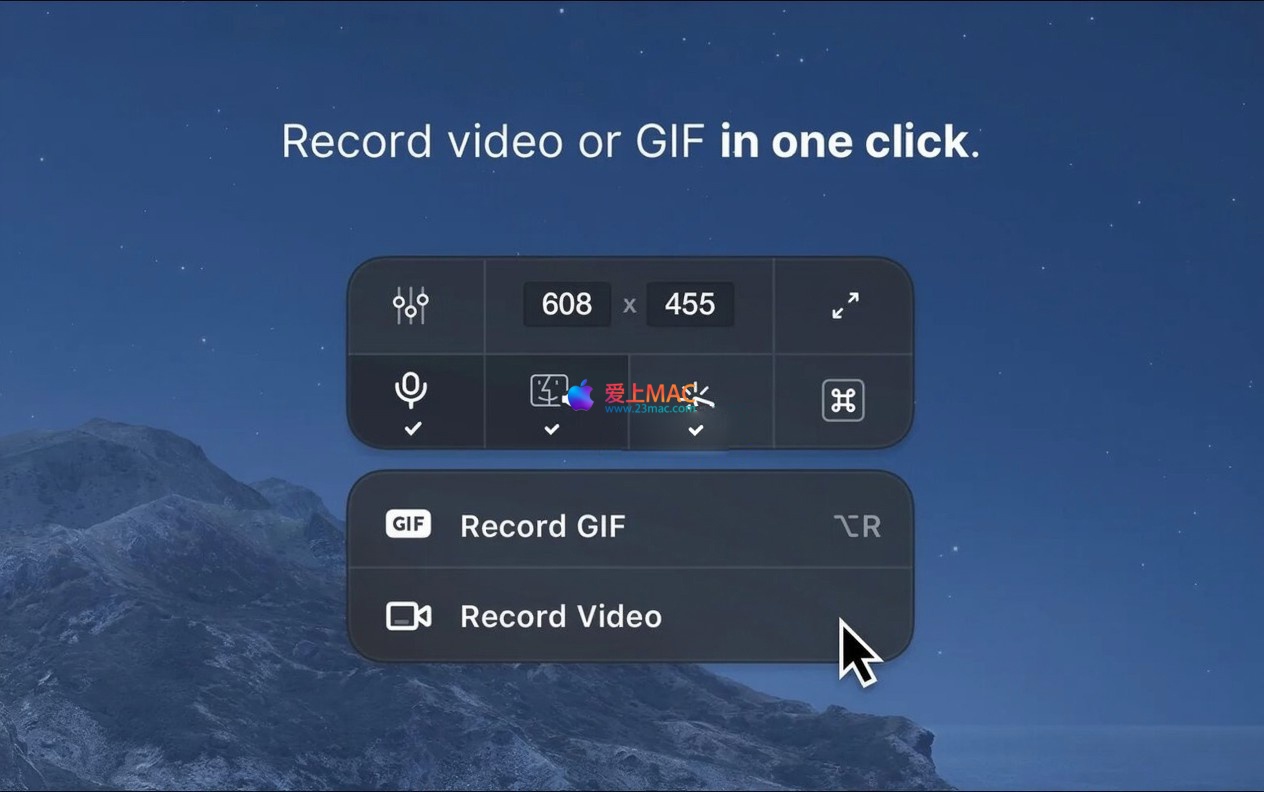
Assume you are a product manager needing to demonstrate a new feature to your team. Open CleanShot X, select “Screen Recording” > “GIF”. Select the area to be demonstrated, start recording. During the process, the software automatically highlights the mouse-clicked positions and displays the pressed shortcuts. After recording, you can trim the beginning and ending clips within the software. The final GIF will be small in size and of high quality, allowing you to embed it into documents or emails.
You find a beautiful PPT screenshot online, but the text can’t be directly copied. In this case, CleanShot X’s OCR feature comes in handy. Capture the area containing the text, click the “Text Recognition” button in the annotation toolbar. The software will extract all the text in milliseconds and automatically copy it to the clipboard. You can then paste it into a note-taking app. The entire process takes less than 5 seconds, much faster than manual typing.
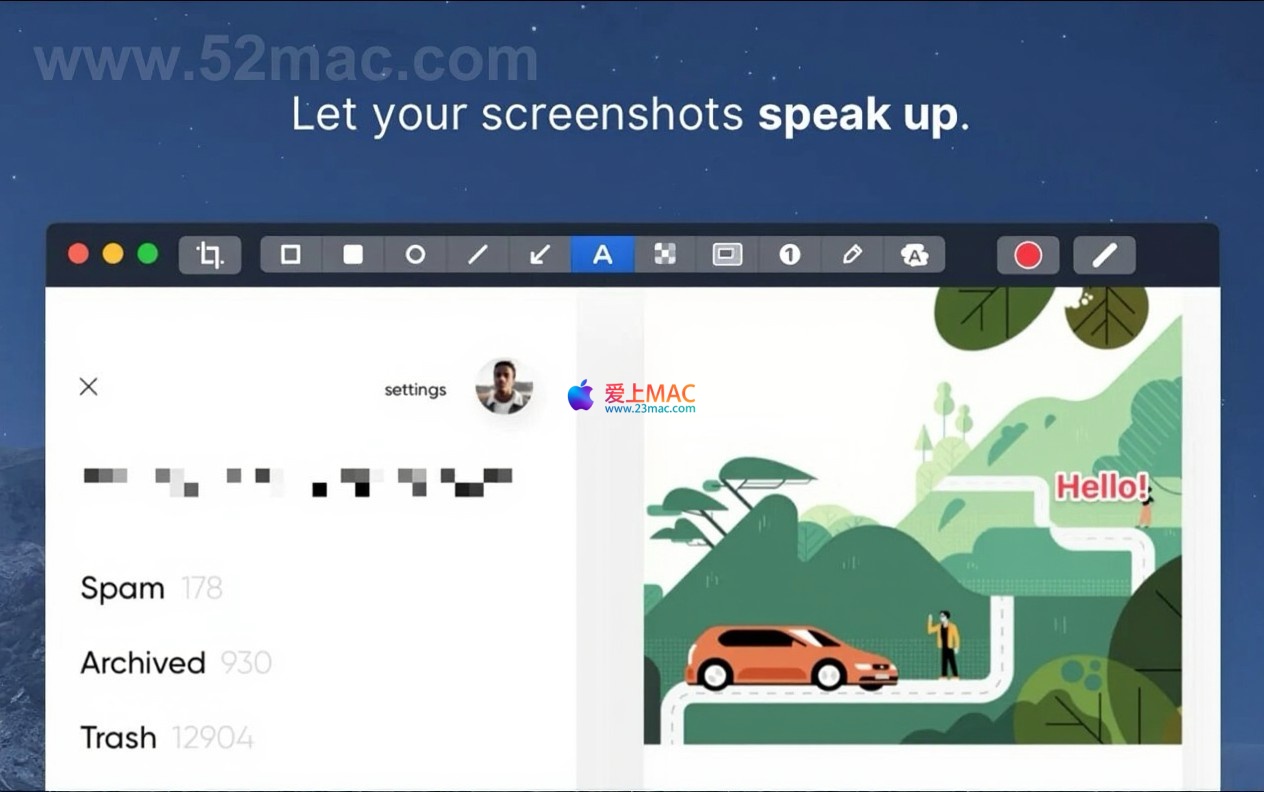
When sharing work screenshots, sensitive information such as usernames, passwords, and IP addresses may be included. CleanShot X’s annotation tool features a “Blur” function. Select the area to be hidden, click the “Blur” button, and the software will automatically apply a mosaic effect. You can also adjust the blur intensity to ensure the information is completely invisible. This feature is particularly useful in scenarios like technical support and bug reporting.
CleanShot X as a fully native macOS application meets the high standards of Mac users in terms of performance and integration with the system. With its comprehensive features, smooth experience, and deep integration into workflows, it has become a must-have tool for many users to enhance their productivity. From installation to daily use, from basic screenshots to advanced screen recordings, it offers a professional-level experience. If you are still undecided about which screenshot software to use, give CleanShot X a try. It is likely to surprise you.
This resource requires login to download
Log in
Focus for Mac v1.12: Stay Focus and Work Efficiently – Activation Download
Downloads:3007 | 2026-10-27
-for-Mac-1.0-街机型竞速动作游戏.png)
Steel Rats for Mac: Street Model Racing Action Game_ Steel Rats Mac Download & Activation Version
Downloads:1881 | 2026-10-23

Art Text 4 for Mac v4.2.0 Chinese Language Pack and Activation Download
Downloads:2967 | 2026-10-22

Geekbench AI for Mac v1.2.0 Activation Download
Downloads:2827 | 2026-10-18


Ratings & reviews
5
(Maximum 5 ratings, total 18 user reviews)
Let’s rate it.