

Visual File Comparison with Araxis Merge for Mac v2026.0 Activation Download
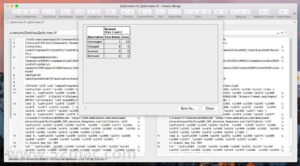
Araxis Merge is a bidirectional and tri-directional visual file comparison/merging and folder synchronization application. Use it to compare, understand, and combine different versions of source code, web pages, and other text files, even text copied and pasted from other applications such as Pages or Microsoft Word.
Text comparison and merging
Merge allows you to compare and handle different revision versions of text files, such as program source code, XML, and HTML files. Merge extracts and compares text from Microsoft Office, OpenDocument, PDF, and RTF files. XML files can be displayed in a special format to help you clearly see the changes. It supports files with ASCII, MBCS, and Unicode character encodings.
“Merge” displays detailed highlights of inline changes. It can be configured to ignore spaces and differences at the end of lines, as well as changes to lines that match a specified regular expression. The latter is useful for ignoring insignificant changes, such as timestamps or extended version control keywords.
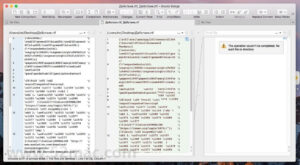
With color-coded side-by-side comparisons, it is easy to clearly identify differences between files at a glance. Links are drawn between documents to clearly show their relationships.
Clicking Merge helps you select parts of each file, allowing you to add them to the final merged version with a single click. The in-place editor, which has unlimited undo functionality, allows you to fully control the merging process. The text comparison display dynamically updates as the merging progresses.
Comparing common office file formats
Extracts and compares text content from Microsoft Office, OpenDocument, PDF, and RTF files. Copy text from other applications and directly paste it into the text comparison (please note that the layout and formatting of Office documents will not be displayed in the text comparison).
Image and binary file comparison
Merge is not just for comparing text files. Use image comparison to compare many different types of image files and immediately view which pixels have been modified. Binary comparison allows you to identify differences in data files at the byte level.
Three-way comparison and automatic merging
Merge Professional adds advanced three-way visual file comparison and merging features to the standard bidirectional visual file comparison and merging. This is particularly useful when multiple people are working on the same set of files.
The automatic merging feature can quickly coordinate the largest files. Three-way file comparison can directly start from three-way folder comparison, allowing for efficient integration of the entire branch of source code.
File hierarchy comparison and synchronization
Merge supports hierarchical file comparison and synchronization, allowing you to compare and merge entire directory trees. This is especially useful for detecting changes in different versions of source code or web pages. You can even use efficient byte-by-byte comparison options to verify the contents of CD-R or USB thumb drives.
Merge Professional supports three-way folder comparison (with automatic merging), allowing two revisions of a folder hierarchy to be merged with a common ancestor or other folder hierarchies. This is particularly useful when used with source code control or software configuration management systems.
Version 2026.0 Update Content:
### 1. macOS Tahoe Comprehensive Optimization and Support
– Fully supports, optimizes, and tests macOS 26 Tahoe
– The application icon fully supports the Liquid Glass effect and macOS Tahoe icon theme
– Added 32-pixel square setting dialog box page icons for Tahoe and Golden Gate
– Carefully adapted the large-radius corners of macOS Tahoe windows to ensure that they do not crop or reduce the available space for displaying comparison content
– Information and alert dialogs use the new macOS Tahoe sheet style
### 2. New Modern UI Design
– A new, beautiful design that perfectly coordinates with macOS Golden Gate, Tahoe, Sequoia, and Sonoma
– Modernized windows, tabs, comparison panes, file/folder input fields, and dialogs with rounded corners, fine spacing, and Tahoe-sensing sizes
– Adopted semi-transparent background materials, carefully calibrated to maintain contrast and readability while harmonizing with the application and macOS window tone and desktop wallpaper
– Automatically uses a non-transparent background when macOS’s “Reduce Transparency” accessibility setting is enabled
– First fully integrated the dark mode window tone feature
– Adopted modern toolbar designs on Golden Gate and Tahoe, and native appearances on Sequoia and Sonoma
– Reduced visual clutter by eliminating borders around comparison panes, input fields, and tab bars
– Indicated keyboard focus in comparison with slightly dimming non-focused elements when no borders are present
– Links in text and binary comparisons are slightly tinted to match the window tone and background transparency; automatically adjusting contrast to ensure visibility
– The information panel in comparison panes has been repainted to match the semi-transparent and window tone
### 3. Major Improvements in Comparison Result Presentation
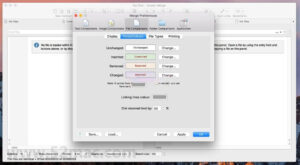
– Backgrounds for inserted/deleted/changed text blocks are drawn with semi-transparent versions of the related colors to highlight each text block, making its boundaries clear, and drawing attention to smaller changes that might be overlooked
– A new “inserted/deleted/changed block background” opacity slider has been added to adjust the relative strength of the block background, even allowing it to be fully transparent for a look similar to earlier versions
– Text comparison changed block displays the background color for each row within the changed block: inserted or deleted rows use the appropriate inserted or deleted background color, and modified rows use the changed block background color
– The markers for text insertion or deletion points in inline displays now have higher contrast
– The inserted/deleted/changed blocks in text comparisons are slightly extended into the link line panel, filling the area within the link line brackets, reducing visual clutter
– New default inserted/deleted/changed colors are provided for light and dark modes, optimized for the new design
– These new default values will be applied once when upgrading from an older version or importing settings
### 4. Simplified Color Configuration
– Folder comparisons derive the inserted/deleted/changed row colors from equivalent file comparisons
– A single “inserted/deleted/changed row background” opacity slider adjusts the color intensity for folder comparisons
– The overview bar markers now derive their colors from the inserted/deleted/changed background colors of file comparisons
– Now only one set of colors needs to be configured to customize all comparisons, rather than the previous three sets
– No longer configurable background colors for unchanged text in dark mode (this is required for macOS window tone support)
### 5. Function and Experience Improvements
– In split-screen view folder comparisons, most of the area between folder comparisons and file comparisons can now be dragged to change the relative sizes of the two comparison areas
– Improvements to the “Previous Conflict” and “Next Conflict” commands in three-way text comparisons: conflict navigation now only occurs in the middle pane, sequentially traversing each conflict, and each conflict is vertically centered when selected
– When using the “Merge to Common Ancestor” command, Merge now centers the first conflict and focuses the middle panel
– In split-screen view folder comparisons, more initial space is provided for file comparisons, better matching common workflows
– The “Search Size” control for binary comparisons in text comparisons is renamed to “Effort” and now accepts values from 1 to 9999. The new default value of 5 significantly improves performance for large binary comparisons with many changes on Windows
– Windows now remembers the Effort settings for binary comparisons, consistent with macOS
– The binary comparison algorithm on macOS has been updated to match the Windows version, improving performance for very large files
– The status bar in binary comparisons is merged with the control bar, increasing space available for comparison content
– By default, Merge now uses the ordinary text comparison for XML files when comparing XML files, rather than the previous Text XML/XHTML comparison
– The pointer shape when hovering over the synchronization link arrow is now an up/down shape, clearly indicating that the synchronization link can be repositioned by dragging
– Slightly increased font sizes for image and binary comparison controls
– The green used in the Araxis Merge registration dialog box is now deeper to improve readability of the valid serial number in the dark mode
– All macOS screenshots have been re-shot
Software Screenshot:
This resource requires login to download
Log in
CorelDRAW Graphics Suite 2020 for Mac v22.1.0.517 CDR Chinese Version Download and Activation Edition
Downloads:3046 | 2026-10-22

Upscale for Mac v2.15.0: Enhance Image Resolution and Quality – Activation Download
Downloads:225 | 2026-10-21

RAR Extractor for Mac v6.4.5 Chinese Activation Version Download
Downloads:2306 | 2026-10-19
Rectangle Pro for Mac v3.94 窗口管理工具 激活版下载
Downloads:2924 | 2026-10-18


Ratings & reviews
No rating
Let’s rate it.