



PDF Reader for Mac v2.3.3 Chinese Activation Version Download
Here provides PDF Reader for Mac v2.3.3 PDF Reader Chinese Activation Version Download | LoveMAC, has been tested available, if you encounter the link invalid or download after cannot install and other situations, please leave a message to contact us.
PDF Reader for Mac is a PDF reader and management software designed specifically for macOS. It has a clean interface and intuitive operations, offering a smooth reading experience while also integrating powerful file management features, making it an ideal choice for handling PDF documents.
PDF Reader for Mac is not just a simple reader; it’s more like a digital document manager. It handles daily reading and deep annotations with ease. Let’s break down its specialties one by one.
This update focuses on system stability and performance improvements, with the development team optimizing based on user feedback. Specific improvements include:
Here are screenshots of the main features of PDF Reader for Mac, a picture speaks a thousand words, let’s take a look:
The screenshot clearly shows the classification layout of the smart shelf, with the left navigation bar making file switching effortless.
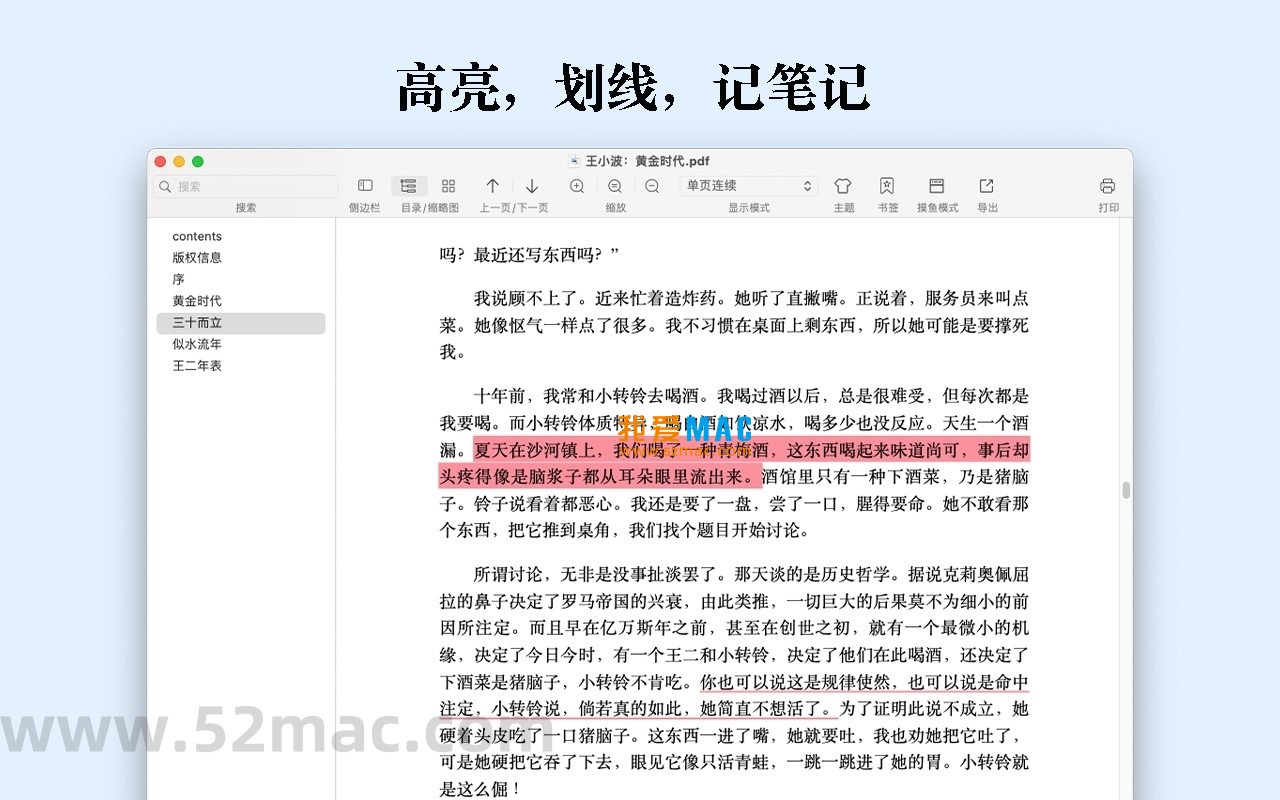
In reading mode, all annotation tools such as highlighting, underlining, and inserting notes are available, with saved annotation content not lost.
In immersive mode, all visual distractions are removed, allowing you to fully immerse in the text world, especially suitable for long-term reading.
The status bar icon can be right-clicked to open a quick menu, making the most recently used documents and core functions easily accessible, reducing the number of mouse clicks.
The installation process is not complex, but to ensure everything goes smoothly, we’ll break down the steps clearly. Please follow the steps below carefully to avoid installation failures due to permission issues.
Click on the download link provided on this page to obtain the PDF Reader for Mac v2.3.3 installation package. After downloading, double-click the .dmg file to mount it.
In the pop-up window, you will see the “PDF Reader” icon and a shortcut pointing to the “Applications” folder. Drag the icon to the “Applications” folder directly.
After entering the “Launchpad” or “Applications” folder, find and double-click the software to open it. Since it was downloaded from outside the App Store, the system may prompt “Unable to verify developer.” At this point, go to “System Settings” -> “Privacy & Security,” and click “Open Anyway.”
After the software starts, if it prompts for activation, use the activation code provided with the installation package to activate it. Typically, the activation code is contained in the “serial.txt” file within the installation package. Copy and paste it to complete the activation.
After activation, you can start using the full features. It’s recommended to import a few PDF documents to familiarize yourself with the smart shelf and annotation tools.
Users often encounter some common issues during long-term use. We’ve compiled the following 8 frequently asked questions and their solutions to help you solve problems.
Mastering shortcuts is key to efficiency. Below is a summary of the most commonly used and practical keyboard shortcuts in PDF Reader for Mac, which you might want to save.
| Function Category | Shortcut Combination | Function Description |
|---|---|---|
| File Operations | Cmd + O | Open a file |
| Cmd + W | Close the current document | |
| Cmd + P | Print the document | |
| Navigation and Viewing | Cmd + F | Full-text search |
| Cmd + Shift + G | Jump to a specific page | |
| Cmd + + / - | Zoom in / out | |
| Annotation and Editing | Cmd + H | Highlight selected text |
| Cmd + U | Add underline to selected text | |
| Cmd + N | Insert notes (paste annotations) | |
| View Mode | Cmd + Shift + F | Toggle full-screen / immersive mode |
| Cmd + 0 | Restore the page to its actual size |
Little tip: In “Preferences” -> “Keyboard Shortcuts”, you can also customize these shortcuts and create your own operating habits.
Having tools is not enough, mastering them is the key. Below, I share a few advanced users’ summarized real-case tips to help you make the most of PDF Reader.
The Smart Shelf supports batch operations. Select multiple PDF files and right-click to choose “Rename”, which allows you to add prefixes, suffixes, or replace characters in one go. For example, you can rename all contract files to “2025_Contract_01” format, saving you the trouble of renaming each one individually.
Assuming you are preparing for a meeting and need to collect a lot of materials. You can create a “Meeting Materials” folder in the Smart Shelf and drag all relevant PDFs into it. Utilize the “Tags” feature to add different colored tags for “Need Annotations”, “Confirmed”, and “To Send” statuses, making it clear at a glance.
Little Li is a graduate student who needs to review several PDF textbooks for his final exams. He uses PDF Reader’s “Reading Memory” feature, reading one chapter each night before bed and automatically resuming the next day. When encountering important points, he uses the highlighting and note-taking features to mark them. Finally, he exports annotated PDFs using the “Export Annotate PDF” feature, consolidating all his annotations into a concise review material, which has increased his review efficiency by 30%.
PDF Reader for Mac integrates deeply with macOS’s Spotlight indexing. You can simply click the Spotlight icon in the menu bar (or press Cmd + Space) to input the file name or document keywords, directly locating and opening the PDF without starting the software first.
For frequent document reviewers in the workplace, you can keep PDF Reader in the status bar. Right-click the icon to choose “Watch Folder”. When a new PDF file is generated or modified in the watched folder, the status bar icon will pop up with a notification, allowing you to view the latest version by clicking.
Overall, PDF Reader for Mac v2.3.3 is a PDF tool that combines both looks and substance. It does not pile up unnecessary features, but instead focuses on core reading and management experiences, which is worth praising.
For light users, its free features are sufficient to meet daily needs; for heavy users, its powerful annotation and Smart Shelf management features provide professional-level support. If you are looking for a lightweight, efficient, and stable PDF reader for Mac, it is undoubtedly worth trying.
Lastly, please note that while software is good, data backup is also important. It is recommended to regularly export files from the Smart Shelf to iCloud or external hard drives for backup, in case of any issues.
This resource requires login to download
Log in
Essential Video Player for Mac: Movist Pro v2.2.16 Chinese Activation Download
Downloads:1833 | 2026-10-24

Sandwalkers for Mac: A Turn-Based Rogue-Like Exploration Game
Downloads:570 | 2026-10-23

Adobe Photoshop 2025 for Mac v26.1 PS2025 Chinese Activation Version Download
Downloads:2632 | 2026-10-21

iReal Pro for Mac v2022.11 Music Accompaniment Learning Software Chinese Activation Version Download
Downloads:916 | 2026-10-20


Ratings & reviews
4.6
(Maximum 5 ratings, total 48 user reviews)
Let’s rate it.