



OmniReader for Mac v2.5.0 Chinese Activation Version Download
Here is the page providing OmniReader for Mac v2.5.0 all-in-one reader Chinese activation version download | LoveMAC has tested and is available. If you encounter issues with the link or cannot install the software after downloading, please leave a message to contact us. OmniReader for Mac is a comprehensive e-book reader designed specifically for macOS. It centers on its elegant and efficient digital reading tool, catering to the needs of students, researchers, and readers alike.
OmniReader supports a wide range of e-book formats and rich reading management features, aiming to meet both professional and everyday reading needs. From technical documents to bestsellers, it can handle them all.
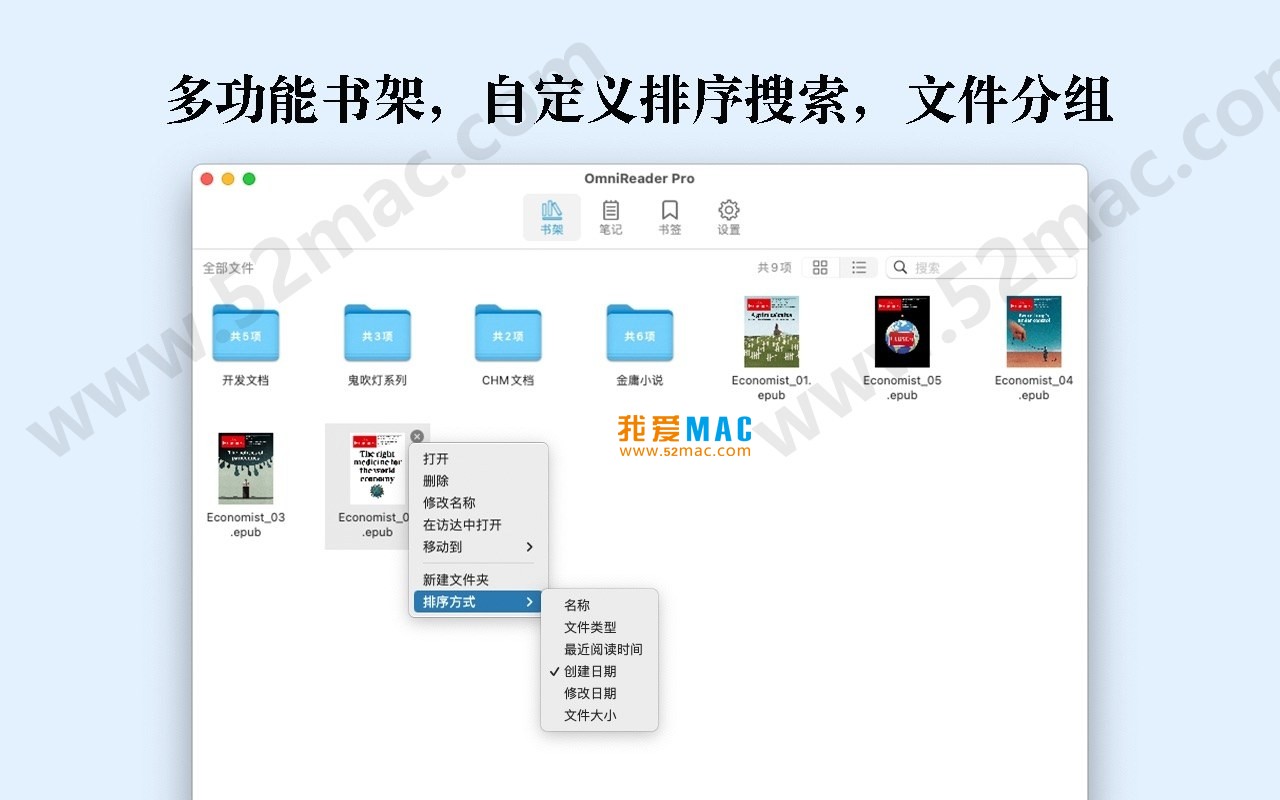
OmniReader comes with an intelligent bookshelf, effectively managing your personal digital library. It acts like a personal librarian, keeping your collection organized.
This update focuses on improving file management and reading experience, with main improvements including:
Here are previews of the OmniReader for Mac software interface:
Installing OmniReader for Mac is actually very simple, requiring just a few steps to complete. Based on our testing, the entire process is smooth.
Click the download link on this page to obtain the OmniReader v2.5.0 compressed package. After downloading, double-click the .dmg file to automatically mount the disk image.
Within the mounted disk image window, you will see the OmniReader application icon. Drag it directly to the left-hand “Applications” folder. This operation will copy the software to your Mac.
After launching, if a prompt for activation appears, use the provided activation code or serial number to activate the software. Activation grants you access to all features. If no prompt appears, you can find the activation entry in the menu bar under “Help.”
After activation, you can directly drag e-book files to the OmniReader window or use the “File” menu’s “Import” option. The software will automatically recognize the format and add the e-book to the bookshelf.
We have compiled the following common questions and answers based on user feedback and official technical documentation.
A: This is due to macOS’s Gatekeeper security mechanism. Go to “System Preferences” -> “Security & Privacy” -> “General,” and click the “Open Anywhere” button. This is Apple’s security policy, not a software issue.
A: The version provided on this page already includes activation information. If you do not find the activation code after downloading, check the .txt or .rtf file in the download folder. If you still cannot find it, contact the customer support at the bottom of the page.
A: OmniReader v2.5.0 supports macOS 10.13 High Sierra and later versions, including the latest macOS Ventura and Sonoma. Based on our testing, it runs perfectly on both Intel and Apple Silicon chips.
A: You can select the notes or highlighted content you want to export and right-click to choose “Copy”. Alternatively, in the “Notes” management panel, you can use the “Export” function to export notes in plain text or CSV format.
A: This is usually due to encoding issues. You can manually adjust the “Text Encoding” to UTF-8 or GBK in the “Preferences” -> “Reading” settings. OmniReader’s intelligent encoding detection feature typically resolves this issue.
A: Currently, OmniReader supports macOS’s native split-screen feature. You can drag the reading window to the screen edge to trigger the split-screen mode. Additionally, you can open two independent OmniReader windows for comparative reading.
A: OmniReader stores its data in the ~/Library/Application Support/OmniReader/ folder in the user directory. You can directly back up this folder. Alternatively, you can export the bookshelf list as a backup method.
A: No, they won’t. Software updates typically only replace the main program files, while your personal data (including notes, bookmarks, and bookshelves) are stored in a separate user data directory. However, for safety, we recommend manually backing up data before major updates.
A: Yes, you can. In the “Preferences” -> “Display” settings, you can customize the background color. OmniReader includes features like eye protection and night mode, which are suitable for extended reading.
A: In v2.5.0, OmniReader does not yet have built-in TTS voice reading functionality. However, you can use macOS’s built-in “Dictation” feature to achieve a similar effect. We look forward to adding this feature in future versions.
Mastering shortcuts can significantly enhance your reading efficiency. Below is a table of some of the most useful shortcuts in OmniReader, which we’ve compiled for your reference.
| Function Description | Shortcut | Notes |
|---|---|---|
| Open a file | Command + O | Quickly browse and import e-books |
| Show/hide sidebar | Command + Shift + S | Switch between the directory and notes panel |
| Add a bookmark | Command + D | Mark the current reading position |
| Full-text search | Command + F | Search for keywords within the current document |
| Zoom in | Command + + | Adjust the reading view size |
| Zoom out | Command + – | Reduce the reading view size |
| Go to previous page | Page Up or Fn + ↑ | Quickly scroll up |
| Go to next page | Page Down or Fn + ↓ | Quickly scroll down |
| Return to last reading position | Command + [ | Go back in history |
| Go to next reading position | Command + ] | Go forward in history |
| Export notes | Command + Shift + E | Export notes as files |
| Print current document | Command + P | Supports print preview |
Here are some advanced usage tips and real-world case studies to help you maximize the potential of OmniReader. These tips are shared by experienced users.
Utilize OmniReader’s “Highlight” and “Notes” features to build your own knowledge system. It is recommended to create different folders for different types of books and use different colored highlights (e.g., red for important points, blue for questions) during reading.
If you have a large collection of e-books, you can drag them all onto OmniReader’s icon at once. The software will automatically recognize the format and import them. Subsequently, you can sort them in the shelf using the “Custom Sort” feature based on author, book title, or import time.
OmniReader’s “Search” feature is powerful for CHM or HTML format technical documents. You can use “Directory Search” to quickly locate chapters, or use “Full Text Search” to find specific terms. This is particularly efficient when learning programming or reviewing API documentation.
Assume you are a graduate student who needs to read numerous PDF format academic papers. You can import all the papers into OmniReader and use the “Notes” feature to record the core points of each paper. By using the “Export Notes” feature, you can generate a draft of a literature review, significantly enhancing your research efficiency.
If you previously used a Kindle device and now want to transfer your collection to Mac for reading, OmniReader perfectly supports MOBI and AZW3 Kindle formats. You simply need to copy the files from your Kindle to your Mac and then drag them into OmniReader. All existing bookmarks and notes (if supported) will be preserved.
OmniReader for Mac v2.5.0 is a comprehensive and excellent e-book reader with a superior user experience. It addresses the lack of professional reading tools on Mac, especially suitable for users who need to manage a large number of e-books and engage in deep reading. It excels in various areas such as format compatibility, intelligent shelf management, and powerful annotation features.
We strongly recommend it to every Mac user, especially students, researchers, and readers. If you are looking for a software to replace the Kindle app or Adobe Digital Editions, OmniReader is definitely your top choice. Download now and embark on your immersive reading journey!

ACDSee Photo Studio 11 for Mac v11. 0. 1 Chinese Activation Version Download
Downloads:900 | 2026-10-21

CloudMounter for Mac v4.9 Cloud Storage Mounter Download with Chinese Activation Version
Downloads:2656 | 2026-10-20

AnyTrans for Mac v7.7.1 iOS Device Management Tool Activation Version Download
Downloads:1350 | 2026-10-20

Ghost Buster Pro for Mac v3.3.2 Computer Cleaning and Optimization Software Chinese Activated Version Download
Downloads:1534 | 2026-10-17


Ratings & reviews
4.5
(Maximum 5 ratings, total 56 user reviews)
Let’s rate it.