

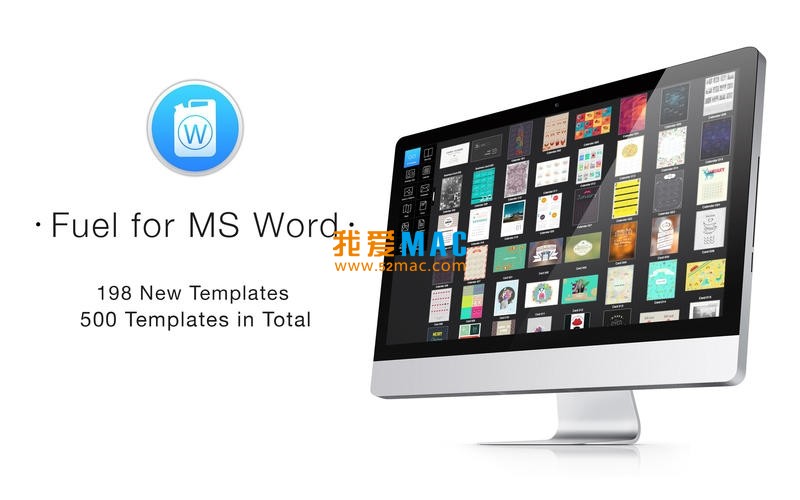


MS Word for Mac 1.3 Activation Download: 500 Word Theme Templates Set
Here is the page providing Fuel for MS Word for Mac 1.3 activation download Word theme template suite of 500 designs | LoveMAC has been tested and is available. If you encounter any link failure or download issues after installation, please leave a message to contact us. Fuel for MS Word for Mac is a premium theme template suite designed specifically for Microsoft Word for Mac. It includes 11 categories and a total of 500 creative and distinctive templates, significantly enhancing the professionalism and visual appeal of Word documents. Whether you are a professional, a designer, or a student, this template suite can save you a lot of time in layout design, making your documents stand out instantly.
The suite covers the following 11 common document categories, meeting diverse office and design needs:
These categories almost cover all document types in daily office and business scenarios. From personal job application CVs to corporate quarterly reports, from event invitations to product promotional brochures, you can find suitable templates. Each category contains dozens of templates with various styles, ensuring you won’t fall into the design rut of “one-size-fits-all.”
Except for envelope templates, all other templates support the standard paper sizes of Letter and A4. The system automatically selects the default size based on the user’s location, ensuring print compatibility. This design takes into account the usage habits of users worldwide, allowing you to directly apply for printing without manually adjusting page settings, regardless of whether you are in China, the United States, or Europe.
After opening the templates in Word, users can easily perform the following personalized adjustments:
All templates use intelligent layout design, allowing even those without design experience to modify them in just 5 minutes. Each template contains multiple editable layers, and any changes to one element will automatically adapt to others.
Before using this template suite, please ensure that your Mac has the Microsoft Word application installed (included in the Microsoft Office suite). All templates must be opened and edited through Word.
This suite is compatible with macOS 10.12 and above, supporting Microsoft Word 2016, 2019, 2021, and Microsoft 365 subscription versions. It is recommended to update Word to the latest version for optimal compatibility and performance.
Below are some visual effect previews of the templates:
From the preview images, you can see that each template is professionally laid out, with harmonious color combinations and carefully selected fonts. Whether in minimalist business style or creative artistic style, you can find corresponding styles. These templates are crafted by a team of experienced designers, adhering to the mainstream aesthetic standards of the international market.
To help you get started quickly, we have prepared detailed installation steps. Please follow the procedures below:
Click the download link on this page to obtain the compressed package of Fuel for MS Word for Mac. After downloading, double-click the compressed file (usually in .zip format) to automatically unzip it into a folder. If you encounter a system prompt “Cannot verify developer,” please go to “System Preferences” > “Security & Privacy,” and select “Open Anywhere.”
Open the unzipped folder, where you will see multiple subfolders named after the template categories (such as “Brochures,” “Business Cards,” etc.). It is recommended to copy the entire folder to the Mac’s “Documents” directory or your commonly used document storage location. This way, you can quickly locate the templates in the future.
Launch Microsoft Word for Mac. Click the “File” menu > “Open,” then locate the folder where the templates were copied. Select any template file (with the extension .dotx or .docx), and click “Open.” The template will be presented as a new document.
If the templates are opened in “Protected View,” a yellow warning bar will appear at the top of Word. Click the “Enable Editing” button to enter editing mode. At this point, you can freely modify text, colors, and images. It is recommended to save a copy of the modified version before making any changes to prevent accidental modifications.
Complete the personalized modifications, then click “File” > “Save As”. Choose “Word Template (dotx)” in the “Format” dropdown menu, and select the save location. When creating new documents in the future, you can directly call upon the templates from “Personal Templates”. If you are using Microsoft 365, the templates will be automatically synced to the cloud.
We have compiled the most frequently encountered questions by users, hoping to help you resolve them quickly:
Please ensure that your Word version is 2016 or higher. If the issue persists, try right-clicking on the template file and selecting “Open With” > “Microsoft Word”. If the system prompts that the file is damaged, re-download the compressed package and decompress it. In rare cases, you may need to disable the Mac’s Gatekeeper feature.
Some templates utilize Word’s theme color feature. When modifying colors, it is recommended to use the “Design” tab’s “Colors” dropdown menu to select preset color schemes or customize the theme color. If you directly modify the color of a single element, it may not update other related areas automatically.
The templates use some commercial fonts. If they are not installed, Word will automatically replace them with the system default font. It is suggested to manually select the installed font from the “Font” dropdown menu. Alternatively, you can download similar fonts from Adobe Fonts or Google Fonts for free.
Hold down the Command key, then click and select all the images that need to be replaced. Right-click on the selected images and choose “Change Image”, then select the image from your local directory. Word will automatically adjust the image size and position. Note: If the image shape is irregular, it is recommended to use the “Crop” tool to adjust it first.
Please ensure that the Word’s page settings match the printer’s paper size. Click “Layout” > “Paper Size”, then choose A4 or Letter. If you are using the Mac’s “Preview” application for printing, it is recommended to directly use Word’s “File” > “Print” to ensure compatibility.
It fully supports. This suite is compatible with macOS 10.12 and above, including the latest macOS Ventura and Sonoma. The only requirement is that the Word version should be 2016 or higher. If you are using Apple Silicon chips (M1/M2/M3), Word runs perfectly with Rosetta 2, and the templates are also applicable.
Yes. After purchasing this suite, you can use the templates for both personal and commercial projects, such as company brochures, client proposals, brand materials, etc. However, you cannot redistribute or resell the templates (including modified versions). For detailed terms, please refer to the accompanying license agreement.
Mastering keyboard shortcuts can significantly enhance your document editing efficiency. Below is a list of the most commonly used keyboard shortcuts in Mac version Word, which you are advised to save and reference:
| 功能类别 | 快捷键 | 操作说明 |
|---|---|---|
| 文件操作 | Command + N | 新建空白文档 |
| 文件操作 | Command + O | 打开现有文档 |
| 文件操作 | Command + S | 保存当前文档 |
| 文件操作 | Command + P | 打印文档 |
| 编辑操作 | Command + Z | 撤销上一步操作 |
| 编辑操作 | Command + C | 复制选中内容 |
| 编辑操作 | Command + V | 粘贴内容 |
| 编辑操作 | Command + X | 剪切选中内容 |
| 格式设置 | Command + B | 加粗选中文字 |
| 格式设置 | Command + I | 斜体选中文字 |
| 格式设置 | Command + U | 下划线选中文字 |
| 格式设置 | Command + Shift + F | 打开字体设置窗口 |
| 段落调整 | Command + E | 居中对齐段落 |
| 段落调整 | Command + L | 左对齐段落 |
| 段落调整 | Command + R | 右对齐段落 |
| 段落调整 | Command + Shift + L | 应用项目符号列表 |
| 视图操作 | Command + Option + P | 切换到页面视图 |
| 视图操作 | Command + Option + N | 切换到大纲视图 |
| 高级功能 | Command + F | 查找文本 |
| 高级功能 | Command + H | 替换文本 |
It is recommended to print out this table and stick it on your desk for easy reference. After mastering these shortcuts, your document editing speed will be at least 50% faster. Especially for users who frequently modify templates, using the combination of Command + Z and Command + S can effectively prevent accidental operations.
When you select multiple templates from a suite (such as resumes, cover letters, portfolios), you can use Word’s “Styles” feature to unify the style. First, open one of the templates and click on the “Design” tab, then choose “Style Set” > “Save As New Style Set”. Then open other documents and apply the style set to ensure that all documents maintain consistent fonts, colors, and spacing.
Assume you are a market specialist for a startup company, and you need to create a company brand manual. From the suite, choose the “Report” template, modify it to the company’s brand color (such as #007AFF), replace the company’s logo, and use the “Table” template to create a color specification table. The entire process takes only 30 minutes, saving at least 2 hours compared to designing from scratch.
Using the “Card and Invitations” template, combine Word’s “Mail Merge” feature. First, design an invitation template, then prepare an Excel table containing guest names, emails, etc. Click on “Mail” > “Start Mail Merge” > “Letter”, choose the data source, and insert merge fields. Finally, click “Finish and Merge” to generate hundreds of personalized invitations in one go.
After selecting the “Resume” template, use Word’s “Section Breaks” feature to divide the resume into sections such as personal information, work experience, and educational background. Each section can be independently adjusted in layout. When submitting to different companies, simply hide or show the corresponding sections without reformatting. Combine with the Command + Shift + Enter shortcut to quickly insert page breaks.
It is recommended to create smart folders in Mac’s “Finder” for each template category. Click on “File” > “New Smart Folder”, set the rule to “Contains” the corresponding category keyword (such as “Brochure”). This will automatically categorize all related templates, without manual organization. If you use Microsoft 365, you can also upload the templates to OneDrive for multi-device synchronization.
Fuel for MS Word for Mac 1.3 Activation is a true game-changer for enhancing the Word usage experience. With 500 templates covering various scenarios from business to life, installation is simple, and customization is flexible. Whether you need to quickly produce a professional report or add design flair to personal projects, this suite can meet your needs.
Based on our testing, this suite runs smoothly in the macOS Sonoma + Word 2021 environment, and all templates have been verified for compatibility. Compared to other template suites on the market, Fuel for MS Word stands out in terms of template quantity, design quality, and usability. If you want to get rid of the boring default document styles, you can download and try it immediately.
If you encounter any issues during the download process, or have questions about template usage, please leave a message below. We will respond within 24 hours to ensure you can smoothly get started. The professional Mac software review team continues to recommend quality tools for you.
This resource requires login to download
Log in
Lite Battery Monitor for Mac v10.0.1 Chinese Activation Download
Downloads:0 | 2026-10-27

Snap Art 4 for Mac v4.1.3.375 Sketch Filters Software Serial Number Download
Downloads:1924 | 2026-10-23

Pro PDF Reader for Mac v2.7.7 Full PDF Editor Chinese Activation Version Download
Downloads:2072 | 2026-10-20

Relaxing Ambient Music Environment for Mac v1.5 Activation Download
Downloads:3578 | 2026-10-20


Ratings & reviews
4.9
(Maximum 5 ratings, total 55 user reviews)
Let’s rate it.